
The Tech Edvocate

Top Menu

  • Advertisement
  • Apps
  • Home Page
  • Home Page Five (No Sidebar)
  • Home Page Four
  • Home Page Three
  • Home Page Two
  • Home Tech2
  • Icons [No Sidebar]
  • Left Sidbear Page
  • Lynch Educational Consulting
  • My Account
  • My Speaking Page
  • Newsletter Sign Up Confirmation
  • Newsletter Unsubscription
  • Our Brands
  • Page Example
  • Privacy Policy
  • Protected Content
  • Register
  • Request a Product Review
  • Shop
  • Shortcodes Examples
  • Signup
  • Start Here
    • Governance
    • Careers
    • Contact Us
  • Terms and Conditions
  • The Edvocate
  • The Tech Edvocate Product Guide
  • Topics
  • Write For Us
  • Advertise

Main Menu

  • Start Here
    • Our Brands
    • Governance
      • Lynch Educational Consulting, LLC.
      • Dr. Lynch’s Personal Website
      • Careers
    • Write For Us
    • The Tech Edvocate Product Guide
    • Contact Us
    • Books
    • Edupedia
    • Post a Job
    • The Edvocate Podcast
    • Terms and Conditions
    • Privacy Policy
  • Topics
    • Assistive Technology
    • Child Development Tech
    • Early Childhood & K-12 EdTech
    • EdTech Futures
    • EdTech News
    • EdTech Policy & Reform
    • EdTech Startups & Businesses
    • Higher Education EdTech
    • Online Learning & eLearning
    • Parent & Family Tech
    • Personalized Learning
    • Product Reviews
  • Advertise
  • Tech Edvocate Awards
  • The Edvocate
  • Pedagogue
  • School Ratings

logo

The Tech Edvocate

  • Start Here
    • Our Brands
    • Governance
      • Lynch Educational Consulting, LLC.
      • Dr. Lynch’s Personal Website
        • My Speaking Page
      • Careers
    • Write For Us
    • The Tech Edvocate Product Guide
    • Contact Us
    • Books
    • Edupedia
    • Post a Job
    • The Edvocate Podcast
    • Terms and Conditions
    • Privacy Policy
  • Topics
    • Assistive Technology
    • Child Development Tech
    • Early Childhood & K-12 EdTech
    • EdTech Futures
    • EdTech News
    • EdTech Policy & Reform
    • EdTech Startups & Businesses
    • Higher Education EdTech
    • Online Learning & eLearning
    • Parent & Family Tech
    • Personalized Learning
    • Product Reviews
  • Advertise
  • Tech Edvocate Awards
  • The Edvocate
  • Pedagogue
  • School Ratings
  • Viaim Opennote Review: The AI Note-Taker That Disappears Into Your Daily Routine

  • A Visitors Guide to Long Beach (CA), United States

  • A Visitor’s Guide to Fresno (CA), United States

  • A Visitors Guide to New Orleans (LA), United States

  • A Visitors Guide to Sacramento (CA), United States

  • A Visitors Guide to Lyon, France

  • JisuLife Ultra2 Portable Fan: A Powerful Multi-Function Cooling Solution

  • A Visitors Guide to Viña del Mar, Chile

  • A Visitors Guide to Århus, Denmark

  • A Visitors Guide to Bakersfield (CA), United States

How To
Home›How To›How to Repair a Word Document: 11 Steps

How to Repair a Word Document: 11 Steps
By Matthew Lynch
March 21, 2024
0
Spread the love

Step 1: Make a Backup Copy

Before starting the repair process, be sure to make a backup copy of your Word document. This ensures that in case anything goes wrong during the repair process, you still have a copy to work with.

Step 2: Check for AutoRecover Files

Microsoft Word has an AutoRecover feature that saves your work periodically. Go to “File” > “Options” > “Save” and check the folder location for AutoRecover files. Locate and open the recovery file to see if it contains your lost data.

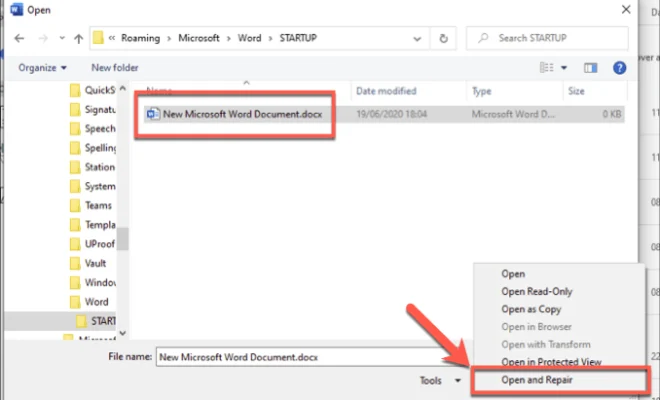
Step 3: Use Word’s Open and Repair Function

Open Microsoft Word and click on “File” > “Open.” Find and select your damaged document, click the drop-down arrow next to the “Open” button, and choose “Open and Repair.” Word will attempt to automatically repair the corrupted file.

Step 4: Change the File Extension

Try renaming the file extension from “.docx” to “.rtf” or “.txt” – this may allow you to recover at least some of your document’s content. Open the renamed file in Word, and then save it in its original format if successful.

Step 5: Use the Text Recovery Converter

If you have access to an older version of Microsoft Word, you can use the built-in Text Recovery converter. Go to “File” > “Open,” find and select your damaged document. In the “Files of type” box, choose “Recover Text from Any File.” This may recover text-only versions of your content.

Step 6: Try Third-Party Repair Tools

If none of these methods work, consider using third-party software designed specifically for repairing corrupt Word documents. Some popular options are Kernel for Word Repair, Stellar Phoenix Word Repair, and Remo Repair Word.

Step 7: Check for Conflicting Programs

Sometimes other software can interfere with Microsoft Word, causing it to crash or corrupt files. Ensure you don’t have any conflicting programs running, such as antivirus, system utilities, or other plugins.

Step 8: Scan for Malware

Viruses and malware could be responsible for the corruption in your document. Run a thorough virus scan of your computer to ensure no malicious programs are interfering with your documents.

Step 9: Update Microsoft Word

Make sure you’re using the latest version of Microsoft Word, as updates often include fixes for stability and performance issues. To check for updates, go to “File” > “Account” > “Update Options.”

Step 10: Use a Previous Version of the Document

If you have a previous version of your document saved elsewhere (cloud storage, email attachment, external hard drive), use it as a starting point for rebuilding the corrupted file.

Step 11: Seek Professional Help

If none of these methods work, consider reaching out to professional data recovery services for assistance in recovering your damaged Word document.

By following this 11-step guide, you’ll hopefully be able to restore your important Word documents while also implementing good practices for preventing future issues.


Previous Article

Easy Ways to Boil a Mouthpiece: 12 ...

Next Article

How to Track Amazon Orders: 11 Steps

Matthew Lynch

Related articles More from author

  • How To

    How to Order a Martini: 14 Steps

    December 16, 2023
    By Matthew Lynch
  • How To

    4 Ways to Stop Your Throat from Hurting

    December 6, 2023
    By Matthew Lynch
  • How To

    11 Easy Ways to Make Cannabis Tincture

    November 3, 2023
    By Matthew Lynch
  • How To

    How to Improve Posture While Sleeping

    January 6, 2024
    By Matthew Lynch
  • How To

    3 Ways to Become a Teacher in India

    January 31, 2024
    By Matthew Lynch
  • How To

    How to Change a Sanitary Pad: 11 Steps

    April 1, 2024
    By Matthew Lynch

Search

Login & Registration

  • Register
  • Log in
  • Entries feed
  • Comments feed
  • WordPress.org

Newsletter

Signup for The Tech Edvocate Newsletter and have the latest in EdTech news and opinion delivered to your email address!

About Us

Since technology is not going anywhere and does more good than harm, adapting is the best course of action. That is where The Tech Edvocate comes in. We plan to cover the PreK-12 and Higher Education EdTech sectors and provide our readers with the latest news and opinion on the subject. From time to time, I will invite other voices to weigh in on important issues in EdTech. We hope to provide a well-rounded, multi-faceted look at the past, present, the future of EdTech in the US and internationally.

We started this journey back in June 2016, and we plan to continue it for many more years to come. I hope that you will join us in this discussion of the past, present and future of EdTech and lend your own insight to the issues that are discussed.

Newsletter

Signup for The Tech Edvocate Newsletter and have the latest in EdTech news and opinion delivered to your email address!

Contact Us

The Tech Edvocate
910 Goddin Street
Richmond, VA 23231
(601) 630-5238
[email protected]

Copyright © 2025 Matthew Lynch. All rights reserved.