How to merge cells in Excel
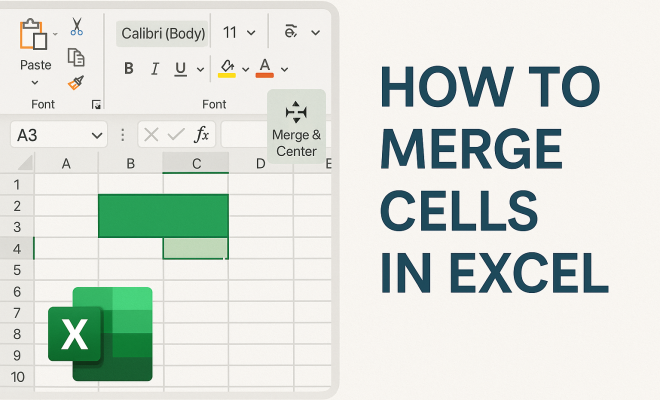
“`html
Merging cells in Excel is a fundamental skill that can enhance your spreadsheets significantly. Whether you’re creating a report or designing a data dashboard, knowing how to merge cells effectively can help you organize your data more clearly. But what exactly does it mean to merge cells in Excel, and why should you care? Here’s a comprehensive guide that delves deep into the ins and outs of this essential Excel feature.
1. Understanding the Basics of Merging Cells
At its core, merging cells in Excel means combining two or more adjacent cells into a single cell. This can be particularly useful for creating a clean, organized look in your spreadsheets. When you merge cells, Excel takes the content from the upper-left cell and combines it with the blank cells to its right or below.
For instance, if you have a header that spans multiple columns, merging cells allows you to center that header across the columns, creating a neat appearance that enhances readability. It’s also commonly used in formats like invoices, reports, and forms, emphasizing the titles and categories without cluttering the layout.
2. Why You Should Merge Cells
There are several compelling reasons to learn how to merge cells in Excel effectively. First and foremost, it improves the visual hierarchy of your data. A well-merged cell can draw attention to important sections, making it easier for users to navigate the information.
Moreover, merging creates a cleaner look, especially when dealing with large data sets. Instead of having repetitive labels, merging can reduce visual noise, which not only looks better but also helps in understanding the data at a glance. It’s particularly beneficial for presentations where clarity is paramount. Remember, a polished look can leave a lasting impression on your audience.
3. How to Merge Cells in Excel: Step-by-Step
Now that you understand the importance of merging cells, let’s walk through the process step-by-step. Excel offers a straightforward way to merge cells, and here’s how you do it:
- Select the cells you want to merge. Click and drag across the cells you want to combine.
- Navigate to the “Home” tab on the ribbon. Look for the “Alignment” group.
- Click on the “Merge & Center” button. This will merge the selected cells and center the content within.
If you want to merge without centering, you can also choose “Merge Across” to combine cells in each row separately, or “Merge Cells” for a simple merge without centering. Each method serves different formatting needs and can be chosen based on your specific requirements.
4. Different Types of Cell Merges
Excel offers several merging options, each serving different purposes. Here’s a breakdown of these options:
- Merge & Center: Combines selected cells into one and centers the content. Ideal for headers.
- Merge Across: Merges cells in each selected row independently. Useful for organizing data in rows.
- Merge Cells: Combines selected cells without centering the content. This maintains the original alignment.
- Unmerge Cells: Reverts merged cells back to their original, separate state. This is helpful if you need to restructure your data.
Understanding these options allows you to choose the best approach based on how you want your data to be presented, ensuring that the final output is exactly what you intended.
5. Common Mistakes When Merging Cells
While merging cells can enhance your spreadsheets, there are pitfalls to avoid. One common mistake is merging cells that contain different data. When you merge multiple cells, only the data from the upper-left cell is retained, and any other data will be lost. This can lead to significant data loss if you’re not careful.
Another issue arises when merging cells that are used in formulas. If a merged cell is included in a calculation, it can lead to incorrect results or errors. It’s essential to be cautious and ensure you’re not disrupting any formulas when merging cells. (See: Microsoft Excel overview on Wikipedia.)
Lastly, overusing merged cells can create problems with sorting and filtering data. Excel may not properly sort merged cells, leading to confusion and errors in your data presentation. It’s all about balance—use merging wisely to enhance clarity without compromising functionality.
6. Tips for Effective Use of Merged Cells
To make the most out of merging cells in Excel, consider these tips:
- Use Sparingly: Only merge cells when it enhances data presentation. Overdoing it can complicate your spreadsheet.
- Keep Backups: Before merging, always keep a backup of your data. This way, you can restore any lost information.
- Plan Layout: Think about your layout before merging. Visualize how your data will look to ensure that merging will actually benefit the presentation.
- Unmerge When Needed: Don’t hesitate to unmerge cells if they no longer serve a purpose. Being flexible with your format can make a significant difference.
These practical tips can make a big difference in how effectively you present your data, ensuring clarity and usability in your spreadsheets.
7. Current Relevance and Use Cases
In today’s data-driven world, merging cells in Excel remains relevant across various industries and professions. Whether you’re a student preparing a report, an analyst presenting data insights, or a manager compiling team performance metrics, the ability to merge cells can enhance your work.
Moreover, as Excel continues to evolve, with features like Excel Online and cloud-based collaboration, the way we merge cells may also adapt. For example, when working with teams, clear communication through well-organized spreadsheets is vital. Merging cells can help convey information efficiently even in collaborative environments.
As technology advances, mastering Excel’s features, including how to merge cells, not only boosts individual productivity but also ensures that teams can communicate their findings effectively. In a world where data clarity is king, merging cells is a small but mighty tool in any professional’s toolkit.
8. Advanced Techniques for Merging Cells
Once you’re comfortable with the basic merging techniques, there are some advanced strategies you can apply to take your Excel skills to the next level. These techniques can help you manage complex data presentations more effectively.
8.1 Using Merged Cells with Conditional Formatting
Applying conditional formatting to merged cells can create dynamic presentations that change based on your data. For instance, you could set rules that change the color of a merged cell based on specific data conditions. If you have a report where certain values indicate a status (like “Overdue” or “On Track”), merging cells for those categories while applying color coding can visually segregate important data.
8.2 Merging Cells in Pivot Tables
Pivot Tables are a powerful feature in Excel for analyzing data. You can merge cells within Pivot Tables to create headers for grouped data. For instance, if you’re summarizing sales data by region and want to merge the cells that contain the region names, this can make your report much more comprehensible. Just remember that while merging in a Pivot Table can enhance readability, it could complicate further data manipulation or analysis.
8.3 Using VBA for Automating Merging
If you’re dealing with large datasets regularly, consider using VBA (Visual Basic for Applications) to automate the merging process. VBA allows you to create macros that can merge specific cells based on your criteria, saving time and reducing the likelihood of errors. For example, you could write a simple macro that merges every header in a selected range automatically. This kind of automation can be a game-changer when working with repetitive tasks.
9. Comparison of Merging Cells with Other Formatting Techniques
Merging cells is not the only technique available to enhance the appearance of your spreadsheets. Understanding how merging compares with other formatting options can help you decide when to use each.
9.1 Merging vs. Centering Text
While merging cells allows you to create a visually appealing header or combine data, centering text can also achieve similar results without altering the cell structure. However, centered text in a single cell can lead to a cramped appearance if the text is lengthy. Merging allows for a more spacious presentation, particularly for titles and category headers. (See: CDC's data presentation guidelines.)
9.2 Merging vs. Using Borders
Instead of merging, you can also use borders to define sections within your spreadsheet. Borders can be visually effective, especially in tables, where you want to maintain the integrity of the dataset while still organizing information. However, borders do not provide the same visual weight as merged cells, which can sometimes be necessary for headers and key information.
9.3 Merging vs. Conditional Formatting
Conditional formatting can change the appearance of cells based on their values, while merging cells can improve layout. While conditional formatting is powerful for data visualization, merging can enhance the organizational aspect of your data. Depending on your specific needs, using a combination of both methods might yield the best results.
10. FAQs About Merging Cells in Excel
10.1 What happens to the data when I merge cells?
When you merge cells, only the data in the upper-left cell is retained. All other data from the merged cells will be deleted. Be cautious with this to avoid losing important information.
10.2 Can I merge cells in Excel Online?
Yes, you can merge cells in Excel Online using the same methods available in the desktop version. The interface might look slightly different, but the functionality remains the same.
10.3 Are merged cells compatible with all Excel functions?
No, merged cells can cause issues with certain Excel functions, particularly those involving sorting and filtering. It’s best to use merged cells primarily for layout purposes and avoid them in datasets meant for analysis.
10.4 How can I unmerge cells?
To unmerge cells, select the merged cell, go to the “Home” tab, click on the “Merge & Center” button, and select “Unmerge Cells.” This will restore the merged cells to their original state.
10.5 Can I merge cells in charts?
No, you cannot merge cells in charts as charts do not utilize cell merging. However, you can create effective chart titles and labels by formatting your data range appropriately before creating the chart.
11. Effective Merging Strategies: Best Practices
When it comes to merging cells in Excel, it’s essential to adopt best practices to maximize both efficiency and effectiveness. Here are some actionable strategies:
11.1 Use Merged Cells for Titles Only
It’s advisable to restrict merging primarily for titles or headers. This way, you maintain the integrity of your data while leveraging the visual appeal of merged cells. For instance, consider merging cells for monthly sales reports where you can create a prominent title, while leaving the rest of your data unmerged for easier analysis.
11.2 Merging for Print-Friendly Layouts
If your spreadsheet is intended for printing, merging cells can help create a clean layout. For instance, when printing invoices or reports, you can merge cells to create a single title or section header that spans across the page, making it look organized. This approach not only enhances aesthetics but also improves readability in printed formats. (See: Harvard University resources on data management.)
11.3 Consistency is Key
When merging cells, ensure that your approach is consistent throughout the document. Using similar styles for merged cells can help maintain a uniform appearance, making your spreadsheet easier to follow. For example, if you decide to merge cells for all section headers, stick to that rule across all sheets in your workbook.
11.4 Involve Stakeholders in the Merging Process
If you’re working in a collaborative environment, it’s a good idea to involve stakeholders in the merging process. This ensures that everyone is on the same page regarding data representation and prevents potential conflicts. For example, before finalizing a report, discuss with your team which headers should be merged to maintain clarity and alignment in the final output.
12. Current Trends and Future Directions in Excel
The landscape of data management tools is evolving, and Microsoft Excel is no exception. As we navigate an increasingly digital workspace, the merging of cells remains a relevant topic. Here are some trends and potential future directions:
12.1 Integration with AI and Machine Learning
Excel is gradually integrating features that leverage AI and machine learning. These advancements might soon impact the way we handle merging cells. Imagine a scenario where Excel suggests optimal areas for merging based on data patterns and layout considerations. This could significantly enhance the ease of data presentation.
12.2 Enhanced Collaboration Features
With the rise in remote work, Excel’s collaboration features are becoming more robust. Future updates may include advanced merging options that allow for real-time collaboration, where multiple users can simultaneously work on merging cells without overwriting one another’s changes.
12.3 Cross-Platform Compatibility
As users migrate to mobile and cloud-based versions of Excel, ensuring that merging functionality is seamless across platforms will be vital. This includes mobile applications where merging cells might need redesigning for touch-based interfaces, making it easier for users to manage their data on the go.
13. Conclusion and Best Practices
Mastering how to merge cells in Excel can significantly enhance your ability to present data clearly and effectively. While merging can improve visual appeal, it’s essential to use this feature judiciously to avoid complications in data handling. By following best practices and considering advanced techniques, you can ensure that your spreadsheets not only look great but also function correctly.
Take the time to experiment with merging cells in various scenarios, and see how it impacts your data presentation. With a better understanding of this feature, you’ll be able to create professional and organized spreadsheets that communicate your data effectively.
“`
Trending Now
Frequently Asked Questions
What does it mean to merge cells in Excel?
Merging cells in Excel means combining two or more adjacent cells into a single cell. This is useful for creating headers or organizing data more clearly, as it allows you to emphasize important sections and improve the visual layout of your spreadsheets.
Why should I merge cells in Excel?
Merging cells enhances the visual hierarchy of your data, making it easier for users to navigate. It reduces visual clutter, especially in large datasets, and creates a cleaner look that is beneficial for presentations and reports, helping your audience understand the information at a glance.
How do I merge cells in Excel?
To merge cells in Excel, select the adjacent cells you want to combine, then go to the 'Home' tab and click on the 'Merge & Center' button. This will merge the selected cells into one, centering the content from the upper-left cell.
Can I unmerge cells in Excel?
Yes, you can unmerge cells in Excel. Simply select the merged cell, go to the 'Home' tab, and click on the 'Merge & Center' button again to unmerge them. This will restore the original individual cells, allowing you to edit them separately.
What are the common uses of merging cells in Excel?
Common uses for merging cells include creating clear headers that span multiple columns, organizing data in forms and invoices, and improving the overall layout of reports. It helps in emphasizing titles and reducing visual noise for better readability.
Have you experienced this yourself? We’d love to hear your story in the comments.