The Tech Edvocate

Top Menu

  • Advertisement
  • Apps
  • Home Page
  • Home Page Five (No Sidebar)
  • Home Page Four
  • Home Page Three
  • Home Page Two
  • Home Tech2
  • Icons [No Sidebar]
  • Left Sidbear Page
  • Lynch Educational Consulting
  • My Account
  • My Speaking Page
  • Newsletter Sign Up Confirmation
  • Newsletter Unsubscription
  • Our Brands
  • Page Example
  • Privacy Policy
  • Protected Content
  • Register
  • Request a Product Review
  • Shop
  • Shortcodes Examples
  • Signup
  • Start Here
    • Governance
    • Careers
    • Contact Us
  • Terms and Conditions
  • The Edvocate
  • The Tech Edvocate Product Guide
  • Topics
  • Write For Us
  • Advertise

Main Menu

  • Start Here
    • Our Brands
    • Governance
      • Lynch Educational Consulting, LLC.
      • Dr. Lynch’s Personal Website
      • Careers
    • Write For Us
    • The Tech Edvocate Product Guide
    • Contact Us
    • Books
    • Edupedia
    • Post a Job
    • The Edvocate Podcast
    • Terms and Conditions
    • Privacy Policy
  • Topics
    • Assistive Technology
    • Child Development Tech
    • Early Childhood & K-12 EdTech
    • EdTech Futures
    • EdTech News
    • EdTech Policy & Reform
    • EdTech Startups & Businesses
    • Higher Education EdTech
    • Online Learning & eLearning
    • Parent & Family Tech
    • Personalized Learning
    • Product Reviews
  • Advertise
  • Tech Edvocate Awards
  • The Edvocate
  • Pedagogue
  • School Ratings

logo

The Tech Edvocate

  • Start Here
    • Our Brands
    • Governance
      • Lynch Educational Consulting, LLC.
      • Dr. Lynch’s Personal Website
        • My Speaking Page
      • Careers
    • Write For Us
    • The Tech Edvocate Product Guide
    • Contact Us
    • Books
    • Edupedia
    • Post a Job
    • The Edvocate Podcast
    • Terms and Conditions
    • Privacy Policy
  • Topics
    • Assistive Technology
    • Child Development Tech
    • Early Childhood & K-12 EdTech
    • EdTech Futures
    • EdTech News
    • EdTech Policy & Reform
    • EdTech Startups & Businesses
    • Higher Education EdTech
    • Online Learning & eLearning
    • Parent & Family Tech
    • Personalized Learning
    • Product Reviews
  • Advertise
  • Tech Edvocate Awards
  • The Edvocate
  • Pedagogue
  • School Ratings
  • Miro vs Conceptboard for project management

  • How to use Teamwork for resource management

  • How much does Procore cost per month

  • How to organize Microsoft Planner buckets

  • Is Teamwork good for billable hours

  • Procore vs Buildertrend which is better

  • Airtable project management templates

  • Can Miro track project progress

  • How to use Basecamp for client work

  • Can Lucidchart create swimlane diagrams

Assistive Technology
Home›Assistive Technology›How to Make Alexa Say What You Want

How to Make Alexa Say What You Want
By Matthew Lynch
June 12, 2023
0
Spread the love

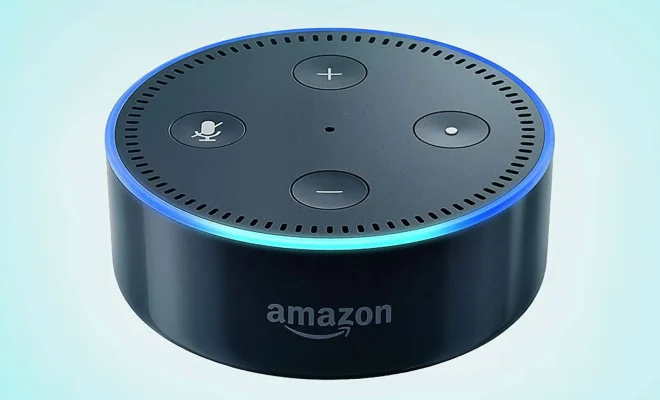
Making Alexa say what you want can be a fun and useful tool for users. Whether it’s for practical use, like setting reminders or playing music, or just for entertainment, like telling jokes or playing trivia, here are some tips to customize your device’s voice and commands.

1. Change Your Wake Word

By default, Alexa responds to the wake word “Alexa.” However, if you prefer something else, like “Echo” or “Computer,” you can change it. To do this, open the Alexa app on your smartphone or tablet, select “Devices,” choose your device, and then navigate to “Wake Word” under “Device Settings.” Here, you can choose from one of the four available wake words.

2. Create Custom Routines

Routines allow users to perform multiple actions with a single command. For example, you can create a routine called “Good Night” that turns off your lights, sets your alarm for the next day, and plays soothing music. To create a custom routine, open the Alexa app, select “Routines,” then click “Create Routine.” You can then select the trigger phrase and associated actions.

3. Teach Alexa New Skills

Alexa has over 100,000 skills that allow users to perform a variety of tasks, like ordering pizza or checking the weather. However, if you can’t find a skill that meets your needs, you can create your own. Amazon has a tool called Alexa Skills Kit (ASK) that allows developers to build custom skills. You don’t need to be a developer to use ASK, but some programming knowledge is helpful.

4. Use Alexa’s Text-to-Speech Feature

If you want Alexa to say something specific, like a personal greeting or reminder, you can use the text-to-speech feature. To use this, open the Alexa app, select “Communicate,” then select “Announce.” Here, you can enter the message you want Alexa to say, then select the device you want to send it to.

5. Try Voice Training

If Alexa has trouble understanding your voice or accent, you can try voice training. This feature allows users to ‘train’ Alexa’s speech recognition technology to better understand their voice. To do this, go to the Alexa app, select “Settings,” then “Voice Training.” You will be prompted to read aloud a list of phrases, which Alexa will use to adjust to your voice.

In conclusion, using Alexa to say what you want is a great way to customize your device and improve the user experience. By changing the wake word, creating custom routines, using text-to-speech, and more, you can make your device more personalized and tailored to your needs. 

Previous Article

Tips to Avoid Breaking Your Smartphone

Next Article

Here Are the Different Ways You Can ...

Matthew Lynch

Related articles More from author

  • Assistive Technology

    How to Make Windows 10 Look Like Windows 11

    June 12, 2023
    By Matthew Lynch
  • Assistive Technology

    How to Get Rid of Annoying TikTok Notifications

    June 5, 2023
    By Matthew Lynch
  • Assistive Technology

    Ways to Open the Device Manager on Windows

    June 6, 2023
    By Matthew Lynch
  • Assistive Technology

    How to Sign Out of a Single Sign-On Fire Stick

    June 14, 2023
    By Matthew Lynch
  • Assistive Technology

    How to Listen to Free Audiobooks on Spotify

    June 6, 2023
    By Matthew Lynch
  • Assistive Technology

    How to See Your PS5 Playtime Stats

    June 15, 2023
    By Matthew Lynch

Search

Login & Registration

  • Log in
  • Entries feed
  • Comments feed
  • WordPress.org

Newsletter

Signup for The Tech Edvocate Newsletter and have the latest in EdTech news and opinion delivered to your email address!

About Us

Since technology is not going anywhere and does more good than harm, adapting is the best course of action. That is where The Tech Edvocate comes in. We plan to cover the PreK-12 and Higher Education EdTech sectors and provide our readers with the latest news and opinion on the subject. From time to time, I will invite other voices to weigh in on important issues in EdTech. We hope to provide a well-rounded, multi-faceted look at the past, present, the future of EdTech in the US and internationally.

We started this journey back in June 2016, and we plan to continue it for many more years to come. I hope that you will join us in this discussion of the past, present and future of EdTech and lend your own insight to the issues that are discussed.

Newsletter

Signup for The Tech Edvocate Newsletter and have the latest in EdTech news and opinion delivered to your email address!

Contact Us

The Tech Edvocate
910 Goddin Street
Richmond, VA 23231
(601) 630-5238
[email protected]

Copyright © 2026 Matthew Lynch. All rights reserved.