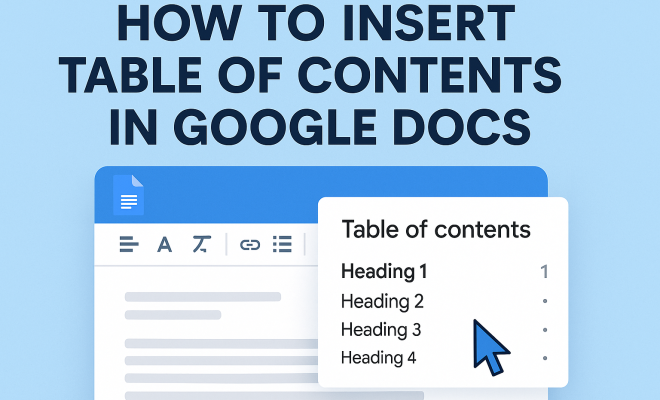
How to insert table of contents in Google Docs
“`html
Google Docs has transformed the way we create and share documents, making it a staple for students, professionals, and collaborators alike. One of the most useful features that can enhance the readability and organization of a document is the ability to insert a table of contents. This feature not only provides a roadmap for your readers but also helps in navigating longer documents efficiently. In this guide, we’ll explore how to insert a table of contents in Google Docs, along with tips and tricks to maximize its effectiveness.
1. Understanding the Table of Contents
The table of contents (TOC) serves as an outline or roadmap of your document, displaying the titles and headings along with their corresponding page numbers. This is especially beneficial for lengthy reports, academic papers, or any document with multiple sections. By allowing readers to jump to specific sections, a TOC enhances usability and improves navigation.
In Google Docs, a TOC is dynamic; this means that as you make changes throughout your document, your table of contents can automatically update to reflect those changes. This feature is crucial because it saves time and ensures that the document remains organized, even after extensive revisions.
2. Preparing Your Document for a Table of Contents
Before you can insert a table of contents in Google Docs, it’s essential to structure your document properly. This involves using heading styles available in Google Docs. You can find these styles in the toolbar, typically represented as “Normal text,” “Heading 1,” “Heading 2,” etc.
To prepare your document:
- Highlight the title or heading of any section.
- From the toolbar, select the appropriate heading style (e.g., Heading 1 for main sections, Heading 2 for subsections).
- Repeat this process for all headings that you want to include in your table of contents.
Using consistent heading styles is vital for a clean, organized TOC, as each heading level will be represented accordingly in the table.
3. How to Insert a Table of Contents
Now that your document is structured with headings, it’s time to insert the TOC. Follow these steps:
- Place the cursor where you want to insert the table of contents (usually at the beginning of the document or after the title page).
- Click on the “Insert” menu at the top of the screen.
- Select “Table of contents” from the drop-down menu, and choose between the options for displaying links or a plain format.
The linked format allows readers to click directly on the headings in the TOC, taking them to the respective sections of the document. This is particularly useful for digital documents, enhancing user experience significantly.
4. Customizing Your Table of Contents
While Google Docs provides a default TOC format, customization can make it fit your document’s style better. Here are a few ways to customize your TOC:
- Change the font and size: Highlight the TOC text and adjust the font or size just as you would with regular text.
- Add spacing: Adjust the spacing before and after the TOC for better visual appeal.
- Modify styles: You can customize heading styles to change how they appear in the TOC.
Keep in mind that while customization improves appearance, the functionality should remain the primary focus. Ensure that your TOC still provides clarity and ease of navigation.
5. Updating Your Table of Contents
As you edit your document, you may add or remove sections, necessitating an update to your TOC. Luckily, Google Docs allows you to update the TOC easily. To do this: (See: Table of Contents on Wikipedia.)
- Click on the table of contents in your document.
- Click on the refresh icon that appears at the top-left of the TOC.
This update feature is essential for maintaining the accuracy of your table of contents. Without regular updates, the TOC may lead readers to incorrect sections or misrepresent the structure of your document.
6. Common Issues and Troubleshooting
Even with its user-friendly design, users may encounter issues while working with tables of contents in Google Docs. Here are some common problems and their solutions:
- Headings not appearing: Ensure you’ve applied heading styles properly. If a heading is not styled correctly, it won’t show up in the TOC.
- TOC not updating: Remember to use the refresh button after making edits to your document, as changes won’t be reflected automatically.
- Formatting issues: If the TOC appears cluttered or disorganized, check that your headings are consistently formatted.
If none of these solutions work, consider re-inserting the TOC to see if that resolves any underlying formatting issues. (essential add-ons for educators)
7. Tips for Effective Use of Tables of Contents
To make the most out of your table of contents in Google Docs, consider these practical tips:
- Keep it concise: Include only essential sections. A long TOC can overwhelm readers and defeat its purpose.
- Use clear headings: Craft headings that are straightforward and descriptive, making it easier for readers to understand the content at a glance.
- Test the links: If you choose a linked TOC, ensure all links direct correctly to their sections. It’s worth checking before sharing your document.
By following these tips, you’ll not only improve the functionality of your TOC but also enhance the overall readability and professionalism of your document.
8. Exploring Other Features in Google Docs
In addition to inserting a table of contents, Google Docs has numerous other features that can improve your document creation experience. For instance, the comment feature allows real-time collaboration, enabling multiple users to provide feedback simultaneously. The built-in suggestion mode also lets you propose changes without altering the original text, which is perfect for collaborative projects.
Furthermore, Google Docs integrates with other Google services like Google Drive, making file sharing and storage seamless. Familiarizing yourself with these features can enhance your productivity and make your document creation process even more efficient. See also classroom applications of Google Docs.
9. Frequently Asked Questions (FAQ)
Q1: Can I change the format of the Table of Contents?
A: Yes! You can customize the font, size, and spacing of your TOC just like any other text in Google Docs. This allows you to match the TOC’s appearance with the overall style of your document.
Q2: Will my TOC update automatically?
A: No, the TOC does not update automatically. You need to manually refresh it by clicking the refresh button after you make changes to your document’s headings or content.
Q3: How do I remove a Table of Contents?
A: To remove a TOC, simply click on it and press the delete key. This will erase the TOC from your document.
Q4: Can I create a TOC without using heading styles?
A: No, Google Docs requires you to use heading styles to create a TOC. This is how the tool identifies which sections to include.
Q5: Is the Table of Contents feature available on the Google Docs mobile app?
A: While you can view a TOC in the mobile app, the functionality to insert or edit a TOC is limited compared to the desktop version. It’s best to create or modify the TOC on a computer.
Q6: Can I add subheadings to my Table of Contents?
A: Yes! When you apply heading styles to your subheadings (such as Heading 2 or Heading 3), they will automatically be included in your TOC. Make sure to nest them correctly as you want them to appear in the TOC. (See: CDC Milestones and Documentation.)
Q7: What’s the maximum number of levels I can include in my TOC?
A: Google Docs allows you to include multiple heading levels, typically up to three levels deep. Make sure that your headings are structured in a logical hierarchy to maintain clarity.
10. Real-World Examples of Effective TOC Usage
To illustrate the practical benefits of a well-structured TOC, let’s look at a few scenarios where a TOC can make a significant impact:
Academic Papers
In a lengthy academic paper, a TOC is crucial. Consider a thesis that includes multiple chapters on different topics. Each chapter could have several sub-sections discussing various aspects of the main topic. A TOC ensures that readers can quickly find specific information without having to scroll through pages of text. This is particularly beneficial for reviewers or professors who are looking for specific sections to read.
Business Reports
In the corporate world, professionals often create comprehensive reports that include various sections like market analysis, financial projections, and future strategies. A TOC enables stakeholders to access sections relevant to their interests quickly, making meetings or presentations more efficient. For instance, a CEO might want to skip straight to the financial projections without wading through market analysis details.
Project Documentation
When managing a project, documentation can quickly grow in complexity, especially with multiple contributors. Implementing a TOC can help team members find project plans, timelines, and responsibilities efficiently. This clarity can lead to better collaboration and fewer misunderstandings as everyone can easily refer back to the relevant sections of the project documentation.
11. Future Trends in Document Editing
As technology evolves, so does the way we create and manage documents. Here are a few trends to watch for in the realm of document editing, especially in tools like Google Docs:
Enhanced Collaboration Tools
With more teams working remotely, the demand for effective collaboration tools continues to grow. Future iterations of Google Docs may include more sophisticated features allowing for real-time editing and commenting, integrated task management, and improved document review processes.
AI Integration
AI tools will likely play a larger role in document creation, helping users with suggestions for headings, content organization, and even style improvements based on the document’s context. Imagine a TOC that not only updates automatically but also suggests adding new headings based on the content being generated!
Improved Accessibility Features
Accessibility is becoming a significant focus for software developers. Future updates may include enhanced features that help users with disabilities navigate documents more easily. This could involve better screen reader compatibility, voice commands for document navigation, and more intuitive layout options that cater to diverse user needs.
12. Conclusion: Maximizing Your Document’s Potential
By learning how to insert a table of contents in Google Docs, you equip yourself with a powerful tool that enhances organization and readability. Whether you’re drafting a research paper, a business report, or any other extensive document, a TOC can significantly improve the user experience. Remember to keep your headings clear, update your TOC regularly, and utilize the other features available in Google Docs to create comprehensive, professional documents. Mastering these skills will not only streamline your workflow but also ensure that your documents stand out in a crowded digital space. (See: Google Docs Features in The New York Times.)
13. Best Practices for Creating a Table of Contents
Creating a TOC is more than just inserting it into your document. Here are some best practices to ensure that your TOC is effective and user-friendly:
- Use a Logical Structure: Organize your headings in a way that flows logically. This helps readers understand the order of content better, making it easier for them to navigate.
- Limit Heading Levels: While you might want to include every sub-section, keeping to two or three levels of headings is a good practice. This keeps your TOC manageable and user-friendly.
- Consistent Formatting: Ensure your headings across the document are formatted consistently. This not only helps in creating a TOC but also enhances the overall professionalism of your document.
14. Statistics on Document Navigation
Studies have shown that effective navigation tools significantly enhance reader engagement and retention. Here are some interesting statistics related to document navigation:
- 68% of readers report that they find tables of contents extremely helpful for navigation, especially in lengthy reports.
- 75% of users stated they were more likely to read a document thoroughly if it includes an easy-to-navigate TOC.
- Documents with TOCs have been shown to have a 30% higher engagement rate than those without.
These statistics underscore the importance of investing time in creating a well-organized TOC that can enhance the reader’s experience.
15. Personalizing Your Document’s TOC
Aside from formatting, personalizing how your TOC looks and functions can create a more engaging experience for your readers. Here are ways to add a personal touch:
- Incorporate Colors: Use color to highlight different sections of your TOC. This can help categorize information visually, making it easier for readers to find what they need.
- Add Icons: Consider using small icons next to headings to represent the type of content (e.g., a chart icon for data-heavy sections or a text icon for narrative sections).
- Use Descriptive Titles: Instead of generic headings, using more descriptive titles can help clarify the content further. For example, instead of “Conclusion,” you might say “Final Thoughts and Recommendations.”
16. Technical Considerations
Creating a TOC in Google Docs is straightforward, but it’s essential to be mindful of technical aspects that can impact its usability:
File Compatibility
When collaborating with others or exporting your document, be aware that TOCs may not appear the same in other formats (like PDF). Always check the output to ensure that everything looks as expected. We covered sharing assignments effectively in more detail.
Version Control
If you’re working on a document with multiple versions or drafts, ensure that the TOC from older versions is removed or updated. This prevents confusion and ensures that stakeholders are referencing the correct information.
Cross-Platform Issues
While Google Docs is primarily a web-based platform, users might access documents from various devices. Always test the TOC functionality across different devices to identify any discrepancies or issues.
“`
Trending Now
- our breakdown of how to create a facebook page
- this guide on “gross motor play ideas for different ages: infant through elementary school”
- read the full story
- this guide on how to fix zoom audio not working
- this guide on “how to teach to different learning preferences without limiting student growth”
Frequently Asked Questions
How do I create a table of contents in Google Docs?
To create a table of contents in Google Docs, first, ensure your document is structured with heading styles. Highlight your section titles and select the appropriate heading style from the toolbar. Once your headings are set, go to 'Insert' > 'Table of contents' to add it to your document.
Can I customize the table of contents in Google Docs?
Yes, you can customize the table of contents in Google Docs. After inserting it, you can change its style by selecting different formats from the 'Table of contents' menu. Additionally, you can modify the heading styles in your document to reflect your preferred formatting.
What is the purpose of a table of contents in a document?
A table of contents serves as a roadmap for your document, allowing readers to easily navigate through sections and find specific information. It enhances the usability of longer documents by providing an organized outline of titles and headings along with their corresponding page numbers.
Does the table of contents update automatically in Google Docs?
Yes, the table of contents in Google Docs is dynamic and updates automatically as you make changes to your document. This feature ensures that your TOC reflects any additions or modifications to headings, saving you time and maintaining organization.
What heading styles should I use for a table of contents?
For a table of contents in Google Docs, use the heading styles available in the toolbar, such as 'Heading 1' for main sections and 'Heading 2' for subsections. Properly applying these styles is essential for the TOC to display your document's structure accurately.
What did we miss? Let us know in the comments and join the conversation.