The Tech Edvocate

Top Menu

  • Advertisement
  • Apps
  • Home Page
  • Home Page Five (No Sidebar)
  • Home Page Four
  • Home Page Three
  • Home Page Two
  • Home Tech2
  • Icons [No Sidebar]
  • Left Sidbear Page
  • Lynch Educational Consulting
  • My Account
  • My Speaking Page
  • Newsletter Sign Up Confirmation
  • Newsletter Unsubscription
  • Our Brands
  • Page Example
  • Privacy Policy
  • Protected Content
  • Register
  • Request a Product Review
  • Shop
  • Shortcodes Examples
  • Signup
  • Start Here
    • Governance
    • Careers
    • Contact Us
  • Terms and Conditions
  • The Edvocate
  • The Tech Edvocate Product Guide
  • Topics
  • Write For Us
  • Advertise

Main Menu

  • Start Here
    • Our Brands
    • Governance
      • Lynch Educational Consulting, LLC.
      • Dr. Lynch’s Personal Website
      • Careers
    • Write For Us
    • The Tech Edvocate Product Guide
    • Contact Us
    • Books
    • Edupedia
    • Post a Job
    • The Edvocate Podcast
    • Terms and Conditions
    • Privacy Policy
  • Topics
    • Assistive Technology
    • Child Development Tech
    • Early Childhood & K-12 EdTech
    • EdTech Futures
    • EdTech News
    • EdTech Policy & Reform
    • EdTech Startups & Businesses
    • Higher Education EdTech
    • Online Learning & eLearning
    • Parent & Family Tech
    • Personalized Learning
    • Product Reviews
  • Advertise
  • Tech Edvocate Awards
  • The Edvocate
  • Pedagogue
  • School Ratings

logo

The Tech Edvocate

  • Start Here
    • Our Brands
    • Governance
      • Lynch Educational Consulting, LLC.
      • Dr. Lynch’s Personal Website
        • My Speaking Page
      • Careers
    • Write For Us
    • The Tech Edvocate Product Guide
    • Contact Us
    • Books
    • Edupedia
    • Post a Job
    • The Edvocate Podcast
    • Terms and Conditions
    • Privacy Policy
  • Topics
    • Assistive Technology
    • Child Development Tech
    • Early Childhood & K-12 EdTech
    • EdTech Futures
    • EdTech News
    • EdTech Policy & Reform
    • EdTech Startups & Businesses
    • Higher Education EdTech
    • Online Learning & eLearning
    • Parent & Family Tech
    • Personalized Learning
    • Product Reviews
  • Advertise
  • Tech Edvocate Awards
  • The Edvocate
  • Pedagogue
  • School Ratings
  • A Visitors Guide to Corpus Christi (TX), United States

  • Best GetYourGuide tours in Paris

  • Does Viator offer group discounts?

  • Hotels.com vs Airbnb features

  • What is Regus Business Lounge?

  • What is Couchsurfing verification?

  • How to use Viator gift cards?

  • Klook payment methods accepted

  • Best Notion templates for teams

  • WeWork vs traditional office cost

Assistive Technology
Home›Assistive Technology›How to Get an Em Dash in Google Docs

How to Get an Em Dash in Google Docs
By Matthew Lynch
June 8, 2023
0
Spread the love

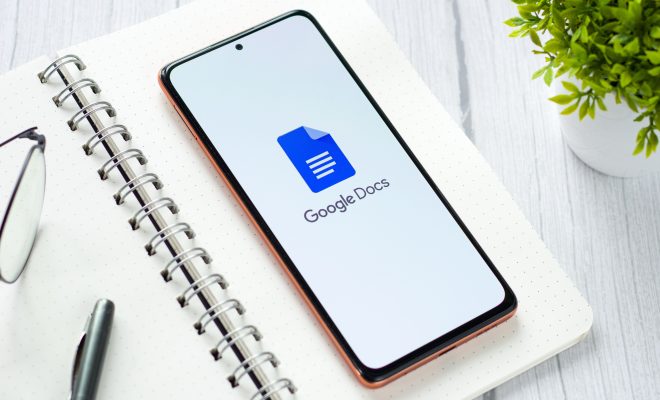
An em dash is a punctuation mark that signifies a pause in a sentence or a change in thought. In Google Docs, it might not be as simple as just typing two hyphens to make an em dash. But there are still different ways to get it, and in this article, we will show you how.

  1. Shortcut keys

One option is to use the shortcut keys to make an em dash. For Windows or Chromebook, hold the “Alt” key and type “0151” on the numeric keypad. For Mac, press the “Option” key and the hyphen or minus sign. This keyboard shortcut works in most applications, including Google Docs.

  1. Insert Symbol

Another way to get an em dash in Google Docs is through the Insert Symbol functionality. Here’s how:

Step 1: Click on “Insert” from the toolbar, then choose “Special Characters.”

Step 2: From the pop-up window, select “Punctuation” from the drop-down menu, and scroll down to find the em dash.

Step 3: Click on the em dash symbol, then click “Insert” to add it to your document.

  1. Copy and paste

If none of the above options work, you can always try to copy and paste the em dash from another source. Google Docs is compatible with other software applications, like Microsoft Word or even web pages, where you can easily find the em dash. Simply copy and paste the symbol you need into your Google Doc.

  1. Replace with Google Docs add-on

If you’re finding that you’re always needing to use the em dash, you might want to consider installing the Replace with Google Docs add-on. This tool allows you to create a custom keyboard shortcut for the em dash, as well as other frequently used symbols or phrases. Here’s how:

Step 1: Open a Google Doc, then click on “Add-ons” from the toolbar.

Step 2: Choose “Get add-ons” from the dropdown, then search for “Replace with Google Docs” in the search bar.

Step 3: Install the add-on, then follow its instructions to set up the shortcuts for the em dash and other symbols.

In conclusion, there are several ways to add an em dash to your Google Docs document. You can use shortcut keys, insert the symbol from the “Special Characters” menu, copy and paste it from another source, or install the Replace with Google Docs add-on. Experiment with which method works best for you and start making your documents more polished and professional-looking.


Previous Article

Find-My-Friends Alternatives for Android

Next Article

What Is an NEF File?

Matthew Lynch

Related articles More from author

  • Assistive Technology

    How to Set Spotify as Your Default Music App

    June 10, 2023
    By Matthew Lynch
  • Assistive Technology

    How to Manually Add Workouts to Apple Fitness

    June 23, 2023
    By Matthew Lynch
  • Assistive Technology

    How to Add Extra Storage to Steam Deck

    June 6, 2023
    By Matthew Lynch
  • Assistive Technology

    How to Perform a Clean Install of OS X Mavericks

    June 12, 2023
    By Matthew Lynch
  • Assistive Technology

    How to Connect a Samsung Galaxy Watch to Your Phone

    June 8, 2023
    By Matthew Lynch
  • Assistive Technology

    Fog Lights or Lamps: Who Needs Them?

    June 9, 2023
    By Matthew Lynch

Search

Login & Registration

  • Log in
  • Entries feed
  • Comments feed
  • WordPress.org

Newsletter

Signup for The Tech Edvocate Newsletter and have the latest in EdTech news and opinion delivered to your email address!

About Us

Since technology is not going anywhere and does more good than harm, adapting is the best course of action. That is where The Tech Edvocate comes in. We plan to cover the PreK-12 and Higher Education EdTech sectors and provide our readers with the latest news and opinion on the subject. From time to time, I will invite other voices to weigh in on important issues in EdTech. We hope to provide a well-rounded, multi-faceted look at the past, present, the future of EdTech in the US and internationally.

We started this journey back in June 2016, and we plan to continue it for many more years to come. I hope that you will join us in this discussion of the past, present and future of EdTech and lend your own insight to the issues that are discussed.

Newsletter

Signup for The Tech Edvocate Newsletter and have the latest in EdTech news and opinion delivered to your email address!

Contact Us

The Tech Edvocate
910 Goddin Street
Richmond, VA 23231
(601) 630-5238
[email protected]

Copyright © 2026 Matthew Lynch. All rights reserved.