The Tech Edvocate

Top Menu

  • Advertisement
  • Apps
  • Home Page
  • Home Page Five (No Sidebar)
  • Home Page Four
  • Home Page Three
  • Home Page Two
  • Home Tech2
  • Icons [No Sidebar]
  • Left Sidbear Page
  • Lynch Educational Consulting
  • My Account
  • My Speaking Page
  • Newsletter Sign Up Confirmation
  • Newsletter Unsubscription
  • Our Brands
  • Page Example
  • Privacy Policy
  • Protected Content
  • Register
  • Request a Product Review
  • Shop
  • Shortcodes Examples
  • Signup
  • Start Here
    • Governance
    • Careers
    • Contact Us
  • Terms and Conditions
  • The Edvocate
  • The Tech Edvocate Product Guide
  • Topics
  • Write For Us
  • Advertise

Main Menu

  • Start Here
    • Our Brands
    • Governance
      • Lynch Educational Consulting, LLC.
      • Dr. Lynch’s Personal Website
      • Careers
    • Write For Us
    • The Tech Edvocate Product Guide
    • Contact Us
    • Books
    • Edupedia
    • Post a Job
    • The Edvocate Podcast
    • Terms and Conditions
    • Privacy Policy
  • Topics
    • Assistive Technology
    • Child Development Tech
    • Early Childhood & K-12 EdTech
    • EdTech Futures
    • EdTech News
    • EdTech Policy & Reform
    • EdTech Startups & Businesses
    • Higher Education EdTech
    • Online Learning & eLearning
    • Parent & Family Tech
    • Personalized Learning
    • Product Reviews
  • Advertise
  • Tech Edvocate Awards
  • The Edvocate
  • Pedagogue
  • School Ratings

logo

The Tech Edvocate

  • Start Here
    • Our Brands
    • Governance
      • Lynch Educational Consulting, LLC.
      • Dr. Lynch’s Personal Website
        • My Speaking Page
      • Careers
    • Write For Us
    • The Tech Edvocate Product Guide
    • Contact Us
    • Books
    • Edupedia
    • Post a Job
    • The Edvocate Podcast
    • Terms and Conditions
    • Privacy Policy
  • Topics
    • Assistive Technology
    • Child Development Tech
    • Early Childhood & K-12 EdTech
    • EdTech Futures
    • EdTech News
    • EdTech Policy & Reform
    • EdTech Startups & Businesses
    • Higher Education EdTech
    • Online Learning & eLearning
    • Parent & Family Tech
    • Personalized Learning
    • Product Reviews
  • Advertise
  • Tech Edvocate Awards
  • The Edvocate
  • Pedagogue
  • School Ratings
  • Can Clio accept client payments

  • How to dispatch jobs in FieldAware

  • Can ServiceTitan do call booking

  • How to onboard construction workers BambooHR

  • Is FieldAware worth it for contractors

  • How many users in Jobber

  • Can JobNimbus track leads

  • How to create estimates in Housecall Pro

  • How many users in mHelpDesk

  • How to track certifications in BambooHR construction

Digital & Mobile Technology
Home›Digital & Mobile Technology›How to Format Code Blocks in Google Docs

How to Format Code Blocks in Google Docs
By Matthew Lynch
July 31, 2023
0
Spread the love

Are you someone who frequently works with code and wants to document it in Google Docs? If so, then you might have faced some challenges in formatting the code blocks in the document. A poorly formatted code block can be difficult to read and comprehend. However, Google Docs offers several features that can help you format the code effectively. In this article, we will explore how to format code blocks in Google Docs.

Using the Code Block Option in Google Docs

Google Docs offers a built-in option for formatting code blocks. To use this option:

1. Open the Google Docs document where you want to insert the code block.
2. From the toolbar, click on “Insert.”
3. From the dropdown list, hover your cursor over “Special characters.”
4. Click on the “Code” option to insert a code block.

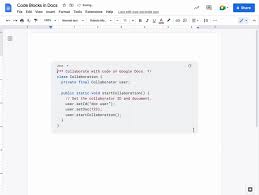
Inserting the code block will automatically change the font style to a monospace font and apply a grey or blue background to the block. You can now type or paste the code inside the block. Additionally, you also have the option to edit the code block’s size by selecting it and dragging the corners.

Using a Table for Code Blocks

Another way to format code blocks in Google Docs is by using a table. Follow the steps below to use a table:

1. Open the Google Docs document where you want to insert the code block.
2. Click on “Table” from the toolbar to add a table to the document.
3. Choose the number of rows and columns you need for your code block. Typically, 1 row and 1 column should be enough.
4. After inserting the table, select the “Insert Text Box” option from the “Table” dropdown menu.
5. Click on the table cell where you want to insert the text box and type or paste the code.

The text box allows you to customize the font style, size, and color, and you can also add a border around it. You can further customize the table by changing the background color, text, or border colors. You can also adjust the size of the table by dragging the corners.

Manually Formatting a Code Block

If you’re an advanced user or prefer a more customized approach, you can manually format the code block. Follow the steps below to manually format a code block:

1. Open the Google Docs document where you want to insert the code block.
2. Type or paste the code as plain text.
3. Change the font style to a monospaced font like Courier New or Consolas, which can be found on the “Font” dropdown menu.
4. Next, change the font size to 10-12 points for easy readability.
5. Finally, use the “Highlight” button in the toolbar to apply a background color to the block for improved readability.

Conclusion

Google Docs offers several ways to format code blocks, whether you prefer using the built-in “Code” option, tables or manually formatting the code blocks. You can choose the method which suits your needs and the formatting can be further customized, which will make your code blocks more accessible and easier to read. Hopefully, this article has helped you understand how to format code blocks in Google Docs.


Previous Article

How to Remove Audio From Video in ...

Next Article

Mouse Keeps Disappearing on Mac? Here’s the ...

Matthew Lynch

Related articles More from author

  • Digital & Mobile Technology

    How to Watch the Roku Channel Without a Roku Device

    June 9, 2023
    By Matthew Lynch
  • Digital & Mobile Technology

    How to Use Vim: A Guide to the Basics

    June 21, 2023
    By Matthew Lynch
  • Digital & Mobile Technology

    Simplify Your Focus Settings With a Favorites List on Your iPhone

    June 12, 2023
    By Matthew Lynch
  • Digital & Mobile Technology

    Best Google Nest Mini Easter Eggs to Try Out

    August 3, 2023
    By Matthew Lynch
  • Digital & Mobile Technology

    iPhone or Samsung: Which Brand Has the Best Smartphone Cameras?

    June 6, 2023
    By Matthew Lynch
  • Digital & Mobile Technology

    Purpose of 192.168.1.101 and 192.168.1.x IP Addresses

    June 11, 2023
    By Matthew Lynch

Search

Login & Registration

  • Log in
  • Entries feed
  • Comments feed
  • WordPress.org

Newsletter

Signup for The Tech Edvocate Newsletter and have the latest in EdTech news and opinion delivered to your email address!

About Us

Since technology is not going anywhere and does more good than harm, adapting is the best course of action. That is where The Tech Edvocate comes in. We plan to cover the PreK-12 and Higher Education EdTech sectors and provide our readers with the latest news and opinion on the subject. From time to time, I will invite other voices to weigh in on important issues in EdTech. We hope to provide a well-rounded, multi-faceted look at the past, present, the future of EdTech in the US and internationally.

We started this journey back in June 2016, and we plan to continue it for many more years to come. I hope that you will join us in this discussion of the past, present and future of EdTech and lend your own insight to the issues that are discussed.

Newsletter

Signup for The Tech Edvocate Newsletter and have the latest in EdTech news and opinion delivered to your email address!

Contact Us

The Tech Edvocate
910 Goddin Street
Richmond, VA 23231
(601) 630-5238
[email protected]

Copyright © 2026 Matthew Lynch. All rights reserved.