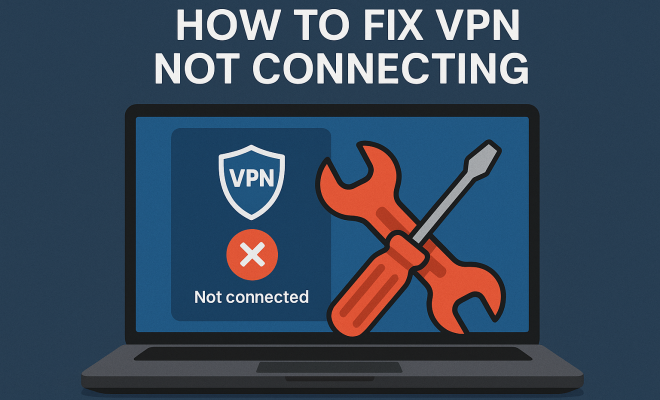
VPN Not Connecting? 7 Easy Fixes to Get You Online
“`html
Experiencing a VPN not connecting fix issue can be incredibly frustrating, especially when you rely on it for secure browsing, accessing geo-restricted content, or maintaining your online privacy. Whether you’re using a VPN for work, streaming, or personal browsing, losing connection can leave you vulnerable and disconnected. In this guide, we’ll explore seven effective solutions to help you get your VPN up and running smoothly again.
1. Check Your Internet Connection
The first step in troubleshooting any connectivity issue, including a VPN not connecting fix, is to ensure that your internet connection is active. If your device isn’t connected to the internet, your VPN won’t work, no matter how many settings you adjust. Begin by checking your Wi-Fi or Ethernet connection. Try browsing a website without the VPN enabled. If you can access the internet, move on to the next steps. If not, resolve your internet connectivity issues first.
It’s also worth rebooting your router. Sometimes, your router may need a reset to restore connectivity. Unplug it for about 10 seconds, then plug it back in and wait for it to reboot completely. After doing this, check your connection once more before attempting to connect to the VPN again.
2. Restart Your VPN Application
Sometimes, the simplest solutions are the most effective. If your VPN isn’t connecting, try restarting the application. Close it completely and relaunch it. This can help clear out any temporary glitches that might be causing issues. For a thorough reset, ensure you also exit the application from the system tray (if applicable) before reopening it.
If this fix doesn’t work, uninstall and then reinstall the VPN software. This step ensures that you have the latest version of the application, which may contain important updates and bug fixes that improve connectivity. After reinstalling, try connecting to the VPN again.
3. Change VPN Server Locations
Your VPN may not connect due to issues with a specific server. VPN providers typically offer multiple servers across different geographic locations. If you’re having trouble connecting, try switching to a different server. This can help you bypass any server-specific issues, such as high traffic or maintenance events.
For instance, if you’re trying to connect to a server in the United States and encountering issues, switch to one in Canada or Europe. Most reputable VPN applications allow you to easily change the server location from their user interface. Once you’ve selected a new server, attempt to connect again.
4. Update Your VPN Software
Outdated software can lead to connectivity issues. Always ensure that your VPN is running the latest version. Developers frequently release updates that fix bugs, improve performance, and enhance security protocols. If your VPN provider has a dedicated update feature, use it to get the latest version. Otherwise, visit the official website to download the most recent version.
In addition to the VPN software, make sure your operating system is also up to date. Sometimes, an outdated operating system can cause compatibility problems with your VPN software. Check for any pending system updates and ensure everything is current.
5. Check Firewall and Antivirus Settings
Your firewall or antivirus software might be blocking your VPN connection. Sometimes these security measures can mistakenly identify your VPN as a threat, preventing it from establishing a connection. To address this, first, temporarily disable your firewall and antivirus software and try connecting to the VPN again.
If the VPN connects successfully, you’ll need to adjust the settings in your firewall or antivirus to allow the VPN application through. This usually involves adding the VPN software to a whitelist or permitted applications list. Remember to re-enable your firewall and antivirus after making the necessary adjustments to maintain your device’s security. (See: CDC on internet safety and privacy.)
6. Adjust VPN Protocol Settings
VPNs utilize various protocols to encrypt data and maintain connections. Sometimes, switching the protocol can resolve connectivity issues. Your VPN client typically offers different protocol options, including OpenVPN, L2TP/IPSec, IKEv2, or PPTP. Experiment with these protocols to see if one works better than another for your connection.
For instance, if you’re currently using OpenVPN, try switching to IKEv2 to see if that resolves the issue. Keep in mind that different protocols can also impact your connection speed and security, so choose one that aligns with your needs.
7. Contact Customer Support
If you’ve tried all the previous steps and your VPN is still not connecting, it might be time to reach out to your VPN provider’s customer support. Most reputable VPN services offer 24/7 support to help users troubleshoot connectivity issues. They can provide more specific guidance based on your situation and the particularities of their software.
When contacting support, be prepared to provide details about your operating system, the VPN version, and the specific error messages (if any) you’re encountering. This will help them assist you more effectively. Additionally, browsing through the provider’s FAQ and support forums can also yield useful insights and solutions.
8. Advanced Troubleshooting Steps
If you’ve tried all the basic solutions and your VPN is still having connectivity issues, it might be time to dive deeper. Here are some advanced troubleshooting steps that can often help pinpoint the problem.
Test Different Devices
Sometimes, the issue might be specific to your device. Try connecting your VPN on another device. This could be another computer, tablet, or smartphone. If the VPN connects on another device, the problem likely lies within the original device’s settings or software.
Reinstall Network Drivers
For users on Windows, outdated or corrupt network drivers can cause strange connectivity issues, including problems with VPN connections. You can reinstall your network drivers by going to the Device Manager, locating your network adapters, right-clicking, and selecting “Uninstall device.” Restart your computer and let Windows reinstall the drivers automatically.
Check for ISP Restrictions
Some Internet Service Providers (ISPs) might restrict VPN usage or throttle VPN traffic. If you suspect this is the case, contact your ISP for clarification. They might have specific policies in place regarding VPNs that could affect your connection. Additionally, using obfuscation or stealth modes offered by some VPNs can help you bypass these restrictions.
Use Split Tunneling Wisely
Split tunneling allows you to select which applications or websites use the VPN and which do not. While this feature is helpful for optimizing speed, it might also cause confusion in some cases. Ensure that your VPN settings and applications are configured correctly to avoid routing issues that could prevent your VPN from connecting.
9. Common Error Messages and Solutions
Understanding common error messages can expedite your troubleshooting process. Here are some frequent VPN-related errors and their respective fixes.
Connection Timeout
A connection timeout typically indicates that your VPN isn’t able to establish a connection within the expected timeframe. This could result from server overload or network issues. Try connecting to a different server or checking your network status to resolve this.
Authentication Failed
If you’re receiving an authentication failed message, verify your login credentials. Sometimes, the issue can stem from a simple typo. If you’ve recently changed your password, ensure your VPN client reflects this change. If issues persist, consider resetting your password through your VPN provider’s website. (See: New York Times on VPN usage.)
DNS Issues
DNS problems can prevent your VPN from connecting. You can try changing your DNS settings to use public DNS servers, like Google DNS (8.8.8.8, 8.8.4.4) or Cloudflare DNS (1.1.1.1). This often resolves connectivity issues caused by DNS misconfigurations.
10. Understanding the Importance of VPN Connections
Before delving deeper into VPN not connecting fix issues, it’s crucial to understand why VPN connections are essential. A VPN (Virtual Private Network) encrypts your internet traffic, safeguarding your data from prying eyes. Here are a few reasons why reliable VPN connections are vital:
- Enhanced Security: VPNs protect your data from hackers, especially on public Wi-Fi networks.
- Access to Geo-Restricted Content: A VPN allows you to bypass geographical restrictions on streaming sites, giving you access to a broader range of content.
- Online Privacy: Your activities are shielded from your ISP and potential snoopers, allowing for a more private browsing experience.
- Bypass Censorship: In countries where internet usage is restricted, a VPN can help you access blocked websites and services.
11. Frequently Asked Questions (FAQ)
Here are some common questions users ask regarding VPN connectivity issues:
Q1: How can I tell if my VPN is working?
A: One way to check is to visit a website that displays your IP address. Connect to the VPN and revisit the site. If your IP address changes to the location of the VPN server, then it’s working.
Q2: What should I do if my VPN disconnects frequently?
A: Frequent disconnections can be caused by an unstable internet connection, server overload, or issues with your VPN settings. Try switching servers, checking your internet stability, or contacting your VPN’s support team for help.
Q3: Is it normal for a VPN to slow down my internet speed?
A: Yes, while a VPN can sometimes slow down your internet speed due to encryption and the distance to the VPN server, reputable services aim to minimize this impact. If your speed drops significantly, it could be due to server congestion or the chosen protocol.
Q4: Do I need to keep my VPN running at all times?
A: While it’s not mandatory, keeping your VPN active ensures that your online activities remain secure and private, especially when using public networks.
Q5: Can I use a free VPN service to avoid connection issues?
A: Free VPN services may be tempting, but they often come with limitations, such as slower speeds, fewer server options, and less robust security. For a reliable connection, consider investing in a reputable paid VPN service.
12. Exploring VPN Alternatives
If you find that your VPN continues to experience connection issues, it might be worth considering alternatives. Different VPNs offer varied features, speeds, and security protocols that can better fit your needs. Here are a few options you might explore:
1. WireGuard
WireGuard is a newer VPN protocol that has gained popularity due to its simplicity, speed, and security features. Many VPN providers now offer WireGuard as an option, and users often report improved connection speeds and lower latency. If your current VPN struggles with connectivity, switching to a VPN that supports WireGuard might resolve your issues. (See: Scientific research on VPN technology.)
2. Web Proxies
For lighter browsing needs, web proxies act as intermediaries between your browser and the websites you visit. While they don’t offer the same level of encryption and security as a VPN, they can help you bypass geographic restrictions and improve access to content. However, be cautious with sensitive data, as proxies do not encrypt your traffic.
3. Dedicated IP Services
If you frequently face connection issues due to shared IP addresses, consider a VPN that offers dedicated IP addresses. This feature allows you to connect from a single IP address that is not shared with other users, which can reduce the chances of being blocked by websites and improve connection reliability.
13. The Future of VPNs
The VPN landscape is continuously evolving as technology and user needs shift. Several trends are emerging that could influence the way VPN services operate:
1. Increased Privacy Regulations
As governments worldwide implement stricter privacy laws, VPN providers will likely need to adapt to comply with these regulations. This could lead to enhanced privacy features, improved data protection measures, and a greater emphasis on user rights.
2. Integration with Other Security Tools
VPNs may increasingly integrate with other security tools, such as antivirus software, secure browsers, and password managers. This all-in-one approach can provide users with a more streamlined and effective security solution.
3. 5G and VPN Performance
With the rollout of 5G technology, VPNs may experience significant performance improvements. The increased bandwidth and lower latency associated with 5G could enhance connection speeds, making VPN use smoother and more efficient for streaming and online gaming.
14. Final Thoughts
Dealing with a VPN not connecting fix can be a hassle, but with these strategies, you’ll be well-equipped to troubleshoot the issue. Start by checking your internet connection and then work through each of the solutions we’ve discussed. Remember that your security and privacy are paramount, and maintaining a reliable VPN connection is crucial in today’s digital age. If you continue to have problems, exploring alternatives or newer technologies in the VPN space could be the solution you need to ensure a secure online experience.
“`
Trending Now
Frequently Asked Questions
Why is my VPN not connecting?
There are several reasons your VPN may not be connecting, including issues with your internet connection, server location, or application glitches. Start by checking your internet connection and then consider restarting the VPN application or changing server locations.
How do I fix a VPN that won't connect?
To fix a VPN that won't connect, check your internet connection, restart the VPN application, change server locations, or uninstall and reinstall the software. These steps often resolve common connectivity issues.
What should I do if my VPN connection fails?
If your VPN connection fails, first verify your internet connection is active. Next, try restarting the VPN application, changing server locations, or rebooting your router. If problems persist, reinstall the VPN software for the latest updates.
Can a router reset help with VPN issues?
Yes, resetting your router can help resolve VPN issues. Sometimes, a simple reboot of your router can restore connectivity, allowing your VPN to function properly again. Unplug the router for about 10 seconds, then plug it back in.
Is it necessary to update my VPN software?
Yes, keeping your VPN software updated is essential for optimal performance and security. Updates often include important bug fixes and improvements that can resolve connectivity issues, so consider reinstalling the application if you're experiencing problems.
What did we miss? Let us know in the comments and join the conversation.