How to fix PS4 controller not connecting to PC
“`html
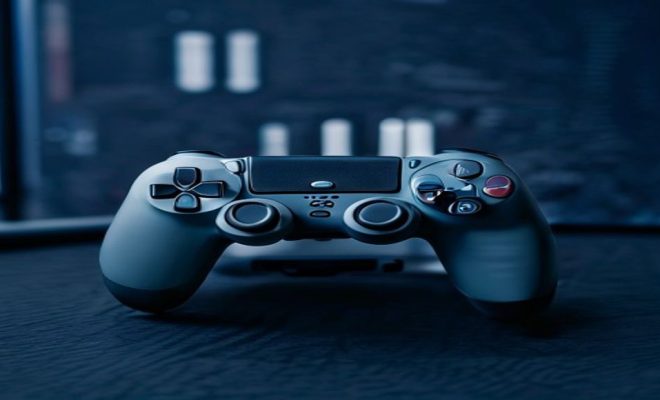
If you’ve ever tried to connect your PS4 controller to your PC, you know how frustrating it can be when it doesn’t work. Whether you’re looking to enhance your gaming experience on Steam or just want to use your controller for more casual gaming, a connection issue can throw a wrench in your plans. Fortunately, there are several methods you can try to fix your PS4 controller not connecting to PC. Below are ten essential tips to help you troubleshoot and resolve this issue.
1. Check the USB Cable
The first thing you should do if your PS4 controller isn’t connecting to your PC is to check the USB cable. A damaged or faulty cable can prevent your controller from establishing a connection. If possible, try using a different USB cable to see if that resolves the issue. Make sure the cable is a data transfer cable, as some charging cables only charge the device without allowing data to pass through.
Additionally, inspect both the USB ports of your PC and the micro USB port on the controller for dirt or debris. Sometimes, a simple cleaning can make all the difference. Use a can of compressed air or a soft cloth to carefully clean the ports and ensure a solid connection.
2. Update Your Drivers
Your PC needs the right drivers to recognize the PS4 controller. If your controller isn’t connecting, it may be due to outdated or missing drivers. To update your drivers, go to the Device Manager on your PC. Look for ‘Human Interface Devices’ and check for your PS4 controller in the list. Right-click on it and select ‘Update Driver.’
If Windows can’t find an updated driver automatically, you may have to visit the official website of your controller’s manufacturer to download the latest drivers manually. Keeping your drivers updated ensures that your computer can communicate effectively with your hardware.
3. Use Steam’s Controller Settings
If you’re trying to connect your PS4 controller to play games on Steam, you’ll need to configure it using Steam’s Big Picture Mode. Open Steam, click on the ‘View’ tab, and select ‘Big Picture Mode.’ From there, go to the settings and select ‘Controller Settings.’
Ensure that ‘PlayStation Configuration Support’ is checked. This option allows Steam to recognize your PS4 controller and map its buttons correctly. After making this adjustment, try reconnecting your controller. You should see a notification when it successfully connects.
4. Try a Bluetooth Connection
If your USB connection isn’t working, consider connecting your PS4 controller via Bluetooth. First, make sure your PC’s Bluetooth functionality is enabled. On Windows, you can do this by going to ‘Settings’ > ‘Devices’ > ‘Bluetooth & other devices.’
Next, put your PS4 controller into pairing mode by holding down the ‘Share’ and ‘PS’ buttons simultaneously until the light bar starts flashing. On your PC, click on ‘Add Bluetooth or other device,’ select ‘Bluetooth,’ and wait for your controller to appear in the list. Once it does, select it to connect. If successful, your controller should be ready to use.
5. Reset Your PS4 Controller
If the connection issue persists, resetting your PS4 controller might be the answer. This process is straightforward. Locate the small reset button on the back of the controller near the L2 shoulder button. Use a small, pointed object like a paperclip to press the button for a few seconds.
After resetting, reconnect your controller to your PC either via USB or Bluetooth. This process can resolve connection glitches that may have occurred previously, enabling a successful connection. (See: Wikipedia on PlayStation 4.)
6. Disable Steam Input Per-Game
Even though Steam provides great support for controllers, sometimes it can conflict with the input settings of specific games. If you’re having trouble with a particular game, you might want to disable Steam Input for that title. Right-click on the game in your library and select ‘Properties.’ Under the ‘Controller’ tab, set the option to ‘Disable Steam Input.’
By disabling Steam Input, you allow the game to manage the controller settings directly, which might resolve any conflicts and allow your PS4 controller to connect properly.
7. Check for Windows Updates
Sometimes, the issue may not be with your controller but with your operating system. Windows updates often include fixes and improvements for device compatibility. To check for updates, go to ‘Settings’ > ‘Update & Security’ > ‘Windows Update’ and click ‘Check for updates.’
Installing the latest updates can sometimes resolve underlying issues that prevent your PS4 controller from connecting to your PC. Make sure to restart your computer after the updates are installed to ensure that all changes take effect.
8. Try a Different PC
If you’re still struggling to connect your PS4 controller to your PC, try using a different computer. This will help you determine if the issue lies with your controller or your original PC. If the controller connects easily to another machine, it could indicate a problem with the settings or hardware of your original PC.
If the controller doesn’t connect to another PC either, it may be worth considering that the controller itself could be malfunctioning. In such a case, contacting Sony support or exploring repair options would be your next steps.
9. Consider Third-Party Software
In some cases, using third-party software can help bridge the gap between your PS4 controller and your PC. Programs like DS4Windows allow you to customize your controller settings and create profiles that can help it work more seamlessly with your PC.
Download and install DS4Windows, then follow the setup instructions to configure your controller. This software can provide more advanced features and settings that may help rectify connection issues while enhancing your overall gaming experience.
10. Check for Hardware Issues
Lastly, if everything else fails, you might be dealing with hardware issues either in the controller or your PC’s USB/Bluetooth ports. Inspect the controller for signs of physical damage, and test other USB devices to see if they connect properly to your PC.
If your controller has been exposed to liquid or physical damage, it may need professional repair or replacement. Similarly, if your USB ports are malfunctioning, you may have to troubleshoot or seek assistance for your PC’s hardware issues.
11. Compatibility Issues with Games
Some games might not fully support the PS4 controller, leading to issues when trying to connect. Each title can have different controller support settings, and some might require additional configuration. It’s worth checking online communities, forums, or the game’s official support page to see if others have encountered similar issues with that specific game.
For example, certain games may only recognize Xbox controllers natively. In such cases, using third-party software like DS4Windows or Steam’s controller settings can help mimic an Xbox controller’s inputs, allowing your PS4 controller to work seamlessly.
12. Utilize the Windows Game Bar
If you’re planning to use your PS4 controller primarily for gaming, the Windows Game Bar could provide additional functionality. Windows Game Bar allows you to track performance and settings while gaming. You can access it by pressing the Windows key + G while in a game. (See: CDC on ergonomics in gaming.)
Once you’ve connected your PS4 controller, you can customize settings within the Game Bar. This includes adjusting audio, taking screenshots, or recording gameplay. If you find that the controller is not recognized, ensure that the Game Bar is updated to the latest version, as this can often resolve recognition issues.
13. Common Issues and Their Fixes
In addition to the standard troubleshooting steps we’ve discussed, there are some common issues that users have reported frequently. Here’s a quick guide to a few typical problems and their solutions:
- Controller Disconnects During Gameplay: This can be caused by interference from other wireless devices. Ensure that there are no other Bluetooth devices competing for connection, and try to move closer to your PC.
- Controller Not Recognized After Restart: If your controller stops being recognized after a system restart, check your USB ports or Bluetooth settings. Sometimes, a reset of the ports or toggling Bluetooth off and on can re-establish the connection.
- Latency Issues: If you experience a delay in response when using the controller, check if your PC’s performance is being bottlenecked by running applications in the background. Close unnecessary applications and see if the latency improves.
14. Expert Perspectives
Experts in gaming hardware often emphasize the importance of keeping firmware up to date. Many users overlook the fact that controllers can have their own firmware which sometimes needs updating. Sony occasionally releases updates for PS4 controllers, which can improve compatibility and performance. Check the PlayStation support website periodically for any firmware updates for your controller.
Additionally, experts recommend using original cables and accessories when connecting devices. Third-party cables can sometimes cause connectivity issues due to incompatibility or inferior quality. Investing in a reliable, original accessory can save you from headaches down the line.
15. Frequently Asked Questions (FAQ)
Q1: Why won’t my PS4 controller connect to my PC?
A: There are several reasons why your controller might not connect, including faulty USB cables, outdated drivers, or Bluetooth issues. Follow the troubleshooting steps detailed above to identify and resolve the problem.
Q2: Can I use my PS4 controller on a PC without Steam?
A: Yes, you can use your PS4 controller on a PC without Steam. You can connect it directly using USB or Bluetooth, but some games may require additional configuration to recognize the controller.
Q3: What is DS4Windows, and how can it help?
A: DS4Windows is a third-party application that allows for better compatibility between your PS4 controller and Windows PC. It helps map the controller’s inputs to keyboard and mouse actions, making it easier to use in games that don’t natively support the PS4 controller.
Q4: How can I tell if my controller is damaged?
A: Check for physical damage such as cracks or loose buttons. If the controller doesn’t respond at all or only sometimes connects, it may be experiencing internal issues. Testing it on a different machine can help determine if it’s an issue with the controller itself.
Q5: Is there a warranty for PS4 controllers?
A: Yes, PS4 controllers typically come with a one-year warranty from the purchase date. If your controller is malfunctioning and is still under warranty, consider reaching out to Sony’s customer support for assistance or a potential replacement.
16. Additional Troubleshooting Techniques
If you’ve tried the more common solutions and still find that your PS4 controller is not connecting to your PC, here are a few advanced troubleshooting techniques to consider. (See: New York Times review of gaming technology.)
Changing USB Ports
Sometimes, the issue could be as simple as a faulty USB port. If you can, try connecting your PS4 controller to a different USB port on your computer. Ideally, use a USB 2.0 port instead of a USB 3.0 port, as some devices have compatibility issues with newer USB standards.
Test with Another Controller
If you have access to another controller, try connecting it to see if the problem persists. This will help you determine if your original PS4 controller is at fault or if the problem lies with your PC settings or hardware.
Using Different USB Drivers
In rare cases, specific USB drivers can cause issues with device recognition. Consider uninstalling existing USB drivers from the Device Manager and allowing Windows to reinstall them automatically. This can sometimes resolve complicated connectivity issues.
17. How to Optimize Your Gaming Experience with the PS4 Controller
Now that you’ve troubleshot the connection issue, let’s talk about getting the best out of your PS4 controller once it’s connected. Here are some tips to optimize your gaming experience.
Customize Button Layouts
Whether you’re using Steam or DS4Windows, take advantage of customizable button layouts. Adjusting the button configurations can help you find a setup that feels more natural and responsive for your gaming style. This flexibility can make a significant difference, especially in fast-paced games.
Adjust Sensitivity Settings
Many games allow you to adjust the sensitivity of your controller’s inputs. Tweaking these settings can enhance your gameplay. For instance, if you find your aim is too slow or too fast, play around with the sensitivity settings until you find one that’s perfect for you.
Use Vibration and Feedback Features
Make sure to enable vibration and other feedback features if the game supports them. This can enhance immersion and make your gaming experience more engaging. However, be mindful that excessive vibration can drain the controller’s battery if you’re using it wirelessly.
18. Conclusion
In summary, fixing your PS4 controller not connecting to PC can be a straightforward process with the right approach. From checking the USB cable and updating drivers to resetting your controller and exploring third-party software, there are numerous ways to troubleshoot the issue. With a little patience and persistence, you can get back to your gaming adventures without further ado.
“`
Trending Now
Frequently Asked Questions
Why won't my PS4 controller connect to my PC?
There are several reasons your PS4 controller might not connect to your PC, including a faulty USB cable, outdated drivers, or incorrect settings in Steam. Start by checking the cable and ports for damage or debris, and ensure your drivers are up to date.
How do I connect my PS4 controller to my PC?
To connect your PS4 controller to your PC, use a USB cable or Bluetooth. For USB, simply plug it in, and for Bluetooth, hold the PS and Share buttons until the light bar blinks, then pair it through your PC's Bluetooth settings.
What should I do if my PS4 controller is not recognized by Windows?
If your PS4 controller isn’t recognized by Windows, try updating your drivers through the Device Manager. Additionally, ensure that the controller is charged and that you are using a data transfer USB cable.
Can I use my PS4 controller on Steam?
Yes, you can use your PS4 controller on Steam. However, you may need to configure the controller settings within Steam’s Big Picture Mode to ensure compatibility with your games.
How can I troubleshoot my PS4 controller connection issues?
To troubleshoot PS4 controller connection issues, check the USB cable for damage, update your drivers via Device Manager, clean the ports, and verify that Steam's controller settings are correctly configured.
Agree or disagree? Drop a comment and tell us what you think.