How to use PS4 controller on PC
“`html
For many gamers, the PlayStation 4 (PS4) controller is a beloved piece of hardware. Its ergonomics, design, and responsiveness make it a favorite choice, even among PC gamers. If you’re wondering how to use a PS4 controller on PC, you’re in the right place. This guide will cover everything you need to know from connecting your controller to optimizing your gaming experience.
1. Understanding the PS4 Controller
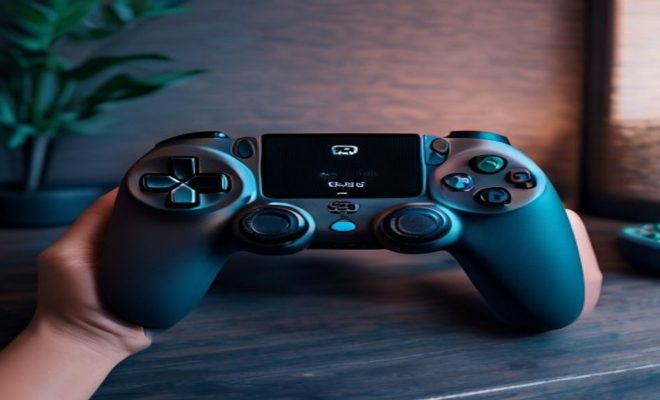
The PS4 controller, known as the DualShock 4, is renowned for its comfort and functionality. With features like a built-in speaker, light bar, and touchpad, it offers a unique gaming experience. Understanding these features can help you utilize the controller effectively on a PC.
Moreover, the DualShock 4 combines traditional button layouts with innovative controls. The analog sticks are responsive, and the triggers offer variable resistance, making it suitable for various game genres, from shooters to racing. This adaptability is one reason many gamers prefer it over traditional keyboard and mouse setups.
In addition, the controller features motion sensing, which allows for more immersive gameplay in certain titles. This can be particularly fun in games that support motion controls, offering a different way to interact with the game world without solely relying on traditional inputs.
2. Connecting the DualShock 4 to Your PC
The first step to using your PS4 controller on a PC is connecting it. Fortunately, there are two primary methods to do this: wired and wireless. Let’s break down each option.
- Wired Connection: To connect via USB, simply plug the controller into your PC using a micro USB cable. Most modern PCs will automatically recognize the controller, making it ready for use within seconds.
- Wireless Connection: For a wireless setup, you’ll need to connect the controller via Bluetooth. Ensure your PC has Bluetooth capability, then hold the ‘Share’ and ‘PS’ buttons on the controller until the light bar starts flashing. On your PC, go to the Bluetooth settings and select ‘Add Bluetooth or other device.’ Your PS4 controller should appear in the list. Select it, and you’re all set!
For those who prefer additional flexibility, using a Bluetooth dongle can also enhance connectivity. This is particularly useful for older PCs that may not have built-in Bluetooth capabilities.
3. Installing Necessary Drivers and Software
In most cases, Windows will automatically install any necessary drivers when you connect your PS4 controller. However, to ensure compatibility and enhance functionality, consider downloading software like Steam or DS4Windows.
Steam is particularly user-friendly for those who predominantly play games on its platform. It has built-in support for PS4 controllers, allowing you to customize button mappings and settings easily. On the other hand, DS4Windows is a third-party application designed for a more extensive array of games, providing advanced configuration options and profiles.
Another alternative is using the InputMapper software, which offers similar functionalities to DS4Windows and can help in adjusting the controller’s sensitivity and dead zones, making it more tailored to your personal preferences.
4. Configuring Controller Settings
Once your PS4 controller is connected, you’ll want to configure its settings for optimal gameplay. Depending on whether you’re using Steam or DS4Windows, the options may vary.
- Steam Configuration: Open Steam and go to Settings > Controller > General Controller Settings. Here, you can enable PlayStation Configuration Support. This allows you to map buttons, adjust sensitivity, and even configure the touchpad functions.
- DS4Windows Configuration: This software provides more granular control over your controller’s functionality. You can create different profiles for different games, remap buttons, and even adjust the vibration settings. This level of customization can enhance your gaming experience significantly.
Once configured, take a moment to test your settings in a practice game or through a dedicated configuration tool. This way, you can ensure that everything feels right before diving into a more challenging gameplay session. (See: Learn more about DualShock 4 features.)
5. Using the Touchpad and Other Features
The DualShock 4’s touchpad can be a game-changer when playing on PC. However, utilizing it effectively may require some setup. In many games, the touchpad can be configured to act as a mouse or to execute certain commands.
Through Steam or DS4Windows, you can assign various functions to the touchpad, whether it’s for gestures, menu navigation, or specific in-game actions. Additionally, the controller’s built-in gyroscope can be used for motion controls in some compatible games, adding another layer of immersion.
Some gamers also enjoy using the light bar as an indicator for in-game events, like health status or team status in multiplayer games. Configuring these features can greatly enhance your immersive experience.
6. Compatibility with Popular Games
One of the primary reasons to use a PS4 controller on PC is the extensive library of games it can enhance. Most modern titles, including Call of Duty, Fortnite, and Dark Souls, offer native support for the controller.
However, some older games may not recognize the PS4 controller. In such cases, utilizing Steam’s configuration options to create custom mappings can bridge the gap. This flexibility allows you to play virtually any game using your controller, tailoring the experience to your preferences.
It’s worth noting that indie games frequently showcase exceptional compatibility with the PS4 controller. Titles like Celeste and Hollow Knight provide seamless support, enhancing the overall enjoyment of these games.
7. Common Issues and Troubleshooting
While connecting your PS4 controller to a PC is generally straightforward, you might encounter issues. Here are some common problems and how to solve them:
- Not Recognized: If your controller isn’t recognized, try reconnecting it or using a different USB cable for the wired connection. For Bluetooth, ensure your PC’s Bluetooth is turned on and functioning properly.
- Button Mappings Not Working: Ensure that you have the correct configuration settings in Steam or DS4Windows. Sometimes, a game may require specific mappings that need to be adjusted manually.
- Lag or Delay: If you experience input lag, check your Bluetooth connection and consider using a wired connection for more responsive gameplay.
- Battery Issues: If you notice your controller disconnecting frequently, check the battery level. Charging the controller fully can help improve connectivity.
8. Using the PS4 Controller with Other Platforms
Besides PC gaming, you might be interested in using your PS4 controller on other platforms. Fortunately, it’s compatible with various devices, including Android and iOS devices, as well as certain streaming services.
For mobile gaming, connecting your PS4 controller to an Android device is relatively simple. Just access Bluetooth settings on your mobile device, and follow the same steps as connecting to a PC. For iOS users, the controller can be paired through Bluetooth as well, but compatibility may depend on the specific game.
Furthermore, streaming services like PS Now allow you to use your DualShock 4 for cloud gaming, letting you enjoy PlayStation titles on your PC or compatible devices without any additional setup.
9. Advanced Tips for Gamers
Once you’ve mastered the basics of using a PS4 controller on PC, consider these advanced tips to elevate your experience even further:
- Adjusting Dead Zones: Using software like DS4Windows allows you to fine-tune the dead zones of your analog sticks. This means you can adjust how much movement you need to apply before the game registers it, which can improve accuracy in shooters and racing games.
- Creating Game Profiles: If you frequently switch between different genres, setting up specific profiles for each game can save you time. This way, you can have optimized settings for FPS games and entirely different mappings for platformers.
- Experiment with Macros: Some software allows you to set macros to perform complex commands with a single button press. This can be particularly helpful in games that require quick reflexes.
10. Frequently Asked Questions (FAQ)
Can I use a PS4 controller on PC without any software?
Yes, you can connect a PS4 controller to your PC without any additional software, especially when using Steam. However, for advanced configurations and custom mappings, software like DS4Windows is recommended. (See: Research on gaming controllers and ergonomics.)
Is the PS4 controller compatible with every PC game?
Most modern games support the PS4 controller, but some older titles may require you to configure button mappings manually. Steam and other software can help bridge compatibility gaps.
What do I do if my controller disconnects frequently?
If your controller disconnects often, check the battery level, switch to a wired connection, or troubleshoot your Bluetooth settings. Ensuring your controller is fully charged can also help maintain a stable connection.
Can I use multiple PS4 controllers on PC?
Yes, you can connect multiple PS4 controllers to a PC. Just ensure each is paired via Bluetooth or connected via USB, and they should work simultaneously in supported games.
Are there any latency issues when using a PS4 controller on PC?
While most users experience minimal latency, using a wired connection generally provides the best performance. Wireless connections, especially over Bluetooth, may introduce slight delays, which can vary based on your setup.
11. Advanced Customization with Third-Party Software
Utilizing a third-party application such as Steam, DS4Windows, or InputMapper can greatly enhance your gaming experience. These applications allow you to create profiles tailored to each game, giving you the ability to configure button layouts, sensitivity levels, and even advanced features like macros and scripting.
For example, if you’re playing a competitive shooter, you might prefer a specific layout that prioritizes rapid access to certain weapons or abilities. With DS4Windows, you can set up profiles that allow for rapid switching between these configurations, ensuring you’re always ready for action.
Moreover, these applications can also allow for a degree of automation. For instance, in racing games, you can set up a toggle for accelerating, so you don’t have to hold the button down for prolonged periods. This level of control can significantly enhance your comfort and performance during gameplay.
12. Exploring Cross-Platform Compatibility
Gaming has become increasingly cross-platform, allowing players on different systems to compete against one another. The PS4 controller’s versatility allows you to jump from your PC to console gaming seamlessly. Many games now support cross-play, meaning you can use your controller on both PS4 and PC without missing a beat.
Additionally, popular titles such as Rocket League and Apex Legends support cross-platform play with controllers, which can enhance your competitive gaming experience. This functionality means that as a PS4 controller user, you can compete against Xbox or PC users without concern for input lag or recognition issues.
13. Best Practices for Controller Maintenance
To ensure the longevity of your PS4 controller, proper maintenance is key. Start by regularly cleaning your controller. Dust and debris can accumulate in the crevices, potentially affecting performance. Use a soft cloth and isopropyl alcohol to gently clean the exterior. Be sure to avoid getting moisture into the buttons or ports. (See: Understanding ergonomics and health.)
Additionally, managing the battery health of your controller is crucial. Avoid letting the battery drain completely before charging, as this can reduce its lifespan. When not in use, consider keeping it connected via USB to maintain charge without overusing the battery.
Finally, if you notice unusual behavior, such as drift in the analog sticks or unresponsive buttons, it may be time to recalibrate your controller or check for any software updates that could resolve these issues.
14. Future of Gaming and PS4 Controller Integration
As gaming technology continues to advance, the integration of controllers like the PS4’s DualShock 4 is likely to become even more seamless across all platforms. With the rise of cloud gaming services like PlayStation Now and Xbox Cloud Gaming, players will expect their favorite controllers to work effortlessly with various devices.
Additionally, the growing trend of virtual reality (VR) gaming and augmented reality (AR) may lead to further innovations in how controllers are used. The touchpad, gyroscope, and motion sensors in the PS4 controller could play pivotal roles in future gaming experiences, allowing for more interactive and immersive gameplay.
Furthermore, as developers embrace cross-platform play, it’s reasonable to assume that support for the PS4 controller will only expand. This means more games and applications that leverage the unique features of the DualShock 4, providing gamers with even more flexibility and options.
15. Conclusion: Elevate Your Gaming with a PS4 Controller
Utilizing a PS4 controller on your PC can significantly enhance your gaming experience. With its ergonomic design, customizable settings, and compatibility with a wide range of games, it’s a fantastic option for many gamers. Whether you prefer wired or wireless connections, the setup process is relatively simple, and the configuration options allow for a tailored experience.
As gaming continues to evolve, the flexibility to use various controllers across platforms remains vital. By following the steps outlined in this guide, you’ll be well-equipped to enjoy your favorite games with the comfort and control that the DualShock 4 offers.
“`
Trending Now
Frequently Asked Questions
Can you use a PS4 controller on PC?
Yes, you can use a PS4 controller on a PC. It can be connected either via a wired USB connection or wirelessly through Bluetooth, allowing for a seamless gaming experience.
How do I connect my PS4 controller to my PC?
To connect your PS4 controller to your PC, you can use a micro USB cable for a wired connection or connect via Bluetooth by holding the 'Share' and 'PS' buttons until the light bar flashes.
Do I need to install drivers for my PS4 controller on PC?
Most modern PCs will automatically recognize the PS4 controller without the need for additional drivers. However, some games may require specific settings or software like Steam to fully utilize the controller's features.
What games are compatible with PS4 controller on PC?
Many PC games are compatible with the PS4 controller, especially those available on platforms like Steam. Popular genres include shooters, racing, and action-adventure games, which can benefit from the controller's layout and features.
Can I use the motion controls of the PS4 controller on PC?
Yes, the PS4 controller's motion sensing features can be utilized on PC in games that support motion controls. This adds an immersive element to gameplay, enhancing the overall gaming experience.
Agree or disagree? Drop a comment and tell us what you think.