The Tech Edvocate

Top Menu

  • Advertisement
  • Apps
  • Home Page
  • Home Page Five (No Sidebar)
  • Home Page Four
  • Home Page Three
  • Home Page Two
  • Home Tech2
  • Icons [No Sidebar]
  • Left Sidbear Page
  • Lynch Educational Consulting
  • My Account
  • My Speaking Page
  • Newsletter Sign Up Confirmation
  • Newsletter Unsubscription
  • Our Brands
  • Page Example
  • Privacy Policy
  • Protected Content
  • Register
  • Request a Product Review
  • Shop
  • Shortcodes Examples
  • Signup
  • Start Here
    • Governance
    • Careers
    • Contact Us
  • Terms and Conditions
  • The Edvocate
  • The Tech Edvocate Product Guide
  • Topics
  • Write For Us
  • Advertise

Main Menu

  • Start Here
    • Our Brands
    • Governance
      • Lynch Educational Consulting, LLC.
      • Dr. Lynch’s Personal Website
      • Careers
    • Write For Us
    • The Tech Edvocate Product Guide
    • Contact Us
    • Books
    • Edupedia
    • Post a Job
    • The Edvocate Podcast
    • Terms and Conditions
    • Privacy Policy
  • Topics
    • Assistive Technology
    • Child Development Tech
    • Early Childhood & K-12 EdTech
    • EdTech Futures
    • EdTech News
    • EdTech Policy & Reform
    • EdTech Startups & Businesses
    • Higher Education EdTech
    • Online Learning & eLearning
    • Parent & Family Tech
    • Personalized Learning
    • Product Reviews
  • Advertise
  • Tech Edvocate Awards
  • The Edvocate
  • Pedagogue
  • School Ratings

logo

The Tech Edvocate

  • Start Here
    • Our Brands
    • Governance
      • Lynch Educational Consulting, LLC.
      • Dr. Lynch’s Personal Website
        • My Speaking Page
      • Careers
    • Write For Us
    • The Tech Edvocate Product Guide
    • Contact Us
    • Books
    • Edupedia
    • Post a Job
    • The Edvocate Podcast
    • Terms and Conditions
    • Privacy Policy
  • Topics
    • Assistive Technology
    • Child Development Tech
    • Early Childhood & K-12 EdTech
    • EdTech Futures
    • EdTech News
    • EdTech Policy & Reform
    • EdTech Startups & Businesses
    • Higher Education EdTech
    • Online Learning & eLearning
    • Parent & Family Tech
    • Personalized Learning
    • Product Reviews
  • Advertise
  • Tech Edvocate Awards
  • The Edvocate
  • Pedagogue
  • School Ratings
  • How Sequel Slots Retain Familiar Features While Updating Play

  • Filtre poskytovateľov a rozpoznateľnosť herných kolekcií v kasínach

  • Razvoj iskanja in filtrov v vse obsežnejših katalogih kazino iger

  • Cinematic Intros Meet Familiar Reel Based Slot Play

  • Eventyrmotiver giver bonussekvenser retning og sammenhæng

  • Sådan former lydoplevelsen forskellige casinospil

  • Kameraføring former oplevelsen af roulette og blackjack på stream

  • Fra enkle browserbaserede casinospil til digitale formater med flere muligheder

  • Fra oldtidens fortællinger til nutidens spiltemaer

  • Čím sa líšia televízne herné formáty od tradičných živých stolov

Digital & Mobile Technology
Home›Digital & Mobile Technology›How to Fix Problems Caused by a Windows Update

How to Fix Problems Caused by a Windows Update
By Matthew Lynch
June 13, 2023
0
Spread the love

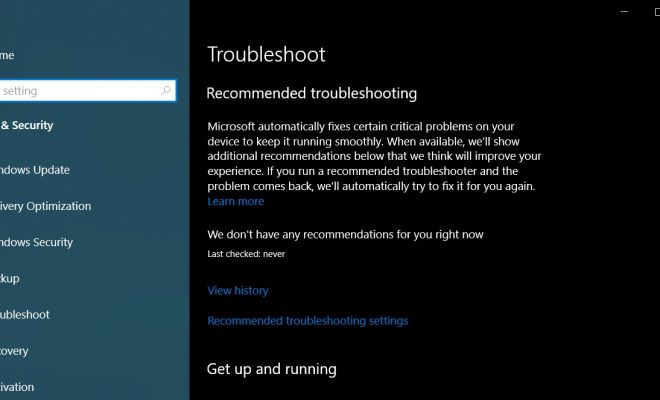
Windows updates are essential to keep your computer system up to date and improve its functionality. However, things can go wrong when updating your system, causing issues that can be frustrating to deal with. In this article, we’ll provide you with some tips on how to fix problems caused by a Windows update.

1. Use Safe Mode

If your computer has issues after a Windows update, the first step is to boot your computer in Safe Mode. To do this, turn on your computer and press the F8 key repeatedly until the Advanced Boot Options menu appears. From there, select Safe Mode and press Enter.

Safe mode limits the number of applications and drivers running on your computer, which can help you pinpoint and fix the problem. If your computer works fine in Safe Mode, try uninstalling recently installed software or hardware that may not be compatible with the latest Windows update.

2. Update or Rollback Drivers

If you’re experiencing issues with hardware after a Windows update, such as missing drivers or malfunctioning hardware, it may be because your drivers are not up to date. To update your drivers, go to your device manufacturer’s website and look for the latest drivers for your system. Install the updated drivers, and your hardware should function properly again.

Alternatively, if the update causes issues with your drivers, you can attempt to roll back to the previous driver update. Go to Device Manager (use the Windows Key + X shortcut) and select the device that has issues. Click on the driver tab, and then choose Roll Back Driver.

3. Run System File Checker (SFC) Scan

If you are experiencing issues with errors or missing files on your system after a Windows update, running an SFC scan may help you identify and fix the problem. To run an SFC scan, open Command Prompt as an administrator (press the Windows Key + X shortcut) and type “sfc /scannow” in the command line. Press enter, and the scan will start.

The SFC scan will scan your system files for issues and attempt to fix any issues that it finds. After the scan completes, restart your computer, and check if the problem is resolved.

4. Perform a System Restore

If none of the above fixes work or you’re still experiencing issues after trying them, you can attempt to perform a system restore. System Restore returns your computer system to a previous point in time, undoing any changes made to your system, including a Windows update. To perform a system restore, go to Control Panel > Recovery > Open System Restore.

Select a restore point before you experienced the update issue and follow the prompts to complete the restore process. Keep in mind that performing a system restore may remove any data or programs that you installed after the restore point.

In conclusion, Windows updates are crucial for your computer to function correctly. Still, it’s not uncommon for issues to occur after an update. By following the steps above, you can quickly identify and fix most of the common problems caused by a Windows update. However, if the issue persists, don’t hesitate to contact a professional for assistance.

 

Previous Article

Great Websites Where Kids Can Learn Digital ...

Next Article

How to Open and Use the Windows ...

Matthew Lynch

Related articles More from author

  • Digital & Mobile Technology

    When Is Internet Explorer End of Life?

    July 4, 2023
    By Matthew Lynch
  • Digital & Mobile Technology

    What does the term “following” mean in the profile page on Facebook?

    June 6, 2023
    By Matthew Lynch
  • Digital & Mobile Technology

    What to Consider Before Converting to MP3

    July 24, 2023
    By Matthew Lynch
  • Digital & Mobile Technology

    What Is React Redux and How Do You Use it?

    August 1, 2023
    By Matthew Lynch
  • Digital & Mobile Technology

    How to Schedule Email in Microsoft Outlook

    May 31, 2023
    By Matthew Lynch
  • Digital & Mobile Technology

    Types of 3D Printing You Didn’t Know Existed

    June 13, 2023
    By Matthew Lynch

Search

Login & Registration

  • Log in
  • Entries feed
  • Comments feed
  • WordPress.org

Newsletter

Signup for The Tech Edvocate Newsletter and have the latest in EdTech news and opinion delivered to your email address!

About Us

Since technology is not going anywhere and does more good than harm, adapting is the best course of action. That is where The Tech Edvocate comes in. We plan to cover the PreK-12 and Higher Education EdTech sectors and provide our readers with the latest news and opinion on the subject. From time to time, I will invite other voices to weigh in on important issues in EdTech. We hope to provide a well-rounded, multi-faceted look at the past, present, the future of EdTech in the US and internationally.

We started this journey back in June 2016, and we plan to continue it for many more years to come. I hope that you will join us in this discussion of the past, present and future of EdTech and lend your own insight to the issues that are discussed.

Newsletter

Signup for The Tech Edvocate Newsletter and have the latest in EdTech news and opinion delivered to your email address!

Contact Us

The Tech Edvocate
910 Goddin Street
Richmond, VA 23231
(601) 630-5238
[email protected]

Copyright © 2026 Matthew Lynch. All rights reserved.