The Tech Edvocate

Top Menu

  • Advertisement
  • Apps
  • Home Page
  • Home Page Five (No Sidebar)
  • Home Page Four
  • Home Page Three
  • Home Page Two
  • Home Tech2
  • Icons [No Sidebar]
  • Left Sidbear Page
  • Lynch Educational Consulting
  • My Account
  • My Speaking Page
  • Newsletter Sign Up Confirmation
  • Newsletter Unsubscription
  • Our Brands
  • Page Example
  • Privacy Policy
  • Protected Content
  • Register
  • Request a Product Review
  • Shop
  • Shortcodes Examples
  • Signup
  • Start Here
    • Governance
    • Careers
    • Contact Us
  • Terms and Conditions
  • The Edvocate
  • The Tech Edvocate Product Guide
  • Topics
  • Write For Us
  • Advertise

Main Menu

  • Start Here
    • Our Brands
    • Governance
      • Lynch Educational Consulting, LLC.
      • Dr. Lynch’s Personal Website
      • Careers
    • Write For Us
    • The Tech Edvocate Product Guide
    • Contact Us
    • Books
    • Edupedia
    • Post a Job
    • The Edvocate Podcast
    • Terms and Conditions
    • Privacy Policy
  • Topics
    • Assistive Technology
    • Child Development Tech
    • Early Childhood & K-12 EdTech
    • EdTech Futures
    • EdTech News
    • EdTech Policy & Reform
    • EdTech Startups & Businesses
    • Higher Education EdTech
    • Online Learning & eLearning
    • Parent & Family Tech
    • Personalized Learning
    • Product Reviews
  • Advertise
  • Tech Edvocate Awards
  • The Edvocate
  • Pedagogue
  • School Ratings

logo

The Tech Edvocate

  • Start Here
    • Our Brands
    • Governance
      • Lynch Educational Consulting, LLC.
      • Dr. Lynch’s Personal Website
        • My Speaking Page
      • Careers
    • Write For Us
    • The Tech Edvocate Product Guide
    • Contact Us
    • Books
    • Edupedia
    • Post a Job
    • The Edvocate Podcast
    • Terms and Conditions
    • Privacy Policy
  • Topics
    • Assistive Technology
    • Child Development Tech
    • Early Childhood & K-12 EdTech
    • EdTech Futures
    • EdTech News
    • EdTech Policy & Reform
    • EdTech Startups & Businesses
    • Higher Education EdTech
    • Online Learning & eLearning
    • Parent & Family Tech
    • Personalized Learning
    • Product Reviews
  • Advertise
  • Tech Edvocate Awards
  • The Edvocate
  • Pedagogue
  • School Ratings
  • A Visitor’s Guide to Fresno (CA), United States

  • A Visitors Guide to New Orleans (LA), United States

  • A Visitors Guide to Sacramento (CA), United States

  • A Visitors Guide to Lyon, France

  • JisuLife Ultra2 Portable Fan: A Powerful Multi-Function Cooling Solution

  • A Visitors Guide to Viña del Mar, Chile

  • A Visitors Guide to Århus, Denmark

  • A Visitors Guide to Bakersfield (CA), United States

  • A Visitors Guide to Aurora (CO), United States

  • A Visitor’s Guide to Toledo (OH), United States

Digital & Mobile Technology
Home›Digital & Mobile Technology›How to Fix Netflix Error Code M7121

How to Fix Netflix Error Code M7121
By Matthew Lynch
June 9, 2023
0
Spread the love

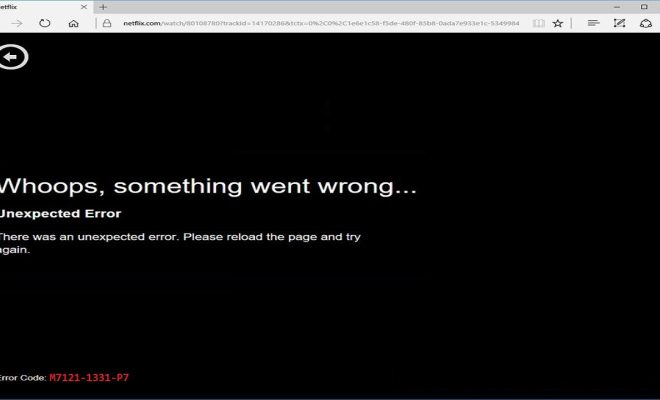
Netflix is one of the most popular streaming services in the world, but like any online platform, it’s not immune to technical issues. One of the most common Netflix error codes is M7121, which can occur for a variety of reasons, including browser problems, network issues, or compatibility issues with your device or operating system. Fortunately, there are a few steps you can take to fix this error code and get back to binging your favorite TV shows and movies.

1. Clear your browser cache and cookies.

The first step in resolving the M7121 error code is to clear your browser cache and cookies. This will remove any temporary files or data that may be causing issues with Netflix. To do this, follow these steps:

– Open your browser and go to the settings menu.
– Find the option to clear browsing data, which may be located under “Privacy” or “Security.”
– Make sure to select the options to clear your cache and cookies.
– Restart your browser and try accessing Netflix again.

2. Disable browser extensions.

Sometimes, browser extensions can cause conflicts with Netflix, resulting in the M7121 error code. To check if this is the case, try disabling any browser extensions you have installed, such as ad blockers or VPNs. Here’s how to disable browser extensions:

– Open your browser and go to the settings menu.
– Find the option for extensions or add-ons.
– Disable any extensions that may be causing issues with Netflix.
– Restart your browser and try accessing Netflix again.

3. Check your internet connection.

Netflix requires a stable internet connection to stream content, so if your connection is weak or unstable, it can cause the M7121 error code. To check your internet connection, try these steps:

– Restart your modem and router.
– Check if other devices on your network are using a lot of bandwidth and temporarily disconnect them.
– Move closer to your wifi router or switch to a wired connection if possible.
– Reset your network settings on your device.

4. Update your device or browser.

If you’re using an outdated device, operating system, or browser, it can cause compatibility issues with Netflix, resulting in the M7121 error code. Ensure your device, operating system, and browser are up to date with the latest software updates available. To update your device or browser, follow these steps:

– Go to your device settings and check for any software updates.
– Check for browser updates in the settings menu.
– Download and install any updates available.

The M7121 error code can be frustrating, but these steps should help you resolve the issue and get back to streaming your favorite content on Netflix. If none of the above methods work, you can contact Netflix customer support to get further assistance with resolving the issue.

Previous Article

What Are All-In-One Personal Computers?

Next Article

How to Save PowerPoint Presentations as PDF ...

Matthew Lynch

Related articles More from author

  • Digital & Mobile Technology

    Certificate Error Navigation Blocked: What That Means and How to Fix It

    July 31, 2023
    By Matthew Lynch
  • Digital & Mobile Technology

    How to Turn Off Quick Note on a Mac

    September 7, 2023
    By Matthew Lynch
  • Digital & Mobile Technology

    Keep Photoshop From Snapping to a Document Edge

    June 9, 2023
    By Matthew Lynch
  • Digital & Mobile Technology

    Daily Tech Tip: Step by Step Instructions on How to Send Photos by E-mail

    April 12, 2023
    By Matthew Lynch
  • Digital & Mobile Technology

    How to Find and Use Internet Cafes

    May 30, 2023
    By Matthew Lynch
  • Digital & Mobile Technology

    How to Use Chrome Extensions on Android Mobile Browsers

    August 5, 2023
    By Matthew Lynch

Search

Login & Registration

  • Register
  • Log in
  • Entries feed
  • Comments feed
  • WordPress.org

Newsletter

Signup for The Tech Edvocate Newsletter and have the latest in EdTech news and opinion delivered to your email address!

About Us

Since technology is not going anywhere and does more good than harm, adapting is the best course of action. That is where The Tech Edvocate comes in. We plan to cover the PreK-12 and Higher Education EdTech sectors and provide our readers with the latest news and opinion on the subject. From time to time, I will invite other voices to weigh in on important issues in EdTech. We hope to provide a well-rounded, multi-faceted look at the past, present, the future of EdTech in the US and internationally.

We started this journey back in June 2016, and we plan to continue it for many more years to come. I hope that you will join us in this discussion of the past, present and future of EdTech and lend your own insight to the issues that are discussed.

Newsletter

Signup for The Tech Edvocate Newsletter and have the latest in EdTech news and opinion delivered to your email address!

Contact Us

The Tech Edvocate
910 Goddin Street
Richmond, VA 23231
(601) 630-5238
[email protected]

Copyright © 2025 Matthew Lynch. All rights reserved.