The Tech Edvocate

Top Menu

  • Advertisement
  • Apps
  • Home Page
  • Home Page Five (No Sidebar)
  • Home Page Four
  • Home Page Three
  • Home Page Two
  • Home Tech2
  • Icons [No Sidebar]
  • Left Sidbear Page
  • Lynch Educational Consulting
  • My Account
  • My Speaking Page
  • Newsletter Sign Up Confirmation
  • Newsletter Unsubscription
  • Our Brands
  • Page Example
  • Privacy Policy
  • Protected Content
  • Register
  • Request a Product Review
  • Shop
  • Shortcodes Examples
  • Signup
  • Start Here
    • Governance
    • Careers
    • Contact Us
  • Terms and Conditions
  • The Edvocate
  • The Tech Edvocate Product Guide
  • Topics
  • Write For Us
  • Advertise

Main Menu

  • Start Here
    • Our Brands
    • Governance
      • Lynch Educational Consulting, LLC.
      • Dr. Lynch’s Personal Website
      • Careers
    • Write For Us
    • The Tech Edvocate Product Guide
    • Contact Us
    • Books
    • Edupedia
    • Post a Job
    • The Edvocate Podcast
    • Terms and Conditions
    • Privacy Policy
  • Topics
    • Assistive Technology
    • Child Development Tech
    • Early Childhood & K-12 EdTech
    • EdTech Futures
    • EdTech News
    • EdTech Policy & Reform
    • EdTech Startups & Businesses
    • Higher Education EdTech
    • Online Learning & eLearning
    • Parent & Family Tech
    • Personalized Learning
    • Product Reviews
  • Advertise
  • Tech Edvocate Awards
  • The Edvocate
  • Pedagogue
  • School Ratings

logo

The Tech Edvocate

  • Start Here
    • Our Brands
    • Governance
      • Lynch Educational Consulting, LLC.
      • Dr. Lynch’s Personal Website
        • My Speaking Page
      • Careers
    • Write For Us
    • The Tech Edvocate Product Guide
    • Contact Us
    • Books
    • Edupedia
    • Post a Job
    • The Edvocate Podcast
    • Terms and Conditions
    • Privacy Policy
  • Topics
    • Assistive Technology
    • Child Development Tech
    • Early Childhood & K-12 EdTech
    • EdTech Futures
    • EdTech News
    • EdTech Policy & Reform
    • EdTech Startups & Businesses
    • Higher Education EdTech
    • Online Learning & eLearning
    • Parent & Family Tech
    • Personalized Learning
    • Product Reviews
  • Advertise
  • Tech Edvocate Awards
  • The Edvocate
  • Pedagogue
  • School Ratings
  • A Visitors Guide to Long Beach (CA), United States

  • A Visitor’s Guide to Fresno (CA), United States

  • A Visitors Guide to New Orleans (LA), United States

  • A Visitors Guide to Sacramento (CA), United States

  • A Visitors Guide to Lyon, France

  • JisuLife Ultra2 Portable Fan: A Powerful Multi-Function Cooling Solution

  • A Visitors Guide to Viña del Mar, Chile

  • A Visitors Guide to Århus, Denmark

  • A Visitors Guide to Bakersfield (CA), United States

  • A Visitors Guide to Aurora (CO), United States

Assistive Technology
Home›Assistive Technology›How to Fix It When Your S Pen Is Not Working

How to Fix It When Your S Pen Is Not Working
By Matthew Lynch
June 8, 2023
0
Spread the love

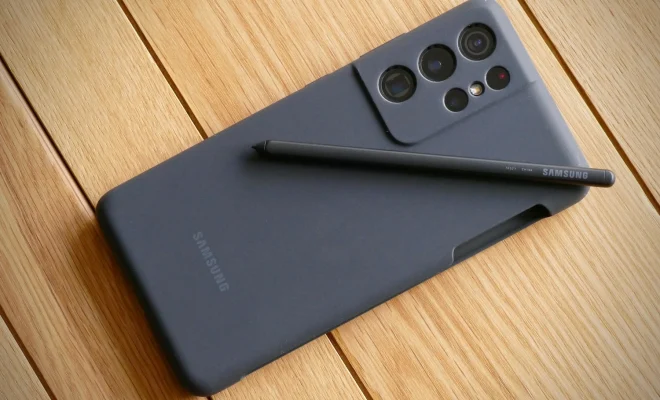
As a fan and user of Samsung Galaxy Note series, I’m sure you’re more than familiar with the S Pen, the small stylus that comes with the device. The S Pen is an absolute game-changer for note-taking, drawing, and navigation on your device. However, if your S Pen suddenly stops working or begins to malfunction, it can be frustrating and profoundly impacting on your user experience. In this article, we will guide you through some quick troubleshooting steps to fix S Pen issues on your Galaxy Note device.

  1. Restart Your Device

The first solution to try when you encounter S Pen issues is restarting your device. As simple as it may sound, powering down your device and starting it up again can help solve minor glitches and bugs that may be causing your S Pen not to work correctly. To restart your device, press and hold the power button until the power menu appears, and then tap Restart.

  1. Check the S Pen Battery

The S Pen uses a small battery that powers its functionality. If your S Pen isn’t working, it’s likely that the battery is depleted or has low power. To check the S Pen’s battery status, take out the S Pen from its holder on the device and hold it close to the screen. If the S Pen pointer doesn’t appear or is weak, the battery is the problem.

To change the battery, unscrew the back of the S Pen, remove the old battery then insert a new one. If the problem persists, try another battery to ensure the first battery wasn’t faulty.

  1. Clean the S Pen Tip and Sensor

It’s possible for dust, lint, or other debris to accumulate on the S Pen tip or sensor, causing it not to work correctly. You can clean the S Pen tip by gently wiping it with a dry, lint-free cloth. Avoid using water or liquid or harsh cleaning materials as they may damage the S Pen’s functionality.

To clean the sensor, gently blow air into the S Pen holder (the slot where you insert the S Pen). If necessary, use a soft, dry toothbrush or a cotton swab to clean the sensor gently.

  1. Check S Pen Settings

Sometimes S Pen issues may arise due to incorrect settings on your device. Open the Settings app on your device, scroll to the S Pen section, and ensure all settings are correct for your needs. For instance, if the screen is only recognized when you touch the pen to it, change the Tip Attachment Settings in the S Pen menu.

  1. Try a Replacement Stylus

If all the preceding steps don’t fix your S Pen issues, it may be time to use a replacement stylus. Replacement S-pens are available online or from Samsung authorized dealers. Before purchasing a new S Pen, ensure it’s compatible with your device to avoid any compatibility issues.

In conclusion, the Samsung Galaxy Note series is an excellent device that offers you plenty of features, not found in other devices. The S Pen is one such feature that makes it possible for you to navigate your device easily, take notes, draw or markup screenshots. If your S Pen isn’t working correctly, it can significantly affect your user experience. Follow the troubleshooting tips we’ve outlined above to fix S Pen issues and enjoy the full features of your device.


Previous Article

How to Zip and Unzip Files on ...

Next Article

Book Exchange Websites to Check Out

Matthew Lynch

Related articles More from author

  • Assistive Technology

    How to Share a Screen on Zoom

    June 15, 2023
    By Matthew Lynch
  • Assistive Technology

    How to Reset a Samsung Laptop

    June 12, 2023
    By Matthew Lynch
  • Assistive Technology

    Is Microsoft Word Crashing on Windows? Here’s How to Fix It

    June 22, 2023
    By Matthew Lynch
  • Assistive Technology

    How to Hide Notifications on Your Android Lock Screen

    June 10, 2023
    By Matthew Lynch
  • Assistive Technology

    How to Connect HBO Max to Your TV With Google Chromecast

    June 12, 2023
    By Matthew Lynch
  • Assistive Technology

    How to Invert Colors on Chromebook

    June 6, 2023
    By Matthew Lynch

Search

Login & Registration

  • Register
  • Log in
  • Entries feed
  • Comments feed
  • WordPress.org

Newsletter

Signup for The Tech Edvocate Newsletter and have the latest in EdTech news and opinion delivered to your email address!

About Us

Since technology is not going anywhere and does more good than harm, adapting is the best course of action. That is where The Tech Edvocate comes in. We plan to cover the PreK-12 and Higher Education EdTech sectors and provide our readers with the latest news and opinion on the subject. From time to time, I will invite other voices to weigh in on important issues in EdTech. We hope to provide a well-rounded, multi-faceted look at the past, present, the future of EdTech in the US and internationally.

We started this journey back in June 2016, and we plan to continue it for many more years to come. I hope that you will join us in this discussion of the past, present and future of EdTech and lend your own insight to the issues that are discussed.

Newsletter

Signup for The Tech Edvocate Newsletter and have the latest in EdTech news and opinion delivered to your email address!

Contact Us

The Tech Edvocate
910 Goddin Street
Richmond, VA 23231
(601) 630-5238
[email protected]

Copyright © 2025 Matthew Lynch. All rights reserved.