The Tech Edvocate

Top Menu

  • Advertisement
  • Apps
  • Home Page
  • Home Page Five (No Sidebar)
  • Home Page Four
  • Home Page Three
  • Home Page Two
  • Home Tech2
  • Icons [No Sidebar]
  • Left Sidbear Page
  • Lynch Educational Consulting
  • My Account
  • My Speaking Page
  • Newsletter Sign Up Confirmation
  • Newsletter Unsubscription
  • Our Brands
  • Page Example
  • Privacy Policy
  • Protected Content
  • Register
  • Request a Product Review
  • Shop
  • Shortcodes Examples
  • Signup
  • Start Here
    • Governance
    • Careers
    • Contact Us
  • Terms and Conditions
  • The Edvocate
  • The Tech Edvocate Product Guide
  • Topics
  • Write For Us
  • Advertise

Main Menu

  • Start Here
    • Our Brands
    • Governance
      • Lynch Educational Consulting, LLC.
      • Dr. Lynch’s Personal Website
      • Careers
    • Write For Us
    • The Tech Edvocate Product Guide
    • Contact Us
    • Books
    • Edupedia
    • Post a Job
    • The Edvocate Podcast
    • Terms and Conditions
    • Privacy Policy
  • Topics
    • Assistive Technology
    • Child Development Tech
    • Early Childhood & K-12 EdTech
    • EdTech Futures
    • EdTech News
    • EdTech Policy & Reform
    • EdTech Startups & Businesses
    • Higher Education EdTech
    • Online Learning & eLearning
    • Parent & Family Tech
    • Personalized Learning
    • Product Reviews
  • Advertise
  • Tech Edvocate Awards
  • The Edvocate
  • Pedagogue
  • School Ratings

logo

The Tech Edvocate

  • Start Here
    • Our Brands
    • Governance
      • Lynch Educational Consulting, LLC.
      • Dr. Lynch’s Personal Website
        • My Speaking Page
      • Careers
    • Write For Us
    • The Tech Edvocate Product Guide
    • Contact Us
    • Books
    • Edupedia
    • Post a Job
    • The Edvocate Podcast
    • Terms and Conditions
    • Privacy Policy
  • Topics
    • Assistive Technology
    • Child Development Tech
    • Early Childhood & K-12 EdTech
    • EdTech Futures
    • EdTech News
    • EdTech Policy & Reform
    • EdTech Startups & Businesses
    • Higher Education EdTech
    • Online Learning & eLearning
    • Parent & Family Tech
    • Personalized Learning
    • Product Reviews
  • Advertise
  • Tech Edvocate Awards
  • The Edvocate
  • Pedagogue
  • School Ratings
  • Toxic Pills: This Supplement Scandal Puts Millions at Risk

  • Urgent Dog Supplement Recall: This Stealthy Threat Could Be Hiding in Your Pantry!

  • Staggering: Climate Tech Fundraising Collapses — Is AI to Blame?

  • Global AI stocks tumble as industry’s biggest names sound alarm – The Straits Times

  • Sony’s Controversial Move: Why the Last of Us Part II Multiplayer Mod Got Axed

  • Trump’s Wild AI Claims: Is There a ‘Sick Conspiracy’ Against Tech?

  • This One Thing Is Turning Classrooms Into Culture War Battlegrounds

  • Your AI Detector Is Useless: Why Universities Are Scrapping ‘Catch & Ban’ for This

  • Terrifying: AI Is About to Break Cybersecurity – And No One Is Ready

  • Volkswagen’s Staggering Miscalculation: 50,000 Jobs Vanish as EV Dream Sours

Assistive Technology
Home›Assistive Technology›How to Fix It When Roku Closed Captioning Won’t Turn Off

How to Fix It When Roku Closed Captioning Won’t Turn Off
By Matthew Lynch
June 8, 2023
0
Spread the love

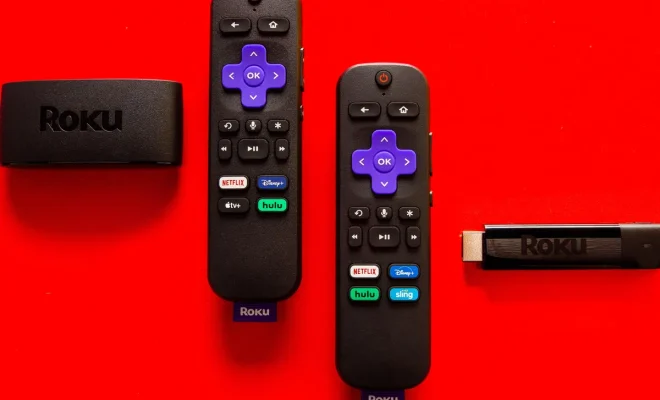
Roku devices are the most popular streaming devices in the world. They are easy to use and provide high-quality entertainment for their users. One of the essential features of Roku devices is Closed Captioning. It is a feature that allows the viewers to read the text on the screen that explains the audio. It is beneficial for people who are deaf or hard of hearing or people who are watching a show or movie in a noisy environment. However, sometimes, the Closed Captioning feature won’t turn off, causing frustration for the viewers. In this article, we will discuss How to Fix It When Roku Closed Captioning Won’t Turn Off.

Method 1: Disabling Closed Captioning From Home Screen

Step 1: Go to the Home Screen by pressing the Home button on your Roku remote.

Step 2: Scroll up or down to the Settings option and select it by pressing the OK button.

Step 3: Scroll down to the Accessibility option and press the OK button.

Step 4: Select the Closed Captioning option and press the OK button.

Step 5: Turn off the Closed Captioning feature by selecting the “Off” option and press the OK button.

Method 2: Disabling Closed Captioning from Playback Screen

Step 1: Start playing the video on your Roku device.

Step 2: Press the OK button on your Roku remote to open the playback options.

Step 3: Scroll down to the “CC” option and select it by pressing the OK button.

Step 4: Turn off the CC feature by selecting the “Off” option.

Method 3: Disabling Closed Captioning from the Roku Mobile App

Step 1: Download and open the Roku mobile app on your smartphone.

Step 2: Connect your smartphone to the same Wi-Fi network as your Roku device.

Step 3: Select the “Remote” tab from the bottom menu.

Step 4: Tap on the “CC” button to toggle the Closed Captioning feature on or off.

Conclusion

It can be frustrating when Roku closed captioning won’t turn off. However, with our simple methods mentioned above, you can easily disable the Closed Captioning feature on your Roku device, and continue to enjoy your favorite TV shows and movies without any interruptions or distractions. It is important to note that if the above methods do not work, you may need to contact Roku customer support for further assistance.


Previous Article

What Is an AI File?

Next Article

How to Create a Gmail Alias

Matthew Lynch

Related articles More from author

  • Assistive Technology

    How to Set the Time Zone Using the Linux Terminal

    June 23, 2023
    By Matthew Lynch
  • Assistive Technology

    How to Type a Grave Accent Mark on Any Keyboard

    June 6, 2023
    By Matthew Lynch
  • Assistive Technology

    Learn How to Automatically Create Pivot Tables in Excel With VBA

    August 5, 2023
    By Matthew Lynch
  • Assistive Technology

    How to Create Rules in Gmail for (Almost) Anything

    June 6, 2023
    By Matthew Lynch
  • Assistive Technology

    How to Customize the Google Search Widget on Your Android Phone

    June 6, 2023
    By Matthew Lynch
  • Assistive Technology

    How to Screenshot on Samsung S21

    June 11, 2023
    By Matthew Lynch

Search

Login & Registration

  • Log in
  • Entries feed
  • Comments feed
  • WordPress.org

Newsletter

Signup for The Tech Edvocate Newsletter and have the latest in EdTech news and opinion delivered to your email address!

About Us

Since technology is not going anywhere and does more good than harm, adapting is the best course of action. That is where The Tech Edvocate comes in. We plan to cover the PreK-12 and Higher Education EdTech sectors and provide our readers with the latest news and opinion on the subject. From time to time, I will invite other voices to weigh in on important issues in EdTech. We hope to provide a well-rounded, multi-faceted look at the past, present, the future of EdTech in the US and internationally.

We started this journey back in June 2016, and we plan to continue it for many more years to come. I hope that you will join us in this discussion of the past, present and future of EdTech and lend your own insight to the issues that are discussed.

Newsletter

Signup for The Tech Edvocate Newsletter and have the latest in EdTech news and opinion delivered to your email address!

Contact Us

The Tech Edvocate
910 Goddin Street
Richmond, VA 23231
(601) 630-5238
[email protected]

Copyright © 2026 Matthew Lynch. All rights reserved.