How to fix iPad WiFi greyed out
“`html
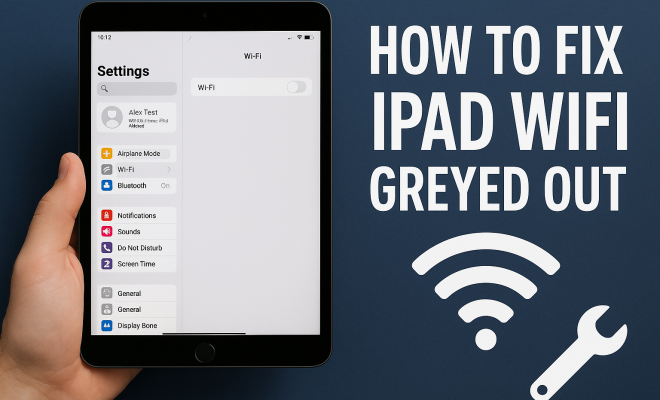
It can be quite frustrating when you pick up your iPad, ready to connect to WiFi, and find that the WiFi option is greyed out. This issue can leave you stranded without internet access, preventing you from browsing, streaming, or connecting with others. But don’t worry; there are several methods you can use to fix iPad WiFi greyed out problems. Below, we’ll explore ten effective solutions that can help restore your connectivity.
1. Restart Your iPad
Sometimes, the simplest solutions are the most effective. Restarting your iPad can resolve minor software glitches that may be causing the WiFi option to be greyed out. To restart your iPad, just press and hold the power button until the “slide to power off” slider appears. Once the iPad is completely powered down, wait a few seconds, and then press the power button again until the Apple logo appears.
After the iPad has restarted, check if the WiFi option is still greyed out. This quick reset can often solve temporary issues, allowing you to reconnect to your network effortlessly.
2. Toggle Airplane Mode
Another quick trick to try is toggling Airplane Mode on and off. Enabling Airplane Mode disables all wireless connections, including WiFi, cellular data, and Bluetooth. To do this, swipe down from the upper-right corner of the screen to open the Control Center, then tap the airplane icon to turn it on. Wait for about ten seconds and then tap it again to turn it off.
This action can often refresh your network connections, potentially restoring the WiFi function. After toggling Airplane Mode, check if the WiFi setting is still greyed out.
3. Reset Network Settings
If the previous solutions haven’t worked, resetting your network settings may help. This action will erase saved WiFi networks and their passwords, so it’s a good idea to have that information handy before proceeding. To reset network settings, go to Settings > General > Transfer or Reset iPad > Reset > Reset Network Settings.
After your iPad restarts, you’ll need to reconnect to your WiFi network and re-enter the password. While this process may seem cumbersome, it can often resolve deeper network configuration issues that might be causing the WiFi problem.
4. Update iOS
Keeping your iPad’s software up to date is crucial for its functionality. Apple frequently releases updates that include bug fixes and enhancements, which could potentially solve your WiFi issues. To check for updates, go to Settings > General > Software Update. If an update is available, download and install it.
Updating your iPad can resolve any bugs or issues within the operating system that may be causing the WiFi option to be greyed out. Therefore, keeping your iPad updated is an essential step in troubleshooting connectivity problems.
5. Check for Hardware Issues
If none of the above solutions work, it’s possible that your iPad is experiencing a hardware issue. Problems with the WiFi antenna or other internal components can prevent you from connecting to WiFi networks. One way to verify this is to test the WiFi functionality with another device. If other devices can connect to the same WiFi network without issues, this indicates a problem with your iPad.
If you suspect a hardware issue, consider taking your iPad to an Apple Store or an authorized service provider for a professional diagnosis. They can assess the problem and recommend the necessary repairs. (See: CDC on technology and health.)
6. Inspect the WiFi Router
Before concluding that your iPad is the problem, take a moment to check your WiFi router. Sometimes, router issues can lead to connectivity problems across devices. Restart the router by unplugging it for about 30 seconds and then plugging it back in. Once the router is back up and running, try connecting your iPad again.
If the WiFi option is still greyed out, you might want to check if the router’s firmware is up to date or if it is functioning correctly with other devices. If the router is the issue, addressing it will resolve connectivity problems for all connected devices.
7. Enable WiFi in Settings
It might sound obvious, but sometimes WiFi can be accidentally disabled in your settings. Head to Settings > WiFi and ensure that the WiFi option is turned on. If it’s greyed out, proceed to try the other methods we’ve discussed.
This simple check can prevent unnecessary troubleshooting steps if the issue is just a matter of a disabled setting. If it’s turned off and still greyed out, you’ll need to dig a little deeper.
8. Factory Reset Your iPad
As a last resort, a factory reset can help resolve persistent issues, including a greyed-out WiFi setting. However, remember that this will erase all your data, so ensure you have a backup. To perform a factory reset, go to Settings > General > Transfer or Reset iPad > Erase All Content and Settings.
Once the reset is complete, your iPad will be restored to its original settings, and you’ll have to set it up as new or restore it from a backup. Many users find that a factory reset can fix stubborn issues that other solutions do not.
9. Contact Apple Support
If you’ve tried everything and the WiFi still remains greyed out, it may be time to reach out to Apple Support. Their technicians can offer additional troubleshooting steps and solutions tailored to your specific device and situation. Apple’s support team is well-equipped to handle a wide range of issues and may be able to provide you with a resolution that you haven’t tried yet.
Don’t hesitate to make use of this resource if you’re facing persistent problems. Sometimes, expert help is the best way to resolve technical issues that seem insurmountable.
10. Check for Environmental Issues
Finally, consider if there are any environmental factors affecting your WiFi connection. Physical obstacles like walls and furniture can weaken WiFi signals, especially if you’re far from the router. Additionally, interference from other electronic devices can disrupt connectivity.
Try moving closer to the router or removing potential sources of interference to see if that resolves the greyed-out WiFi issue. Being aware of your surroundings can make a significant difference in your WiFi performance.
11. Common Causes of Greyed Out WiFi
Understanding what causes the WiFi option to be greyed out on your iPad can help you take preventative measures in the future. Here are some common reasons behind this issue:
- Software bugs: New updates can sometimes introduce bugs that affect WiFi connectivity.
- Hardware damage: Physical damage to your iPad may affect its internal components, including the WiFi antenna.
- Settings misconfiguration: Incorrect settings can lead to your device not being able to connect to available networks.
- Router compatibility issues: Certain routers may not work well with older iPad models, leading to connection problems.
12. What to Do if WiFi Keeps Disconnecting
If your WiFi option isn’t greyed out but you experience frequent disconnections, you’re not alone. Many iPad users face this issue, and here are some steps to help: (See: New York Times on iPad WiFi problems.)
- Forget Network: Go to Settings > WiFi, tap on the info icon next to your network, and select Forget This Network. Then reconnect by entering the password again.
- Change WiFi Channel: Log into your router settings and try changing the WiFi channel to reduce interference.
- WiFi Assist: Enable or disable WiFi Assist under Settings > Cellular. This feature can impact how your iPad manages connections.
13. FAQs: Fixing iPad WiFi Greyed Out
Why is my iPad WiFi greyed out after an update?
Sometimes, an update can introduce bugs or change settings that affect your WiFi. It’s a good idea to try restarting your iPad or resetting network settings after an update.
Can water damage cause my iPad’s WiFi to grey out?
Yes, water damage can affect internal components of your iPad, including the WiFi antenna. If you suspect water damage, it’s wise to consult a professional technician.
What should I do if my iPad is stuck on the Apple logo and WiFi is greyed out?
If your device is stuck on the Apple logo, try performing a force restart by pressing and holding the Home and Power buttons simultaneously until the device restarts. If the issue persists, consider seeking support from Apple.
Is there a way to check if my iPad has WiFi hardware issues?
Yes, if your iPad’s WiFi option is consistently greyed out and no software fixes work, trying to connect to a different WiFi network or using diagnostic tools at an Apple Store can help pinpoint hardware issues.
How can I back up my data before performing a factory reset?
You can back up your iPad using iCloud or iTunes. For iCloud, go to Settings > Your Name > iCloud > iCloud Backup, and select Back Up Now. For iTunes, connect your iPad to your computer and follow the prompts to create a backup.
Will a factory reset remove my Apple ID?
No, a factory reset will not remove your Apple ID, but you may need to sign in again after the reset. Ensure you have your Apple ID and password handy.
14. Comparing WiFi Issues Across Devices
It’s valuable to compare how WiFi issues might manifest on different devices. Here’s a quick breakdown:
| Device | Common WiFi Issues | Suggested Fixes |
|---|---|---|
| iPad | WiFi greyed out, frequent disconnects | Reset network settings, update iOS |
| iPhone | WiFi dropping, unable to connect | Forget network, reboot device |
| Mac | No networks found, slow connection | Renew DHCP lease, reset SMC |
| Windows PC | Limited connectivity, unable to connect | Update drivers, disable VPN |
By understanding how various devices handle WiFi issues, you can better troubleshoot and address your iPad’s connectivity problems in context.
15. Additional Solutions for WiFi Issues
Sometimes, the basics aren’t enough. If you’ve gone through the previous steps and still have greyed-out WiFi, consider these additional solutions:
- Reset All Settings: This option is less drastic than a factory reset but can still solve underlying issues. Go to Settings > General > Transfer or Reset iPad > Reset > Reset All Settings. This won’t delete your data, but it will reset system settings like WiFi passwords and wallpaper.
- Check for VPN Conflicts: If you’re using a VPN, it may conflict with WiFi connectivity. Disable the VPN and see if the WiFi option becomes available again.
- Inspect for Configuration Profiles: Some profiles can limit functionality, including WiFi access. To check, go to Settings > General > VPN & Device Management. If there are profiles installed that you don’t recognize, removing them might help.
16. Understanding iPad WiFi Hardware Limitations
Older iPad models might encounter more frequent WiFi issues due to hardware limitations. The WiFi chip’s age or its compatibility with newer routers can be a factor. If you notice persistent greyed-out WiFi options and your device is several years old, you might need to consider upgrading to a newer model that supports the latest WiFi standards.
Statistics show that devices supporting WiFi 6 (802.11ax) generally have improved connectivity and speed. These advancements can make a noticeable difference in how your iPad interacts with modern WiFi networks.
17. Expert Perspectives on WiFi Connectivity
Tech experts often emphasize the importance of routine maintenance and updates for devices. As Richard, a tech technician with over ten years of experience, mentioned, “Many connectivity issues stem from a lack of updates or neglecting to reset devices regularly. It’s a simple step that can save users a lot of headaches.”
Additionally, industry analysis suggests that many users are unaware of how environmental factors can impact WiFi performance. Understanding these influences can lead to a more stable connection.
18. Future-Proofing Your WiFi Setup
In an age where we rely heavily on internet connectivity, future-proofing your WiFi setup is essential. Consider upgrading your router to one that supports the latest standards and has robust security features. A good router can make a significant difference in performance and connectivity.
Investing in WiFi extenders or mesh systems can also help eliminate dead zones in larger homes, ensuring that every device, including your iPad, has access to reliable internet.
19. When to Upgrade Your iPad
If you find yourself struggling with WiFi connectivity issues frequently, it could be a sign that your iPad needs an upgrade. Apple typically supports devices with updates for about five to six years, but as hardware ages, performance can decline.
Look for signs like slow processing speeds, inability to connect to newer WiFi standards, and hardware failures. These are all indicators that it might be time to consider a newer model.
Dealing with a greyed-out WiFi option on your iPad can be frustrating, but it’s not insurmountable. By following these steps, you can effectively troubleshoot the issue and hopefully restore your internet connectivity. Whether it’s a simple restart, a factory reset, or seeking professional help, you have a variety of options at your disposal. Stay informed and proactive to ensure a smooth WiFi experience on your iPad.
“`
Trending Now
Frequently Asked Questions
Why is my iPad WiFi greyed out?
The WiFi option on your iPad may be greyed out due to software glitches, network settings issues, or hardware problems. Common causes include minor bugs, Airplane Mode being enabled, or corrupted network settings that prevent your device from connecting to WiFi.
How do I fix a greyed out WiFi on my iPad?
To fix a greyed out WiFi on your iPad, try restarting your device, toggling Airplane Mode on and off, or resetting your network settings. These methods can often resolve temporary issues that prevent your iPad from connecting to WiFi.
What should I do if my iPad WiFi won't turn on?
If your iPad WiFi won't turn on, start by restarting your device and checking if Airplane Mode is off. If the issue persists, consider resetting your network settings, which may help restore the WiFi functionality by clearing any corrupted configurations.
Can a software update fix my iPad's WiFi issue?
Yes, a software update can potentially fix WiFi issues on your iPad. Apple often releases updates that include bug fixes and improvements, which may resolve connectivity problems. Make sure to check for updates in Settings under General.
Is it safe to reset network settings on my iPad?
Yes, resetting network settings on your iPad is safe, but it will erase saved WiFi networks and passwords. Make sure to have that information handy before proceeding. This action can help resolve persistent WiFi issues by restoring default network configurations.
What did we miss? Let us know in the comments and join the conversation.