The Tech Edvocate

Top Menu

  • Advertisement
  • Apps
  • Home Page
  • Home Page Five (No Sidebar)
  • Home Page Four
  • Home Page Three
  • Home Page Two
  • Home Tech2
  • Icons [No Sidebar]
  • Left Sidbear Page
  • Lynch Educational Consulting
  • My Account
  • My Speaking Page
  • Newsletter Sign Up Confirmation
  • Newsletter Unsubscription
  • Our Brands
  • Page Example
  • Privacy Policy
  • Protected Content
  • Register
  • Request a Product Review
  • Shop
  • Shortcodes Examples
  • Signup
  • Start Here
    • Governance
    • Careers
    • Contact Us
  • Terms and Conditions
  • The Edvocate
  • The Tech Edvocate Product Guide
  • Topics
  • Write For Us
  • Advertise

Main Menu

  • Start Here
    • Our Brands
    • Governance
      • Lynch Educational Consulting, LLC.
      • Dr. Lynch’s Personal Website
      • Careers
    • Write For Us
    • The Tech Edvocate Product Guide
    • Contact Us
    • Books
    • Edupedia
    • Post a Job
    • The Edvocate Podcast
    • Terms and Conditions
    • Privacy Policy
  • Topics
    • Assistive Technology
    • Child Development Tech
    • Early Childhood & K-12 EdTech
    • EdTech Futures
    • EdTech News
    • EdTech Policy & Reform
    • EdTech Startups & Businesses
    • Higher Education EdTech
    • Online Learning & eLearning
    • Parent & Family Tech
    • Personalized Learning
    • Product Reviews
  • Advertise
  • Tech Edvocate Awards
  • The Edvocate
  • Pedagogue
  • School Ratings

logo

The Tech Edvocate

  • Start Here
    • Our Brands
    • Governance
      • Lynch Educational Consulting, LLC.
      • Dr. Lynch’s Personal Website
        • My Speaking Page
      • Careers
    • Write For Us
    • The Tech Edvocate Product Guide
    • Contact Us
    • Books
    • Edupedia
    • Post a Job
    • The Edvocate Podcast
    • Terms and Conditions
    • Privacy Policy
  • Topics
    • Assistive Technology
    • Child Development Tech
    • Early Childhood & K-12 EdTech
    • EdTech Futures
    • EdTech News
    • EdTech Policy & Reform
    • EdTech Startups & Businesses
    • Higher Education EdTech
    • Online Learning & eLearning
    • Parent & Family Tech
    • Personalized Learning
    • Product Reviews
  • Advertise
  • Tech Edvocate Awards
  • The Edvocate
  • Pedagogue
  • School Ratings
  • A Visitors Guide to Portland (OR), United States

  • 7 Men’s Bruno Marc Shoes That Are the Perfect Christmas Gift

  • A Visitors Guide to Oklahoma City (OK), United States

  • A Visitor’s Guide to Tucson, Arizona, United States

  • A Visitor’s Guide to Hamilton, Canada

  • Beware of Fiverr: You Might Get Scammed

  • The Future of Artificial Intelligence: Navigating the Next Frontier

  • Best Home Backup Generators for 2026

  • Online Learning Platforms: Transforming Education in the Digital Age

  • Fastest Growing Sectors of the EdTech Market: Exploring Emerging Trends

Digital & Mobile Technology
Home›Digital & Mobile Technology›How to Fix Incorrect Windows 11 Audio Icons

How to Fix Incorrect Windows 11 Audio Icons
By Matthew Lynch
June 12, 2023
0
Spread the love

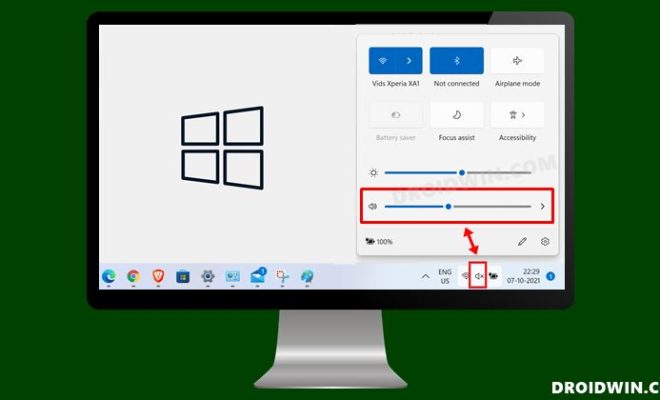
If you’re running Windows 11 on your computer, you may notice that the audio icons displayed on your taskbar are incorrect or not displaying at all. This can be a frustrating issue, especially if you rely on audio playback for work or entertainment. In this article, we’ll explore some steps that you can take to fix incorrect audio icons on Windows 11.

Step 1: Restart Your Computer

The first step in solving any computer-related issue is to restart your device. It may seem like a simple solution, but it can fix a number of issues, including incorrect audio icons on Windows 11. Sometimes, the audio drivers or other system files may become corrupted, causing the icons to display incorrectly. A restart can fix any issues with these files and restore the correct audio icons to your taskbar.

Step 2: Check the Sound Settings

If restarting your computer doesn’t fix the incorrect audio icons issue, you should next check your sound settings. Go to Settings > System > Sound. In the Sound settings window, you’ll see options for selecting your output device, input device, and volume. Make sure that your chosen output device is the correct one, and that the volume is turned up. Sometimes, selecting the wrong device can cause Windows 11 to display the wrong audio icon on your taskbar.

Step 3: Update Your Audio Drivers

Outdated or corrupted audio drivers can cause numerous issues on Windows 11, including incorrect audio icons. To fix this, you should check to see if there are any driver updates available for your audio device. You can do this by going to the manufacturer’s website and looking for driver updates or checking through the device manager.

To access the Device Manager, right-click on the Windows icon in the bottom left corner of your screen and select Device Manager from the options. Find your audio device and right-click on it, then choose Update Driver. Windows will then look for any available driver updates and install them if they are found.

Step 4: Restart the Windows Audio Service

If updating your audio drivers doesn’t fix the incorrect audio icons issue, you can try restarting the Windows Audio service. To do this, right-click on the Windows icon and select Run from the options. Type “services.msc” (without quotes) into the Run window and click OK. This will open the Services window. Find Windows Audio and right-click on it, then select Restart. This will restart the audio service and may fix any issues causing incorrect audio icons on Windows 11.

Step 5: Perform a System Restore

If none of the above steps fix the incorrect audio icons issue, you may need to perform a system restore. This will restore your system to a previous point when the audio icons were displayed correctly on your taskbar. To do this, type “restore” into the Windows search bar and select Create a restore point. Find the System Restore button and click on it, then choose a restore point from when your audio icons were displaying correctly.

In conclusion, incorrect audio icons on Windows 11 can be frustrating, but there are steps you can take to fix the issue. Restarting your computer, checking sound settings, updating audio drivers, restarting the Windows Audio service, and performing a system restore are all possible solutions. Try these steps to restore the correct audio icons to your taskbar and enjoy uninterrupted audio playback on your Windows 11 device.

Previous Article

What Is an XFDL File?

Next Article

Why Does Restarting Fix Many Computer Problems?

Matthew Lynch

Related articles More from author

  • Digital & Mobile Technology

    Must-Have iMessage Sticker Packs for Fun Conversations

    June 12, 2023
    By Matthew Lynch
  • Digital & Mobile Technology

    Best Free DVD Ripper Programs of 2023

    May 31, 2023
    By Matthew Lynch
  • Digital & Mobile Technology

    The Best War Documentaries to Watch on Netflix

    June 5, 2023
    By Matthew Lynch
  • Digital & Mobile Technology

    GPU Comparison: AMD 6950 XT vs. Nvidia 3090 Ti

    June 13, 2023
    By Matthew Lynch
  • Digital & Mobile Technology

    What is Structured Query Language (SQL)?

    May 12, 2023
    By Matthew Lynch
  • Digital & Mobile Technology

    How to Change Your Background Image on a Mac

    May 21, 2023
    By Matthew Lynch

Search

Login & Registration

  • Register
  • Log in
  • Entries feed
  • Comments feed
  • WordPress.org

Newsletter

Signup for The Tech Edvocate Newsletter and have the latest in EdTech news and opinion delivered to your email address!

About Us

Since technology is not going anywhere and does more good than harm, adapting is the best course of action. That is where The Tech Edvocate comes in. We plan to cover the PreK-12 and Higher Education EdTech sectors and provide our readers with the latest news and opinion on the subject. From time to time, I will invite other voices to weigh in on important issues in EdTech. We hope to provide a well-rounded, multi-faceted look at the past, present, the future of EdTech in the US and internationally.

We started this journey back in June 2016, and we plan to continue it for many more years to come. I hope that you will join us in this discussion of the past, present and future of EdTech and lend your own insight to the issues that are discussed.

Newsletter

Signup for The Tech Edvocate Newsletter and have the latest in EdTech news and opinion delivered to your email address!

Contact Us

The Tech Edvocate
910 Goddin Street
Richmond, VA 23231
(601) 630-5238
[email protected]

Copyright © 2025 Matthew Lynch. All rights reserved.