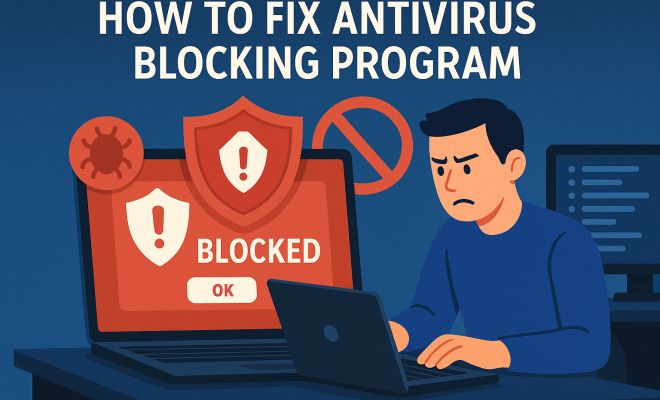
How to fix antivirus blocking program
“`html
1. Understanding Antivirus Software: The Double-Edged Sword
Antivirus software is designed to protect your computer from malicious threats, but sometimes it gets a bit too enthusiastic. It can block programs and applications that you actually want to use, leading to frustration. This issue often arises because antivirus tools rely on predefined rules and heuristics to identify potential threats. When a legitimate program exhibits behavior that resembles malware, your antivirus may flag it and prevent it from running.
Understanding how antivirus software works is crucial for troubleshooting. It typically examines files based on their signatures, behavior, and reputation. If a program is new or has an obscure reputation, it might get blocked. This can happen even with popular applications if the antivirus software hasn’t updated its definitions. So if you’re trying to fix antivirus blocking issues, it’s important to know that these tools are working to keep you safe, albeit sometimes at the cost of usability.
2. Diagnosing the Problem: Is Your Antivirus Really to Blame?
Before you rush to fix antivirus blocking, it’s essential to determine whether your antivirus is genuinely the culprit. Start by checking the logs or notifications provided by your antivirus software. Most programs will inform you when they block an application and provide a reason. Often, the reason will highlight whether the block was due to a suspected virus, a suspicious behavior pattern, or other security concerns.
If your antivirus program is indeed blocking a specific program, you can try disabling the antivirus temporarily to see if that allows the application to run. However, be cautious: only do this if you trust the source of the program. In some cases, other security settings or firewall configurations could cause issues, so ensure that your system’s overall security isn’t compromised when diagnosing these problems.
3. Whitelisting Applications: Granting Trusted Programs Access
One of the most straightforward ways to fix antivirus blocking is to whitelist the application that’s being blocked. This process essentially tells your antivirus software that you trust this specific program and that it should not interfere with its operation. The whitelisting process varies depending on the antivirus software you’re using, but it generally involves navigating to the settings menu.
In most antivirus programs, look for a section labeled “Exclusions,” “Exceptions,” or “Whitelist.” Here, you can add the path to the executable file of the application that’s being blocked. Make sure to save your changes and restart the application. This method is effective for resolving many blocking issues without compromising your overall system security.
4. Adjusting Security Levels and Settings
Sometimes, the default security settings of your antivirus may be too stringent, leading to unnecessary blocks. Reviewing and adjusting these settings can help you fix antivirus blocking issues. Most antivirus programs offer various protection levels, ranging from high to low security. If you find that legitimate applications are being consistently blocked, consider lowering the security level slightly.
However, it’s essential to strike a balance. Too low a security level can expose your system to real threats. Instead, look for options that allow you to customize how the antivirus interacts with specific applications. Some programs provide user-configurable settings, letting you specify how aggressively they should scan or monitor certain processes. Adjusting these settings can help alleviate blocking issues without entirely compromising your security.
5. Checking for Updates: Keeping Your Software Current
Outdated antivirus software can lead to a myriad of issues, including false positives and unnecessary blocking. Antivirus vendors frequently update their software to improve threat detection algorithms and expand their databases of known threats. Ensuring that your antivirus software is up-to-date can help minimize blocking issues. (See: CDC on antivirus software safety.)
Most antivirus programs include an automatic update feature, but it’s a good habit to check manually from time to time. Go into the settings and look for the “Update” section. If any updates are available, install them and restart your computer. This simple step can often resolve conflicts that cause your antivirus to block legitimate software.
6. Reinstalling the Application: A Last Resort
If the previous steps haven’t resolved your antivirus blocking issues, you may want to consider reinstalling the blocked application. Sometimes, corruption during installation or issues with certain files can lead to the antivirus mistakenly identifying the program as a threat. By uninstalling and reinstalling the application, you can ensure that all files are correctly configured and not corrupted.
Before you proceed with this step, make sure to back up any essential data associated with the application. After uninstalling, download the latest version of the software from the official website to avoid potential security risks. Once reinstalled, check whether the antivirus still blocks it. If it does, you may need to revisit the whitelisting and settings adjustments.
7. Seeking Professional Help: When All Else Fails
Sometimes, despite your best efforts, you might still encounter persistent blocking issues. If you find yourself in this situation, it may be time to seek professional help. Many antivirus vendors offer customer support services that can assist you in diagnosing and resolving issues specific to their software.
Additionally, tech-savvy friends or local computer repair shops can often provide hands-on assistance. They might identify underlying issues that you may have missed. When contacting support, be prepared to provide details about the application being blocked, any error messages you’ve received, and the steps you’ve already taken to try to fix the antivirus blocking. This information will help expedite the troubleshooting process.
8. The Importance of User Education: Knowing Your Antivirus
Understanding how your antivirus software operates can significantly reduce frustration and confusion. Many users are unaware of the various features and settings available to them. Taking the time to familiarize yourself with your antivirus program can empower you to make informed decisions when handling blocked applications.
Consider investing some time in reading the user manual or accessing online tutorials. These resources can provide insights into the nuances of your software, including how to effectively manage whitelists, adjust settings, and maintain optimal security levels without excessive blocking. Knowledge is power, and being proactive in understanding your antivirus can lead to a smoother user experience.
9. Comparing Different Antivirus Solutions: Finding the Right Fit
Not all antivirus programs are created equal. Some may have stricter blocking policies than others or may not be as adept at distinguishing between legitimate software and malware. If you consistently face issues with your current antivirus, it could be worth exploring alternatives.
When comparing antivirus solutions, consider their reputation, user reviews, and features. Some antivirus applications have more sophisticated algorithms that reduce false positives. Look for products that offer user-friendly settings for managing blocking behavior. You might also want to check for additional features such as real-time protection, VPN capabilities, and customer support. A bit of research can go a long way in finding an antivirus that meets your needs without frequent disruptions.
10. Frequently Asked Questions (FAQ)
Q1: Why does my antivirus block legitimate programs?
A: Antivirus programs often block legitimate applications due to heuristic analysis where they identify suspicious behavior or characteristics similar to known malware. Programs that are new or not widely recognized may trigger these blocks. (See: Wikipedia overview of antivirus software.)
Q2: How can I know if my antivirus is blocking something?
A: Most antivirus programs will provide notifications or logs indicating what has been blocked and why. Check the security software’s interface for alerts or logs that detail blocked applications.
Q3: Is it safe to disable antivirus temporarily?
A: Disabling your antivirus can expose your system to threats, so it’s crucial only to do this if you trust the program you’re trying to run. Always re-enable your antivirus as soon as possible.
Q4: What should I do if whitelisting doesn’t work?
A: If whitelisting doesn’t resolve the issue, consider adjusting your antivirus settings, updating your software, or even reinstalling the application in question. If problems persist, reaching out to customer support may be necessary.
Q5: Are there any risks associated with reinstalling an application?
A: Yes, if you do not back up your data, you may lose important files associated with the application. Additionally, downloading from unverified sources can introduce security risks. Always ensure you are getting software from official or trusted websites.
11. The Role of Firewalls in Antivirus Blocking
While antivirus software is often the first line of defense against threats, firewalls also play a critical role in protecting your system. A firewall monitors incoming and outgoing network traffic and can block unauthorized access to your computer. Sometimes, firewalls can contribute to the same blocking issues you’re experiencing with antivirus software.
If you’re facing persistent issues, it’s a good idea to check your firewall settings. Ensure that the application you’re trying to run is allowed through the firewall. Similar to antivirus whitelisting, you can usually find a section in your firewall settings where you can allow specific programs. Be sure to review both your antivirus and firewall configurations to ensure they’re not conflicting.
12. Tips for Smooth Integration of Multiple Security Solutions
If you use both antivirus software and a firewall (which is highly recommended), ensuring they work harmoniously is key. Sometimes, two layers of security can lead to conflicts and unnecessary blocks. Here are a few tips to help you avoid this:
- Choose Compatibility: When selecting antivirus and firewall options, check for compatibility. Some security suites come with built-in firewalls, which can streamline functionality and reduce conflicts.
- Limit Redundancy: Using multiple antivirus programs can lead to performance issues or false positives. Stick to one antivirus solution while ensuring your firewall is actively protecting your network.
- Regular Maintenance: Keep both your antivirus and firewall software updated. This ensures you’re protected against the latest threats and reduces the chances of false positives.
13. Advanced Troubleshooting for Persistent Blocking Issues
If you’ve tried the basic steps to fix antivirus blocking issues and still haven’t found success, it might be time to delve deeper into troubleshooting. Here are some advanced techniques that can help:
- Investigate Conflicting Software: Sometimes, other security solutions (like older antivirus software or security suites) may conflict with your current antivirus. Uninstall any previous antivirus programs properly and check for any remnants that may still be affecting your system.
- Boot in Safe Mode: Restarting your computer in Safe Mode can allow you to run your blocked application without interference from other processes. This isolated environment might help identify if other software is causing the block.
- Utilize System Restore: If you recently installed an update or new software that might have triggered the issue, you could consider using System Restore to revert your system to a previous point before the problem occurred.
14. Understanding False Positives and Their Impact
False positives are a common frustration for users of antivirus software. They occur when a legitimate program is mistakenly identified as a threat. This can happen for various reasons, including the software’s heuristic analysis or if the application is new and not widely recognized. Understanding how false positives work can help you navigate situations where your antivirus blocks an application you need. (See: NIST resources on antivirus software.)
Statistics show that nearly 30% of users have encountered a false positive with their antivirus software at some point. This can lead to unnecessary disruption and hinder productivity. If you suspect a false positive, check forums or user groups associated with the software for reports from other users experiencing the same issue. Often, vendors are quick to release updates to mitigate these false positives once they are reported.
15. Customizing Notifications and Alerts
Many antivirus programs allow you to customize the notifications and alerts you receive. If you’re constantly bombarded with alerts, it can lead to “alert fatigue,” where you might overlook genuine threats. Adjusting your notification settings can help you manage this effectively.
You can often set parameters for which types of alerts you’d like to receive, such as only those that require immediate action. By fine-tuning these settings, you can focus on significant notifications while minimizing distractions from less critical alerts.
16. The Future of Antivirus and Security Solutions
The landscape of cybersecurity is continuously evolving. As technology advances, so do the tactics used by cybercriminals. This ongoing battle means that antivirus solutions must adapt and innovate to remain effective. Emerging technologies like artificial intelligence and machine learning are becoming integral to antivirus software. These advancements aim to improve detection rates and reduce false positives by analyzing behavior patterns rather than relying solely on signature databases.
Staying informed about these trends can help you choose an antivirus solution that not only meets your current needs but also adapts to future challenges in cybersecurity.
17. Final Thoughts: Proactive Measures for a Safer Experience
Fixing antivirus blocking issues is crucial not just for ensuring your programs run smoothly but also for maintaining a secure computing environment. The steps outlined above can help you navigate the often tricky waters of antivirus software without sacrificing your system’s safety. Remember, prevention is always better than cure; proactive management of your antivirus settings can help you avoid these issues in the first place. If you find that a particular antivirus software consistently interferes with your workflow, it may be worth exploring alternative options that offer a better balance between protection and usability.
“`
Trending Now
Frequently Asked Questions
Why does my antivirus block programs?
Antivirus software may block programs because they exhibit behavior similar to malware or have low reputation scores. It uses predefined rules and heuristics to identify potential threats, which can lead to false positives, especially for new or obscure applications.
How can I tell if my antivirus is blocking a program?
Check the logs or notifications from your antivirus software. Most programs will inform you when they block an application and provide a reason, helping you determine if the antivirus is the culprit behind the issue.
What should I do if my antivirus blocks a trusted application?
If your antivirus blocks a trusted application, you can temporarily disable the antivirus to see if the program runs. However, ensure you trust the source of the application and verify that other security settings are not compromised.
How do I whitelist an application in my antivirus?
To whitelist an application, open your antivirus software and navigate to the settings or exceptions section. From there, you can add the specific application to the whitelist, allowing it to run without being blocked by the antivirus.
Can antivirus software block legitimate applications?
Yes, antivirus software can mistakenly block legitimate applications, especially if they are new or not widely recognized. This often occurs due to the software's protective measures, which may misidentify the program's behavior as a threat.
Agree or disagree? Drop a comment and tell us what you think.