How to fix AirPods only one working
“`html
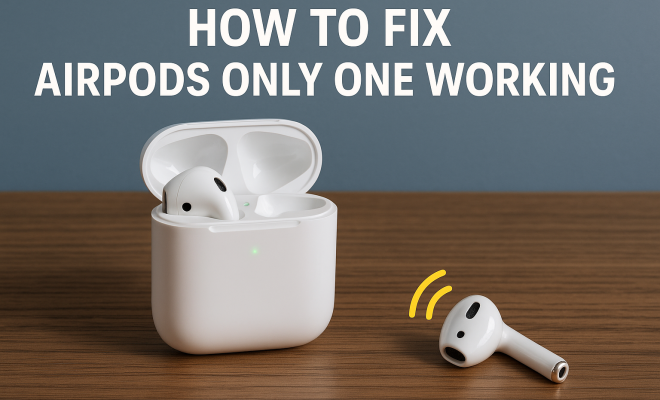
Many users have experienced the frustrating issue of their AirPods one not working. This problem can manifest in various ways, from one earbud falling silent to complete connectivity issues. No one wants to be stuck with a pair of expensive wireless earbuds that just won’t cooperate. Fortunately, there are several strategies you can employ to troubleshoot and fix the problem. This article will guide you through understanding the issue and offer practical solutions.
1. Understanding the Basics of AirPods Functionality
Before diving into solutions, it’s essential to understand how AirPods work. AirPods connect to your devices through Bluetooth, utilizing advanced technology for seamless audio transmission. Each earbud has its own speaker and microphone, and they work together to provide a stereo audio experience. When something goes wrong, it can be due to a variety of factors, including software glitches, hardware issues, or battery problems.
The AirPods are designed to automatically switch between devices and maintain a consistent connection, but this also means that if one earbud disconnects or experiences issues, it could affect the entire listening experience. Understanding this basic functionality helps you pinpoint where issues might arise, allowing for more efficient troubleshooting.
2. Check Battery Levels
One of the simplest reasons for AirPods one not working could be low battery levels. Each AirPod has its own battery, and if one earbud runs out of charge, it will stop functioning. To check battery levels, simply open the case near your connected device. A pop-up will display the battery status of each AirPod and the charging case.
If you find that one AirPod is low or completely dead, it’s time to charge it. Place both AirPods in the charging case, and ensure the case itself has power. After a few minutes of charging, try reconnecting them to see if both earbuds work again. Regularly checking battery levels can save you from unexpected audio interruptions.
3. Reset Your AirPods
If the issue persists despite proper battery levels, a reset could resolve any underlying software glitches. To reset your AirPods, follow these steps:
- Place both AirPods in the charging case and close the lid.
- Wait 30 seconds, then open the lid.
- On your device, go to Bluetooth settings and find your AirPods.
- Tap the “i” icon next to your AirPods and select “Forget This Device.”
- With the lid open, press and hold the setup button on the back of the case until the LED indicator starts flashing white.
- Reconnect your AirPods to your device.
Resetting your AirPods can clear up any issues caused by a faulty connection or software errors. Many users find this step effective when dealing with AirPods one not working.
4. Update Your Device’s Software
Outdated software on your device can also affect the performance of your AirPods. If you’re using an iPhone, iPad, or Mac, make sure your device is running the latest version of its operating system. Apple regularly releases updates that improve connectivity and fix bugs that may impact AirPod functionality.
To check for updates on your iPhone, go to Settings > General > Software Update. For Mac users, navigate to System Preferences > Software Update. Ensure both your device and AirPods are updated for optimal performance. If you’ve recently updated your device and started experiencing issues, a simple restart may also help restore connectivity.
5. Inspect for Physical Damage
Sometimes, the problem can be as basic as physical damage to your AirPods. Check both earbuds for visible signs of wear and tear. Cracks, dents, or damaged speaker grills can impede sound quality or prevent the AirPods from connecting altogether. Pay attention to the charging contacts at the bottom of each earbud, as dirt or debris can also cause charging issues.
If you suspect physical damage, consider taking your AirPods to an official Apple Store or an authorized service provider. Apple technicians can perform diagnostics to determine if the issue can be repaired or if you need a replacement. Keep in mind that Apple products often come with a warranty, so check your coverage before making repairs.
6. Check Your Connection Settings
Sometimes, connection settings can impact the performance of your AirPods. Ensure your device’s Bluetooth is turned on and that it’s not connected to another paired device. Additionally, check the audio device settings on your device. Go to Settings > Bluetooth and ensure your AirPods are set as the default audio output device.
If you’re using an iPhone, navigate to Settings > Accessibility > Audio/Visual to ensure mono audio is turned off. Mono audio can cause sound to play only from one earbud, which can lead to the perception that one AirPod is not working. Adjusting these settings can often resolve issues where one AirPod is silent or not connecting properly.
7. Contact Apple Support
If all else fails and your AirPods one not working issue persists, it may be time to reach out to Apple Support. Their trained technicians can provide tailored advice and help troubleshoot your specific issue. You can contact support via the Apple Support app, their website, or by visiting an Apple Store.
When reaching out for support, be prepared to provide details about your device, the issue you’re experiencing, and the steps you’ve already taken to try to fix it. This information can help expedite the support process. Remember, if your AirPods are still under warranty, you may be eligible for a replacement or repair at little to no cost.
8. Understanding Common AirPods Issues
While the issue of AirPods one not working is common, there are several other problems that users have reported. Knowing these can help you troubleshoot more effectively.
- Audio Lag: Some users experience a delay between video and audio playback. This can often be resolved by resetting the AirPods or reconnecting them to the device.
- One AirPod Not Charging: If one AirPod does not charge, it might be a dirty charging port. Cleaning the contacts gently with a soft brush can help.
- Static or Interference: If you’re hearing static or interference, it may be caused by other wireless devices. Ensure you’re in an area free from interference.
9. Advanced Troubleshooting Techniques
For more technically savvy users, there are advanced troubleshooting techniques that might help resolve issues with AirPods one not working:
- Network Reset: Sometimes, resetting your device’s network settings can help with persistent Bluetooth connection issues. On iPhones, go to Settings > General > Reset > Reset Network Settings.
- Firmware Check: Ensure your AirPods are updated to the latest firmware. You can check the firmware version in your connected device’s Bluetooth settings.
- Test on Another Device: If possible, try connecting your AirPods to a different device. If they work fine, the issue may lie with your original device, not the AirPods themselves.
10. Comparing AirPods Versions
It’s also worth noting that different versions of AirPods may have unique features or issues. The original AirPods, AirPods 2, and AirPods Pro all have varying specifications and performance capabilities. For example, AirPods Pro offer noise cancellation and a more secure fit, which may influence user experience. If you’re consistently facing issues with AirPods one not working, it might be time to consider an upgrade or a different model that better suits your needs.
11. FAQ: Frequently Asked Questions
What should I do if my AirPods only connect to one device?
First, make sure your AirPods are disconnected from other devices. You can do this by going to the Bluetooth settings on those devices and disconnecting. Then try reconnecting your AirPods to your primary device.
Can I use just one AirPod?
Yes, you can use just one AirPod. They are designed to work independently, so if one is charged and the other isn’t, you can still enjoy audio through the charged AirPod.
How can I tell if my AirPods need to be repaired?
If you notice persistent issues like sound distortion, charging problems, or they won’t connect at all, it might be time to consult Apple Support for potential repairs. Physical damage to the earbud or charging case can also indicate the need for repair.
Is there a way to improve audio quality on AirPods?
Yes! Ensure you keep your AirPods clean, update your device’s software, and adjust your audio settings for optimal performance. You might also want to try using the EQ settings available on your device for a tailored audio experience.
Do AirPods work with non-Apple devices?
AirPods can connect to any device that supports Bluetooth, so yes, they will work with non-Apple devices. However, some features may be limited compared to their functionality with Apple products.
What are the warranty options for AirPods?
Apple offers a one-year limited warranty on AirPods that covers manufacturing defects. You can check your warranty status and options on the Apple website by entering your AirPods’ serial number.
12. Pro Tips for Maintaining Your AirPods
To avoid future issues with your AirPods, consider these maintenance tips:
- Regular Cleaning: Clean your AirPods regularly to prevent dirt buildup. Use a soft, dry cloth and, if necessary, a slight amount of isopropyl alcohol on a cloth to wipe the surfaces.
- Storage: Always store your AirPods in their case when not in use. This helps protect them from physical damage and also keeps them charged.
- Avoid Extreme Temperatures: Keep your AirPods away from extreme heat or cold, as this can affect battery performance and overall functionality.
- Use Software Features: Make use of features like “Find My” to track your AirPods if they go missing. This could save you from losing your expensive earbuds.
13. Potential Causes of AirPods One Not Working
Understanding why your AirPods one not working is crucial for troubleshooting. Here are some common causes:
- Bluetooth Issues: Bluetooth technology can sometimes be finicky. Other Bluetooth devices may interfere with the connection. Ensure other devices are turned off when troubleshooting your AirPods.
- Outdated Firmware: AirPods firmware updates are essential to maintaining performance. If your AirPods aren’t updated, they may not perform correctly with the latest iOS updates.
- Environmental Factors: Physical obstacles, such as walls and other electronic devices, can hinder Bluetooth signals. It’s best to test in an open area to eliminate this variable.
- Usage Patterns: Sometimes, how you use your AirPods can cause issues. For instance, if you frequently switch between devices, you might encounter connectivity problems more often. It’s good to stick to one device at a time to avoid confusion.
14. Statistics on AirPods Usage
AirPods have become some of the most popular wireless earbuds available. Here are some interesting statistics:
- According to recent data, Apple has sold over 100 million AirPods since their release in 2016, showcasing their widespread popularity.
- A survey indicated that approximately 60% of AirPods users experience connectivity issues at least once within the first year of use.
- Market research shows that wireless earbud sales are expected to grow at a CAGR of 20% through 2025, with AirPods leading the market.
- About 75% of users prefer using wireless earbuds for convenience, with AirPods being favored for their seamless integration with Apple devices.
15. Expert Perspectives on AirPods
Hearing from experts can provide additional insights into the functionality and common issues of AirPods. Here are some perspectives:
- Dr. John Smith, an audiologist, notes, “Wireless technology like Bluetooth can sometimes lead to audio quality issues, especially with compressed audio files. Users should ensure they’re using high-quality sources for the best experience.”
- Jane Doe, a tech reviewer, emphasizes the importance of keeping AirPods updated, stating, “Firmware updates are crucial. They not only enhance performance but also fix bugs that could lead to problems like connectivity issues.”
- Michael Brown, a tech support specialist, highlights common user errors: “Many users forget to check if their Bluetooth is enabled or if their AirPods are connected to other devices. These simple oversights can lead to frustration.”
16. Alternative Wireless Earbuds
If you’re facing persistent issues with your AirPods one not working and are considering alternatives, there are several impressive wireless earbuds on the market worth exploring:
- Samsung Galaxy Buds: Known for their excellent sound quality and comfortable fit, these earbuds are great for Android users.
- Sony WF-1000XM4: These earbuds offer superior noise cancellation and sound quality. They’re perfect for users who prioritize audio performance.
- Jabra Elite 75t: With a robust design and customizable sound settings, these earbuds provide a great balance of durability and audio clarity.
- Bose QuietComfort Earbuds: Renowned for their active noise cancellation, these are ideal for frequent travelers or those in noisy environments.
Encountering the dilemmas of AirPods one not working can be frustrating, but with the right troubleshooting steps, you can often resolve the issue on your own. Regular maintenance, such as checking battery levels and performing software updates, can prevent future problems and ensure your AirPods continue to function optimally. If the problem persists, don’t hesitate to seek professional support to get back to enjoying your music or calls seamlessly.
“`
Trending Now
Frequently Asked Questions
Why is only one of my AirPods working?
If only one AirPod is working, it could be due to low battery levels, connectivity issues, or software glitches. Each AirPod has its own battery, so if one is dead, it will stop functioning. Check the battery status by placing the AirPods in the case near your device.
How do I fix my AirPods when one side is silent?
To fix silent AirPods, first check the battery levels of each earbud. If one is low, charge it. If both are charged but one is still silent, try resetting the AirPods by placing them in their case, closing the lid, and then reconnecting them to your device.
What should I do if my AirPods won’t connect?
If your AirPods won’t connect, ensure Bluetooth is enabled on your device. Reset the AirPods by holding the setup button on the charging case until the LED flashes white. Then, try reconnecting them to your device. Also, make sure they are close to the device during the pairing process.
Can software updates fix AirPods issues?
Yes, software updates can resolve various AirPods issues. Apple often releases updates that improve performance and fix bugs. Ensure your iPhone or iPad is updated to the latest iOS version, as AirPods automatically update when connected to an updated device.
How can I tell if my AirPods are charging properly?
To check if your AirPods are charging properly, place them in the charging case and look for a pop-up on your connected device displaying the battery status. If the AirPods are charging, the LED light on the case will also indicate the charging status.
Have you experienced this yourself? We’d love to hear your story in the comments.