How to enable developer mode Safari
“`html
For web developers and designers, the ability to inspect web pages, debug code, and test functionalities is crucial. With Safari, Apple’s web browser, you can enhance your browsing experience significantly by enabling Developer Mode. This feature provides essential tools that allow you to dive deep into the workings of a website. In this article, we’ll explore how to enable developer mode Safari and why it’s a game-changer for anyone working in tech.
1. Understanding Developer Mode in Safari
Before we dive into the practical steps, let’s clarify what Developer Mode entails. Essentially, it’s a subset of features designed for developers. This includes tools for inspecting HTML elements, analyzing network requests, testing JavaScript, and monitoring performance. In short, it’s like having a toolbox at your disposal to understand how web applications function.
Enabling Developer Mode not only helps you troubleshoot issues but also accelerates the learning process, especially for those new to web development. With Safari’s developer options, you can see changes in real-time, making it easier to fine-tune your designs or debug errors.
2. Why Use Safari for Development?
Safari may not be as popular as Chrome or Firefox among developers, but it offers unique advantages. Firstly, Safari is optimized for macOS and iOS devices, making it an excellent choice for developers targeting Apple ecosystems. The browser is known for its speed and energy efficiency, which can be beneficial during development.
Moreover, while it may lack some extensions that other browsers offer, Safari’s developer tools are robust. They provide features like the Web Inspector, which is critical for debugging and enhancing web applications. Understanding how to enable developer mode Safari is vital for tapping into these powerful tools.
In addition to its performance, Safari provides a seamless integration with other Apple services, like iCloud, which can be beneficial for developers working across multiple Apple devices. This integration allows you to test your web applications in various environments, ensuring consistent performance and appearance across devices.
3. Step-by-Step Guide to Enable Developer Mode in Safari
Now that you understand the significance of Developer Mode, let’s get into the nitty-gritty of enabling it. Follow these steps carefully to activate Developer Mode in Safari:
- Open Safari: Launch the Safari browser from your dock or applications folder.
- Access Preferences: Click on ‘Safari’ in the menu bar at the top left of your screen, then select ‘Preferences’ from the dropdown menu.
- Navigate to the Advanced Tab: In the Preferences window, click on the ‘Advanced’ tab, which is usually the last option on the right.
- Enable Developer Menu: At the bottom of the Advanced tab, you’ll see an option labeled ‘Show Develop menu in menu bar.’ Check this box.
- Close Preferences: Once you check that box, you can close the Preferences window.
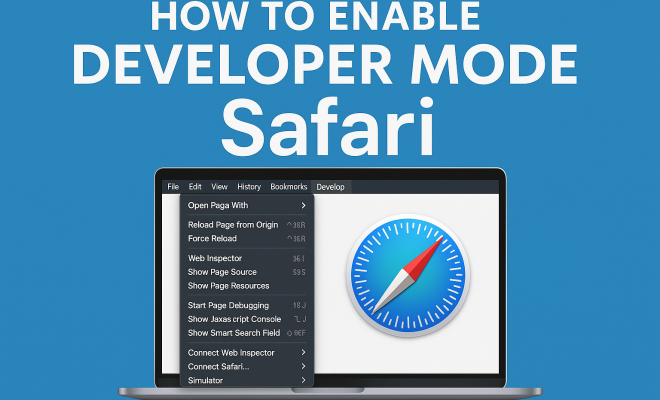
Congratulations! You’ve successfully activated Developer Mode in Safari. You’ll notice a new ‘Develop’ menu in the menu bar, providing quick access to various development tools.
4. Exploring the Developer Menu
With the Developer Menu enabled, you have immediate access to several critical features:
- Web Inspector: Inspect, modify, and debug your web pages.
- Responsive Design Mode: Simulate how your site looks on various devices without needing to switch devices.
- Disable Caches: Test how your site performs without cached data.
- JavaScript Console: Interact with JavaScript directly, which is invaluable for debugging.
- Network Tab: Monitor network requests and track loading times.
These tools are indispensable for any web developer, enabling you to build and troubleshoot efficiently. The Web Inspector, for instance, allows you to edit CSS directly and see changes in real-time, streamlining your workflow.
5. Inspecting Web Pages
One of the primary functions of Developer Mode is the ability to inspect web pages. Using the Web Inspector, you can view the underlying HTML, CSS, and JavaScript of any webpage. This is particularly useful for understanding how different elements are structured and styled. (See: New York Times on Safari's Privacy Features.)
To inspect a webpage, simply right-click on the element you want to examine and select ‘Inspect Element.’ This opens the Web Inspector, where you can see the corresponding code. You can also edit HTML and CSS directly in this interface, allowing for immediate visual feedback.
Being able to see real-time changes helps you learn and understand how web design works, making it a fantastic learning tool for beginners.
6. Debugging with the JavaScript Console
Another powerful feature of Developer Mode is the JavaScript Console. This tool allows you to run JavaScript commands, log errors, and inspect the output of your scripts. It’s an essential part of the debugging process, helping you identify issues in your code quickly.
To open the JavaScript Console, navigate to the Develop menu and select ‘Show JavaScript Console.’ Here, you can enter commands, view error messages, and access other useful information. For example, if a script isn’t running as expected, you can check for syntax errors or runtime exceptions directly in the console, streamlining troubleshooting.
For instance, if you’re building a dynamic web application that relies on user inputs, the JavaScript Console allows you to test user interactions in real-time. This can significantly reduce the time spent on debugging and improve overall productivity.
7. Using Responsive Design Mode
With mobile traffic dominating web usage, ensuring your web applications are mobile-friendly is non-negotiable. The Responsive Design Mode in Safari allows you to test how your website appears on various devices and screen sizes.
To activate this feature, go to the Develop menu and click on ‘Enter Responsive Design Mode.’ You’ll find a selection of device presets, including iPhones, iPads, and different screen resolutions. This feature is crucial for developers to ensure their designs are adaptable and user-friendly across devices.
Moreover, you can rotate the view, simulate different network conditions, and change user-agent settings, giving you a comprehensive understanding of how your site performs under various scenarios.
Statistics show that over 50% of global web traffic now comes from mobile devices. Therefore, testing your site in Responsive Design Mode is not just a best practice; it’s vital for ensuring a good user experience and maximizing reach.
8. Performance Monitoring
Monitoring performance is vital in web development, and Safari’s Developer Mode provides tools for this purpose. The Network tab in Web Inspector allows you to track resource loading times, view HTTP requests, and analyze response headers.
Tracking these metrics helps you identify bottlenecks in your web application. For instance, if a particular resource is taking too long to load, you can investigate why and take steps to optimize it. This can lead to better user experiences and improved search engine rankings due to faster load times.
Additionally, the Timeline feature enables you to record and analyze your page’s rendering performance, CPU usage, and memory consumption, helping you pinpoint performance issues that could impact your users.
Research indicates that a 1-second delay in page load time can lead to a 7% reduction in conversions. Therefore, utilizing performance monitoring tools in Developer Mode can have a direct impact on your website’s success and user retention.
9. Keeping Developer Mode Updated
As technology evolves, so do the tools within Safari’s Developer Mode. Apple frequently releases updates, adding new features and improving existing ones. It’s essential to keep your browser up to date to take advantage of these enhancements.
To ensure you have the latest version of Safari, navigate to the Apple menu and select ‘System Preferences,’ then ‘Software Update.’ Regularly checking for updates means you won’t miss out on crucial developer tools or improvements.
Staying updated also helps ensure compatibility with the latest web standards, which is essential for developing modern web applications.
10. Common Issues When Using Developer Mode
While Developer Mode in Safari is a powerful tool, you may encounter a few common issues. Here are some challenges developers often face along with tips on how to solve them:
- Elements Not Highlighting: If you’re having trouble with elements not highlighting when inspecting, make sure the Web Inspector is set to ‘Show Layout.’ This will allow you to see the box model and make adjustments more easily.
- JavaScript Console Not Updating: Sometimes, the console can become unresponsive. If this happens, try refreshing the page. If the issue persists, restarting Safari may resolve the problem.
- Performance Metrics Inaccuracies: Occasionally, you may notice discrepancies in performance metrics. Always test with the network throttled to simulate different conditions accurately.
11. Best Practices for Using Developer Mode
To make the most of Developer Mode, here are some best practices to keep in mind:
- Regularly Clear Cache: Before testing changes, make it a habit to clear your cache. This ensures you’re viewing the most recent version of your site without cached data interfering.
- Use Console Warnings as Guides: Pay attention to warnings and errors in the JavaScript Console. They often provide valuable insights into areas that need attention or debugging.
- Document Changes: As you use the Web Inspector to make changes, document those adjustments. This practice can be extremely helpful for future reference or for team projects.
12. FAQ: Common Questions About Enabling Developer Mode in Safari
Q1: Do I need to be a professional developer to use Safari’s Developer Mode?
No, anyone interested in web development can benefit from using Developer Mode. It’s a great learning tool for beginners as well as a powerful resource for seasoned developers.
Q2: Can I enable Developer Mode on iOS devices?
Yes, you can enable Developer Mode on iOS devices, but this requires using Safari on a Mac and connecting your iOS device. You’ll need to enable ‘Web Inspector’ in the ‘Settings’ app on your iOS device under the ‘Safari’ section.
Q3: What should I do if Developer Mode is not showing up after enabling it?
If the Developer Menu isn’t appearing, try restarting Safari or checking the preferences again to ensure the ‘Show Develop menu in menu bar’ option is still checked.
Q4: Are there alternatives to Safari for web development?
While Safari is a robust choice, other browsers like Chrome, Firefox, and Edge also have excellent developer tools. Ultimately, the best browser depends on your specific requirements and preferences.
Q5: How often should I update Safari to access Developer Mode enhancements?
It’s good practice to check for updates regularly, ideally every few weeks. Keeping your browser updated ensures you have the latest features and security enhancements.
13. Advanced Features of Safari Developer Mode
While the basic functionalities of Developer Mode are incredibly useful, there are also some advanced features worth exploring for experienced developers:
Using the Audit Tool
Safari’s Web Inspector includes an Audit tool which helps you analyze your website’s performance, accessibility, and best practices. This tool provides actionable insights and suggestions that can help improve your site’s overall quality. For example, it might flag unused CSS rules, suggest optimizations for images, or highlight accessibility issues that could hinder user experience.
Network Conditions Simulation
As part of the Developer Menu, you can simulate different network conditions to see how your web application performs under various circumstances. This feature allows you to throttle the network speed, providing a realistic testing environment to ensure your site is functional even with slower connections. This is particularly useful for understanding how mobile users with limited data plans may experience your site.
14. Examples of Using Developer Mode in Real Projects
Let’s look at a couple of real-world scenarios where enabling Developer Mode in Safari has helped developers achieve their goals:
Example 1: Debugging a Complex Web Application
A developer working on a single-page application (SPA) faced challenges with certain dynamic elements not rendering correctly. By using the Web Inspector, they were able to identify that a specific JavaScript function was throwing an error due to a missing variable. The JavaScript Console provided immediate feedback, allowing them to correct the issue swiftly without extensive trial and error.
Example 2: Ensuring Cross-Device Compatibility
Another instance involved a developer tasked with creating a responsive layout for a client’s e-commerce site. By leveraging the Responsive Design Mode, they could test the site across various device presets. They noticed that certain button sizes were too small for touch devices, prompting them to make adjustments. This proactive testing helped ensure a better user experience, ultimately contributing to higher conversion rates.
15. Further Learning Resources
If you’re eager to deepen your understanding of web development and Safari’s Developer Mode, consider the following resources:
- Apple’s Official Documentation: Apple provides thorough documentation on the Developer Tools available in Safari, including tutorials and guides.
- Online Courses: Websites such as Udemy, Coursera, and freeCodeCamp offer courses specifically focused on web development, JavaScript, and debugging techniques.
- Community Forums: Engaging with communities on platforms like Stack Overflow or the Apple Developer Forums can provide invaluable insights and support from fellow developers.
By enabling Developer Mode in Safari, you equip yourself with powerful tools that enhance your web development and debugging processes. Whether you’re a seasoned pro or just starting, knowing how to utilize these features can significantly improve your workflow. So, take the plunge and enable developer mode Safari today — your future self will thank you!
“`
Trending Now
Frequently Asked Questions
How do I enable developer mode in Safari?
To enable Developer Mode in Safari, open the browser, go to 'Preferences' from the Safari menu, click on the 'Advanced' tab, and check the box that says 'Show Develop menu in menu bar'. This will add the Develop menu, which provides access to various developer tools.
What is Safari Developer Mode used for?
Safari Developer Mode is used for inspecting web pages, debugging code, and testing functionalities. It provides essential tools such as the Web Inspector, enabling developers to analyze HTML, JavaScript, network requests, and performance metrics effectively.
Is Safari good for web development?
Yes, Safari is a good choice for web development, especially for developers targeting macOS and iOS devices. It offers robust developer tools, optimized performance, and energy efficiency, making it suitable for testing and debugging web applications.
What tools are available in Safari Developer Mode?
In Safari Developer Mode, you have access to tools like the Web Inspector, which allows you to inspect HTML elements, debug JavaScript, analyze network requests, and monitor website performance, providing a comprehensive toolkit for web development.
Can I use Safari Developer tools for mobile web development?
Yes, Safari Developer tools can be used for mobile web development. You can simulate mobile devices and test responsive designs directly in the browser, or connect your iOS device to your Mac to inspect and debug mobile web applications.
Have you experienced this yourself? We’d love to hear your story in the comments.