How to download all Facebook photos
“`html
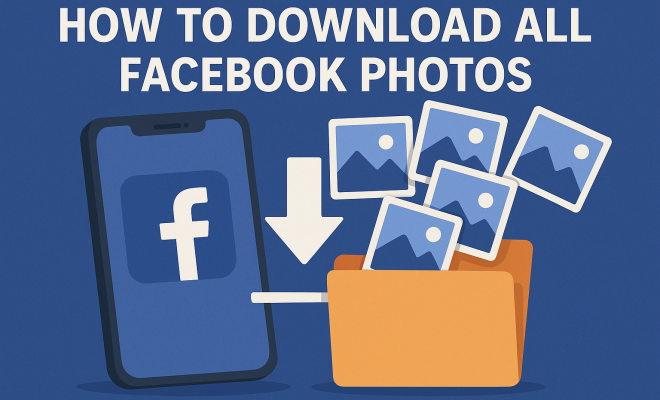
In an age where our lives are chronicled through social media, having access to our digital memories is more critical than ever. If you’ve been using Facebook for a while, your photo library is likely brimming with cherished moments. But how do you download Facebook photos? Whether it’s for backup purposes, to create photo albums, or simply to have a copy of your favorite memories, this guide will walk you through the entire process, covering everything you need to know about downloading your photos from Facebook.
1. Understanding Facebook’s Photo Storage
Facebook offers users the ability to upload, share, and store photos, but many users aren’t fully aware of how Facebook manages these images. When you upload a photo to the platform, it’s stored on Facebook’s servers and can be accessed from any device linked to your account. This means that if you ever want to revisit those moments, they are usually just a few clicks away.
However, despite the convenience of cloud storage, relying solely on Facebook to preserve your photos can be risky. Changes in policies, technical glitches, or even accidental deletions can hinder access to your memories. This is why knowing how to download Facebook photos is crucial for safeguarding your digital keepsakes.
2. Why You Should Download Your Facebook Photos
There are several compelling reasons to download Facebook photos. First and foremost, having offline copies of your images protects you against potential data loss. If Facebook were to experience a server outage or if your account were hacked, you wouldn’t want to lose those precious memories.
Secondly, downloading your photos allows you to organize them better. You can create dedicated folders on your computer or even use them to create physical photo albums, which can be a delightful way to reminisce. Plus, you can use these images for personal projects, whether it’s printing them out or creating digital collages.
Another reason to download your photos is to share them with family and friends. While you can tag people in your Facebook posts, sharing high-resolution images directly can enhance the experience. For instance, grandparents might appreciate a printed photo rather than a digital one on a screen. It’s a more personal touch that can strengthen bonds.
3. How to Download Facebook Photos Individually
If you only need a few images, downloading them individually is straightforward. Here’s how:
- Log into your Facebook account.
- Navigate to your profile and click on the ‘Photos’ tab.
- Select ‘Albums’ or ‘Uploads’ to find the specific photo you want to download.
- Click on the photo to open it in a larger view.
- In the top right corner, you’ll see three dots. Click on them and select ‘Download’.
This method is simple but can be time-consuming if you have hundreds of photos to download. Therefore, consider other methods if you have a larger collection.
4. Downloading Multiple Photos at Once
If you need to download several photos at once, Facebook allows you to download entire albums or multiple images from an album. Here’s how you can do it:
- Go to your profile and click on ‘Photos’.
- Select the album containing the photos you want to download.
- Click on the three dots in the top right corner of the album.
- Select ‘Download Album’.
This approach saves you a considerable amount of time and ensures you get all your selected photos without the hassle of downloading each one individually. The photos will be downloaded in a .zip file, which you can then extract on your device.
Once extracted, you can easily organize these photos into personalized folders. For instance, you might want to create folders based on year, event, or location, which will make it easier to find specific images later on.
5. Using Facebook’s Data Download Tool
If you wish to download all your Facebook photos and other data at once, Facebook’s ‘Download Your Information’ tool is incredibly useful. Here’s how to access it: (See: Wikipedia article on Facebook.)
- Go to ‘Settings’ from the drop-down menu in the upper right corner of your screen.
- Select ‘Your Facebook Information’ from the left sidebar.
- Click on ‘Download Your Information’.
- You’ll see a list of data categories. Ensure ‘Photos and Videos’ is selected.
- Choose the date range, format (HTML or JSON), and media quality, then click ‘Create File’.
Once Facebook has compiled your information, you’ll receive a notification when it’s ready to download. This method gives you a comprehensive archive of not only your photos but also other valuable data like posts, messages, and more, making it a one-stop solution for backing up your Facebook presence.
This tool not only helps in preserving your photos but also serves as a digital scrapbook of your online journey, capturing all the interactions, friendships, and milestones that have shaped your life on Facebook.
6. What to Do with Downloaded Photos
Now that you’ve mastered how to download Facebook photos, what’s next? The options are virtually endless. One popular use is to create digital photo albums or slideshows. There are many user-friendly applications available that can help you compile your images into a visually appealing format.
You might also consider printing your photos. Services like Shutterfly, Snapfish, and even local print shops allow you to print images directly from your computer. Creating physical copies can be a heartwarming way to preserve your memories, especially for special occasions like weddings, anniversaries, or family reunions.
Additionally, consider creating themed scrapbooks. For instance, you could make a travel scrapbook featuring pictures from your vacations or a family history book documenting various family gatherings over the years. This creative outlet not only preserves your memories but can also be a fun project to undertake with your family.
If you’re tech-savvy, you can explore digital frame options that allow you to display a rotating gallery of your favorite Facebook photos. This can serve as a beautiful centerpiece in your home, reminding you of cherished moments daily.
7. Maintaining Privacy When Downloading Photos
While downloading your Facebook photos, it’s crucial to be mindful of privacy. If you have pictures with friends or family, ensure that you have their consent before sharing or using these images outside of your personal use. Respecting privacy goes a long way in maintaining healthy relationships.
Additionally, be cautious about where you store your downloaded images. If you’re using cloud storage services, check their privacy settings to ensure your photos remain secure and are only shared with those you trust.
Consider encrypting your files or using password-protected folders if your photos contain sensitive information or are particularly personal. Being proactive about these measures can help safeguard your memories from unauthorized access.
8. Common Issues When Downloading Facebook Photos
Like any technical process, downloading Facebook photos can come with its own set of challenges. One common issue is encountering file size limits. Facebook has restrictions on how large individual files can be, which can affect the quality of your downloads.
Another issue might be connectivity problems. If your internet connection is unstable, you may experience interruptions during the download process. To mitigate this, try downloading during off-peak hours or connect to a more stable network.
Sometimes, users may find that their downloads are not in the expected format or resolution. Always check your download settings and ensure that you select the highest quality available for your images. If you notice any images missing after using the data download tool, check for filters that may have excluded them.
9. Alternatives to Downloading Facebook Photos
If downloading seems cumbersome, consider alternative ways to save your Facebook memories. Third-party applications and tools can simplify the process. For example, tools like IFTTT or Zapier can automate the task of saving your Facebook photos to cloud storage services like Google Drive or Dropbox.
Social media management tools can also be helpful. They often allow you to download or backup your content across various platforms, not just Facebook, which can save you time and effort in the long run. (See: CDC on social media and mental health.)
Another option is to share photos directly to a cloud service from Facebook, allowing you to skip the download process entirely. Many users create dedicated albums on platforms like Google Photos or Flickr, making their images accessible and organized without the need for manual downloads.
10. The Importance of Regular Backups
Now that you know how to download Facebook photos, it’s essential to make this a regular habit. Social media platforms are constantly evolving, and while they provide a convenient way to store memories, they can’t guarantee the long-term security of your photos. Regular backups can give you peace of mind knowing that your precious memories are safe.
Consider setting reminders to download your photos every few months or after significant events. This way, you’ll ensure that you have current copies of your memories without the stress of scrambling to retrieve them later.
Moreover, you might want to explore different storage solutions for diversifying how you back up your photos. For instance, you could use an external hard drive for physical backups while also utilizing cloud storage for easier accessibility.
11. FAQ: Downloading Facebook Photos
Q1: Can I download photos that I didn’t upload?
A: You can only download photos that you’ve uploaded yourself or those that have been shared with you and are publicly accessible. For photos in which you’re tagged, you must download them from the albums of the user who uploaded them.
Q2: What file format are the downloaded photos in?
A: The downloaded photos are typically in JPEG format, which is standard for images and widely supported by most devices and applications.
Q3: How do I ensure I download high-resolution images?
A: When using the ‘Download Your Information’ tool, select the highest media quality option available. For individual downloads, ensure that you’re viewing the photo in its original size before downloading.
Q4: What if I encounter an error during the download process?
A: If you run into errors, check your internet connection first. If the problem persists, try clearing your browser cache or using a different browser. Additionally, ensure that your Facebook app is updated if using a mobile device.
Q5: Can I download photos from Facebook’s mobile app?
A: Yes, the process is similar on the mobile app. Simply navigate to the photo, tap on the three dots, and select ‘Download’. Keep in mind that the interface may vary slightly based on your device’s operating system.
Q6: Is there a limit to how many photos I can download at once?
A: Facebook does not impose a strict limit, but downloading a large number of photos at once may slow down the process or lead to potential errors. It’s advisable to download in batches for more extensive libraries.
Q7: What happens to my photos if I deactivate my Facebook account?
A: If you deactivate your account, your photos will be inaccessible to others, but they will remain stored on Facebook’s servers. You can still log back in to download your photos. However, if you permanently delete your account, your uploaded content will also be permanently deleted. (See: Associated Press news articles.)
Q8: Can I download a photo that has been shared by a friend?
A: If a friend has shared a photo and it is set to public, you should be able to download it. However, if it’s in a private album or shared with a limited audience, you won’t have access to download that photo without their permission.
12. Additional Tips for Organizing Your Downloaded Photos
Once you’ve downloaded your Facebook photos, you may want to think about how to best organize them. Here are some tips to get started:
- Use Folders and Subfolders: Create a main folder for your Facebook images, and then create subfolders for different years, events, or themes (like holidays, vacations, or family gatherings).
- Rename Your Files: Instead of letting your photos retain generic names (like IMG_001), consider renaming them based on the event or date. This practice can save time when you’re searching for specific images later.
- Tagging: If your photo management software allows it, tag your images with keywords for easier searching. This can be especially useful for large libraries.
- Regular Maintenance: Periodically go through your photos to delete duplicates or images you no longer want. This will keep your library clean and easy to navigate.
13. Exploring Photo Management Software
If you’re serious about organizing and managing your downloaded Facebook photos, consider investing in photo management software. Programs like Adobe Lightroom, Google Photos, and Microsoft Photos offer robust features for sorting, editing, and sharing photos. With these tools, you can easily create albums, apply filters, and even search for images based on content or metadata. Google Photos, for example, uses AI technology to identify subjects in your photos, allowing for quick and easy searches.
Additionally, many of these software options offer cloud storage solutions, making it easier to access your photos across devices. This means you can keep your Facebook memories at your fingertips, whether you’re at home or on the go.
14. Social Media Ethics and Downloading Photos
It’s essential to consider the ethical implications when downloading and sharing photos, especially those featuring other people. Always think about the context in which you’re sharing your images. If a photo was taken during a private moment, sharing it on other platforms without consent can lead to misunderstandings or hurt feelings.
Additionally, when using photos in any public or commercial context, such as blogs or business promotions, make sure to have the proper permissions from those in the photo. This not only respects their privacy but also adheres to copyright laws.
15. Future of Social Media and Photo Storage
As technology evolves, so does the landscape of social media and photo storage. With advancements in artificial intelligence and machine learning, we may soon see smarter ways of organizing and retrieving our photos. Features like smart sorting, automatic enhancements, and even augmented reality integrations could transform how we interact with our digital keepsakes.
In the future, services may offer enhanced privacy controls, allowing users more autonomy over their shared content. This could lead to more secure environments for storing and sharing photos, ensuring that your memories remain personal and protected.
In the digital age, where social media reigns supreme, being proactive about safeguarding your photos is crucial. By understanding how to download Facebook photos and implementing regular backup practices, you can enjoy your memories without the constant worry of losing them.
“`
Trending Now
Frequently Asked Questions
How do I download all my photos from Facebook?
To download all your photos from Facebook, go to your Settings, select 'Your Facebook Information', and then choose 'Download Your Information'. From there, you can select 'Photos and Videos' and choose the date range and format before initiating the download.
Can I download Facebook photos on my phone?
Yes, you can download Facebook photos on your phone. Open the Facebook app, go to your profile, select 'Photos', choose the photo you want to download, tap on the three dots in the top right corner, and select 'Save Photo'.
Is it safe to download photos from Facebook?
Yes, downloading photos from Facebook is generally safe. However, ensure you are using a secure internet connection and be cautious of phishing attempts. It's also wise to back up your photos to another storage solution.
What happens to my Facebook photos if I delete my account?
If you delete your Facebook account, you will lose access to all your photos stored on the platform. It's crucial to download and back up your photos before deleting your account to preserve your memories.
Can I download photos from other people's Facebook albums?
You can download photos from other people's Facebook albums only if they have set the privacy settings to allow it. If you can view the album, you can typically download the images by right-clicking and selecting 'Save Image As'.
Have you experienced this yourself? We’d love to hear your story in the comments.