How to Delete Google Photos & Free Up Storage (2024 Guide)
“`html
Google Photos has become a staple for many, offering a seamless way to store, organize, and share photos and videos. However, there may come a time when you find yourself needing to delete Google Photos either to free up space or simply to clean up your digital clutter. Whether you want to remove specific images, entire albums, or even your Google Photos account entirely, this guide will walk you through the essential steps to manage your photos effectively.
1. Understanding Google Photos
Launched in 2015, Google Photos offers users a powerful tool for storing and sharing their media. With features like automatic backup, intelligent organization, and easy sharing options, it’s no wonder that millions of people rely on it. However, even the best services can become overwhelming, especially as your library grows.
The platform allows for free photo storage, but this comes with limits. Google has since altered its policies, meaning that after June 2021, any new photos uploaded will count against your Google account storage quota. Knowing this, it’s crucial to understand how to efficiently delete Google Photos to manage your storage effectively.
2. Why You Might Want to Delete Google Photos
There are several reasons you might consider deleting Google Photos. For one, you may find that your storage is nearing its limit, prompting the need to clear out old or unwanted images. Alternatively, you might want to switch to another photo storage service that meets your needs better or offers more privacy.
Another reason could be organizational. Over time, your photo library can become cluttered with duplicates or less-than-perfect shots. Deleting Google Photos can help streamline your collection, making it easier to find what you truly cherish.
Additionally, concerns over privacy and data security may push you to delete Google Photos. As more people become aware of how their data is used, the desire to control personal information is becoming a common motivation for leaving cloud services.
3. Preparing to Delete Google Photos
Before diving into the deletion process, it’s essential to prepare adequately. Start by backing up your photos. If there are images you want to keep, ensure they are saved elsewhere, either on an external drive or another cloud service. Google offers tools such as Google Takeout, allowing you to export your data before making any deletions.
Next, familiarize yourself with the Google Photos interface. This will help you navigate the application more smoothly, particularly when you’re selecting photos or albums to delete. Take a moment to sort through your library and pinpoint which images or albums you wish to remove.
Consider categorizing your photos before deletion. This might involve creating folders based on events, years, or themes. Such organization not only assists in the deletion process but also makes it easier for you to find and manage your memories in the future.
4. How to Delete Individual Photos
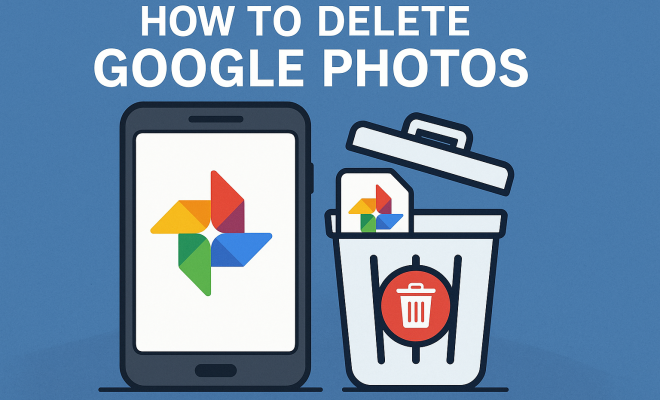
Deleting individual photos in Google Photos is a straightforward process. Open the app or website and navigate to the specific image you want to remove. For mobile users, tap the photo to view it in full screen, then look for the trash can icon, typically located at the bottom right of the screen. Confirm the deletion when prompted.
On the web, the process is similar. Hover over the photo you wish to delete, click on it to open it, and then click on the trash can icon. Google Photos will ask you to confirm your choice. Remember, deleted photos move to the Trash, where they remain for 30 days before being permanently deleted.
To make the most of your deletion process, consider using some of Google Photos’ built-in features. For example, the “Memories” section can help you identify older photos that you might have overlooked when cleaning up your library.
5. Deleting Multiple Photos at Once
If you’re looking to delete Google Photos in bulk, the app makes this process incredibly easy. On mobile, tap and hold on the first image you want to delete. After that, just tap on additional photos to select them. A trash can icon will appear, allowing you to delete all selected images at once. (See: Wikipedia page on Google Photos.)
For desktop users, click the checkmark in the top left corner of each image you’d like to delete. Once you’ve made your selections, click the trash can icon. This is a great way to quickly free up space and manage your photo library more effectively.
Additionally, consider using the “Free Up Space” feature. This tool allows you to remove photos from your device that are already backed up to Google Photos, giving you a quick way to gain storage without the hassle of manually selecting images.
6. How to Delete Albums
Sometimes, you may want to delete entire albums rather than individual photos. In Google Photos, navigate to the “Albums” tab on the app or web interface. Select the album you want to delete, then look for the options menu (three-dot icon) and choose “Delete album”. This option will remove the entire album, but the photos within the album will remain in your library unless you delete them separately.
Deleting albums can greatly enhance your organizational strategies, especially if you find that certain collections are no longer relevant or you’ve opted to reorganize your photo storage. Consider creating new albums that reflect the current season or specific events, which can help you keep your collection fresh and relevant.
7. Deleting Photos from Google Photos without Affecting Google Drive
Many users mistakenly believe that deleting photos in Google Photos will also delete them in Google Drive, and vice versa. However, Google Photos and Google Drive function separately when it comes to photo storage. To delete Google Photos without affecting your Drive, ensure that you are only accessing Google Photos during the deletion.
After you’ve confirmed that the images you are deleting are only in Google Photos, proceed with the deletion as outlined in previous sections. This way, you can maintain your Google Drive files intact while managing your Google Photos efficiently.
If you’re using both services, consider reviewing where your important files lie. Some users prefer to keep specific media files in Google Drive while using Google Photos solely for personal images, thus creating a more defined organization of their digital life.
8. Deleting Your Google Photos Account
If you’re ready to take the plunge and delete your entire Google Photos account, the process is slightly more involved. Before proceeding, remember that this action is irreversible; all your images and videos will be permanently deleted. To start, go to the Google Photos settings and select “Delete your account”. You will be prompted for confirmation.
This step is often taken when users decide to migrate to another service or feel that they no longer need online photo storage. It’s a significant decision, so ensure you’ve backed up any precious memories before taking this final step.
Consider exploring alternatives to Google Photos before making the final decision to delete your account. Services like Amazon Photos or Dropbox may offer similar features with different privacy policies or storage plans, which may align better with your needs.
9. Using Google Takeout for Backup and Deletion
Google Takeout is an excellent tool for backing up your Google Photos before you delete anything. It allows you to export your entire photo library, ensuring you don’t lose any valuable images. To use Google Takeout, simply go to the website, select “Google Photos” from the list of data options, and follow the prompts to create a downloadable archive.
Once you’ve secured your backup, you can proceed with deleting your unwanted images or even your entire account. This offers peace of mind, knowing that your memories are preserved elsewhere.
It’s also worth mentioning that Google Takeout allows you to export your photos in various formats and resolutions. This flexibility ensures that you can keep your images in a way that best suits your future needs, whether for printing, sharing, or simply storing them long-term.
10. Staying Organized After Deleting Google Photos
After going through the deletion process, maintaining an organized photo library is key to preventing future clutter. Consider implementing a regular schedule for reviewing and deleting unwanted photos. Making this a routine can help keep your library manageable. (See: CDC's guidelines on digital storage management.)
You might also explore third-party apps that offer additional organization features, such as duplicate detection or advanced sorting options. Keeping your digital space tidy not only creates peace of mind but also enhances your overall experience with Google Photos.
Another effective strategy is to establish a tagging system. By tagging your photos with specific keywords or categories, you can simplify the search process in the future. This makes it easier to find specific images without having to sift through everything.
11. Common Issues When Deleting Google Photos
While the process is generally straightforward, users may encounter some common issues. One frequent problem is the inability to delete images due to poor internet connectivity. Since Google Photos is a cloud-based service, a stable connection is essential for smooth operation.
Another issue arises when users find photos are not deleting as expected. This might be due to sync problems or images being stored in multiple locations, such as Google Drive. Always double-check where your files are stored if you experience complications.
If you find yourself facing persistent issues, accessing Google’s help center can provide guidance and troubleshooting steps tailored to your specific problem.
12. Expert Tips for Managing Your Photo Library
Experts recommend a few key practices to keep your photo library under control. First, regularly delete photos that don’t meet your standards. If a picture is blurry or captures an unflattering moment, it’s often best to remove it immediately rather than letting it linger.
Second, use the search feature effectively. Google Photos has powerful search capabilities that allow you to find images by date, location, or even the people in the photos, making it much easier to locate specific memories.
Lastly, consider integrating your photo management with your social media accounts. Many platforms allow you to share or upload photos directly from Google Photos, which can help you streamline your digital presence.
13. Frequently Asked Questions (FAQ)
Can I recover deleted photos from Google Photos?
Yes, if you’ve recently deleted photos, you can recover them from the Trash within 30 days. After this period, the images are permanently removed.
Does deleting photos from Google Photos delete them from my device?
If you have enabled “Back up & sync,” deleting images from Google Photos will not remove them from your device unless you choose to delete them from your device as well. You can free up space on your device by using the “Free Up Space” feature.
Will my photos be deleted if I stop using Google Photos?
If you decide to stop using Google Photos but don’t delete your account, your photos will remain in the cloud. However, if you delete your account, all data, including photos, will be permanently deleted.
Can I delete shared albums without affecting others?
Yes, you can delete shared albums, but doing so will remove the album for all participants. If you want to keep it available to others, consider removing individual photos instead.
Is there a way to automate the deletion process?
Currently, Google Photos does not provide an automated deletion feature. Regular manual reviews, however, can help maintain an organized library over time. (See: New York Times article on Google Photos storage changes.)
14. Statistics on Photo Storage and Usage
Understanding how many photos people typically store can offer insightful perspectives on the necessity of managing your Google Photos account. Recent studies indicate that the average smartphone user takes about 1,000 to 1,500 photos each year. With the rise of social media and instant sharing, it’s no surprise that photo libraries can become unwieldy.
Furthermore, a report from Statista reveals that as of 2022, the number of digital photos taken worldwide amounted to over 1.4 trillion. This staggering number emphasizes the importance of efficient management strategies. If you’re a part of this statistic, you might find yourself needing to delete Google Photos more frequently to keep your library organized and manageable.
Additionally, a survey conducted by Adobe in 2023 indicated that 43% of users feel overwhelmed by the number of photos they have stored, and nearly 60% have reported losing track of where their favorite memories are saved. These statistics underscore the necessity of regular maintenance, including deletion, in digital photo management.
15. Alternatives to Google Photos
While Google Photos offers a robust platform for photo storage, it’s essential to recognize that other services may better align with your privacy preferences or storage needs. Some popular alternatives include:
- Apple Photos: Best known for its seamless integration with Apple devices, it offers similar features to Google Photos but focuses more on a curated experience.
- Amazon Photos: This service provides unlimited photo storage for Amazon Prime members, making it an attractive option if you’re already part of the Amazon ecosystem.
- Dropbox: Known for its file-sharing capabilities, Dropbox also allows for photo storage and offers various organizational tools that might suit those who prefer a more file-centric approach.
- Microsoft OneDrive: Ideal for users integrated into Microsoft’s ecosystem, OneDrive offers storage along with Microsoft Office tools, making it a convenient option for collaborative work.
- Flickr: If you’re looking for a community-focused platform, Flickr provides a space to share your photography while also offering substantial storage options.
16. User Experiences: Testimonials on Deleting Google Photos
Hearing from others can provide valuable insights into the decision to delete Google Photos or manage their libraries differently. Here are a few user experiences:
Sarah, a photographer: “I initially loved Google Photos for its organization, but over time, I felt overwhelmed by how many photos I had. Deleting has been liberating. I can finally focus on the images that mean the most to me.”
Mark, a tech enthusiast: “I found Google Photos to be great until I realized how much of my data was being processed. I switched to a more privacy-focused service and deleted my entire account. It was a tough decision but ultimately felt right.”
Emily, a casual user: “I was hesitant to delete Google Photos, fearing I’d lose memories. But using Google Takeout to back everything up gave me confidence. Now, I’ve streamlined my photo library significantly!”
In summary, knowing how to delete Google Photos effectively can significantly improve your experience with the platform. Whether you’re looking to clear space, stay organized, or remove unwanted images, these steps provide a comprehensive guide to managing your photo library.
“`
Trending Now
Frequently Asked Questions
How do I delete photos from Google Photos?
To delete photos from Google Photos, open the app or website, select the photos you want to remove, and tap the trash bin icon. Confirm the deletion, and the selected images will be moved to the Trash, where they will be permanently deleted after 30 days.
Can I delete my entire Google Photos account?
Yes, you can delete your entire Google Photos account by going to your Google Account settings. Navigate to the 'Data & personalization' section, find 'Delete a service or your account,' and follow the prompts to permanently delete Google Photos along with all your stored media.
What happens when I delete photos from Google Photos?
When you delete photos from Google Photos, they are moved to the Trash. They will remain there for 30 days before being permanently deleted. However, if you delete them from Trash, they cannot be recovered, so ensure you want to remove them permanently.
Why should I delete Google Photos?
You might want to delete Google Photos to free up storage space, switch to a different service, or manage a cluttered library. Additionally, privacy concerns may lead users to seek more secure options for storing their personal photos and videos.
Is deleting Google Photos the same as deleting from Google Drive?
No, deleting photos from Google Photos does not affect files in Google Drive. While they are both part of Google’s ecosystem, they serve different functions. Deleting photos in one does not automatically delete them in the other unless they are stored in both locations.
What’s your take on this? Share your thoughts in the comments below — we read every one.