How to defragment hard drive Windows
“`html
Many Windows users often find their systems slowing down over time. One effective method to enhance your computer’s performance is through the process of defragmenting your hard drive. If you’ve been wondering how to defragment hard drive Windows and what it entails, you’re in the right place. In this guide, we’ll explore everything you need to know about defragmentation, including its benefits, how to do it, and some best practices.
1. What Is Defragmentation?
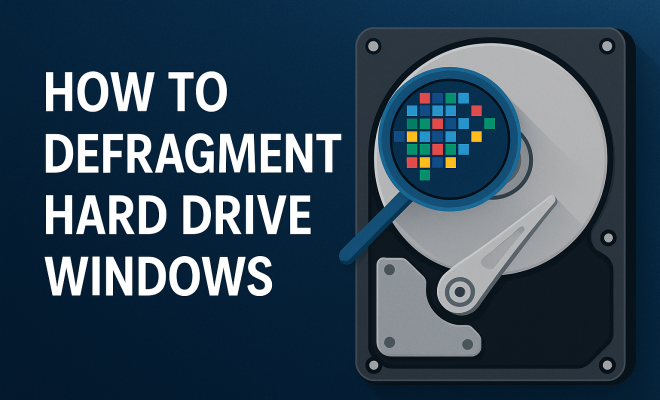
Defragmentation is a process that reorganizes the data on your hard drive to ensure that files are stored in contiguous sections of the disk. Over time, as you create, modify, and delete files, the data becomes fragmented. This fragmentation can lead to inefficient read and write operations, slowing down your computer. By defragmenting your hard drive, you can enhance the performance and efficiency of your system.
The process of defragmentation consolidates fragmented files into fewer pieces, allowing your hard drive’s read/write head to access data more quickly. This is particularly important for traditional hard disk drives (HDDs), where mechanical parts can introduce delays when accessing scattered data. Solid-state drives (SSDs), on the other hand, do not require defragmentation due to their different architecture and speed advantages. Knowing when to defragment is crucial for maintaining optimal performance.
2. Why Is Defragmentation Important?
When files are fragmented, your computer has to work harder to access them. This extra work translates into slower load times for applications and longer wait times when opening documents. Defragmenting your hard drive can significantly boost performance by reducing these delays. On top of that, it helps prolong the life of your hard drive by minimizing wear and tear that results from the read/write head constantly moving across the disk.
Additionally, defragmentation can help free up disk space. When files are fragmented, the file system can become cluttered, making it difficult for the operating system to find space for new files. Defragmenting clears up this clutter, providing a more organized file structure. This organization can lead to improved boot times, faster file access, and an overall smoother computing experience.
3. How to Check If You Need to Defragment
Before diving into the defragmentation process, it’s wise to assess whether your hard drive really needs it. Windows has built-in tools that can help you with this. Here’s how to check:
- Open the Start menu and type “Defragment and Optimize Drives.”
- Select the tool from the search results.
- In the window that opens, you’ll see a list of your drives along with their current status.
If the percentage of fragmentation is above 10% for an HDD, it’s a good sign that you should consider defragmentation. On the other hand, if your drive is an SSD, you won’t need to defragment as the drive’s performance won’t benefit from it, and frequent defragmentation can actually shorten an SSD’s lifespan.
4. How to Defragment Your Hard Drive on Windows
Ready to defragment your hard drive? The process is straightforward and can be done using Windows’ built-in tools. Here’s a step-by-step guide:
- Open the Start menu, type “Defragment and Optimize Drives,” and press Enter.
- Select the hard drive you wish to defragment (usually C:).
- Click the “Optimize” button.
You can also schedule regular defragmentation if you want to maintain your hard drive’s performance. In the same tool, click on “Change settings” to set up a schedule that suits your needs. Scheduling can help ensure your hard drive is regularly maintained without needing to remember to do it manually.
5. Best Practices for Defragmentation
While defragmenting your hard drive is beneficial, there are some best practices to follow to ensure the process goes smoothly:
- Close Unnecessary Programs: Before starting the defragmentation, close all running programs. This helps ensure that the process has the maximum resources available.
- Defragment When Idle: It’s best to run the defragmentation during times when you’re not using your computer heavily. This can help prevent interruptions and ensure a smoother process.
- Regular Maintenance: Aim to defragment your HDD at least once every few months. Keeping an eye on fragmentation levels can save you from experiencing performance lags down the line.
By adhering to these practices, you’ll maintain optimal performance and minimize the chances of encountering issues during the defragmentation process. (See: Wikipedia on defragmentation.)
6. Common Misconceptions About Defragmentation
As with many tech-related topics, misconceptions abound regarding defragmentation. One prevalent myth is that defragmentation is unnecessary for SSDs. While it’s true that SSDs do not benefit from traditional defragmentation, they do require their own form of optimization to maintain performance. Windows includes a built-in tool that performs the necessary TRIM command for SSDs, ensuring that they operate efficiently without the need for defragmentation.
Another misconception is that defragmentation will always speed up your computer. While it can improve performance, the extent of the improvement largely depends on the level of fragmentation and the overall health of your drive. Regular maintenance, like cleaning up unnecessary files and ensuring your hardware is functioning correctly, is equally essential for a well-performing system.
7. Tools for Defragmentation
Aside from the native Windows tool, there are various third-party applications designed to help you defragment your hard drive. Some of these tools offer enhanced performance and additional features that can take your optimization efforts up a notch. Here are a few popular options:
- Defraggler: Developed by Piriform, this tool allows you to defragment specific files or folders rather than the entire drive, offering more flexibility.
- Smart Defrag: A product from IObit, Smart Defrag offers automatic defragmentation and a user-friendly interface, making it a popular choice for many users.
- O&O Defrag: This software is geared towards advanced users, offering a range of optimization options and detailed reports on disk performance.
While these tools can be excellent for managing your hard drive, always ensure that you download them from reputable sources to avoid malware or unnecessary bloatware.
8. When Should You Avoid Defragmentation?
While defragmentation can enhance performance, there are specific situations where it’s best avoided. For instance, as previously mentioned, never defragment an SSD. Doing so can lead to premature wear and tear on the drive due to its unique architecture. Additionally, if you’re currently running a disk cleanup or any heavy processes, it’s advisable to wait until those tasks are complete.
Another key point is during major system updates or upgrades. During these times, your system’s resources are stretched, and adding defragmentation into the mix can lead to complications or extended processing times. In these cases, it’s better to allow the operating system to focus on the updates before initiating any additional maintenance tasks.
9. Defragmentation vs. Disk Cleanup
Defragmentation is often confused with disk cleanup, but they serve different purposes and should be part of separate routines for maintaining your hard drive’s health.
Disk cleanup focuses on removing unnecessary files that can accumulate over time, such as temporary files, system cache, and other digital clutter. This process frees up space on your hard drive, which can also improve performance. Performing disk cleanup regularly—ideally monthly—can complement your defragmentation routine, ensuring your system runs optimally.
In a nutshell, while defragmentation rearranges existing files for efficiency, disk cleanup eliminates what you don’t need. Both are essential for keeping your computer in peak condition, but they should be executed in tandem rather than in isolation.
10. Statistics on Defragmentation
Understanding the impact of defragmentation can be more compelling when you look at actual statistics. According to a study conducted by Microsoft, fragmented drives can slow down system performance by as much as 50%. This delay can significantly affect everyday tasks, from booting up the system to loading applications.
Another survey indicated that over 70% of users who regularly defragment their HDDs reported noticeable improvements in performance. In contrast, those who neglected this maintenance task experienced slower load times and increased application crashes.
Moreover, the National Institute of Standards and Technology (NIST) points out that routine defragmentation can extend the life of a hard drive, reducing the risk of mechanical failures that can arise from constant read/write head movement across a fragmented disk. This shows that the benefits of defragmentation go beyond just speed; they also encompass hardware longevity. (See: CDC on computer ergonomics.)
11. Expert Perspectives on Defragmentation
Industry experts weigh in on the importance of defragmentation, especially for traditional HDD users. According to Greg D. of PC Magazine, “Defragmentation is an essential maintenance task for anyone relying on a traditional hard drive. With data being constantly written and erased, fragmentation can happen quickly, leading to a tangible slowdown in performance.”
In addition, Sarah K., a computer technician, highlights the need for education around SSDs and their unique requirements. “Many users still believe SSDs need defragmentation when, in fact, this practice is counterproductive. Instead, users should focus on ensuring the TRIM command is executed to keep SSDs functioning optimally.”
This professional insight serves to clarify common misconceptions and emphasizes the importance of understanding both HDDs and SSDs when considering defragmentation.
12. Frequently Asked Questions (FAQ)
Q1: Can I defragment my hard drive while using it?
A1: It’s not advisable. Running applications while defragmenting can lead to longer defragmentation times or even data corruption. It’s best to perform this task when your computer is idle.
Q2: How long does defragmentation take?
A2: The time required for defragmentation varies based on the size and level of fragmentation of your hard drive. It can take anywhere from a few minutes to several hours, especially if the drive is heavily fragmented.
Q3: Will defragmentation delete my files?
A3: No, defragmentation reorganizes your files without deleting them. However, it’s always good practice to back up your data before performing maintenance tasks.
Q4: How often should I defragment my hard drive?
A4: Aim to defragment your HDD every few months. If you notice performance issues or if the fragmentation percentage rises above 10%, consider doing it more frequently.
Q5: What happens if I forget to defragment?
A5: While forgetting to defragment may not lead to immediate consequences, over time, high levels of fragmentation can slow down your system, making it less responsive and efficient.
Q6: Is defragmentation necessary for gaming PCs?
A6: Yes! Gaming PCs often require quick load times and performance. Regular defragmentation can help ensure that games load smoothly and operate without lag.
13. The Future of Defragmentation
As technology evolves, so too will the methods we use to maintain our computer systems. While traditional HDDs will continue to benefit from defragmentation for the foreseeable future, advancements in storage technology, including SSDs, are changing the landscape. As more users transition to SSDs, understanding how to optimize these drives will be crucial. However, basic principles of data management will remain, and ensuring that all storage devices operate efficiently will always be a priority. (See: ScienceDirect articles on defragmentation.)
In the coming years, we may see integrated solutions that combine both defragmentation and optimization tasks into a single, user-friendly interface, making it easier for users to maintain their systems without having to worry about the technical details. For now, the best approach is to stay informed, regularly maintain your hard drive, and adapt your practices as technology advances.
14. Improving Hard Drive Performance Beyond Defragmentation
While defragmentation plays a significant role in enhancing hard drive performance, there are additional steps you can take to further optimize your system. Here are some effective strategies:
- Uninstall Unused Programs: Regularly review your installed software and remove any applications you no longer use. This frees up space and reduces clutter on your drive.
- Manage Startup Programs: Limit the number of applications that launch at startup. This can significantly reduce boot time and improve initial performance when you turn on your computer. You can manage startup programs through the Task Manager in Windows.
- Keep Your Operating System Updated: Regular updates often include performance improvements and bug fixes that can enhance system speed. Ensure you install updates as they become available.
- Use Disk Cleanup Tools: In addition to defragmentation, utilize the built-in Disk Cleanup tool to remove temporary files and system caches that can bog down your drive.
- Check for Malware: Malware can severely impact system performance. Regularly scan your computer with a reliable antivirus program to ensure your system is clean.
These additional maintenance steps, when combined with regular defragmentation, can help keep your hard drive functioning optimally and extend its lifespan.
15. Understanding Different Types of Drives
It’s essential to understand the differences between various types of storage drives because each has unique characteristics that affect how you should maintain them. Here’s a breakdown of the most common types:
- Hard Disk Drives (HDDs): These traditional drives are mechanical and consist of spinning disks. They benefit greatly from defragmentation due to the physical nature of how data is stored and retrieved.
- Solid State Drives (SSDs): These drives use flash memory and have no moving parts, providing faster access times. SSDs do not require defragmentation but benefit from the TRIM command, which helps manage unused data blocks.
- Hybrid Drives: Combining HDD and SSD technology, hybrid drives offer a balance of speed and storage capacity. While they can benefit from defragmentation, the SSD portion generally doesn’t require it.
Understanding these differences can help you better manage your storage and maintain optimal performance based on the specific requirements of each type of drive.
16. Conclusion: The Road Ahead for Your Hard Drive
Defragmenting your hard drive can significantly improve the performance of your Windows system by optimizing how data is stored and accessed. By understanding the benefits and best practices surrounding defragmentation, you can ensure that your computer runs smoothly and efficiently. Always remember to perform regular maintenance and keep an eye on your hard drive’s performance, as this will prolong its lifespan and enhance your overall computing experience.
With the right knowledge and tools, you can take charge of your system’s performance, ensuring that it remains a reliable and efficient machine for years to come. So, if you’re looking to defragment hard drive Windows, don’t wait — start today!
“`
Trending Now
Frequently Asked Questions
What does defragmenting a hard drive do?
Defragmenting a hard drive reorganizes the data on the disk to ensure files are stored in contiguous sections. This reduces fragmentation, allowing the read/write head to access data more quickly, which enhances overall system performance.
How often should you defragment your hard drive?
The frequency of defragmentation depends on usage. Generally, it’s recommended to defragment your hard drive every few months or when you notice decreased performance. However, SSDs do not require defragmentation due to their architecture.
Can defragmentation improve computer performance?
Yes, defragmentation can significantly improve computer performance by reducing load times for applications and files. It minimizes the effort needed by the system to access fragmented data, leading to a smoother user experience.
Is defragmentation necessary for SSDs?
No, defragmentation is not necessary for solid-state drives (SSDs). SSDs use a different technology that allows for faster data access without the mechanical delays associated with traditional hard disk drives (HDDs).
What are the benefits of defragmenting a hard drive?
The benefits of defragmenting a hard drive include improved system performance, faster application load times, reduced wear on the drive, and potential recovery of disk space. It helps the hard drive operate more efficiently.
Agree or disagree? Drop a comment and tell us what you think.