The Tech Edvocate

Top Menu

  • Advertisement
  • Apps
  • Home Page
  • Home Page Five (No Sidebar)
  • Home Page Four
  • Home Page Three
  • Home Page Two
  • Home Tech2
  • Icons [No Sidebar]
  • Left Sidbear Page
  • Lynch Educational Consulting
  • My Account
  • My Speaking Page
  • Newsletter Sign Up Confirmation
  • Newsletter Unsubscription
  • Our Brands
  • Page Example
  • Privacy Policy
  • Protected Content
  • Register
  • Request a Product Review
  • Shop
  • Shortcodes Examples
  • Signup
  • Start Here
    • Governance
    • Careers
    • Contact Us
  • Terms and Conditions
  • The Edvocate
  • The Tech Edvocate Product Guide
  • Topics
  • Write For Us
  • Advertise

Main Menu

  • Start Here
    • Our Brands
    • Governance
      • Lynch Educational Consulting, LLC.
      • Dr. Lynch’s Personal Website
      • Careers
    • Write For Us
    • The Tech Edvocate Product Guide
    • Contact Us
    • Books
    • Edupedia
    • Post a Job
    • The Edvocate Podcast
    • Terms and Conditions
    • Privacy Policy
  • Topics
    • Assistive Technology
    • Child Development Tech
    • Early Childhood & K-12 EdTech
    • EdTech Futures
    • EdTech News
    • EdTech Policy & Reform
    • EdTech Startups & Businesses
    • Higher Education EdTech
    • Online Learning & eLearning
    • Parent & Family Tech
    • Personalized Learning
    • Product Reviews
  • Advertise
  • Tech Edvocate Awards
  • The Edvocate
  • Pedagogue
  • School Ratings

logo

The Tech Edvocate

  • Start Here
    • Our Brands
    • Governance
      • Lynch Educational Consulting, LLC.
      • Dr. Lynch’s Personal Website
        • My Speaking Page
      • Careers
    • Write For Us
    • The Tech Edvocate Product Guide
    • Contact Us
    • Books
    • Edupedia
    • Post a Job
    • The Edvocate Podcast
    • Terms and Conditions
    • Privacy Policy
  • Topics
    • Assistive Technology
    • Child Development Tech
    • Early Childhood & K-12 EdTech
    • EdTech Futures
    • EdTech News
    • EdTech Policy & Reform
    • EdTech Startups & Businesses
    • Higher Education EdTech
    • Online Learning & eLearning
    • Parent & Family Tech
    • Personalized Learning
    • Product Reviews
  • Advertise
  • Tech Edvocate Awards
  • The Edvocate
  • Pedagogue
  • School Ratings
  • A Visitors Guide to New Orleans (LA), United States

  • A Visitors Guide to Sacramento (CA), United States

  • A Visitors Guide to Lyon, France

  • JisuLife Ultra2 Portable Fan: A Powerful Multi-Function Cooling Solution

  • A Visitors Guide to Viña del Mar, Chile

  • A Visitors Guide to Århus, Denmark

  • A Visitors Guide to Bakersfield (CA), United States

  • A Visitors Guide to Aurora (CO), United States

  • A Visitor’s Guide to Toledo (OH), United States

  • A Visitors Guide to Cincinnati (OH), United States

Digital & Mobile Technology
Home›Digital & Mobile Technology›How to Create a PowerPoint Footnote

How to Create a PowerPoint Footnote
By Matthew Lynch
June 9, 2023
0
Spread the love

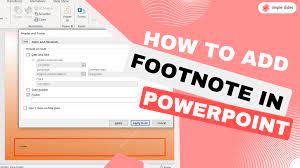
Creating a PowerPoint presentation requires a lot of effort and attention to detail. One aspect of creating a presentation that is often overlooked is the inclusion of footnotes. A footnote is a small piece of text added at the bottom of a slide that provides additional information or references for the content of the slide. In this article, we will guide you through the steps to create a PowerPoint footnote.

Step 1:

Open PowerPoint and select the slide you want to add a footnote to.

Step 2:

From the Insert tab, click on the Text Box option and draw a small box at the bottom of the slide where you want the footnote to appear.

Step 3:

Type in the desired footnote text into the text box.

Step 4:

Highlight the text that you want to hyperlink to a footnote.

Step 5:

From the Insert tab, click on Hyperlink.

Step 6:

the Insert Hyperlink dialog box, select the Place in This Document option.

Step 7:

Choose the slide that contains your footnote text from the list of available slides.

Step 8:

In the Text to Display field, type in the number or letter you want to use to denote the footnote.

Step 9:
Click OK to create the hyperlink.

Step 10:

To add the actual footnote to the slide, navigate to the slide containing the footnote text and copy it.

Step 11:

Return to the original slide and paste the footnote text into the text box you created in Step 2.

Step 12:

Adjust the size and formatting of the footnote text as desired.

Congratulations! You have successfully added a footnote to your PowerPoint presentation.

It is important to note that footnotes should be used sparingly and only when necessary. Overuse of footnotes can distract the audience and make the presentation appear cluttered. Footnotes should also be clearly labeled and referenced within the text of the presentation.

In conclusion, adding a footnote to a PowerPoint presentation is a simple and easy process that can enhance the clarity and credibility of your presentation. By following the steps outlined above, you can add this useful feature to your presentation in just a few minutes.


Previous Article

How to Export Your Gmail Contacts

Next Article

What Is an EXO File?

Matthew Lynch

Related articles More from author

  • Digital & Mobile Technology

    Best Sites to Sell 3D Models

    June 23, 2023
    By Matthew Lynch
  • Digital & Mobile Technology

    How to Reset Your Fitbit

    July 6, 2023
    By Matthew Lynch
  • Digital & Mobile Technology

    How to Change the Default Browser on Your Mac

    June 22, 2023
    By Matthew Lynch
  • Digital & Mobile Technology

    What’s the purpose of CAPTCHA technology and how does it work?

    May 16, 2023
    By Matthew Lynch
  • Digital & Mobile Technology

    AI-Generated Text Is Getting More Common—Here’s Why That’s a Bad Thing

    July 30, 2023
    By Matthew Lynch
  • Digital & Mobile Technology

    What is Radio Frequency Interference (RFI)?

    May 10, 2023
    By Matthew Lynch

Search

Login & Registration

  • Register
  • Log in
  • Entries feed
  • Comments feed
  • WordPress.org

Newsletter

Signup for The Tech Edvocate Newsletter and have the latest in EdTech news and opinion delivered to your email address!

About Us

Since technology is not going anywhere and does more good than harm, adapting is the best course of action. That is where The Tech Edvocate comes in. We plan to cover the PreK-12 and Higher Education EdTech sectors and provide our readers with the latest news and opinion on the subject. From time to time, I will invite other voices to weigh in on important issues in EdTech. We hope to provide a well-rounded, multi-faceted look at the past, present, the future of EdTech in the US and internationally.

We started this journey back in June 2016, and we plan to continue it for many more years to come. I hope that you will join us in this discussion of the past, present and future of EdTech and lend your own insight to the issues that are discussed.

Newsletter

Signup for The Tech Edvocate Newsletter and have the latest in EdTech news and opinion delivered to your email address!

Contact Us

The Tech Edvocate
910 Goddin Street
Richmond, VA 23231
(601) 630-5238
[email protected]

Copyright © 2025 Matthew Lynch. All rights reserved.