How to control Apple TV with iPhone
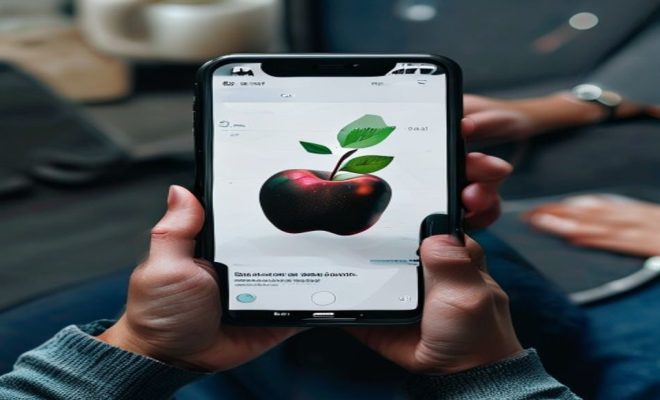
Let’s face it, the Apple TV remote, while sleek, isn’t always the most convenient thing to find when you’re settling in for a movie. It’s tiny, often slips between couch cushions, and has a habit of disappearing at the most inopportune moments. But what if I told you that you’re probably carrying a far more powerful, versatile, and frankly, indispensable remote in your pocket right now? Your iPhone isn’t just for calls, texts, and endless scrolling; it’s a secret weapon for seamless media control. Learning to control Apple TV with iPhone can genuinely transform your living room experience, offering a level of convenience and functionality that the physical remote simply can’t match.
For years, Apple has been quietly integrating deeper connections between its devices, and the synergy between iPhone and Apple TV is a prime example. From typing in complex passwords to navigating menus with precision, your smartphone brings a host of capabilities to the big screen. We’re not just talking about basic play/pause functionality here; we’re diving into a realm of advanced gestures, Siri integration, and even gaming controls that make the physical remote feel almost archaic. If you’ve been fumbling with that tiny remote, it’s time to unlock the full potential of your iPhone as the ultimate Apple TV controller.
1. The Built-In Apple TV Remote App (Control Center): Your Instant Access Point
Perhaps the most straightforward and often overlooked method to control Apple TV with iPhone is through the integrated Apple TV Remote app, accessible directly from your iPhone’s Control Center. This isn’t a separate app you need to download from the App Store; it’s baked right into iOS, ready to go. Apple introduced this functionality to make controlling your media player as seamless as adjusting your screen brightness or toggling Wi-Fi. It’s designed for instant access, meaning you can pull it up with a quick swipe, even when your iPhone is locked.
To enable it, you’ll first need to add it to your Control Center. Head over to Settings > Control Center > Customize Controls (or ‘More Controls’ on older iOS versions) and look for ‘Apple TV Remote.’ Tap the green plus icon, and just like that, it’s added. Now, whenever you swipe down from the top-right corner on an iPhone with Face ID, or up from the bottom on an iPhone with a Home button, you’ll see a little TV icon. Tapping this icon instantly transforms your iPhone screen into a trackpad and button layout, mirroring the basic functions of the physical Siri Remote. It’s incredibly intuitive for navigation, offering a large touch surface for swiping through menus and dedicated buttons for play/pause, menu, and Siri.
2. Seamless Setup and Pairing: Getting Connected Effortlessly
One of the beauties of the Apple ecosystem is how effortlessly devices connect, and pairing your iPhone with your Apple TV is no exception. For most modern setups, especially if both devices are signed into the same Apple ID and connected to the same Wi-Fi network, the pairing process is almost automatic. When you open the Apple TV Remote in Control Center for the first time, it will usually detect nearby Apple TV units and display them as options. Simply tap on your Apple TV’s name from the list.
Occasionally, you might be prompted to enter a four-digit code that appears on your TV screen. This is a security measure to ensure you’re connecting to your own device and not a neighbor’s. Just type the code into your iPhone, and within seconds, you’re good to go. If you have multiple Apple TVs in your home, say one in the living room and one in the bedroom, the Control Center remote allows you to easily switch between them, making it a truly versatile control hub. This simple setup ensures you can quickly gain control, whether you’re setting up a new device or troubleshooting an existing connection.
3. The App Store’s Apple TV Remote App: A Deeper Dive into Control
While the Control Center remote is fantastic for quick access, there was also a dedicated ‘Apple TV Remote’ app available for download from the App Store. This standalone app, which existed before the Control Center integration, offered a slightly more feature-rich experience. It provided a dedicated interface, often with a more prominent trackpad area and sometimes additional buttons or functions not immediately visible in the Control Center version. It was particularly useful for those who preferred a distinct app icon on their home screen rather than relying on the Control Center swipe.
However, Apple has since deprecated this standalone app, integrating its core functionalities directly into the Control Center’s remote. This means that for current iOS versions, the primary way to control Apple TV with iPhone using an Apple-designed solution is through Control Center. While some third-party remote apps still exist on the App Store, for the most reliable and integrated experience, the built-in Control Center option is now the go-to. This consolidation simplifies the user experience, ensuring everyone has access to a powerful remote without needing to download anything extra. We covered Apple iPhone 11 review in more detail.
4. Siri Integration: Voice Commands for Effortless Navigation
One of the most powerful features you gain when you control Apple TV with iPhone is the ability to leverage Siri. The physical Siri Remote has a dedicated Siri button, but your iPhone’s Siri is often more accessible and, let’s be honest, you’re probably already talking to it throughout your day. With the Apple TV Remote active in Control Center, or even just by long-pressing the power/side button or saying ‘Hey Siri’ to your iPhone, you can issue commands directly to your Apple TV.
Imagine saying, “Hey Siri, play the latest episode of Ted Lasso on Apple TV,” or “Skip ahead 30 seconds,” or “Open Netflix.” Siri on your iPhone acts as a direct conduit, translating your voice commands into actions on your big screen. This is incredibly useful for searching for content, launching specific apps, controlling playback, or even asking about the weather in the show you’re watching. It bypasses the need for tedious on-screen keyboard typing and makes content discovery remarkably fast and intuitive. It’s a game-changer for those moments when you know exactly what you want to watch but can’t be bothered to tap through menus. (See: Apple TV overview on Wikipedia.)
5. Keyboard Input: Say Goodbye to On-Screen Tapping
This might be the single most beloved feature for anyone who frequently enters passwords, search queries, or usernames on their Apple TV. Typing on an on-screen keyboard, navigating letter by letter with a remote, is a universally frustrating experience. It’s slow, prone to errors, and just plain annoying. When you control Apple TV with iPhone, that agony becomes a distant memory.
Whenever your Apple TV requires text input – whether it’s logging into a new streaming service, searching for a YouTube video, or entering a Wi-Fi password – a notification will automatically appear on your iPhone. Tapping this notification opens a full-fledged keyboard on your iPhone screen. You can then type freely and rapidly, using your familiar QWERTY layout. The text instantly appears on your TV screen. This feature alone is worth keeping your iPhone handy, saving you countless moments of frustration and significantly speeding up any task that requires text entry.
6. Gaming with Your iPhone: A Portable Controller
While the Apple TV isn’t a dedicated gaming console like a PlayStation or Xbox, it does offer a growing library of casual and even some more complex games, particularly through Apple Arcade. And here’s another area where your iPhone shines: it can act as a surprisingly capable game controller. Many Apple TV games are designed with the understanding that users might not have a dedicated MFi (Made For iPhone/iPad) controller. For these games, your iPhone, when paired as a remote, can become a virtual gamepad.
The Apple TV Remote interface in Control Center often adapts to the game you’re playing, sometimes displaying on-screen buttons or utilizing the iPhone’s accelerometer and gyroscope for motion controls. While it might not offer the tactile feedback of a physical controller, it’s perfect for casual gaming sessions, racing games, or simple arcade titles. This versatility means you don’t need to invest in extra hardware to enjoy the gaming capabilities of your Apple TV; your iPhone is already equipped to get you into the action.
7. Troubleshooting and Advanced Tips: When Things Go Awry
Even with the best technology, sometimes things don’t work exactly as planned. If you find your iPhone isn’t connecting to your Apple TV, or the remote functionality is acting up, a few troubleshooting steps can usually resolve the issue. First and foremost, ensure both your iPhone and Apple TV are connected to the same Wi-Fi network. This is the most common reason for connectivity problems. A different network means they can’t ‘see’ each other.
Next, try restarting both devices. A simple power cycle of your Apple TV (unplug it for 30 seconds and plug it back in) and a restart of your iPhone can clear up many minor glitches. You should also ensure your iPhone’s iOS is up to date and your Apple TV’s tvOS is current, as updates often include bug fixes and improved connectivity. If all else fails, you can try removing the Apple TV Remote from your Control Center and re-adding it, or even factory resetting your Apple TV as a last resort (though this is rarely necessary for remote issues). Remember, the goal is always a smooth, uninterrupted experience when you control Apple TV with iPhone.
Maximizing Your Media Experience with the iPhone
The convenience of having a powerful remote always in your pocket cannot be overstated. Beyond the core functionalities, using your iPhone to control Apple TV also ties into the broader Apple ecosystem seamlessly. For instance, if you’re watching a show and get a phone call, the playback can intelligently pause and resume, reflecting the deep integration between your devices. It’s not just about replacing a lost remote; it’s about enhancing the entire media consumption experience.
Think about how often you reach for your phone versus how often you deliberately seek out a dedicated remote. The iPhone remote is always there, always charged (or at least, often enough), and ready to go. This omnipresence makes it the de facto controller for many Apple TV users, even those who still have their physical remote handy. It’s about reducing friction and making the act of engaging with your entertainment as effortless as possible. The iPhone isn’t just a remote; it’s the central hub of your digital life, and extending that control to your biggest screen simply makes sense.
The Evolution of Apple TV Control
When the original Apple TV launched, it came with a simple, sleek white remote that was revolutionary for its time, yet limited in scope. Over the years, as Apple TV evolved into a more capable streaming and gaming device, the remote had to keep pace. The introduction of the Siri Remote with its glass touch surface and voice capabilities was a significant leap. However, the ultimate evolution wasn’t a new piece of hardware, but rather the integration with the device most people already owned and carried: the iPhone.
This strategic move by Apple underscores a philosophy of leveraging existing hardware to deliver new capabilities. Instead of forcing users to buy yet another gadget, they empowered the iPhone to take on this role, making the Apple TV experience more accessible and versatile. It’s a testament to Apple’s commitment to creating a cohesive and intuitive ecosystem where devices work together harmoniously, often in ways you didn’t even realize were possible until you tried them.
Security and Privacy Considerations
When you control Apple TV with iPhone, you might wonder about the security implications, especially since your phone handles sensitive information. Rest assured, Apple has built in several layers of security. As mentioned, the initial pairing often requires a code, preventing unauthorized access. Furthermore, the communication between your iPhone and Apple TV is encrypted, protecting your commands and data from eavesdropping. (See: CDC on healthy lifestyle and technology.)
Because your iPhone is linked to your Apple ID, it benefits from the same robust security measures protecting your entire Apple ecosystem. This means you can confidently use your iPhone as a remote, knowing that your privacy and control are maintained. It’s a thoughtful integration that prioritizes both convenience and protection, a hallmark of Apple’s design philosophy.
Beyond Basic Control: The Future Possibilities
While the current capabilities to control Apple TV with iPhone are already impressive, one can’t help but wonder about future integrations. Imagine using your iPhone’s camera for augmented reality experiences on your TV, or leveraging its advanced sensors for even more intricate game controls. Perhaps deeper integration with HomeKit, allowing you to control smart home devices directly from your Apple TV via your iPhone’s interface, could be on the horizon. The potential for innovation here is vast, continually blurring the lines between our personal devices and our home entertainment systems.
The ongoing development of iOS and tvOS means that new features and refinements are always being introduced. Keeping both your iPhone and Apple TV updated is key to unlocking these future possibilities and ensuring you always have the most seamless and advanced control options available. For now, mastering the existing functionalities will already elevate your Apple TV experience significantly.
The Impact of Universal Control on the Apple TV Experience
While not directly related to the iPhone as a remote, Apple’s “Universal Control” feature, which allows you to use a single mouse and keyboard across multiple Apple devices (like a Mac and iPad), hints at a broader strategy of seamless device interaction. This philosophy subtly influences how Apple approaches device control. The idea is that your input devices should be flexible and follow you, rather than being tethered to a single screen. When you control Apple TV with iPhone, you’re essentially experiencing a specialized version of this universal control philosophy – your most personal device becoming the control hub for your home entertainment.
This approach minimizes the learning curve and reduces mental load. You don’t need to learn a new interface for every device; your iPhone’s familiar touch gestures and Siri commands translate directly to the big screen. It reinforces the idea that the iPhone is not just a phone, but a central processing and control unit for your entire digital life, extending its utility in powerful, intuitive ways. It’s about creating an ecosystem where control is fluid and instinctive, making the technology fade into the background so you can focus on the content.
Comparing iPhone Control to Third-Party Remotes and Apps
We’ve focused primarily on Apple’s native solutions, but it’s worth a moment to consider alternatives. The App Store does offer various third-party remote apps for Apple TV. Some promise extra features, custom button layouts, or unique interfaces. While these can be intriguing, they often come with trade-offs. You might encounter ads, require in-app purchases for full functionality, or experience less reliable connectivity compared to Apple’s built-in solution.
The native Apple TV Remote in Control Center benefits from deep system integration. This means it’s generally more stable, responsive, and secure. It also receives updates alongside iOS, ensuring compatibility and bug fixes. For most users, the convenience and reliability of the integrated iPhone remote far outweigh any niche features a third-party app might offer. Apple has clearly prioritized making its own solution the best and most accessible option for its users, and for good reason.
Optimizing Your iPhone for Apple TV Control
To get the absolute best experience when you control Apple TV with iPhone, there are a few small optimizations you can make. Firstly, ensure your iPhone’s battery is adequately charged. A dead phone means a dead remote. Consider keeping a charging cable or wireless charging pad near your couch. Secondly, if you frequently switch between multiple Apple TVs, you can tap the name of your currently connected Apple TV in the remote interface to quickly bring up a list of other available devices. This saves you from having to go back and forth through Control Center settings. Lastly, for those who value speed, remember that Siri is your best friend. Learning key voice commands can drastically reduce the time it takes to find and play content.
Little things like these, simple habits, can elevate the convenience factor even further. It’s about making the iPhone remote an extension of your natural interaction with your entertainment, rather than a separate tool you have to consciously manage. The goal is effortless control, and these tips help get you there.
Frequently Asked Questions (FAQ)
Q1: Do I need a specific iPhone model or iOS version to control Apple TV?
A: Generally, most modern iPhones running recent iOS versions (iOS 12 or newer for the Control Center remote) will work. The Apple TV Remote functionality is a standard iOS feature. For the best experience and all the latest features, keeping your iPhone updated to the latest iOS is always recommended.
Q2: Can I control multiple Apple TVs with one iPhone?
A: Yes! The Apple TV Remote in Control Center allows you to easily switch between multiple Apple TVs on the same Wi-Fi network. Just tap the name of the currently connected Apple TV at the top of the remote interface to see a list of other available devices.
Q3: What if my Apple TV Remote icon isn’t in Control Center?
A: You need to add it! Go to Settings > Control Center > Customize Controls (or ‘More Controls’ on older iOS). Find ‘Apple TV Remote’ in the ‘More Controls’ section and tap the green plus (+) icon next to it to add it to your active controls.
Q4: My iPhone isn’t connecting to my Apple TV. What should I do?
A: First, make sure both devices are on the exact same Wi-Fi network. Next, try restarting both your iPhone and your Apple TV (unplug the Apple TV from power for 30 seconds). Also, ensure both devices have their latest software updates installed. If prompted, enter the 4-digit code displayed on your TV screen into your iPhone. (why the iPhone X still shines)
Q5: Is it possible to use the iPhone remote when my iPhone is locked?
A: Yes, you can typically access the Control Center (and thus the Apple TV Remote) even when your iPhone is locked. Just swipe down from the top-right corner (Face ID iPhones) or up from the bottom (Home button iPhones) and tap the TV icon.
Q6: Can I use my iPhone to control older generations of Apple TV?
A: The iPhone remote in Control Center is designed to work with Apple TV (4th generation) and Apple TV 4K models. While some basic functionality might work with older generations through specific third-party apps, the full integrated experience is best with newer Apple TV models.
Embracing the iPhone as Your Ultimate Apple TV Remote
The journey from a clunky, dedicated remote to the sleek, multi-functional iPhone as your primary Apple TV controller represents a significant leap in convenience and user experience. It’s about more than just changing channels; it’s about simplifying interactions, speeding up tasks, and integrating your entertainment hub more deeply into your digital life. Whether you’re a casual viewer or a power user, taking the time to set up and explore the full range of features available when you control Apple TV with iPhone will undoubtedly pay dividends in ease and enjoyment.
So, next time you’re searching frantically for that tiny Siri Remote, stop for a moment. Pick up your iPhone instead. You might just discover that the best remote control for your Apple TV has been in your hand all along, waiting to unlock a more intuitive and powerful way to interact with your favorite entertainment.
Trending Now
Frequently Asked Questions
How can I control my Apple TV with my iPhone?
You can control your Apple TV using the built-in Apple TV Remote app found in your iPhone's Control Center. Simply swipe down to access it, and you'll have instant control over your Apple TV without needing a separate app.
Does the iPhone have a remote for Apple TV?
Yes, the iPhone has a built-in remote feature for Apple TV that is accessible through the Control Center. This allows you to navigate menus, play, pause, and even use advanced gestures for a more seamless experience.
What features does the Apple TV Remote on iPhone offer?
The Apple TV Remote on iPhone offers features such as play/pause controls, menu navigation, typing capabilities for text inputs, and even Siri integration for voice commands, enhancing your overall media control experience.
Can I use my iPhone as a game controller for Apple TV?
Absolutely! Your iPhone can also function as a game controller for Apple TV, providing intuitive controls and touch functionality, making gaming more immersive and convenient compared to using the physical remote.
What do I do if my Apple TV remote is lost?
If your Apple TV remote is lost, you can easily control your Apple TV using your iPhone through the built-in Apple TV Remote app in the Control Center, ensuring you can still access your media without the physical remote.
What's your take on this? Share your thoughts in the comments below — we read every one.