The Tech Edvocate

Top Menu

  • Advertisement
  • Apps
  • Home Page
  • Home Page Five (No Sidebar)
  • Home Page Four
  • Home Page Three
  • Home Page Two
  • Home Tech2
  • Icons [No Sidebar]
  • Left Sidbear Page
  • Lynch Educational Consulting
  • My Account
  • My Speaking Page
  • Newsletter Sign Up Confirmation
  • Newsletter Unsubscription
  • Our Brands
  • Page Example
  • Privacy Policy
  • Protected Content
  • Register
  • Request a Product Review
  • Shop
  • Shortcodes Examples
  • Signup
  • Start Here
    • Governance
    • Careers
    • Contact Us
  • Terms and Conditions
  • The Edvocate
  • The Tech Edvocate Product Guide
  • Topics
  • Write For Us
  • Advertise

Main Menu

  • Start Here
    • Our Brands
    • Governance
      • Lynch Educational Consulting, LLC.
      • Dr. Lynch’s Personal Website
      • Careers
    • Write For Us
    • The Tech Edvocate Product Guide
    • Contact Us
    • Books
    • Edupedia
    • Post a Job
    • The Edvocate Podcast
    • Terms and Conditions
    • Privacy Policy
  • Topics
    • Assistive Technology
    • Child Development Tech
    • Early Childhood & K-12 EdTech
    • EdTech Futures
    • EdTech News
    • EdTech Policy & Reform
    • EdTech Startups & Businesses
    • Higher Education EdTech
    • Online Learning & eLearning
    • Parent & Family Tech
    • Personalized Learning
    • Product Reviews
  • Advertise
  • Tech Edvocate Awards
  • The Edvocate
  • Pedagogue
  • School Ratings

logo

The Tech Edvocate

  • Start Here
    • Our Brands
    • Governance
      • Lynch Educational Consulting, LLC.
      • Dr. Lynch’s Personal Website
        • My Speaking Page
      • Careers
    • Write For Us
    • The Tech Edvocate Product Guide
    • Contact Us
    • Books
    • Edupedia
    • Post a Job
    • The Edvocate Podcast
    • Terms and Conditions
    • Privacy Policy
  • Topics
    • Assistive Technology
    • Child Development Tech
    • Early Childhood & K-12 EdTech
    • EdTech Futures
    • EdTech News
    • EdTech Policy & Reform
    • EdTech Startups & Businesses
    • Higher Education EdTech
    • Online Learning & eLearning
    • Parent & Family Tech
    • Personalized Learning
    • Product Reviews
  • Advertise
  • Tech Edvocate Awards
  • The Edvocate
  • Pedagogue
  • School Ratings
  • A Visitors Guide to Portland (OR), United States

  • 7 Men’s Bruno Marc Shoes That Are the Perfect Christmas Gift

  • A Visitors Guide to Oklahoma City (OK), United States

  • A Visitor’s Guide to Tucson, Arizona, United States

  • A Visitor’s Guide to Hamilton, Canada

  • Beware of Fiverr: You Might Get Scammed

  • The Future of Artificial Intelligence: Navigating the Next Frontier

  • Best Home Backup Generators for 2026

  • Online Learning Platforms: Transforming Education in the Digital Age

  • Fastest Growing Sectors of the EdTech Market: Exploring Emerging Trends

Digital & Mobile Technology
Home›Digital & Mobile Technology›How to Connect to a Network in Windows 11

How to Connect to a Network in Windows 11
By Matthew Lynch
July 28, 2023
0
Spread the love

With the release of Windows 11, users may want to connect to a network for online access and sharing files across multiple devices. Whether it is a home or office network, connecting to one is a straightforward process. This article provides a step-by-step guide on how to connect to a network in Windows 11.

Step 1: Go to the Windows 11 Settings

The first step to connect to a network on Windows 11 is to access the Settings window. To do this, click on the Start menu and select the Settings icon (gear icon) on the left-hand side of the screen. Alternatively, you can use the keyboard shortcut Windows key + I to open Settings.

Step 2: Select the Network & Internet option

In the Settings window, select the Network & Internet option from the left-hand side panel. This will bring up various network-related settings, including Wi-Fi, Ethernet, VPN, and mobile hotspot.

Step 3: Choose the type of network you want to connect to

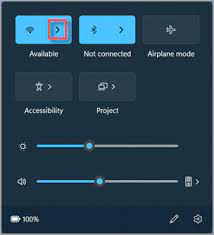
Next, select the type of network you want to connect to. If you have a Wi-Fi network around, click on the Wi-Fi tab. Alternatively, click on the Ethernet tab if you have a wired network connection.

Step 4: Select your network from the available list

Once you’ve found your network name, select it from the list of available networks. If your network is hidden, click on the option “Add network” to manually enter its name.

Step 5: Enter the network password

If the network is secured, you’ll be prompted to enter the password to access it. Make sure you enter the correct password, or the network won’t connect. You can choose the option to remember the network so that your device will automatically connect to it in the future.

Step 6: Troubleshoot the network connection (if required)

If you encounter any problems connecting to the network, you can troubleshoot your connection by clicking on the “Troubleshoot” button. Windows will then attempt to diagnose and fix any problems that may be preventing network connectivity.

Once you’ve gone through these steps, your Windows 11 device should be connected to the network. You can now access the internet, share files, and enjoy other network-connected services from your device.

In conclusion, connecting to a network can be achieved quickly with Windows 11. It involves simple steps that can be done by users, even without advanced technical knowledge. Just follow the steps mentioned above, and you’ll be up and running on your network in no time.

Previous Article

Best Online News Sites

Next Article

What Is a WRF File?

Matthew Lynch

Related articles More from author

  • Digital & Mobile Technology

    How to View Google’s 3D Animals and Go on a Virtual Safari

    June 23, 2023
    By Matthew Lynch
  • Digital & Mobile Technology

    Free Anonymous Web Browsers That Are Completely Private

    August 5, 2023
    By Matthew Lynch
  • Digital & Mobile Technology

    The 9 Best LGBT Podcasts of 2023

    July 5, 2023
    By Matthew Lynch
  • Digital & Mobile Technology

    How to Manage Downloads in Telegram

    February 19, 2024
    By Matthew Lynch
  • Digital & Mobile Technology

    How to Install and Move Android Apps to the SD Card

    April 27, 2023
    By Matthew Lynch
  • Digital & Mobile Technology

    How to Back Up Your Apple Watch

    June 3, 2023
    By Matthew Lynch

Search

Login & Registration

  • Register
  • Log in
  • Entries feed
  • Comments feed
  • WordPress.org

Newsletter

Signup for The Tech Edvocate Newsletter and have the latest in EdTech news and opinion delivered to your email address!

About Us

Since technology is not going anywhere and does more good than harm, adapting is the best course of action. That is where The Tech Edvocate comes in. We plan to cover the PreK-12 and Higher Education EdTech sectors and provide our readers with the latest news and opinion on the subject. From time to time, I will invite other voices to weigh in on important issues in EdTech. We hope to provide a well-rounded, multi-faceted look at the past, present, the future of EdTech in the US and internationally.

We started this journey back in June 2016, and we plan to continue it for many more years to come. I hope that you will join us in this discussion of the past, present and future of EdTech and lend your own insight to the issues that are discussed.

Newsletter

Signup for The Tech Edvocate Newsletter and have the latest in EdTech news and opinion delivered to your email address!

Contact Us

The Tech Edvocate
910 Goddin Street
Richmond, VA 23231
(601) 630-5238
[email protected]

Copyright © 2025 Matthew Lynch. All rights reserved.