The Tech Edvocate

Top Menu

  • Advertisement
  • Apps
  • Home Page
  • Home Page Five (No Sidebar)
  • Home Page Four
  • Home Page Three
  • Home Page Two
  • Home Tech2
  • Icons [No Sidebar]
  • Left Sidbear Page
  • Lynch Educational Consulting
  • My Account
  • My Speaking Page
  • Newsletter Sign Up Confirmation
  • Newsletter Unsubscription
  • Our Brands
  • Page Example
  • Privacy Policy
  • Protected Content
  • Register
  • Request a Product Review
  • Shop
  • Shortcodes Examples
  • Signup
  • Start Here
    • Governance
    • Careers
    • Contact Us
  • Terms and Conditions
  • The Edvocate
  • The Tech Edvocate Product Guide
  • Topics
  • Write For Us
  • Advertise

Main Menu

  • Start Here
    • Our Brands
    • Governance
      • Lynch Educational Consulting, LLC.
      • Dr. Lynch’s Personal Website
      • Careers
    • Write For Us
    • The Tech Edvocate Product Guide
    • Contact Us
    • Books
    • Edupedia
    • Post a Job
    • The Edvocate Podcast
    • Terms and Conditions
    • Privacy Policy
  • Topics
    • Assistive Technology
    • Child Development Tech
    • Early Childhood & K-12 EdTech
    • EdTech Futures
    • EdTech News
    • EdTech Policy & Reform
    • EdTech Startups & Businesses
    • Higher Education EdTech
    • Online Learning & eLearning
    • Parent & Family Tech
    • Personalized Learning
    • Product Reviews
  • Advertise
  • Tech Edvocate Awards
  • The Edvocate
  • Pedagogue
  • School Ratings

logo

The Tech Edvocate

  • Start Here
    • Our Brands
    • Governance
      • Lynch Educational Consulting, LLC.
      • Dr. Lynch’s Personal Website
        • My Speaking Page
      • Careers
    • Write For Us
    • The Tech Edvocate Product Guide
    • Contact Us
    • Books
    • Edupedia
    • Post a Job
    • The Edvocate Podcast
    • Terms and Conditions
    • Privacy Policy
  • Topics
    • Assistive Technology
    • Child Development Tech
    • Early Childhood & K-12 EdTech
    • EdTech Futures
    • EdTech News
    • EdTech Policy & Reform
    • EdTech Startups & Businesses
    • Higher Education EdTech
    • Online Learning & eLearning
    • Parent & Family Tech
    • Personalized Learning
    • Product Reviews
  • Advertise
  • Tech Edvocate Awards
  • The Edvocate
  • Pedagogue
  • School Ratings
  • 100 Best Apps for Data Backup

  • 100 Best Apps for Data Migration

  • 100 Best Apps for Data Transformation

  • 100 Best Apps for Data Cleaning

  • 100 Best Apps for Data Entry

  • 100 Best Apps for Business Process Automation

  • 100 Best Apps for Operational Efficiency

  • 100 Best Apps for Improving Processes

  • 100 Best Apps for Scaling Operations

  • 100 Best Apps for Community-Led Growth

Assistive Technology
Home›Assistive Technology›How to Connect an HDMI Switch to a Laptop

How to Connect an HDMI Switch to a Laptop
By Matthew Lynch
June 12, 2023
0
Spread the love

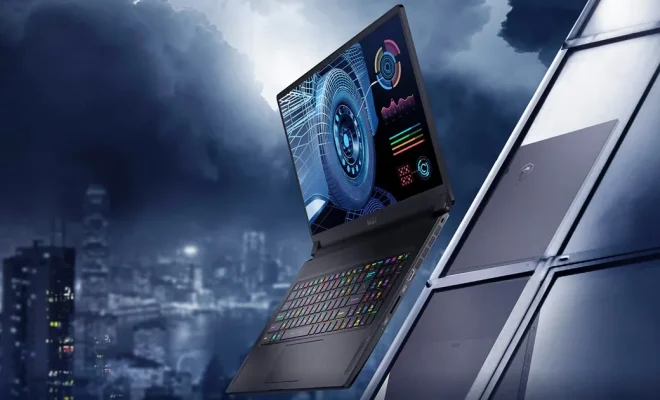
HDMI or High-Definition Multimedia Interface is a convenient way to connect your laptop to an external display, such as a TV or a projector. However, if you need to connect several devices to the same display, an HDMI switch can come in handy.

An HDMI switch is a device that allows you to connect multiple HDMI sources to a single display. It’s a great solution for people who have several devices, like a gaming console, Blu-ray player, and a laptop, but don’t want to change the cables all the time. Here’s a step-by-step guide on how to connect an HDMI switch to a laptop.

Step 1: Check Your Laptop’s HDMI Port

Before you start, make sure that your laptop has an HDMI port. Most modern laptops have an HDMI port, but some may not. If your laptop doesn’t have an HDMI port, you won’t be able to connect it to an external display.

Step 2: Set Up Your HDMI Switch

Connect your HDMI switch to a power source and the HDMI input of your display. Then, connect your devices to the HDMI switch. Check the manual for your HDMI switch to see how many devices it can support.

Step 3: Connect Your Laptop to the HDMI Switch

Connect your laptop to the HDMI switch using an HDMI cable. Make sure the HDMI cable is securely plugged into your laptop and the HDMI output on the switch.

Step 4: Switch Input

Once your laptop is connected to the HDMI switch, switch the input on your TV or projector to the HDMI input that your laptop is using. You should now see your laptop’s display on the external display.

Step 5: Configure Display Settings

Depending on your laptop, you may need to adjust the display settings. Right-click on your desktop and select “Display settings” (or something similar). Here, you can adjust the resolution and orientation of your display.

Conclusion

Connecting an HDMI switch to your laptop is a simple task. With an HDMI switch, you don’t have to unplug and replug cables every time you want to switch between devices. If you follow the steps above, you can easily connect several devices to a single display using an HDMI switch.

Previous Article

What Is EDGE Cellphone Technology

Next Article

How to Delete Any WhatsApp Contact

Matthew Lynch

Related articles More from author

  • Assistive Technology

    How to Use Apple Watch Sleep Tracking

    June 23, 2023
    By Matthew Lynch
  • Assistive Technology

    How to Set Up a Home Theater System

    June 8, 2023
    By Matthew Lynch
  • Assistive Technology

    Ways to Fix the “Can’t Reach This Page” Error on Microsoft Edge

    June 22, 2023
    By Matthew Lynch
  • Assistive Technology

    How to Print Double-Sided on a Mac

    August 5, 2023
    By Matthew Lynch
  • Assistive Technology

    Warning Signs Your SSD Is About to Break Down and Fail

    June 15, 2023
    By Matthew Lynch
  • Assistive Technology

    How to Edit Macro Security Settings for Microsoft Word

    June 14, 2023
    By Matthew Lynch

Search

Login & Registration

  • Log in
  • Entries feed
  • Comments feed
  • WordPress.org

Newsletter

Signup for The Tech Edvocate Newsletter and have the latest in EdTech news and opinion delivered to your email address!

About Us

Since technology is not going anywhere and does more good than harm, adapting is the best course of action. That is where The Tech Edvocate comes in. We plan to cover the PreK-12 and Higher Education EdTech sectors and provide our readers with the latest news and opinion on the subject. From time to time, I will invite other voices to weigh in on important issues in EdTech. We hope to provide a well-rounded, multi-faceted look at the past, present, the future of EdTech in the US and internationally.

We started this journey back in June 2016, and we plan to continue it for many more years to come. I hope that you will join us in this discussion of the past, present and future of EdTech and lend your own insight to the issues that are discussed.

Newsletter

Signup for The Tech Edvocate Newsletter and have the latest in EdTech news and opinion delivered to your email address!

Contact Us

The Tech Edvocate
910 Goddin Street
Richmond, VA 23231
(601) 630-5238
[email protected]

Copyright © 2026 Matthew Lynch. All rights reserved.