The Tech Edvocate

Top Menu

  • Advertisement
  • Apps
  • Home Page
  • Home Page Five (No Sidebar)
  • Home Page Four
  • Home Page Three
  • Home Page Two
  • Home Tech2
  • Icons [No Sidebar]
  • Left Sidbear Page
  • Lynch Educational Consulting
  • My Account
  • My Speaking Page
  • Newsletter Sign Up Confirmation
  • Newsletter Unsubscription
  • Our Brands
  • Page Example
  • Privacy Policy
  • Protected Content
  • Register
  • Request a Product Review
  • Shop
  • Shortcodes Examples
  • Signup
  • Start Here
    • Governance
    • Careers
    • Contact Us
  • Terms and Conditions
  • The Edvocate
  • The Tech Edvocate Product Guide
  • Topics
  • Write For Us
  • Advertise

Main Menu

  • Start Here
    • Our Brands
    • Governance
      • Lynch Educational Consulting, LLC.
      • Dr. Lynch’s Personal Website
      • Careers
    • Write For Us
    • The Tech Edvocate Product Guide
    • Contact Us
    • Books
    • Edupedia
    • Post a Job
    • The Edvocate Podcast
    • Terms and Conditions
    • Privacy Policy
  • Topics
    • Assistive Technology
    • Child Development Tech
    • Early Childhood & K-12 EdTech
    • EdTech Futures
    • EdTech News
    • EdTech Policy & Reform
    • EdTech Startups & Businesses
    • Higher Education EdTech
    • Online Learning & eLearning
    • Parent & Family Tech
    • Personalized Learning
    • Product Reviews
  • Advertise
  • Tech Edvocate Awards
  • The Edvocate
  • Pedagogue
  • School Ratings

logo

The Tech Edvocate

  • Start Here
    • Our Brands
    • Governance
      • Lynch Educational Consulting, LLC.
      • Dr. Lynch’s Personal Website
        • My Speaking Page
      • Careers
    • Write For Us
    • The Tech Edvocate Product Guide
    • Contact Us
    • Books
    • Edupedia
    • Post a Job
    • The Edvocate Podcast
    • Terms and Conditions
    • Privacy Policy
  • Topics
    • Assistive Technology
    • Child Development Tech
    • Early Childhood & K-12 EdTech
    • EdTech Futures
    • EdTech News
    • EdTech Policy & Reform
    • EdTech Startups & Businesses
    • Higher Education EdTech
    • Online Learning & eLearning
    • Parent & Family Tech
    • Personalized Learning
    • Product Reviews
  • Advertise
  • Tech Edvocate Awards
  • The Edvocate
  • Pedagogue
  • School Ratings
  • Michigan Students Gain Key Insight Through Civic Education Effort

  • The Rise of Day Trips: A New Trend in Travel

  • Navigating AI in Education: Beyond Bans

  • Companies Need a New Playbook to Unlock the Value of AI Agents

  • The New Wave of Soccer Players: Key Habits for Young Athletes

  • BrandPilot AI Expands into European Markets with Performance-Based Advertising

  • The Brutal Truth: Why K-12 Cybersecurity Needs More Than Just Awareness

  • The Unseen Threat: How K-12 Cybersecurity Training Is Quietly Reshaping Education

  • The Staggering Truth: K-12 Cybersecurity Education Is Failing – Here’s How to Fix It

  • Why Millions Are Ditching Degrees For This Career-Boosting Secret

Digital & Mobile Technology
Home›Digital & Mobile Technology›How to Connect AirPods to a Windows 10 PC

How to Connect AirPods to a Windows 10 PC
By Matthew Lynch
June 1, 2023
0
Spread the love

AirPods are wireless earbuds that offer a great audio experience. One of the best things about them is that they are compatible with multiple devices, including Windows 10 PCs. If you have a Windows 10 PC and you want to connect your AirPods to it, this article is for you.

Follow these simple steps to connect your AirPods to your Windows 10 PC:

Step 1: Make sure your AirPods are charged

Before you begin, make sure your AirPods are charged. In order to pair them with your Windows 10 PC, they need to be fully charged.

Step 2: Turn on Bluetooth on your Windows 10 PC

To connect your AirPods to your Windows 10 PC, you need to turn on Bluetooth on your computer. The easiest way to do this is to open the Action Center by pressing the Windows key + A. Once the Action Center is open, click on Bluetooth to turn it on.

Step 3: Open the Bluetooth settings on your Windows 10 PC

Once you have turned on Bluetooth on your Windows 10 PC, you need to open the Bluetooth settings. To do this, go to the Start menu and click on Settings. In the Settings app, click on Devices.

Step 4: Pair your AirPods with your Windows 10 PC

Now it’s time to pair your AirPods with your Windows 10 PC. To do this, click on Bluetooth & other devices. Then click on Add Bluetooth or other device. Select Bluetooth from the list of device types.

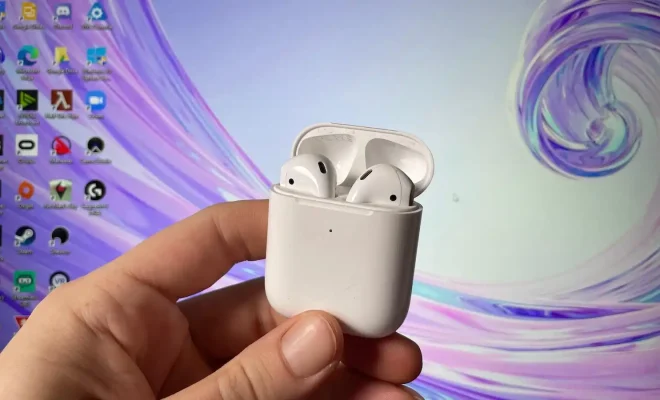
Next, take your AirPods out of their case and press and hold the small button on the back of the case until the LED light on the front of the case starts flashing white. Your AirPods are now in pairing mode.

Your PC will now scan for available Bluetooth devices. When your AirPods appear on the list, click on them to pair them with your Windows 10 PC.

Step 5: Test your AirPods

Once you have successfully paired your AirPods with your Windows 10 PC, you should test them to make sure they are working properly. To do this, start playing some music or a video on your PC and see if the audio is coming through your AirPods.

Conclusion

Connecting your AirPods to your Windows 10 PC is a simple and straightforward process. By following the steps outlined above, you can enjoy your favorite audio content on your PC through your AirPods.


Previous Article

What Is a Meme?

Next Article

How to Turn an iPad On and ...

Matthew Lynch

Related articles More from author

  • Digital & Mobile Technology

    PsExec: What It Is and How to Use It

    June 8, 2023
    By Matthew Lynch
  • Digital & Mobile Technology

    How to Use Vana Portrait to Generate AI Self-Portraits

    June 23, 2023
    By Matthew Lynch
  • Digital & Mobile Technology

    What Is Starlink’s Data Cap & How Does It Work?

    August 5, 2023
    By Matthew Lynch
  • Digital & Mobile Technology

    How to Unblock a Number on an Android Phone

    May 30, 2023
    By Matthew Lynch
  • Digital & Mobile Technology

    How to Login to a Comcast Modem

    April 28, 2023
    By Matthew Lynch
  • Digital & Mobile Technology

    The Difference Between Converting HDMI to DisplayPort and DisplayPort to HDMI

    June 6, 2023
    By Matthew Lynch

Search

Login & Registration

  • Log in
  • Entries feed
  • Comments feed
  • WordPress.org

Newsletter

Signup for The Tech Edvocate Newsletter and have the latest in EdTech news and opinion delivered to your email address!

About Us

Since technology is not going anywhere and does more good than harm, adapting is the best course of action. That is where The Tech Edvocate comes in. We plan to cover the PreK-12 and Higher Education EdTech sectors and provide our readers with the latest news and opinion on the subject. From time to time, I will invite other voices to weigh in on important issues in EdTech. We hope to provide a well-rounded, multi-faceted look at the past, present, the future of EdTech in the US and internationally.

We started this journey back in June 2016, and we plan to continue it for many more years to come. I hope that you will join us in this discussion of the past, present and future of EdTech and lend your own insight to the issues that are discussed.

Newsletter

Signup for The Tech Edvocate Newsletter and have the latest in EdTech news and opinion delivered to your email address!

Contact Us

The Tech Edvocate
910 Goddin Street
Richmond, VA 23231
(601) 630-5238
[email protected]

Copyright © 2026 Matthew Lynch. All rights reserved.