The Tech Edvocate

Top Menu

  • Advertisement
  • Apps
  • Home Page
  • Home Page Five (No Sidebar)
  • Home Page Four
  • Home Page Three
  • Home Page Two
  • Home Tech2
  • Icons [No Sidebar]
  • Left Sidbear Page
  • Lynch Educational Consulting
  • My Account
  • My Speaking Page
  • Newsletter Sign Up Confirmation
  • Newsletter Unsubscription
  • Our Brands
  • Page Example
  • Privacy Policy
  • Protected Content
  • Register
  • Request a Product Review
  • Shop
  • Shortcodes Examples
  • Signup
  • Start Here
    • Governance
    • Careers
    • Contact Us
  • Terms and Conditions
  • The Edvocate
  • The Tech Edvocate Product Guide
  • Topics
  • Write For Us
  • Advertise

Main Menu

  • Start Here
    • Our Brands
    • Governance
      • Lynch Educational Consulting, LLC.
      • Dr. Lynch’s Personal Website
      • Careers
    • Write For Us
    • The Tech Edvocate Product Guide
    • Contact Us
    • Books
    • Edupedia
    • Post a Job
    • The Edvocate Podcast
    • Terms and Conditions
    • Privacy Policy
  • Topics
    • Assistive Technology
    • Child Development Tech
    • Early Childhood & K-12 EdTech
    • EdTech Futures
    • EdTech News
    • EdTech Policy & Reform
    • EdTech Startups & Businesses
    • Higher Education EdTech
    • Online Learning & eLearning
    • Parent & Family Tech
    • Personalized Learning
    • Product Reviews
  • Advertise
  • Tech Edvocate Awards
  • The Edvocate
  • Pedagogue
  • School Ratings

logo

The Tech Edvocate

  • Start Here
    • Our Brands
    • Governance
      • Lynch Educational Consulting, LLC.
      • Dr. Lynch’s Personal Website
        • My Speaking Page
      • Careers
    • Write For Us
    • The Tech Edvocate Product Guide
    • Contact Us
    • Books
    • Edupedia
    • Post a Job
    • The Edvocate Podcast
    • Terms and Conditions
    • Privacy Policy
  • Topics
    • Assistive Technology
    • Child Development Tech
    • Early Childhood & K-12 EdTech
    • EdTech Futures
    • EdTech News
    • EdTech Policy & Reform
    • EdTech Startups & Businesses
    • Higher Education EdTech
    • Online Learning & eLearning
    • Parent & Family Tech
    • Personalized Learning
    • Product Reviews
  • Advertise
  • Tech Edvocate Awards
  • The Edvocate
  • Pedagogue
  • School Ratings
  • Why Millions Are Ditching Degrees for These Microcredential Programs

  • The Astonishing Truth: Why Microcredentials Could Be Your Career’s Secret Weapon

  • Why Employers Are Paying 15% More for This One Credential – Not Your Degree

  • 7 Critical Steps to Safeguard Students When Implementing AI in Your Classroom

  • The Astonishing Truth: Your School’s Data Security Might Be a Time Bomb – 7 LMS Platforms That Are Actually Safe for K-12

  • The Troubling Truth: AI in Education Could Be Compromising Your Child’s Privacy

  • Revealed: The Brutal Truth About IronCircle vs Other Cybersecurity Boot Camps

  • This One Thing About University Boot Camps Is Infuriating — Don’t Fall For It

  • Revealed: The Brutal Truth About University Boot Camp Debt

  • Revealed: The 7 Tools EdTech Pros Are Using to Dominate Remote Work in 2026

Digital & Mobile Technology
Home›Digital & Mobile Technology›How to Chromecast Amazon Prime Video

How to Chromecast Amazon Prime Video
By Matthew Lynch
June 9, 2023
0
Spread the love

Are you tired of watching your favorite Amazon Prime Video shows on your small phone or laptop screen? Do you want to cast them to your TV for a better viewing experience? Look no further than Chromecast, the popular streaming device from Google.

Chromecast allows you to wirelessly cast content from your phone, tablet, or computer to your TV. With the Amazon Prime Video app and a Chromecast device, you can easily stream all of your favorite Amazon Prime Video content on the big screen.

Here’s how to Chromecast Amazon Prime Video:

Step 1: Connect your Chromecast device

First, make sure your Chromecast device is plugged into your TV and connected to your Wi-Fi network. You’ll also need to make sure your phone or tablet is connected to the same Wi-Fi network.

Step 2: Install and open the Amazon Prime Video app

Next, install the Amazon Prime Video app on your phone or tablet if you haven’t already. Once installed, open the app and sign in to your Amazon account.

Step 3: Select the video you want to watch

Find the Amazon Prime Video content you want to watch and select it. You might need to browse the app or search for the specific title using the search function.

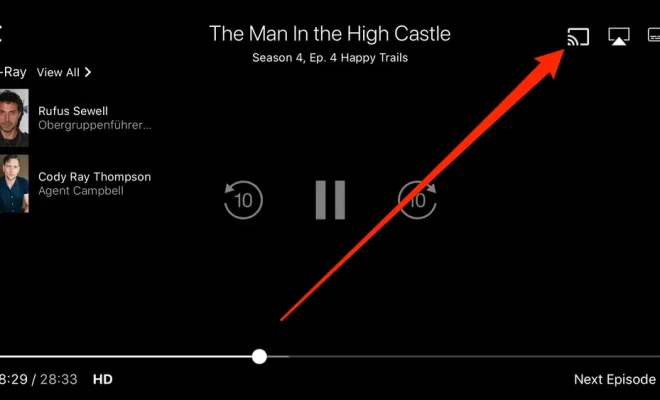
Step 4: Tap the Chromecast icon

Once you have selected the content you want to watch, tap the Chromecast icon located in the upper-right corner of the app. This will allow you to cast the content to your TV.

Step 5: Select your Chromecast device

After tapping the Chromecast icon, you’ll see a list of available Chromecast devices on your network. Select the one you want to use to cast your Amazon Prime Video content.

Step 6: Enjoy your content on the big screen!

Once you’ve selected your Chromecast device, the Amazon Prime Video content will begin playing on your TV. You can use your phone or tablet to control playback and volume.

In conclusion, Chromecasting Amazon Prime Video is a great way to enjoy all of your favorite shows and movies on the big screen. By following these simple steps, you can easily cast your content to your TV and enjoy a more immersive viewing experience.


Previous Article

How to Create Spreadsheet Templates in Excel

Next Article

How to Cut, Copy, and Paste Data ...

Matthew Lynch

Related articles More from author

  • Digital & Mobile Technology

    Spotify vs. Apple Music vs. YouTube Music: Which Is Best?

    June 6, 2023
    By Matthew Lynch
  • Digital & Mobile Technology

    What Is a DYLIB File?

    June 4, 2023
    By Matthew Lynch
  • Digital & Mobile Technology

    How to Disable Power Nap in macOS

    July 24, 2023
    By Matthew Lynch
  • Digital & Mobile Technology

    14-Inch vs. 16-Inch MacBook Pro: Which M2 Pro or M2 Max Mac Should You Get?

    June 12, 2023
    By Matthew Lynch
  • Digital & Mobile Technology

    How to Fix Horizontal Lines on a Computer Screen

    May 31, 2023
    By Matthew Lynch
  • Digital & Mobile Technology

    How to Increase the Maximum Volume in Windows

    April 26, 2023
    By Matthew Lynch

Search

Login & Registration

  • Log in
  • Entries feed
  • Comments feed
  • WordPress.org

Newsletter

Signup for The Tech Edvocate Newsletter and have the latest in EdTech news and opinion delivered to your email address!

About Us

Since technology is not going anywhere and does more good than harm, adapting is the best course of action. That is where The Tech Edvocate comes in. We plan to cover the PreK-12 and Higher Education EdTech sectors and provide our readers with the latest news and opinion on the subject. From time to time, I will invite other voices to weigh in on important issues in EdTech. We hope to provide a well-rounded, multi-faceted look at the past, present, the future of EdTech in the US and internationally.

We started this journey back in June 2016, and we plan to continue it for many more years to come. I hope that you will join us in this discussion of the past, present and future of EdTech and lend your own insight to the issues that are discussed.

Newsletter

Signup for The Tech Edvocate Newsletter and have the latest in EdTech news and opinion delivered to your email address!

Contact Us

The Tech Edvocate
910 Goddin Street
Richmond, VA 23231
(601) 630-5238
[email protected]

Copyright © 2026 Matthew Lynch. All rights reserved.