The Tech Edvocate

Top Menu

  • Advertisement
  • Apps
  • Home Page
  • Home Page Five (No Sidebar)
  • Home Page Four
  • Home Page Three
  • Home Page Two
  • Home Tech2
  • Icons [No Sidebar]
  • Left Sidbear Page
  • Lynch Educational Consulting
  • My Account
  • My Speaking Page
  • Newsletter Sign Up Confirmation
  • Newsletter Unsubscription
  • Our Brands
  • Page Example
  • Privacy Policy
  • Protected Content
  • Register
  • Request a Product Review
  • Shop
  • Shortcodes Examples
  • Signup
  • Start Here
    • Governance
    • Careers
    • Contact Us
  • Terms and Conditions
  • The Edvocate
  • The Tech Edvocate Product Guide
  • Topics
  • Write For Us
  • Advertise

Main Menu

  • Start Here
    • Our Brands
    • Governance
      • Lynch Educational Consulting, LLC.
      • Dr. Lynch’s Personal Website
      • Careers
    • Write For Us
    • The Tech Edvocate Product Guide
    • Contact Us
    • Books
    • Edupedia
    • Post a Job
    • The Edvocate Podcast
    • Terms and Conditions
    • Privacy Policy
  • Topics
    • Assistive Technology
    • Child Development Tech
    • Early Childhood & K-12 EdTech
    • EdTech Futures
    • EdTech News
    • EdTech Policy & Reform
    • EdTech Startups & Businesses
    • Higher Education EdTech
    • Online Learning & eLearning
    • Parent & Family Tech
    • Personalized Learning
    • Product Reviews
  • Advertise
  • Tech Edvocate Awards
  • The Edvocate
  • Pedagogue
  • School Ratings

logo

The Tech Edvocate

  • Start Here
    • Our Brands
    • Governance
      • Lynch Educational Consulting, LLC.
      • Dr. Lynch’s Personal Website
        • My Speaking Page
      • Careers
    • Write For Us
    • The Tech Edvocate Product Guide
    • Contact Us
    • Books
    • Edupedia
    • Post a Job
    • The Edvocate Podcast
    • Terms and Conditions
    • Privacy Policy
  • Topics
    • Assistive Technology
    • Child Development Tech
    • Early Childhood & K-12 EdTech
    • EdTech Futures
    • EdTech News
    • EdTech Policy & Reform
    • EdTech Startups & Businesses
    • Higher Education EdTech
    • Online Learning & eLearning
    • Parent & Family Tech
    • Personalized Learning
    • Product Reviews
  • Advertise
  • Tech Edvocate Awards
  • The Edvocate
  • Pedagogue
  • School Ratings
  • Shocking Truth: The Real Cost of Building Data Centers No One Talks About

  • The Unseen War: How Unionization Is Quietly Reshaping Tech Jobs

  • The Unseen War: Why Data Center Jobs Are Sparking a Political Firestorm

  • The Next Big Shake-Up: 10 PropTech Startups Poised for Acquisition in 2026

  • How to Leverage AI-Powered Tools for Real Estate Transactions in 2026

  • This One Tech Trend Is Quietly Reshaping Real Estate by 2026

  • The Shocking Truth About Duck Creek vs Reserv: Is One Quietly Dominating AI Insurance?

  • The AI Revolution: 10 Platforms Fixing Insurance Claims Forever

  • This One Change Is Quietly Revolutionizing Insurance for Millions

  • The Mind-Blowing Battle: Space Solar Power vs. Traditional Renewables – Which Will Power Our Future?

Digital & Mobile Technology
Home›Digital & Mobile Technology›How to Change The Default Screenshot Format and Other Details on a Mac

How to Change The Default Screenshot Format and Other Details on a Mac
By Matthew Lynch
July 31, 2023
0
Spread the love

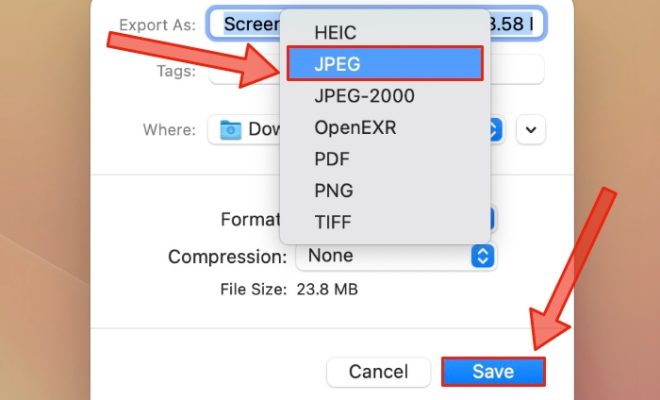
Screenshots are a handy way to capture and share information on your Mac. By default, Mac captures screenshots in PNG format, but you may want to change the format to something else like JPG or PDF. Additionally, you can customize the save location, filename, and other details of the screenshot. In this article, we’ll show you how to change the default screenshot format and other details on a Mac.

Changing the Default Screenshot Format on a Mac

1. Open the Terminal app on your Mac by searching for it in Spotlight or by navigating to Applications → Utilities → Terminal.

2. Type or paste the following command in the Terminal:

defaults write com.apple.screencapture type [format]

Replace [format] with one of the following formats:

– JPG: For JPEG format
– PDF: For PDF format
– TIFF: For TIFF format
– PNG: For PNG format (default)

For example, if you want to change the default screenshot format to JPG, type the following command in the Terminal:

defaults write com.apple.screencapture type jpg

3. Press Enter to execute the command.

4. Restart the SystemUIServer by typing the following command in the Terminal:

killall SystemUIServer

5. Press Enter to restart the SystemUIServer.

That’s it! From now on, your Mac will capture screenshots in the selected format.

Changing the Save Location of Screenshots on a Mac

By default, Mac saves screenshots on the desktop. You can change this by following these steps:

1. Open the Terminal app and type or paste the following command:

defaults write com.apple.screencapture location [path]

Replace [path] with a new save location.

For example, if you want to save your screenshots in a folder named “Screenshots” in your Documents folder, type the following command:

defaults write com.apple.screencapture location ~/Documents/Screenshots/

2. Press Enter to execute the command.

3. Restart the SystemUIServer by typing the following command:

killall SystemUIServer

4. Press Enter to restart the SystemUIServer.

From now on, your Mac will save screenshots to the new location you specified.

Changing the Filename of Screenshots on a Mac

You can also customize the filename of screenshots on your Mac. By default, Mac names screenshots using the format “Screen Shot 2026 at [time].png”.

1. Open the Terminal app and type or paste the following command:

defaults write com.apple.screencapture name [prefix]

Replace [prefix] with a new filename prefix.

For example, if you want your screenshots to be named “MyScreenshot 2026 at [time].png”, type the following command:

defaults write com.apple.screencapture name “MyScreenshot”

2. Press Enter to execute the command.

3. Restart the SystemUIServer by typing the following command:

killall SystemUIServer

4. Press Enter to restart the SystemUIServer.

From now on, your Mac will use the new filename prefix for all screenshots.

Conclusion

Changing the default screenshot format and other settings on a Mac is a straightforward process that can help you customize your Mac and improve your workflow. By following the steps outlined in this article, you can easily change the format, save location, filename, and other details of your screenshots.


Previous Article

8 Ways to Open the Windows Network ...

Next Article

How to Open and Convert HEIC Images ...

Matthew Lynch

Related articles More from author

  • Digital & Mobile Technology

    Best Motion Sensor Trash Cans

    June 22, 2023
    By Matthew Lynch
  • Digital & Mobile Technology

    How to Reset a Galaxy Watch Active2

    June 10, 2023
    By Matthew Lynch
  • Digital & Mobile Technology

    Apple AirTags Explained: How They Work, Their Price, and More

    August 5, 2023
    By Matthew Lynch
  • Digital & Mobile Technology

    iPhone 4K wallpapers: 7 places to find the best iPhone wallpapers

    March 2, 2024
    By Matthew Lynch
  • Digital & Mobile Technology

    Best Portable Laptop Battery Chargers of 2023

    June 2, 2023
    By Matthew Lynch
  • Digital & Mobile Technology

    Microphone Not Working on Discord? Fixes to Try

    June 7, 2023
    By Matthew Lynch

Search

Login & Registration

  • Log in
  • Entries feed
  • Comments feed
  • WordPress.org

Newsletter

Signup for The Tech Edvocate Newsletter and have the latest in EdTech news and opinion delivered to your email address!

About Us

Since technology is not going anywhere and does more good than harm, adapting is the best course of action. That is where The Tech Edvocate comes in. We plan to cover the PreK-12 and Higher Education EdTech sectors and provide our readers with the latest news and opinion on the subject. From time to time, I will invite other voices to weigh in on important issues in EdTech. We hope to provide a well-rounded, multi-faceted look at the past, present, the future of EdTech in the US and internationally.

We started this journey back in June 2016, and we plan to continue it for many more years to come. I hope that you will join us in this discussion of the past, present and future of EdTech and lend your own insight to the issues that are discussed.

Newsletter

Signup for The Tech Edvocate Newsletter and have the latest in EdTech news and opinion delivered to your email address!

Contact Us

The Tech Edvocate
910 Goddin Street
Richmond, VA 23231
(601) 630-5238
[email protected]

Copyright © 2026 Matthew Lynch. All rights reserved.