The Tech Edvocate

Top Menu

  • Advertisement
  • Apps
  • Home Page
  • Home Page Five (No Sidebar)
  • Home Page Four
  • Home Page Three
  • Home Page Two
  • Home Tech2
  • Icons [No Sidebar]
  • Left Sidbear Page
  • Lynch Educational Consulting
  • My Account
  • My Speaking Page
  • Newsletter Sign Up Confirmation
  • Newsletter Unsubscription
  • Our Brands
  • Page Example
  • Privacy Policy
  • Protected Content
  • Register
  • Request a Product Review
  • Shop
  • Shortcodes Examples
  • Signup
  • Start Here
    • Governance
    • Careers
    • Contact Us
  • Terms and Conditions
  • The Edvocate
  • The Tech Edvocate Product Guide
  • Topics
  • Write For Us
  • Advertise

Main Menu

  • Start Here
    • Our Brands
    • Governance
      • Lynch Educational Consulting, LLC.
      • Dr. Lynch’s Personal Website
      • Careers
    • Write For Us
    • The Tech Edvocate Product Guide
    • Contact Us
    • Books
    • Edupedia
    • Post a Job
    • The Edvocate Podcast
    • Terms and Conditions
    • Privacy Policy
  • Topics
    • Assistive Technology
    • Child Development Tech
    • Early Childhood & K-12 EdTech
    • EdTech Futures
    • EdTech News
    • EdTech Policy & Reform
    • EdTech Startups & Businesses
    • Higher Education EdTech
    • Online Learning & eLearning
    • Parent & Family Tech
    • Personalized Learning
    • Product Reviews
  • Advertise
  • Tech Edvocate Awards
  • The Edvocate
  • Pedagogue
  • School Ratings

logo

The Tech Edvocate

  • Start Here
    • Our Brands
    • Governance
      • Lynch Educational Consulting, LLC.
      • Dr. Lynch’s Personal Website
        • My Speaking Page
      • Careers
    • Write For Us
    • The Tech Edvocate Product Guide
    • Contact Us
    • Books
    • Edupedia
    • Post a Job
    • The Edvocate Podcast
    • Terms and Conditions
    • Privacy Policy
  • Topics
    • Assistive Technology
    • Child Development Tech
    • Early Childhood & K-12 EdTech
    • EdTech Futures
    • EdTech News
    • EdTech Policy & Reform
    • EdTech Startups & Businesses
    • Higher Education EdTech
    • Online Learning & eLearning
    • Parent & Family Tech
    • Personalized Learning
    • Product Reviews
  • Advertise
  • Tech Edvocate Awards
  • The Edvocate
  • Pedagogue
  • School Ratings
  • Unbelievable: The True Cost of CRISPR Anti-Aging Will Absolutely Shock You

  • Your Genes Hold The Key: How CRISPR Could Restore Youthful Function

  • The Mind-Blowing Way CRISPR Could End Aging As We Know It

  • Why Millions Are Rushing to Install Home Battery Storage Now

  • Google’s €13 Billion Bet: The Unseen Renewable Energy Funds Quietly Reshaping Your Portfolio

  • Google’s €13 Billion Bet: Why This Move Will Redefine European Energy

  • The Staggering Truth: AI Slashes Drug Discovery Costs by Billions — Here’s How

  • The Astonishing Power of AI in Drug Discovery: 7 Platforms Revolutionizing Biotech

  • This Unseen Force Is Quietly Revolutionizing Medicine: The Rise of AI Drug Discovery in China

  • The Billion-Dollar AI Shift: Why These 7 SaaS Platforms Are Winning

Digital & Mobile Technology
Home›Digital & Mobile Technology›How to Change the Default Download Location in Windows 11

How to Change the Default Download Location in Windows 11
By Matthew Lynch
July 24, 2023
0
Spread the love

Windows 11 is the latest operating system from Microsoft, and it comes with a lot of new features and improvements. One of the features that many users have been asking about is the ability to change the default download location. By default, Windows 11 saves all downloaded files to the Downloads folder, but you may want to store your files in a different location. In this article, we will show you how to change the default download location in Windows 11.

Method 1: Using the Settings App

The easiest way to change the default download location in Windows 11 is by using the Settings app. Here are the steps to follow:

1.Open the Settings app by clicking on the Start button and selecting Settings or by using the Windows key + I shortcut.

2.Click on the System option and then select Storage.

3.Scroll down to the More Storage Settings section and click on the Change where new content is saved option.

4.Under the New content will save to dropdown menu, select the location where you want to save your downloads.

5.Once you have selected the new location, click on the Apply button.

Method 2: Using File Explorer

Another way to change the default download location in Windows 11 is by using File Explorer. Here are the steps to follow:

1.Open File Explorer by clicking on the folder icon in the taskbar or by pressing the Windows key + E shortcut.

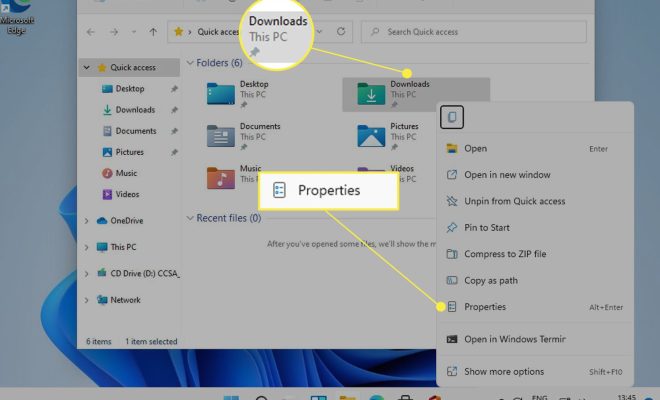
2.Right-click on the Downloads folder in the navigation pane and select Properties.

3.In the Downloads Properties window, click on the Location tab.

4.Click on the Move button and select the new location where you want to save your downloads.

5.After selecting the new location, click on the Apply button.

Conclusion

Changing the default download location in Windows 11 is a simple process that can be done using either the Settings app or File Explorer. By following the steps outlined in this article, you can easily change the location where your downloaded files are saved. This can be useful if you want to store your files in a different location or if you want to organize your files more efficiently.

Previous Article

What Is MOM.exe?

Next Article

How to Delete Photos From Your iPad

Matthew Lynch

Related articles More from author

  • Digital & Mobile Technology

    The Best Music Apps for Android, Based on Your Needs

    August 5, 2023
    By Matthew Lynch
  • Digital & Mobile Technology

    Things That Will Get You Banned From TikTok

    June 21, 2023
    By Matthew Lynch
  • Digital & Mobile Technology

    JPEG vs. TIFF vs. RAW

    June 3, 2023
    By Matthew Lynch
  • Digital & Mobile Technology

    Best Slideshow Apps of 2023

    June 6, 2023
    By Matthew Lynch
  • Digital & Mobile Technology

    What Is Skype and How Does It Work?

    June 8, 2023
    By Matthew Lynch
  • Digital & Mobile Technology

    What Is an MPK File?

    June 10, 2023
    By Matthew Lynch

Search

Login & Registration

  • Log in
  • Entries feed
  • Comments feed
  • WordPress.org

Newsletter

Signup for The Tech Edvocate Newsletter and have the latest in EdTech news and opinion delivered to your email address!

About Us

Since technology is not going anywhere and does more good than harm, adapting is the best course of action. That is where The Tech Edvocate comes in. We plan to cover the PreK-12 and Higher Education EdTech sectors and provide our readers with the latest news and opinion on the subject. From time to time, I will invite other voices to weigh in on important issues in EdTech. We hope to provide a well-rounded, multi-faceted look at the past, present, the future of EdTech in the US and internationally.

We started this journey back in June 2016, and we plan to continue it for many more years to come. I hope that you will join us in this discussion of the past, present and future of EdTech and lend your own insight to the issues that are discussed.

Newsletter

Signup for The Tech Edvocate Newsletter and have the latest in EdTech news and opinion delivered to your email address!

Contact Us

The Tech Edvocate
910 Goddin Street
Richmond, VA 23231
(601) 630-5238
[email protected]

Copyright © 2026 Matthew Lynch. All rights reserved.