The Tech Edvocate

Top Menu

  • Advertisement
  • Apps
  • Home Page
  • Home Page Five (No Sidebar)
  • Home Page Four
  • Home Page Three
  • Home Page Two
  • Home Tech2
  • Icons [No Sidebar]
  • Left Sidbear Page
  • Lynch Educational Consulting
  • My Account
  • My Speaking Page
  • Newsletter Sign Up Confirmation
  • Newsletter Unsubscription
  • Our Brands
  • Page Example
  • Privacy Policy
  • Protected Content
  • Register
  • Request a Product Review
  • Shop
  • Shortcodes Examples
  • Signup
  • Start Here
    • Governance
    • Careers
    • Contact Us
  • Terms and Conditions
  • The Edvocate
  • The Tech Edvocate Product Guide
  • Topics
  • Write For Us
  • Advertise

Main Menu

  • Start Here
    • Our Brands
    • Governance
      • Lynch Educational Consulting, LLC.
      • Dr. Lynch’s Personal Website
      • Careers
    • Write For Us
    • The Tech Edvocate Product Guide
    • Contact Us
    • Books
    • Edupedia
    • Post a Job
    • The Edvocate Podcast
    • Terms and Conditions
    • Privacy Policy
  • Topics
    • Assistive Technology
    • Child Development Tech
    • Early Childhood & K-12 EdTech
    • EdTech Futures
    • EdTech News
    • EdTech Policy & Reform
    • EdTech Startups & Businesses
    • Higher Education EdTech
    • Online Learning & eLearning
    • Parent & Family Tech
    • Personalized Learning
    • Product Reviews
  • Advertise
  • Tech Edvocate Awards
  • The Edvocate
  • Pedagogue
  • School Ratings

logo

The Tech Edvocate

  • Start Here
    • Our Brands
    • Governance
      • Lynch Educational Consulting, LLC.
      • Dr. Lynch’s Personal Website
        • My Speaking Page
      • Careers
    • Write For Us
    • The Tech Edvocate Product Guide
    • Contact Us
    • Books
    • Edupedia
    • Post a Job
    • The Edvocate Podcast
    • Terms and Conditions
    • Privacy Policy
  • Topics
    • Assistive Technology
    • Child Development Tech
    • Early Childhood & K-12 EdTech
    • EdTech Futures
    • EdTech News
    • EdTech Policy & Reform
    • EdTech Startups & Businesses
    • Higher Education EdTech
    • Online Learning & eLearning
    • Parent & Family Tech
    • Personalized Learning
    • Product Reviews
  • Advertise
  • Tech Edvocate Awards
  • The Edvocate
  • Pedagogue
  • School Ratings
  • Kazino zīmolu un spēļu logotipu sadarbība plašās digitālajās bibliotēkās

  • Kopu formāts un tradicionālās izmaksu līnijas slotos

  • Komiksová estetika mení tón prezentácie automatových hier

  • Tipogrāfija kā tematisko spēļu automātu vizuālās identitātes daļa

  • Bonusa kārtu attīstība mūsdienu spēļu automātu stāstījumā

  • Kā turpinājumi saglabā spēles identitāti, mainot tās mehāniku

  • Kā tiešsaistes kazino piedāvā pazīstamas spēles līdzās jaunākajiem izlaidumiem

  • Kā mobilo ekrānu portreta izkārtojums mainīja spēļu automātu kompozīciju

  • Kazino spēļu vadības elementu un informācijas izkārtojuma pielāgošana dažādiem ekrāniem

  • Kā māksla un mehānika veido spēļu automātu portfeļa atšķirības

Digital & Mobile Technology
Home›Digital & Mobile Technology›How to Change an Account PIN in Windows

How to Change an Account PIN in Windows
By Matthew Lynch
July 31, 2023
0
Spread the love

Changing your account PIN in Windows is an easy process that can be done in just a few steps. A PIN is a 4-digit code that you can use to sign in to your Windows device. Unlike a password, it is easier to remember and is more secure than a simple password. In this article, we will provide you with a step-by-step guide on how to change your account PIN in Windows.

Step 1: Open settings

To begin the process, you need to open the settings on your Windows device. You can do this by clicking on the Start menu and selecting the settings icon. Alternatively, you can press Windows + I buttons together to open the settings.

Step 2: Go to accounts

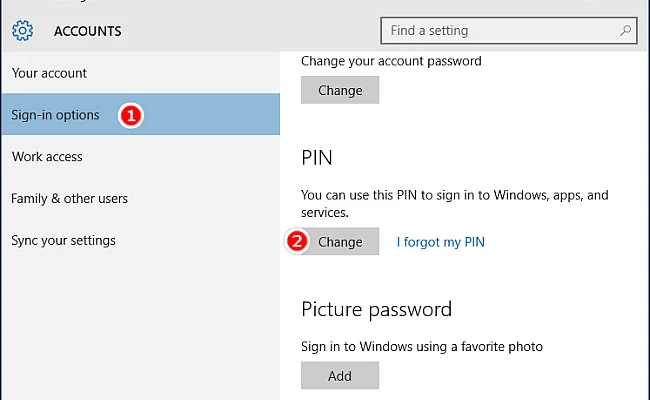
After opening the settings, you need to navigate to the ‘Accounts’ section. Once you are in the Accounts section, you will see an option named ‘Sign-in options’. This is where you can manage your account PIN.

Step 3: Change your PIN

Now, you need to click on the ‘Change’ button under the ‘PIN’ section. You will be prompted to enter your current PIN. If you haven’t set a PIN before, you need to click on ‘Add’ to set up a new one.

Once you have entered your current PIN, you can enter a new PIN. Microsoft recommends that you choose a PIN that is unique and not easily guessed. Your new PIN should be four digits long and consist of any combination of numbers.

Step 4: Verify your new PIN

After entering your new PIN, you need to re-enter it again to confirm that you have entered it correctly. This is to ensure that you don’t accidentally mistype your new PIN, which would mean that you cannot sign in to your device.

Step 5: Complete the process

After successfully verifying your new PIN, you can click on the ‘OK’ button to complete the process. Your new PIN is now set, and you can use it to sign in to your device the next time you log in.

In conclusion, changing your account PIN in Windows is an easy process that can be done in just a few steps. By following these steps, you can ensure that your device is secure and that no one can gain access to your account without your permission. It is recommended that you change your PIN regularly to keep your device secure.


Previous Article

How to Filter Content on Your Tumblr ...

Next Article

6 Free Alternatives to Avid Pro Tools

Matthew Lynch

Related articles More from author

  • Digital & Mobile Technology

    The Top 13 Greasemonkey and Tampermonkey User Scripts

    July 5, 2023
    By Matthew Lynch
  • Digital & Mobile Technology

    The Best Android Apps for Taking Care of House Plants

    June 13, 2023
    By Matthew Lynch
  • Digital & Mobile Technology

    Why You No Longer Need Xbox Live Gold to Play Fortnite

    June 26, 2023
    By Matthew Lynch
  • Digital & Mobile Technology

    How to Trace a Text Message to Find Who Sent It

    May 29, 2023
    By Matthew Lynch
  • Digital & Mobile Technology

    How to Move Apps From the App Library to the Home Screen on Your iPhone

    May 25, 2023
    By Matthew Lynch
  • Digital & Mobile Technology

    Best PC Speakers

    April 11, 2023
    By Matthew Lynch

Search

Login & Registration

  • Log in
  • Entries feed
  • Comments feed
  • WordPress.org

Newsletter

Signup for The Tech Edvocate Newsletter and have the latest in EdTech news and opinion delivered to your email address!

About Us

Since technology is not going anywhere and does more good than harm, adapting is the best course of action. That is where The Tech Edvocate comes in. We plan to cover the PreK-12 and Higher Education EdTech sectors and provide our readers with the latest news and opinion on the subject. From time to time, I will invite other voices to weigh in on important issues in EdTech. We hope to provide a well-rounded, multi-faceted look at the past, present, the future of EdTech in the US and internationally.

We started this journey back in June 2016, and we plan to continue it for many more years to come. I hope that you will join us in this discussion of the past, present and future of EdTech and lend your own insight to the issues that are discussed.

Newsletter

Signup for The Tech Edvocate Newsletter and have the latest in EdTech news and opinion delivered to your email address!

Contact Us

The Tech Edvocate
910 Goddin Street
Richmond, VA 23231
(601) 630-5238
[email protected]

Copyright © 2026 Matthew Lynch. All rights reserved.