The Tech Edvocate

Top Menu

  • Advertisement
  • Apps
  • Home Page
  • Home Page Five (No Sidebar)
  • Home Page Four
  • Home Page Three
  • Home Page Two
  • Home Tech2
  • Icons [No Sidebar]
  • Left Sidbear Page
  • Lynch Educational Consulting
  • My Account
  • My Speaking Page
  • Newsletter Sign Up Confirmation
  • Newsletter Unsubscription
  • Our Brands
  • Page Example
  • Privacy Policy
  • Protected Content
  • Register
  • Request a Product Review
  • Shop
  • Shortcodes Examples
  • Signup
  • Start Here
    • Governance
    • Careers
    • Contact Us
  • Terms and Conditions
  • The Edvocate
  • The Tech Edvocate Product Guide
  • Topics
  • Write For Us
  • Advertise

Main Menu

  • Start Here
    • Our Brands
    • Governance
      • Lynch Educational Consulting, LLC.
      • Dr. Lynch’s Personal Website
      • Careers
    • Write For Us
    • The Tech Edvocate Product Guide
    • Contact Us
    • Books
    • Edupedia
    • Post a Job
    • The Edvocate Podcast
    • Terms and Conditions
    • Privacy Policy
  • Topics
    • Assistive Technology
    • Child Development Tech
    • Early Childhood & K-12 EdTech
    • EdTech Futures
    • EdTech News
    • EdTech Policy & Reform
    • EdTech Startups & Businesses
    • Higher Education EdTech
    • Online Learning & eLearning
    • Parent & Family Tech
    • Personalized Learning
    • Product Reviews
  • Advertise
  • Tech Edvocate Awards
  • The Edvocate
  • Pedagogue
  • School Ratings

logo

The Tech Edvocate

  • Start Here
    • Our Brands
    • Governance
      • Lynch Educational Consulting, LLC.
      • Dr. Lynch’s Personal Website
        • My Speaking Page
      • Careers
    • Write For Us
    • The Tech Edvocate Product Guide
    • Contact Us
    • Books
    • Edupedia
    • Post a Job
    • The Edvocate Podcast
    • Terms and Conditions
    • Privacy Policy
  • Topics
    • Assistive Technology
    • Child Development Tech
    • Early Childhood & K-12 EdTech
    • EdTech Futures
    • EdTech News
    • EdTech Policy & Reform
    • EdTech Startups & Businesses
    • Higher Education EdTech
    • Online Learning & eLearning
    • Parent & Family Tech
    • Personalized Learning
    • Product Reviews
  • Advertise
  • Tech Edvocate Awards
  • The Edvocate
  • Pedagogue
  • School Ratings
  • The Game-Changing September Beauty Products You Need to Try

  • Revelado: El Secreto Detrás de los Productos Más Vendidos de Septiembre que Querrás Tener

  • This Crucial FDA Hearing Could Transform Mental Healthcare Forever

  • WoW’s New Paid Race Sparked Outrage: Here’s Why Gamers Are Furious

  • You Won’t Believe How AI Chatbots Are Quietly Wrecking Mental Health

  • This Is Why Gen Z’s AI Career Concerns Are About to Explode

  • You Won’t Believe This Game-Changing Student Loan Interest Rate Reduction Loophole

  • This Critical Citrix Zero-Day Flaw Could Collapse Your Business

  • Gold Star Mortgage Ransomware: The Shocking Truth About Your ‘Secure’ Data

  • The Brutal Truth About Car Loan Rates: Why Your ‘Cheap’ Deal Won’t Last

Digital & Mobile Technology
Home›Digital & Mobile Technology›How to Cast Apple TV to Chromecast

How to Cast Apple TV to Chromecast
By Matthew Lynch
June 1, 2023
0
Spread the love

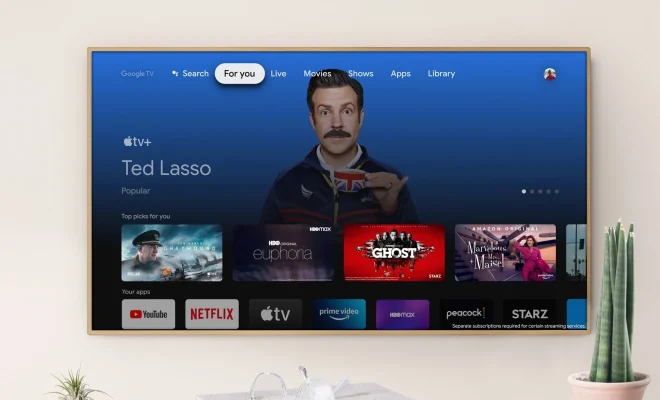
If you have an Apple TV and a Chromecast, you might be wondering whether it’s possible to cast content from your Apple TV to your Chromecast. While these devices aren’t necessarily designed to work together, there are a few different methods you can try to make it happen.

Here’s how to cast Apple TV to Chromecast:

Method 1: Use AirPlay

One of the easiest ways to cast content from your Apple TV to your Chromecast is to use AirPlay. This feature allows you to stream audio and video from your iPhone, iPad, or Mac to your Apple TV, and from there, you can cast it to your Chromecast.

To use AirPlay with your Apple TV and Chromecast, follow these steps:

1. Connect your Chromecast to your TV and make sure it’s on the same Wi-Fi network as your Apple TV.
2. Turn on your Apple TV and go to the home screen.
3. Open the Control Center on your iPhone or iPad by swiping down from the top right corner of the screen (on newer devices) or up from the bottom of the screen (on older devices).
4. Tap the Screen Mirroring icon and choose your Apple TV from the list of available devices.
5. Once your device is connected to your Apple TV, you can start playing content in apps like Netflix, YouTube, or Hulu.
6. Once the content is playing on your Apple TV, click on the AirPlay icon and select your Chromecast.
7. The content should now be playing on your Chromecast.

Method 2: Use a Casting App

Another method to cast Apple TV to Chromecast is by using a third-party casting app. There are several different options available, but one popular choice is the AllCast app.

Here’s how to use AllCast to cast Apple TV to Chromecast:

1. Download and install the AllCast app on your iPhone or iPad.
2. Make sure your Chromecast is connected to your TV and on the same Wi-Fi network as your device.
3. Open the AllCast app and select your Chromecast from the list of available devices.
4. Choose the content you want to play on your Apple TV and start playing it.
5. Once the content is playing, click on the Cast icon in the top right corner of the screen and select your Chromecast.
6. The content should now be playing on your Chromecast.

Method 3: Stream with a Third-Party Device

Finally, you can also use a third-party device to stream content from your Apple TV to your Chromecast. One popular option is the Roku Streaming Stick, which allows you to stream content from your Apple TV to your Chromecast using the Roku app.

Here’s how to use the Roku Streaming Stick to cast Apple TV to Chromecast:

1. Connect your Roku Streaming Stick to your TV and make sure it’s on the same Wi-Fi network as your Apple TV.
2. Download and install the Roku app on your iPhone or iPad.
3. Open the Roku app and select your Apple TV from the list of available devices.
4. Choose the content you want to play on your Apple TV and start playing it.
5. Once the content is playing, click on the Cast icon in the top right corner of the screen and select your Chromecast.
6. The content should now be playing on your Chromecast.

In Conclusion

While Apple TV and Chromecast aren’t necessarily designed to work together, there are still several ways to cast content from your Apple TV to your Chromecast. Whether you use AirPlay, a casting app, or a third-party device like the Roku Streaming Stick, you should be able to enjoy your favorite videos, music, and more on your Chromecast in no time.

Previous Article

How to Reset Your Roku Box or ...

Next Article

How to Fix the WHEA Uncorrectable Error

Matthew Lynch

Related articles More from author

  • Digital & Mobile Technology

    How to Connect Your Phone to a Computer Using Bluetooth

    June 23, 2023
    By Matthew Lynch
  • Digital & Mobile Technology

    What is the M4b Format?

    June 10, 2023
    By Matthew Lynch
  • Digital & Mobile Technology

    How to Enhance Old Online Videos With Opera’s Lucid Mode

    August 5, 2023
    By Matthew Lynch
  • Digital & Mobile Technology

    Why Is My iPad Bluetooth Not Working? How to Fix the Problem

    June 3, 2023
    By Matthew Lynch
  • Digital & Mobile Technology

    How to Manage and Control Email Threads

    June 12, 2023
    By Matthew Lynch
  • Digital & Mobile Technology

    Best Free Driver Updater Tools

    May 30, 2023
    By Matthew Lynch

Search

Login & Registration

  • Log in
  • Entries feed
  • Comments feed
  • WordPress.org

Newsletter

Signup for The Tech Edvocate Newsletter and have the latest in EdTech news and opinion delivered to your email address!

About Us

Since technology is not going anywhere and does more good than harm, adapting is the best course of action. That is where The Tech Edvocate comes in. We plan to cover the PreK-12 and Higher Education EdTech sectors and provide our readers with the latest news and opinion on the subject. From time to time, I will invite other voices to weigh in on important issues in EdTech. We hope to provide a well-rounded, multi-faceted look at the past, present, the future of EdTech in the US and internationally.

We started this journey back in June 2016, and we plan to continue it for many more years to come. I hope that you will join us in this discussion of the past, present and future of EdTech and lend your own insight to the issues that are discussed.

Newsletter

Signup for The Tech Edvocate Newsletter and have the latest in EdTech news and opinion delivered to your email address!

Contact Us

The Tech Edvocate
910 Goddin Street
Richmond, VA 23231
(601) 630-5238
[email protected]

Copyright © 2026 Matthew Lynch. All rights reserved.