How to calibrate game controller
“`html
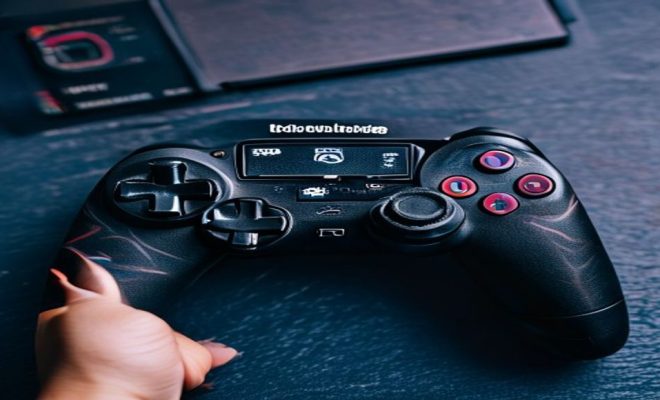
Whether you’re a casual player or a competitive gamer, the responsiveness of your game controller can significantly impact your gaming experience. A well-calibrated game controller ensures that your inputs are accurately translated into in-game actions, making it crucial for everything from precision shooting to intricate maneuvers. In this guide, we’ll explore the necessary steps to calibrate your game controller, along with tips and insights that can enhance your gaming performance.
1. Understanding Controller Calibration
Calibration is the process of aligning your game controller’s inputs with the expected outputs in the game. When a controller is out of calibration, you may experience issues such as misaligned joystick movements, unresponsive buttons, or even drift—a common problem where the joystick registers movement even when it’s at rest. Understanding how to calibrate your game controller can mitigate these issues, ensuring your gaming experience is smooth and enjoyable.
Calibration helps in fine-tuning the sensitivity settings for triggers and joysticks, allowing for more responsive and precise controls. This is particularly important in fast-paced games where every millisecond counts. In essence, proper calibration can mean the difference between winning and losing in competitive scenarios.
2. Preparation for Calibration
Before diving into the calibration process, some preparations can streamline the experience. First, ensure that your game controller is fully charged or connected (if wired). A low battery can result in erratic behavior during calibration.
Next, clean your controller. Dust and debris can affect the functionality of buttons and joysticks. A simple wipe down with a microfiber cloth can help. If you’re using a wireless controller, make sure your console or PC recognizes it. You might need to disconnect and reconnect, or even reset the controller to establish a stable connection. Preparation is key to a successful calibration process.
3. Calibrating on Different Platforms
Calibration processes can differ based on the platform you’re using—be it a console, PC, or even mobile devices. Let’s break down the steps for popular platforms:
- Xbox Controllers: On Xbox, go to the Settings menu, select Devices & connections, and then Accessories. From there, you can adjust the settings for your controller, including calibration.
- PlayStation Controllers: For PlayStation, navigate to Settings, then Devices, and select Controllers. Here, you can reset and adjust the controller settings.
- PC Controllers: On PC, you can calibrate your game controller through the Control Panel. Go to Hardware and Sound, then Devices and Printers. Right-click on your controller and select Game Controller Settings, where you can test and calibrate your device.
Each platform has its unique steps, and knowing these can save time when calibrating your game controller.
4. Step-by-Step Guide to Calibration
Now that you’re familiar with the preparation and platform specifics, let’s get into the detailed steps to calibrate your game controller:
- Access Calibration Settings: Depending on your platform, access the settings as outlined in the previous section.
- Test Inputs: Most calibration settings will allow you to test your inputs. Move your joysticks around, press buttons, and ensure they register correctly.
- Adjust Sensitivity: Fine-tune the sensitivity settings for your joysticks and triggers. If you prefer a more responsive setup, increase the sensitivity.
- Dead Zones: Set the dead zones for your analog sticks. A dead zone is the area around the joystick’s center position where movement isn’t registered. If your controller is experiencing drift, slightly increasing the dead zone can help.
- Save Settings: Once you’re satisfied with the configuration, save your settings and exit.
- Test in a Game: Finally, test your calibrated controller in a game to ensure everything works as expected.
This step-by-step guide can help you quickly and effectively calibrate your game controller, enhancing your gaming performance. (See: Game controller overview on Wikipedia.)
5. Solving Common Calibration Issues
Even with proper calibration, you might encounter some common issues. One frequent problem is joystick drift, where the game registers movement even when the joystick is centered. This can often be fixed by adjusting the dead zone settings mentioned earlier.
If your buttons appear unresponsive or laggy, check for any obstructions or dirt underneath the buttons. If cleaning doesn’t resolve the issue, consider resetting the controller or updating its firmware if applicable. Firmware updates can often solve bugs and improve performance, making them a crucial part of maintenance.
6. Third-Party Calibration Tools
For gamers looking for advanced calibration and customization options, several third-party tools are available. Software like DS4Windows for PlayStation controllers on PC or Xpadder can help you create custom button mappings and sensitivity settings.
These tools often provide additional features like macros, allowing you to execute complex commands with a single button press. Many gamers find that using these tools offers a significant advantage in competitive gaming by giving them a higher level of control over their gaming setup.
7. The Importance of Regular Calibration
Regularly calibrating your game controller is essential to maintain peak performance. Over time, controllers can wear down, leading to less precise inputs. By making calibration a routine part of your gaming setup, you can ensure you’re always at your best.
Moreover, with new games often having different input requirements and configurations, recalibrating can help you adapt to the latest titles. Keeping your controller in optimal condition will not only enhance your gaming experience but can also prolong its lifespan.
8. Advanced Calibration Techniques
If you’re familiar with basic calibration and looking to take your setup a step further, consider exploring advanced techniques that can customize your controller to suit your specific gaming style. These include:
Understanding Input Lag
Input lag is the delay between pressing a button on your controller and seeing the action occur on screen. This can be influenced by many factors, including your controller’s settings. You can measure input lag using specific software or tools, helping you fine-tune your calibration to minimize delays.
Using Software with Visual Feedback
Tools such as Game Controller Tester provide visual feedback, allowing you to see how your inputs correspond to on-screen actions. This can be particularly helpful for fine-tuning sensitivity settings and dead zones, ensuring you get the most responsive configuration possible. (See: CDC on technology and gaming.)
Adjusting for Game-Specific Settings
Some games allow for specific controller configurations. Investigating game settings that might override or change your controller’s calibration can ensure you get a consistent experience across different titles. For example, some shooters allow you to adjust the aim sensitivity separately from other controls.
9. Statistics on Controller Performance
Understanding how calibration affects controller performance can provide insight into its importance. Studies have shown that properly calibrated controllers can lead to a 15-20% improvement in response times for competitive players. In games where precision is crucial—like first-person shooters—this difference can be the deciding factor in high-stakes situations.
Furthermore, many pro gamers emphasize the role of controller calibration in their setups. For instance, in esports tournaments, players spend an average of 12-15 minutes calibrating their controllers before matches, ensuring every input is as precise as possible.
10. Frequently Asked Questions (FAQ)
1. How often should I calibrate my game controller?
Regular calibration is recommended, especially after extensive use, changes in game titles, or if you notice performance drops. Many gamers choose to calibrate before sessions or tournaments.
2. Can I calibrate my game controller without a game?
Yes, calibration can be performed through the console or PC settings without needing to be in a game. This allows you to adjust settings in a controlled environment before diving into gameplay.
3. What are the signs that my controller needs calibration?
Common signs include joystick drift, unresponsive buttons, or unusual input lag. If your controller doesn’t feel right during gameplay, it’s worth checking the calibration.
4. Are there risks in using third-party calibration tools?
While many third-party tools are beneficial, it’s crucial to use reputable software to avoid potential issues like malware or conflicts with your system. Always research and read reviews before downloading.
5. Can I revert to default settings after calibrating?
Most platforms allow you to revert to default settings easily. If you find that your custom settings aren’t working for you, don’t hesitate to reset and start over. (See: Research on gaming performance and controls.)
6. What is controller sensitivity and why is it important?
Controller sensitivity refers to how responsive your controller is to input. Higher sensitivity means that small movements will result in larger movements on screen, which is crucial in fast-paced games where quick reflexes are needed. Finding the right balance between sensitivity and control can enhance your gaming experience.
7. What is joystick drift and how can I fix it?
Joystick drift occurs when your character or camera moves without you touching the joystick. This issue can often be resolved by recalibrating the joystick settings or adjusting the dead zones. If drift persists, consider cleaning the joystick or, in severe cases, replacing the controller.
8. How do I know if my controller has hardware issues?
If you’ve calibrated your controller multiple times and still experience issues, it might have hardware problems. Signs include consistent unresponsive buttons, electronic noise during use, or physical damage. Testing the controller on another platform can help determine if the issue lies with the controller itself.
9. Are there specific games that require more detailed calibration?
Yes, games that rely on precision—like competitive shooters, racing simulators, and sports games—often benefit from more detailed calibration. These games can have specific sensitivity settings and configurations that need to be tailored for optimal performance.
10. How can I maintain my controller to reduce the need for frequent calibration?
To maintain your controller, keep it clean and store it in a protective case when not in use. Avoid eating or drinking near your gaming setup to prevent crumbs or spills. Regularly check for any wear on buttons and joysticks and replace or repair them as needed.
In summary, learning how to calibrate your game controller is an invaluable skill for any gamer. Whether you’re troubleshooting issues, preparing for a competitive match, or simply wanting a better gaming experience, a well-calibrated controller can make a world of difference.
“`
Trending Now
Frequently Asked Questions
How do I know if my game controller needs calibration?
If you experience issues like misaligned joystick movements, unresponsive buttons, or joystick drift, your game controller may need calibration. These problems can affect your gaming experience, making it crucial to calibrate your controller for improved responsiveness and accuracy.
What is the process to calibrate a game controller?
To calibrate your game controller, first ensure it's charged or connected. Then, access your system's calibration settings, follow the prompts to adjust joystick sensitivity and button responses, and test the controller's functionality. This process will help align your inputs with the game's expected outputs.
Why is calibrating my game controller important?
Calibrating your game controller is essential for ensuring that your inputs translate accurately into in-game actions. Proper calibration can enhance your gaming performance, especially in fast-paced scenarios, potentially making the difference between winning and losing.
Can a dirty game controller affect calibration?
Yes, a dirty game controller can negatively impact calibration. Dust and debris can interfere with buttons and joysticks, leading to erratic behavior during the calibration process. Cleaning your controller with a microfiber cloth before calibration is recommended for optimal performance.
How often should I calibrate my game controller?
It's a good practice to calibrate your game controller whenever you notice issues like joystick drift or unresponsive buttons. Additionally, consider recalibrating after significant software updates or if you switch to a different gaming platform to ensure optimal performance.
Have you experienced this yourself? We’d love to hear your story in the comments.