The Tech Edvocate

Top Menu

  • Advertisement
  • Apps
  • Home Page
  • Home Page Five (No Sidebar)
  • Home Page Four
  • Home Page Three
  • Home Page Two
  • Home Tech2
  • Icons [No Sidebar]
  • Left Sidbear Page
  • Lynch Educational Consulting
  • My Account
  • My Speaking Page
  • Newsletter Sign Up Confirmation
  • Newsletter Unsubscription
  • Our Brands
  • Page Example
  • Privacy Policy
  • Protected Content
  • Register
  • Request a Product Review
  • Shop
  • Shortcodes Examples
  • Signup
  • Start Here
    • Governance
    • Careers
    • Contact Us
  • Terms and Conditions
  • The Edvocate
  • The Tech Edvocate Product Guide
  • Topics
  • Write For Us
  • Advertise

Main Menu

  • Start Here
    • Our Brands
    • Governance
      • Lynch Educational Consulting, LLC.
      • Dr. Lynch’s Personal Website
      • Careers
    • Write For Us
    • The Tech Edvocate Product Guide
    • Contact Us
    • Books
    • Edupedia
    • Post a Job
    • The Edvocate Podcast
    • Terms and Conditions
    • Privacy Policy
  • Topics
    • Assistive Technology
    • Child Development Tech
    • Early Childhood & K-12 EdTech
    • EdTech Futures
    • EdTech News
    • EdTech Policy & Reform
    • EdTech Startups & Businesses
    • Higher Education EdTech
    • Online Learning & eLearning
    • Parent & Family Tech
    • Personalized Learning
    • Product Reviews
  • Advertise
  • Tech Edvocate Awards
  • The Edvocate
  • Pedagogue
  • School Ratings

logo

The Tech Edvocate

  • Start Here
    • Our Brands
    • Governance
      • Lynch Educational Consulting, LLC.
      • Dr. Lynch’s Personal Website
        • My Speaking Page
      • Careers
    • Write For Us
    • The Tech Edvocate Product Guide
    • Contact Us
    • Books
    • Edupedia
    • Post a Job
    • The Edvocate Podcast
    • Terms and Conditions
    • Privacy Policy
  • Topics
    • Assistive Technology
    • Child Development Tech
    • Early Childhood & K-12 EdTech
    • EdTech Futures
    • EdTech News
    • EdTech Policy & Reform
    • EdTech Startups & Businesses
    • Higher Education EdTech
    • Online Learning & eLearning
    • Parent & Family Tech
    • Personalized Learning
    • Product Reviews
  • Advertise
  • Tech Edvocate Awards
  • The Edvocate
  • Pedagogue
  • School Ratings
  • The Shocking Truth: ESG Training Programs Are Quietly Reshaping Your Career Path

  • Why Millions of People Are Switching to These Green Energy Certifications Right Now

  • The green skills gap in 2026: How to address this growing problem

  • The Shocking Truth: Your Degree Won’t Land You the Best IT Jobs in 2026

  • The Brutal Truth About Degrees: Why Micro-Credentials Are Quietly Dominating Careers by 2026

  • Why 96% of Employers Now Prefer Skills Over Degrees: The Micro-Credential Revolution

  • This Crucial Mistake With AI Is Stunting Student Minds: Here’s How to Fix It

  • The AI ‘Cognitive Surrender’ Crisis: 7 Tools Every Educator Needs NOW

  • This Crucial Mistake Is Quietly Killing Students’ Brains, Says MIT

  • The Sneaky Truth About RTO: How to Negotiate Flexible Work Without Losing Your Job

Digital & Mobile Technology
Home›Digital & Mobile Technology›How to Build an Android TV Box With a Raspberry Pi 4

How to Build an Android TV Box With a Raspberry Pi 4
By Matthew Lynch
June 26, 2023
0
Spread the love

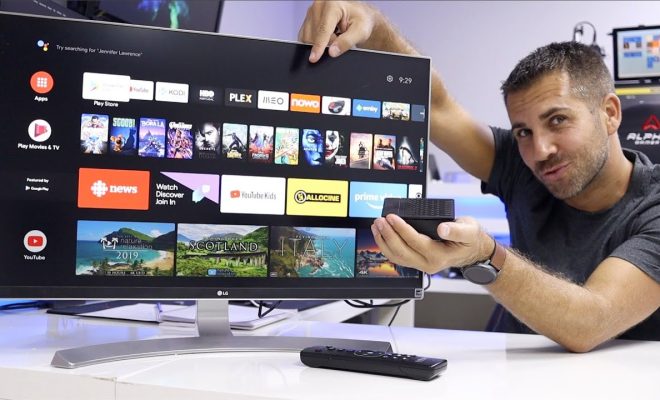
Are you tired of paying for cable or satellite TV? Do you want to have access to all your favorite streaming services in one place? Building an Android TV box with a Raspberry Pi 4 is a simple solution that won’t break the bank. Here’s how to do it:

Step 1: Get your supplies

You’ll need a Raspberry Pi 4 (at least 2GB RAM), a microSD card (at least 16GB), a power supply, and a case for the Raspberry Pi. You’ll also need a USB keyboard and mouse, an HDMI cable, and a TV or monitor with an HDMI port.

Step 2: Install the operating system

Download the latest version of the Raspberry Pi OS from the official website and flash it onto the microSD card using Etcher, a free tool for Windows, Mac, and Linux. Once the flashing process is complete, insert the microSD card into the Raspberry Pi.

Step 3: Connect the hardware

Attach the HDMI cable between the TV or monitor and the Raspberry Pi 4. Plug in the power supply and turn on the TV or monitor. Connect the USB keyboard and mouse to the Raspberry Pi.

Step 4: Set up the Android TV interface

Once the Raspberry Pi is up and running, open a terminal window and run the following commands:

sudo apt update

sudo apt full-upgrade

sudo apt install android-tools-adb android-tools-fastboot

Next, download and install the Android TV Launcher app from the Google Play Store using the ADB command:

adb install -r com.google.android.tvlauncher.apk

Finally, install the Kodi media player app using the ADB command:

adb install -r org.xbmc.kodi.apk

Step 5: Configure Kodi

Open Kodi and select “Settings” from the main menu. Go to “System” > “Appearance” and choose the skin that you like best. Next, go to “System” > “Interface” and select “Configure skin”. Customize the layout and widgets as you wish to create your ideal user interface.

Step 6: Install add-ons

Kodi offers thousands of add-ons to enhance your media experience. Some of the most popular ones include Netflix, Hulu, Amazon Prime Video, and YouTube. To install an add-on, go to “Add-ons” > “Install from repository” and select the repository that contains the add-on you want. Follow the prompts to install it.

Previous Article

DIY Projects to Turn a Broken Monitor ...

Next Article

Where Can You Buy a Raspberry Pi?

Matthew Lynch

Related articles More from author

  • Digital & Mobile Technology

    How to Fix It When Roku TV Is Not Finding Antenna Channels

    June 4, 2023
    By Matthew Lynch
  • Digital & Mobile Technology

    What Do the Check Marks in WhatsApp Mean?

    June 23, 2023
    By Matthew Lynch
  • Digital & Mobile Technology

    Interesting Facts You Never Knew About Netflix

    June 22, 2023
    By Matthew Lynch
  • Digital & Mobile Technology

    The Definition of a Value in Excel

    June 11, 2023
    By Matthew Lynch
  • Digital & Mobile Technology

    CleanMem – A Windows Memory Cleaner That Works?

    June 6, 2023
    By Matthew Lynch
  • Digital & Mobile Technology

    Easy Ways to Fix the IRQL_NOT_LESS_OR_EQUAL Error in Windows 10

    June 15, 2023
    By Matthew Lynch

Search

Login & Registration

  • Log in
  • Entries feed
  • Comments feed
  • WordPress.org

Newsletter

Signup for The Tech Edvocate Newsletter and have the latest in EdTech news and opinion delivered to your email address!

About Us

Since technology is not going anywhere and does more good than harm, adapting is the best course of action. That is where The Tech Edvocate comes in. We plan to cover the PreK-12 and Higher Education EdTech sectors and provide our readers with the latest news and opinion on the subject. From time to time, I will invite other voices to weigh in on important issues in EdTech. We hope to provide a well-rounded, multi-faceted look at the past, present, the future of EdTech in the US and internationally.

We started this journey back in June 2016, and we plan to continue it for many more years to come. I hope that you will join us in this discussion of the past, present and future of EdTech and lend your own insight to the issues that are discussed.

Newsletter

Signup for The Tech Edvocate Newsletter and have the latest in EdTech news and opinion delivered to your email address!

Contact Us

The Tech Edvocate
910 Goddin Street
Richmond, VA 23231
(601) 630-5238
[email protected]

Copyright © 2026 Matthew Lynch. All rights reserved.