The Tech Edvocate

Top Menu

  • Advertisement
  • Apps
  • Home Page
  • Home Page Five (No Sidebar)
  • Home Page Four
  • Home Page Three
  • Home Page Two
  • Home Tech2
  • Icons [No Sidebar]
  • Left Sidbear Page
  • Lynch Educational Consulting
  • My Account
  • My Speaking Page
  • Newsletter Sign Up Confirmation
  • Newsletter Unsubscription
  • Our Brands
  • Page Example
  • Privacy Policy
  • Protected Content
  • Register
  • Request a Product Review
  • Shop
  • Shortcodes Examples
  • Signup
  • Start Here
    • Governance
    • Careers
    • Contact Us
  • Terms and Conditions
  • The Edvocate
  • The Tech Edvocate Product Guide
  • Topics
  • Write For Us
  • Advertise

Main Menu

  • Start Here
    • Our Brands
    • Governance
      • Lynch Educational Consulting, LLC.
      • Dr. Lynch’s Personal Website
      • Careers
    • Write For Us
    • The Tech Edvocate Product Guide
    • Contact Us
    • Books
    • Edupedia
    • Post a Job
    • The Edvocate Podcast
    • Terms and Conditions
    • Privacy Policy
  • Topics
    • Assistive Technology
    • Child Development Tech
    • Early Childhood & K-12 EdTech
    • EdTech Futures
    • EdTech News
    • EdTech Policy & Reform
    • EdTech Startups & Businesses
    • Higher Education EdTech
    • Online Learning & eLearning
    • Parent & Family Tech
    • Personalized Learning
    • Product Reviews
  • Advertise
  • Tech Edvocate Awards
  • The Edvocate
  • Pedagogue
  • School Ratings

logo

The Tech Edvocate

  • Start Here
    • Our Brands
    • Governance
      • Lynch Educational Consulting, LLC.
      • Dr. Lynch’s Personal Website
        • My Speaking Page
      • Careers
    • Write For Us
    • The Tech Edvocate Product Guide
    • Contact Us
    • Books
    • Edupedia
    • Post a Job
    • The Edvocate Podcast
    • Terms and Conditions
    • Privacy Policy
  • Topics
    • Assistive Technology
    • Child Development Tech
    • Early Childhood & K-12 EdTech
    • EdTech Futures
    • EdTech News
    • EdTech Policy & Reform
    • EdTech Startups & Businesses
    • Higher Education EdTech
    • Online Learning & eLearning
    • Parent & Family Tech
    • Personalized Learning
    • Product Reviews
  • Advertise
  • Tech Edvocate Awards
  • The Edvocate
  • Pedagogue
  • School Ratings
  • Shocking: Your Smart Ring Knows When You’re Having Sex

  • The SwiftRefi Scandal: 7 Astonishing Truths About Their ‘Zero-Fee’ Refinance

  • The AION 2 Scandal: Why This Korean MMO Controversy Is Boiling Over

  • The Bombshell Truth About Gaming’s Legal Reckoning

  • Staggering: AI’s ALS Breakthrough Comes With a $5 Million Price Tag

  • The Astonishing AI Predicting Housing Trends With 98% Accuracy — Regulators Are Freaking Out

  • Your Kids’ Classrooms Are Changing: Here’s What’s Coming by 2026

  • Jaw-Dropping: Millions Face Triple Tax Bills on Forgiven Student Loans

  • Mind-Blowing: Critical Infrastructure Faces Collapse From This Overlooked Threat

  • Unsettling: AI Agents Just Hacked 7 Major Banks — Here’s What It Means For Your Money

Assistive Technology
Home›Assistive Technology›How to Add and Connect a Printer to Your Chromebook

How to Add and Connect a Printer to Your Chromebook
By Matthew Lynch
June 10, 2023
0
Spread the love

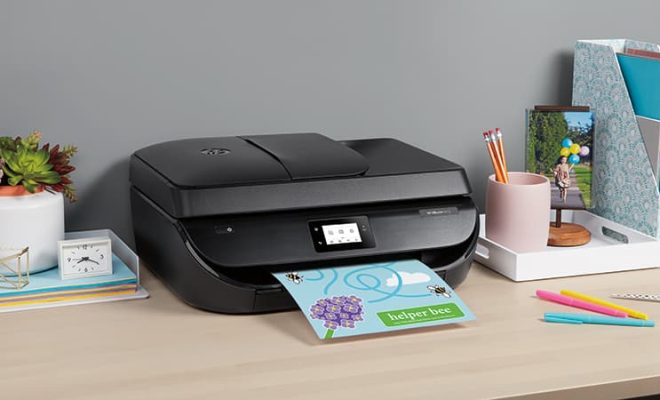
Chromebooks have become increasingly popular for their affordability, portability, and ease of use. However, setting up a printer and connecting it to a Chromebook can still be a challenge for some users. This step-by-step guide will help you add and connect a printer to your Chromebook.

Step 1: Check your printer compatibility

Before purchasing a printer, check its compatibility with your Chromebook. Chromebooks support most printers that can connect through a USB port or over Wi-Fi. However, some older printers may not be compatible, and you may need to use a cloud-based printer service like Google Cloud Print.

Step 2: Connect your printer

If your printer is compatible with your Chromebook, connect it to your Chromebook using a USB cable. Once the printer and Chromebook are connected, turn on the printer and wait for it to warm up. Your Chromebook should detect the printer automatically.

Step 3: Add your printer

To add your printer to your Chromebook, click on the status area of your screen (where your account picture appears) and select the Settings icon. From there, scroll down to the bottom of the page and click on “Advanced.” Then, scroll down to the “Printing” section and click on “Printers.”

Next, click on the “Add printer” button. Your Chromebook will search for any printers connected to your device. If your printer is detected, it will appear on the list, and you can select it to add it to your Chromebook.

Step 4: Connect your printer to Wi-Fi

If your printer is wireless, you can connect it to your Wi-Fi network to print wirelessly. To do this, consult your printer’s manual for instructions on how to connect your printer to your Wi-Fi network.

Once your printer is connected to Wi-Fi, repeat steps 3 and 4 to add the printer to your Chromebook.

Step 5: Print a test page

To test your printer connection, click on the status area of your screen and select “Printers.” From there, click on your printer to open the printer settings. Then, click on “Print test page” to confirm that your printer is working properly.

In conclusion, adding and connecting a printer to your Chromebook is a straightforward process that can be completed in a few simple steps. Just make sure to check your printer compatibility and connect it to Wi-Fi if you want to print wirelessly. With these steps, you can start printing your documents from your Chromebook without any hassle.


Previous Article

How to Fix a Hulu Playback Failure

Next Article

How to Identify OEM Car Stereo Wires

Matthew Lynch

Related articles More from author

  • Assistive Technology

    How to Fix Discord Connection Issues

    June 8, 2023
    By Matthew Lynch
  • Assistive Technology

    How to Connect Steam Deck to a TV

    June 8, 2023
    By Matthew Lynch
  • Assistive Technology

    How to Find Active .Onion Dark Web Sites (And Why You Might Want To)

    June 15, 2023
    By Matthew Lynch
  • Assistive Technology

    Quick Fixes for Predictive Emoji Not Working on an iPhone or iPad

    June 23, 2023
    By Matthew Lynch
  • Assistive Technology

    How to Use Discord on Xbox

    June 8, 2023
    By Matthew Lynch
  • Assistive Technology

    How to Fix Microsoft Teams Crashing on Windows 11 and 10

    June 15, 2023
    By Matthew Lynch

Search

Login & Registration

  • Log in
  • Entries feed
  • Comments feed
  • WordPress.org

Newsletter

Signup for The Tech Edvocate Newsletter and have the latest in EdTech news and opinion delivered to your email address!

About Us

Since technology is not going anywhere and does more good than harm, adapting is the best course of action. That is where The Tech Edvocate comes in. We plan to cover the PreK-12 and Higher Education EdTech sectors and provide our readers with the latest news and opinion on the subject. From time to time, I will invite other voices to weigh in on important issues in EdTech. We hope to provide a well-rounded, multi-faceted look at the past, present, the future of EdTech in the US and internationally.

We started this journey back in June 2016, and we plan to continue it for many more years to come. I hope that you will join us in this discussion of the past, present and future of EdTech and lend your own insight to the issues that are discussed.

Newsletter

Signup for The Tech Edvocate Newsletter and have the latest in EdTech news and opinion delivered to your email address!

Contact Us

The Tech Edvocate
910 Goddin Street
Richmond, VA 23231
(601) 630-5238
[email protected]

Copyright © 2026 Matthew Lynch. All rights reserved.