The Tech Edvocate

Top Menu

  • Advertisement
  • Apps
  • Home Page
  • Home Page Five (No Sidebar)
  • Home Page Four
  • Home Page Three
  • Home Page Two
  • Home Tech2
  • Icons [No Sidebar]
  • Left Sidbear Page
  • Lynch Educational Consulting
  • My Account
  • My Speaking Page
  • Newsletter Sign Up Confirmation
  • Newsletter Unsubscription
  • Our Brands
  • Page Example
  • Privacy Policy
  • Protected Content
  • Register
  • Request a Product Review
  • Shop
  • Shortcodes Examples
  • Signup
  • Start Here
    • Governance
    • Careers
    • Contact Us
  • Terms and Conditions
  • The Edvocate
  • The Tech Edvocate Product Guide
  • Topics
  • Write For Us
  • Advertise

Main Menu

  • Start Here
    • Our Brands
    • Governance
      • Lynch Educational Consulting, LLC.
      • Dr. Lynch’s Personal Website
      • Careers
    • Write For Us
    • The Tech Edvocate Product Guide
    • Contact Us
    • Books
    • Edupedia
    • Post a Job
    • The Edvocate Podcast
    • Terms and Conditions
    • Privacy Policy
  • Topics
    • Assistive Technology
    • Child Development Tech
    • Early Childhood & K-12 EdTech
    • EdTech Futures
    • EdTech News
    • EdTech Policy & Reform
    • EdTech Startups & Businesses
    • Higher Education EdTech
    • Online Learning & eLearning
    • Parent & Family Tech
    • Personalized Learning
    • Product Reviews
  • Advertise
  • Tech Edvocate Awards
  • The Edvocate
  • Pedagogue
  • School Ratings

logo

The Tech Edvocate

  • Start Here
    • Our Brands
    • Governance
      • Lynch Educational Consulting, LLC.
      • Dr. Lynch’s Personal Website
        • My Speaking Page
      • Careers
    • Write For Us
    • The Tech Edvocate Product Guide
    • Contact Us
    • Books
    • Edupedia
    • Post a Job
    • The Edvocate Podcast
    • Terms and Conditions
    • Privacy Policy
  • Topics
    • Assistive Technology
    • Child Development Tech
    • Early Childhood & K-12 EdTech
    • EdTech Futures
    • EdTech News
    • EdTech Policy & Reform
    • EdTech Startups & Businesses
    • Higher Education EdTech
    • Online Learning & eLearning
    • Parent & Family Tech
    • Personalized Learning
    • Product Reviews
  • Advertise
  • Tech Edvocate Awards
  • The Edvocate
  • Pedagogue
  • School Ratings
  • Consumer Reports Reveal Truth – Is Flexigenics Reviews Legit or Scam? (Shocking Findings)

  • Quietum Plus 2026 Review Complaints and Shocking User Findings

  • This Founder’s Rs 75 LPA Sacrifice Crumbled in 30 Days — Here’s Why

  • Urgent: Claude AI Bioweapons — The Unsettling Truth Anthropic Just Revealed

  • Shocking: Three Major Xbox Games Shutting Down Forever in 2026

  • One Man’s Dire Warning: Is AI Already Too Dangerous To Control?

  • The Urgent Parental Consent Debate Over Student Mental Health Screenings

  • LAUSD restricts all students from using AI tools | K-12 Dive

  • Catastrophic Data Breach: 153 Million Driver’s Licenses Exposed on Dark Web

  • Autonomous AI Hackers Weaponize PaperCut Flaws: The Terrifying New Era of Cybercrime

Assistive Technology
Home›Assistive Technology›How Do I Change the Amazon Account on My Alexa?

How Do I Change the Amazon Account on My Alexa?
By Matthew Lynch
June 12, 2023
0
Spread the love

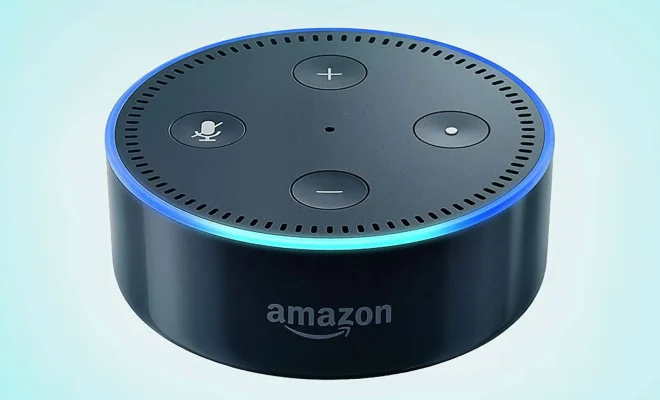
Amazon Alexa is a popular voice assistant that is designed to work seamlessly with your Amazon account. If you are sharing your Alexa device with someone else who has their own Amazon account, or if you have recently created a new Amazon account and want to link it to your Alexa device or Echo speaker, you might need to know how to change the Amazon account on your Alexa.

Fortunately, the process of changing the Amazon account on your Alexa is simple and straightforward. In this article, we’ll guide you through the steps you need to follow to switch between Amazon accounts on your Alexa device.

Step 1: Reset Your Alexa Device

The first step to changing the Amazon account on your Alexa device is to reset it to its factory settings. This will remove all your personal settings and data from the device, allowing you to set it up from scratch with a new Amazon account.

To reset your Alexa device, press and hold the microphone off and volume down buttons at the same time for about 20 seconds. Your device will then flash orange and blue lights and announce that it’s resetting to its factory settings.

Step 2: Set up Your Alexa Device Again

Once you have reset your Alexa device, you will need to set it up again from scratch. To do this, you need to:

– Connect your device to a power source and make sure it’s turned on.

– Open the Amazon Alexa app on your phone or tablet.

– Tap the Devices icon at the bottom right corner of the app.

– Tap the plus sign (+) at the top right corner of the Devices screen.

– Select the type of device you want to set up from the list of options.

– Follow the on-screen instructions to connect your device to your Wi-Fi network, and then sign in with your new Amazon account credentials.

Step 3: Customize Your Alexa Device Settings

Once your Alexa device is connected to your new Amazon account, you can customize its settings to suit your preferences. You can choose the language and accent of your Alexa voice, set up your smart home devices, and adjust other settings such as alarms, reminders, and notifications.

To customize your Alexa device settings, go to the Alexa app on your phone or tablet and follow the prompts to make changes to your device’s settings.

Conclusion

Changing the Amazon account on your Alexa device is easy and straightforward, but it requires resetting your device to its factory settings and setting it up again from scratch. Once you have completed the process, you can customize your device’s settings to your liking and enjoy the full benefits of Alexa’s voice assistant services.

Previous Article

Free Ways to Download HD Movie Trailers ...

Next Article

How to Play PSP Games on Your ...

Matthew Lynch

Related articles More from author

  • Assistive Technology

    How to Show or Hide Hidden Files and Folders

    June 11, 2023
    By Matthew Lynch
  • Assistive Technology

    How to Block Text Messages on a Samsung Galaxy Phone

    August 5, 2023
    By Matthew Lynch
  • Assistive Technology

    How to Watch Monday Night Football Live Stream

    June 6, 2023
    By Matthew Lynch
  • Assistive Technology

    How to Turn on Location Services on a Mac

    June 10, 2023
    By Matthew Lynch
  • Assistive Technology

    How to Back Up Your Mac to Time Machine or iCloud

    September 7, 2023
    By Matthew Lynch
  • Assistive Technology

    How to Disable Modern Standby in Windows 10 & 11

    June 10, 2023
    By Matthew Lynch

Search

Login & Registration

  • Log in
  • Entries feed
  • Comments feed
  • WordPress.org

Newsletter

Signup for The Tech Edvocate Newsletter and have the latest in EdTech news and opinion delivered to your email address!

About Us

Since technology is not going anywhere and does more good than harm, adapting is the best course of action. That is where The Tech Edvocate comes in. We plan to cover the PreK-12 and Higher Education EdTech sectors and provide our readers with the latest news and opinion on the subject. From time to time, I will invite other voices to weigh in on important issues in EdTech. We hope to provide a well-rounded, multi-faceted look at the past, present, the future of EdTech in the US and internationally.

We started this journey back in June 2016, and we plan to continue it for many more years to come. I hope that you will join us in this discussion of the past, present and future of EdTech and lend your own insight to the issues that are discussed.

Newsletter

Signup for The Tech Edvocate Newsletter and have the latest in EdTech news and opinion delivered to your email address!

Contact Us

The Tech Edvocate
910 Goddin Street
Richmond, VA 23231
(601) 630-5238
[email protected]

Copyright © 2026 Matthew Lynch. All rights reserved.