The Tech Edvocate

Top Menu

  • Advertisement
  • Apps
  • Home Page
  • Home Page Five (No Sidebar)
  • Home Page Four
  • Home Page Three
  • Home Page Two
  • Home Tech2
  • Icons [No Sidebar]
  • Left Sidbear Page
  • Lynch Educational Consulting
  • My Account
  • My Speaking Page
  • Newsletter Sign Up Confirmation
  • Newsletter Unsubscription
  • Our Brands
  • Page Example
  • Privacy Policy
  • Protected Content
  • Register
  • Request a Product Review
  • Shop
  • Shortcodes Examples
  • Signup
  • Start Here
    • Governance
    • Careers
    • Contact Us
  • Terms and Conditions
  • The Edvocate
  • The Tech Edvocate Product Guide
  • Topics
  • Write For Us
  • Advertise

Main Menu

  • Start Here
    • Our Brands
    • Governance
      • Lynch Educational Consulting, LLC.
      • Dr. Lynch’s Personal Website
      • Careers
    • Write For Us
    • The Tech Edvocate Product Guide
    • Contact Us
    • Books
    • Edupedia
    • Post a Job
    • The Edvocate Podcast
    • Terms and Conditions
    • Privacy Policy
  • Topics
    • Assistive Technology
    • Child Development Tech
    • Early Childhood & K-12 EdTech
    • EdTech Futures
    • EdTech News
    • EdTech Policy & Reform
    • EdTech Startups & Businesses
    • Higher Education EdTech
    • Online Learning & eLearning
    • Parent & Family Tech
    • Personalized Learning
    • Product Reviews
  • Advertise
  • Tech Edvocate Awards
  • The Edvocate
  • Pedagogue
  • School Ratings

logo

The Tech Edvocate

  • Start Here
    • Our Brands
    • Governance
      • Lynch Educational Consulting, LLC.
      • Dr. Lynch’s Personal Website
        • My Speaking Page
      • Careers
    • Write For Us
    • The Tech Edvocate Product Guide
    • Contact Us
    • Books
    • Edupedia
    • Post a Job
    • The Edvocate Podcast
    • Terms and Conditions
    • Privacy Policy
  • Topics
    • Assistive Technology
    • Child Development Tech
    • Early Childhood & K-12 EdTech
    • EdTech Futures
    • EdTech News
    • EdTech Policy & Reform
    • EdTech Startups & Businesses
    • Higher Education EdTech
    • Online Learning & eLearning
    • Parent & Family Tech
    • Personalized Learning
    • Product Reviews
  • Advertise
  • Tech Edvocate Awards
  • The Edvocate
  • Pedagogue
  • School Ratings
  • A Visitors Guide to Colorado Springs (CO), United States

  • 5 Pairs of Shoes That Will Instantly Step Your Shoe Game Up

  • Radiant Youthful Skin is the Perfect Christmas Gift

  • Give Your Loved One the Gift of Youthful, Radiant Skin this Christmas

  • Give Your Loved One the Gift of a Restful Night Sleep this Christmas

  • Nex Playground’s Holiday Sales Bring Active Play Indoors This Seaso

  • A Visitors Guide to Louisville (KY), United States

  • A Visitor’s Guide to Nashville-Davidson (TN), United States

  • A Visitors Guide to Portland (OR), United States

  • 7 Men’s Bruno Marc Shoes That Are the Perfect Christmas Gift

Gamification
Home›Gamification›Every Secret Steam Deck Shortcut You Need to Know

Every Secret Steam Deck Shortcut You Need to Know
By Matthew Lynch
June 22, 2023
0
Spread the love

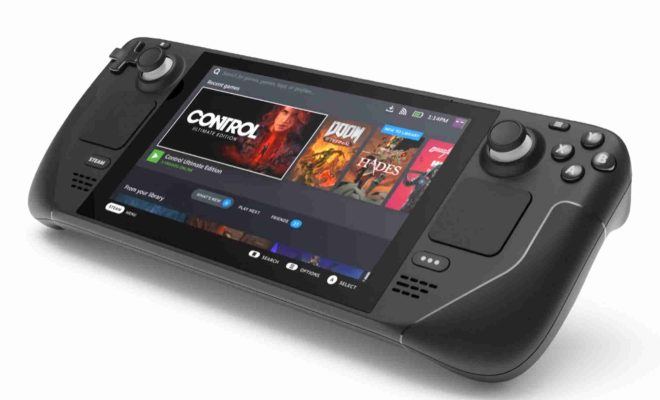
As the highly anticipated launch of the Steam Deck approaches, gamers and enthusiasts alike are eager to get their hands on this portable gaming console. With its unique design and functionality, users can expect a new level of gameplay experience that is unlike any other. To fully maximize your gaming experience, it is important to know every secret Steam Deck shortcut you will need to be aware of.

Here’s a list of the top shortcuts which will help you navigate your way around Steam Deck like a pro.

  1. Quick Access Menu

The Quick Access Menu is one of the most useful shortcuts that you can use in Steam Deck. To access this menu, simply press and hold the home button on the right-hand side of the device. This menu will allow you to access vital settings such as Wi-Fi, Bluetooth, Battery, and Power.

  1. Returning to Steam

If you ever find yourself lost in the menu, and want to return to Steam, simply press the home button twice, and you will return to it automatically.

  1. Keypad Functionality

The Steam Deck features a keyboard that you can use to type out messages, search for games, and more. However, you can also use the buttons on the right-hand side of the console as a keypad when you’re typing in your password for logging into your Steam account.

  1. Touchpad Modification

Navigating through games and menus can be a challenge on a small screen, but the Steam Deck’s touchpad is perfect for this. You can change how your touchpad works to suit your preferences. Open the Settings menu, select Touchpad, and adjust the sensitivity, programmable zones, and more.

  1. Display Settings

The Steam Deck comes with a 7-inch, 1280 x 800 touchscreen display. You can adjust the display settings by going to Settings, Display, and select the options that suit your preferences. Whether you want to enable auto-brightness, adjust the color calibration, or turn on Dark Mode, there are options available for you to customize your experience.

  1. Docking Mode

The Steam Deck can be connected to an external display, making it an excellent solution for gaming on the go and at home. To activate the Docking Mode, connect your Steam Deck to an external display, and the console will automatically switch to a desktop view.

  1. Save and Restore

Finally, the Steam Deck also comes with a useful feature called Save and Restore. This feature allows you to save your game progress and settings so that you can restore them to the same state when you continue playing later. This feature is handy when you switch between devices or find yourself not able to complete a gaming session.


Previous Article

How to Hide Files, Folders, and Drives ...

Next Article

Best Online Scientific Calculators

Matthew Lynch

Related articles More from author

  • Gamification

    Learning Management Systems with Rich Gamification Functionality

    March 23, 2023
    By Matthew Lynch
  • Early Childhood & K-12 EdTechGamificationHigher Education EdTechOnline Learning & eLearning

    Boredom Is eLearning’s Worst Enemy And Gamification Is Its Solution

    March 2, 2020
    By Matthew Lynch
  • Gamification

    Reasons Why Your Games Keep Crashing (And How to Fix Issues)

    June 22, 2023
    By Matthew Lynch
  • Gamification

    How to Change Your Riot Games Username and Tagline

    June 22, 2023
    By Matthew Lynch
  • Gamification

    How Does Gamification Help Companies Retain Employees?

    July 28, 2020
    By Matthew Lynch
  • Gamification

    Common Nintendo Switch Problems and How to Fix Them

    June 21, 2023
    By Matthew Lynch

Search

Login & Registration

  • Register
  • Log in
  • Entries feed
  • Comments feed
  • WordPress.org

Newsletter

Signup for The Tech Edvocate Newsletter and have the latest in EdTech news and opinion delivered to your email address!

About Us

Since technology is not going anywhere and does more good than harm, adapting is the best course of action. That is where The Tech Edvocate comes in. We plan to cover the PreK-12 and Higher Education EdTech sectors and provide our readers with the latest news and opinion on the subject. From time to time, I will invite other voices to weigh in on important issues in EdTech. We hope to provide a well-rounded, multi-faceted look at the past, present, the future of EdTech in the US and internationally.

We started this journey back in June 2016, and we plan to continue it for many more years to come. I hope that you will join us in this discussion of the past, present and future of EdTech and lend your own insight to the issues that are discussed.

Newsletter

Signup for The Tech Edvocate Newsletter and have the latest in EdTech news and opinion delivered to your email address!

Contact Us

The Tech Edvocate
910 Goddin Street
Richmond, VA 23231
(601) 630-5238
[email protected]

Copyright © 2025 Matthew Lynch. All rights reserved.