The Tech Edvocate

Top Menu

  • Advertisement
  • Apps
  • Home Page
  • Home Page Five (No Sidebar)
  • Home Page Four
  • Home Page Three
  • Home Page Two
  • Home Tech2
  • Icons [No Sidebar]
  • Left Sidbear Page
  • Lynch Educational Consulting
  • My Account
  • My Speaking Page
  • Newsletter Sign Up Confirmation
  • Newsletter Unsubscription
  • Our Brands
  • Page Example
  • Privacy Policy
  • Protected Content
  • Register
  • Request a Product Review
  • Shop
  • Shortcodes Examples
  • Signup
  • Start Here
    • Governance
    • Careers
    • Contact Us
  • Terms and Conditions
  • The Edvocate
  • The Tech Edvocate Product Guide
  • Topics
  • Write For Us
  • Advertise

Main Menu

  • Start Here
    • Our Brands
    • Governance
      • Lynch Educational Consulting, LLC.
      • Dr. Lynch’s Personal Website
      • Careers
    • Write For Us
    • The Tech Edvocate Product Guide
    • Contact Us
    • Books
    • Edupedia
    • Post a Job
    • The Edvocate Podcast
    • Terms and Conditions
    • Privacy Policy
  • Topics
    • Assistive Technology
    • Child Development Tech
    • Early Childhood & K-12 EdTech
    • EdTech Futures
    • EdTech News
    • EdTech Policy & Reform
    • EdTech Startups & Businesses
    • Higher Education EdTech
    • Online Learning & eLearning
    • Parent & Family Tech
    • Personalized Learning
    • Product Reviews
  • Advertise
  • Tech Edvocate Awards
  • The Edvocate
  • Pedagogue
  • School Ratings

logo

The Tech Edvocate

  • Start Here
    • Our Brands
    • Governance
      • Lynch Educational Consulting, LLC.
      • Dr. Lynch’s Personal Website
        • My Speaking Page
      • Careers
    • Write For Us
    • The Tech Edvocate Product Guide
    • Contact Us
    • Books
    • Edupedia
    • Post a Job
    • The Edvocate Podcast
    • Terms and Conditions
    • Privacy Policy
  • Topics
    • Assistive Technology
    • Child Development Tech
    • Early Childhood & K-12 EdTech
    • EdTech Futures
    • EdTech News
    • EdTech Policy & Reform
    • EdTech Startups & Businesses
    • Higher Education EdTech
    • Online Learning & eLearning
    • Parent & Family Tech
    • Personalized Learning
    • Product Reviews
  • Advertise
  • Tech Edvocate Awards
  • The Edvocate
  • Pedagogue
  • School Ratings
  • Dramatic: AI Surveillance Giant Cuts Hundreds of Jobs Amid Privacy Backlash

  • Dramatic: Anthropic Claude AI Just Banned ‘Cruel’ Behavior — Here’s Why It Matters

  • This One Shift in Gaming VC Could Reshape the Entire Industry

  • The AI Doctor Is Coming: Is It a Miracle or a Menace?

  • Unmasking the AI Deepfake Threat: Why Corporate America’s Billions Are at Risk

  • Shocking: China’s AI Programmers Collapse — A Disturbing Glimpse Into Our Future?

  • Dramatic Spike: College Costs Projected to Soar 7.5% — Are You Ready?

  • 20 Million Records Exposed: The Reckless Truth Behind the Oracle Health Data Breach

  • The AI Cybersecurity Threat: A Dangerous New Frontier

  • Unbelievable: [Automaker Name]’s Self-Driving Cars Under Fire After Fatal Crash — Here’s What We Know

Digital & Mobile Technology
Home›Digital & Mobile Technology›Easy Ways to Transfer Data to a New Mac Using Migration Assistant

Easy Ways to Transfer Data to a New Mac Using Migration Assistant
By Matthew Lynch
June 12, 2023
0
Spread the love

Upgrading to a new Mac is an exciting experience, but transferring data from your old computer can be daunting. Fortunately, Apple provides the Migration Assistant tool to help simplify this process. In this article, we’ll go through easy ways to transfer data to a new Mac using Migration Assistant.

Before You Begin

Before you start transferring your data, ensure that your old Mac and new Mac are connected to the same Wi-Fi network, and ensure that your old Mac meets the requirements for Migration Assistant.

To access Migration Assistant on your new Mac, search for it in the Spotlight (the magnifying glass icon in the upper-right corner of the screen).

Transferring Data via Migration Assistant

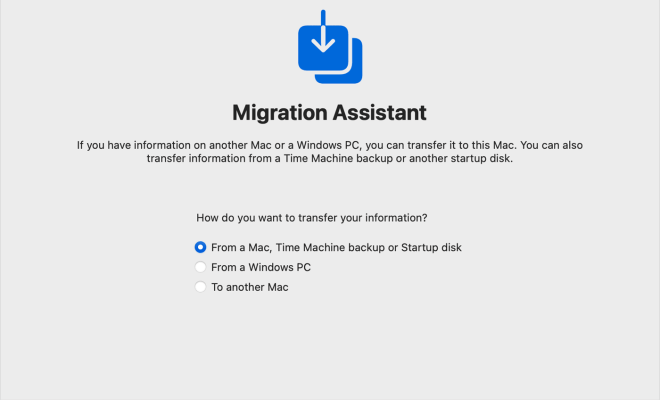
1. Open Migration Assistant

On your new Mac, open Migration Assistant, located in the Utilities folder in the Applications folder.

2. Choose a Transfer Method

Select the “From a Mac, Time Machine, or Startup Disk” option and click “Continue.”

3. Connect the 2 Macs

Connect your old Mac to your new Mac via a Thunderbolt, FireWire, or Ethernet cable. Alternatively, you can choose the Wi-Fi option if both computers are connected to the same Wi-Fi network.

4. Authenticate

When prompted, enter your old Mac’s administrator username and password and click “Continue.”

5. Choose What to Transfer

Select the types of data you want to transfer, such as documents, music, photos, and applications, and click “Continue.”

6. Wait for the Transfer to Complete

Once you’ve selected the data to transfer, click “Continue” to begin the process. The progress bar will show you the estimated time remaining. Wait for the process to complete.

7. Eject your Old Mac

Once the transfer is complete, Migration Assistant will prompt you to restart your new Mac. Afterward, safely disconnect your old Mac by dragging it to the Trash or using the “Eject” button in Finder.

Transfer Data Wirelessly

If you prefer to transfer data wirelessly, follow these steps:

1. Prepare your Old Mac

Open Migration Assistant on your old Mac.

2. Choose a Transfer Method

Select the “To another Mac” option and click “Continue.”

3. Authenticate

Enter your old Mac’s administrator username and password.

4. Select “Wireless Transfer”

Choose “Wireless Network” as the transfer method.

5. Wait for the Code to Appear

Wait for the security code to appear on your old Mac.

6. Connect to Wi-Fi

Connect your new Mac to the same Wi-Fi network as your old Mac.

7. Enter the Security Code

On your new Mac, open Migration Assistant and select the “From a Mac, Time Machine, or Startup Disk” option. Enter the security code displayed on your old Mac.

8. Choose the Data to Transfer

Select what data you want to transfer and click “Continue.”

9. Wait for Transfer to Complete

Once the process begins, wait for the transfer to complete.

In conclusion, transferring data to a new Mac using Migration Assistant is a straightforward process; you only need to follow the above easy steps. So, whether you’re upgrading to a new Mac or replacing your old one, Migration Assistant can help you transfer your data with ease. And that’s it! Congratulations – you’ve successfully transferred your data to your new Mac.


Previous Article

Ways to Use an Apple Pencil With ...

Next Article

Learn How to Join Strings in Java

Matthew Lynch

Related articles More from author

  • Digital & Mobile Technology

    What Is Optimized Battery Charging on iPhone?

    June 1, 2023
    By Matthew Lynch
  • Digital & Mobile Technology

    How to Prevent Strangers From Seeing Your Facebook Profile

    June 9, 2023
    By Matthew Lynch
  • Digital & Mobile Technology

    Ways to Fix the Black Desktop Background Display Issue on Windows

    August 5, 2023
    By Matthew Lynch
  • Digital & Mobile Technology

    List of Control Panel Applets in Windows

    June 14, 2023
    By Matthew Lynch
  • Digital & Mobile Technology

    HBO GO vs. HBO NOW: What’s the Difference?

    June 3, 2023
    By Matthew Lynch
  • Digital & Mobile Technology

    How to Set Up Port Forwarding

    June 2, 2023
    By Matthew Lynch

Search

Login & Registration

  • Log in
  • Entries feed
  • Comments feed
  • WordPress.org

Newsletter

Signup for The Tech Edvocate Newsletter and have the latest in EdTech news and opinion delivered to your email address!

About Us

Since technology is not going anywhere and does more good than harm, adapting is the best course of action. That is where The Tech Edvocate comes in. We plan to cover the PreK-12 and Higher Education EdTech sectors and provide our readers with the latest news and opinion on the subject. From time to time, I will invite other voices to weigh in on important issues in EdTech. We hope to provide a well-rounded, multi-faceted look at the past, present, the future of EdTech in the US and internationally.

We started this journey back in June 2016, and we plan to continue it for many more years to come. I hope that you will join us in this discussion of the past, present and future of EdTech and lend your own insight to the issues that are discussed.

Newsletter

Signup for The Tech Edvocate Newsletter and have the latest in EdTech news and opinion delivered to your email address!

Contact Us

The Tech Edvocate
910 Goddin Street
Richmond, VA 23231
(601) 630-5238
[email protected]

Copyright © 2026 Matthew Lynch. All rights reserved.