The Tech Edvocate

Top Menu

  • Advertisement
  • Apps
  • Home Page
  • Home Page Five (No Sidebar)
  • Home Page Four
  • Home Page Three
  • Home Page Two
  • Home Tech2
  • Icons [No Sidebar]
  • Left Sidbear Page
  • Lynch Educational Consulting
  • My Account
  • My Speaking Page
  • Newsletter Sign Up Confirmation
  • Newsletter Unsubscription
  • Our Brands
  • Page Example
  • Privacy Policy
  • Protected Content
  • Register
  • Request a Product Review
  • Shop
  • Shortcodes Examples
  • Signup
  • Start Here
    • Governance
    • Careers
    • Contact Us
  • Terms and Conditions
  • The Edvocate
  • The Tech Edvocate Product Guide
  • Topics
  • Write For Us
  • Advertise

Main Menu

  • Start Here
    • Our Brands
    • Governance
      • Lynch Educational Consulting, LLC.
      • Dr. Lynch’s Personal Website
      • Careers
    • Write For Us
    • The Tech Edvocate Product Guide
    • Contact Us
    • Books
    • Edupedia
    • Post a Job
    • The Edvocate Podcast
    • Terms and Conditions
    • Privacy Policy
  • Topics
    • Assistive Technology
    • Child Development Tech
    • Early Childhood & K-12 EdTech
    • EdTech Futures
    • EdTech News
    • EdTech Policy & Reform
    • EdTech Startups & Businesses
    • Higher Education EdTech
    • Online Learning & eLearning
    • Parent & Family Tech
    • Personalized Learning
    • Product Reviews
  • Advertise
  • Tech Edvocate Awards
  • The Edvocate
  • Pedagogue
  • School Ratings

logo

The Tech Edvocate

  • Start Here
    • Our Brands
    • Governance
      • Lynch Educational Consulting, LLC.
      • Dr. Lynch’s Personal Website
        • My Speaking Page
      • Careers
    • Write For Us
    • The Tech Edvocate Product Guide
    • Contact Us
    • Books
    • Edupedia
    • Post a Job
    • The Edvocate Podcast
    • Terms and Conditions
    • Privacy Policy
  • Topics
    • Assistive Technology
    • Child Development Tech
    • Early Childhood & K-12 EdTech
    • EdTech Futures
    • EdTech News
    • EdTech Policy & Reform
    • EdTech Startups & Businesses
    • Higher Education EdTech
    • Online Learning & eLearning
    • Parent & Family Tech
    • Personalized Learning
    • Product Reviews
  • Advertise
  • Tech Edvocate Awards
  • The Edvocate
  • Pedagogue
  • School Ratings
  • A Visitors Guide to Long Beach (CA), United States

  • A Visitor’s Guide to Fresno (CA), United States

  • A Visitors Guide to New Orleans (LA), United States

  • A Visitors Guide to Sacramento (CA), United States

  • A Visitors Guide to Lyon, France

  • JisuLife Ultra2 Portable Fan: A Powerful Multi-Function Cooling Solution

  • A Visitors Guide to Viña del Mar, Chile

  • A Visitors Guide to Århus, Denmark

  • A Visitors Guide to Bakersfield (CA), United States

  • A Visitors Guide to Aurora (CO), United States

Digital & Mobile Technology
Home›Digital & Mobile Technology›Cracked Your Amazon Fire Tablet Display? Here’s How to Replace It

Cracked Your Amazon Fire Tablet Display? Here’s How to Replace It
By Matthew Lynch
June 15, 2023
0
Spread the love

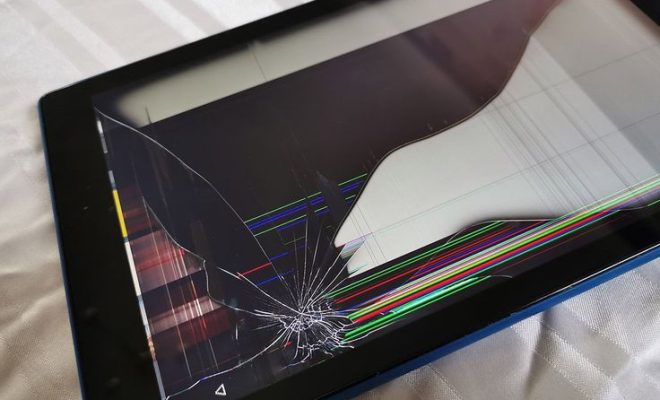
Amazon Fire Tablets are popular devices that are used for various purposes, such as reading eBooks, watching movies and surfing the internet. However, accidents happen, and sometimes, we find ourselves with a cracked screen on our beloved tablet. Fortunately, a broken display doesn’t put an end to your device’s functionality. Here’s how to replace your Amazon Fire Tablet screen.

First, Determine Your Model

Amazon has released several models of the Fire Tablet, and each model has a different screen size and design. Before buying a new screen, ensure that you know your device’s model number. To check your Fire Tablet’s model number:

-Go to the “Settings” menu, and tap on “Device Options.”

-Select “Device Model” or “About Your Fire.” The model number should be displayed.

Purchase a Replacement Screen

Once you have determined your device’s model, you can now buy a replacement screen. Several online stores, such as Amazon, have replacement screens for Fire Tablets. Ensure that you buy the right size and model of the screen. When shopping online, look for screens that come with the necessary tools or buy them separately.

Tools Require to Replace the Screen

To replace your Amazon Fire Tablet’s display, you will need the following tools:

-Small Phillips screwdriver
-Plastic pry tool
-Hairdryer
-Heat gun
-Double-sided tape
-Replacement screen

Steps to Replace Your Amazon Fire Tablet Screen

1. Power off your Amazon Fire Tablet device.

2. Remove the outer case. Use a plastic pry tool to remove the clips around the edge of the tablet’s casing.

3. Remove the motherboard. Locate the white ribbon cable that connects the motherboard to the battery and screen. Unplug the white ribbon cable by gently pulling the plug from the motherboard.

4. Peel off the adhesive on the back of the screen.

5. Separate the screen from the frame. You can use a hairdryer or heat gun to warm up the frame and soften the adhesive holding the screen.

6. Remove the broken screen. Using a plastic pry tool, gently lift the screen and remove it from the tablet.

7. Install the replacement screen. Apply double-sided tape to the replacement screen’s back and align it with the tablet’s frame. Ensure that the screen fits correctly in the frame.

8. Reconnect the motherboard. Plug the white ribbon cable back into the motherboard.

9. Attach the outer casing. Carefully reinstall the case and use a small Phillips screwdriver to secure each screw.

10. Power on your Amazon Fire Tablet device. Check if the new screen is working correctly.

In conclusion, replacing your Amazon Fire Tablet screen can save you money compared to buying a new device. However, it is essential to take necessary precautions and use the correct tools to prevent further damage. If you are unsure about replacing the screen, seek professional help from a repair shop.


Previous Article

Best Imgur Alternatives for Uploading and Sharing ...

Next Article

How to Use Gmail Like a Desktop ...

Matthew Lynch

Related articles More from author

  • Digital & Mobile Technology

    How to Change the Peek Display Clock on Motorola Phones

    June 21, 2023
    By Matthew Lynch
  • Digital & Mobile Technology

    How to Lock Photos and Text Messages on Android

    April 28, 2023
    By Matthew Lynch
  • Digital & Mobile Technology

    What Is “Pay-to-Win” in Video Games?

    June 23, 2023
    By Matthew Lynch
  • Digital & Mobile Technology

    What Is a Gateway and Should You Use One for Your Home Internet?

    June 21, 2023
    By Matthew Lynch
  • Digital & Mobile Technology

    How to Set a Mouse Click Sound in Windows 10

    June 3, 2023
    By Matthew Lynch
  • Digital & Mobile Technology

    How to Turn on the Keyboard Light on an HP Laptop

    September 7, 2023
    By Matthew Lynch

Search

Login & Registration

  • Register
  • Log in
  • Entries feed
  • Comments feed
  • WordPress.org

Newsletter

Signup for The Tech Edvocate Newsletter and have the latest in EdTech news and opinion delivered to your email address!

About Us

Since technology is not going anywhere and does more good than harm, adapting is the best course of action. That is where The Tech Edvocate comes in. We plan to cover the PreK-12 and Higher Education EdTech sectors and provide our readers with the latest news and opinion on the subject. From time to time, I will invite other voices to weigh in on important issues in EdTech. We hope to provide a well-rounded, multi-faceted look at the past, present, the future of EdTech in the US and internationally.

We started this journey back in June 2016, and we plan to continue it for many more years to come. I hope that you will join us in this discussion of the past, present and future of EdTech and lend your own insight to the issues that are discussed.

Newsletter

Signup for The Tech Edvocate Newsletter and have the latest in EdTech news and opinion delivered to your email address!

Contact Us

The Tech Edvocate
910 Goddin Street
Richmond, VA 23231
(601) 630-5238
[email protected]

Copyright © 2025 Matthew Lynch. All rights reserved.