The Tech Edvocate

Top Menu

  • Advertisement
  • Apps
  • Home Page
  • Home Page Five (No Sidebar)
  • Home Page Four
  • Home Page Three
  • Home Page Two
  • Home Tech2
  • Icons [No Sidebar]
  • Left Sidbear Page
  • Lynch Educational Consulting
  • My Account
  • My Speaking Page
  • Newsletter Sign Up Confirmation
  • Newsletter Unsubscription
  • Our Brands
  • Page Example
  • Privacy Policy
  • Protected Content
  • Register
  • Request a Product Review
  • Shop
  • Shortcodes Examples
  • Signup
  • Start Here
    • Governance
    • Careers
    • Contact Us
  • Terms and Conditions
  • The Edvocate
  • The Tech Edvocate Product Guide
  • Topics
  • Write For Us
  • Advertise

Main Menu

  • Start Here
    • Our Brands
    • Governance
      • Lynch Educational Consulting, LLC.
      • Dr. Lynch’s Personal Website
      • Careers
    • Write For Us
    • The Tech Edvocate Product Guide
    • Contact Us
    • Books
    • Edupedia
    • Post a Job
    • The Edvocate Podcast
    • Terms and Conditions
    • Privacy Policy
  • Topics
    • Assistive Technology
    • Child Development Tech
    • Early Childhood & K-12 EdTech
    • EdTech Futures
    • EdTech News
    • EdTech Policy & Reform
    • EdTech Startups & Businesses
    • Higher Education EdTech
    • Online Learning & eLearning
    • Parent & Family Tech
    • Personalized Learning
    • Product Reviews
  • Advertise
  • Tech Edvocate Awards
  • The Edvocate
  • Pedagogue
  • School Ratings

logo

The Tech Edvocate

  • Start Here
    • Our Brands
    • Governance
      • Lynch Educational Consulting, LLC.
      • Dr. Lynch’s Personal Website
        • My Speaking Page
      • Careers
    • Write For Us
    • The Tech Edvocate Product Guide
    • Contact Us
    • Books
    • Edupedia
    • Post a Job
    • The Edvocate Podcast
    • Terms and Conditions
    • Privacy Policy
  • Topics
    • Assistive Technology
    • Child Development Tech
    • Early Childhood & K-12 EdTech
    • EdTech Futures
    • EdTech News
    • EdTech Policy & Reform
    • EdTech Startups & Businesses
    • Higher Education EdTech
    • Online Learning & eLearning
    • Parent & Family Tech
    • Personalized Learning
    • Product Reviews
  • Advertise
  • Tech Edvocate Awards
  • The Edvocate
  • Pedagogue
  • School Ratings
  • Shocking: Mercury Skin Bleachers Still Flood Amazon, Temu, and TikTok Shop

  • Shocking: 195,000 Heated Blankets Recalled After Dozens Suffer Burns – Is Yours One of Them?

  • The $4 Billion Comeback: How Manus Defied Geopolitical Odds to Double Its Valuation

  • This Israeli Startup Accidentally Unleashed AI Cyberattacks on Real Companies

  • This PlayStation Exclusive Just Vanished Forever — And It’s a Warning to All Gamers

  • The Jaw-Dropping Truth Behind Marvel’s Wolverine AI Scare

  • The September 2026 AI Surge: Why Your Business Needs to Adapt Now

  • The Billion-Dollar AI Slowdown Lawsuit That Could Shatter Big Tech

  • The Brutal Truth: Why Your Student Loan Discharge Is Stuck in Limbo

  • 7 Critical Lessons From Russia’s Election Cyber Onslaught

Assistive Technology
Home›Assistive Technology›Battery Icon Missing on Windows 10? Restore it

Battery Icon Missing on Windows 10? Restore it
By Matthew Lynch
June 10, 2023
0
Spread the love

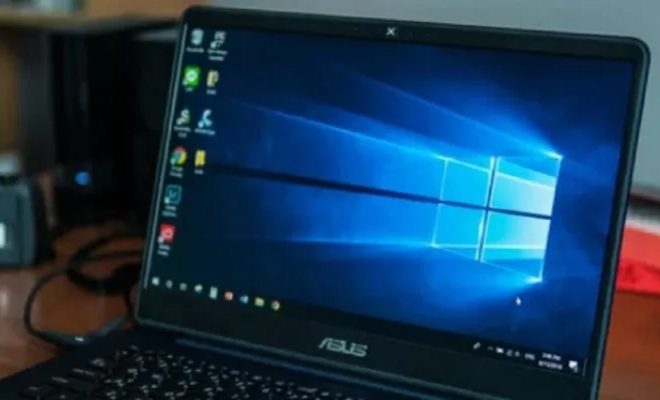
The battery icon on Windows 10 is an essential feature that lets users monitor their battery life and plan accordingly. However, if you have recently upgraded to Windows 10 or installed a new update, you may notice that the battery icon is missing from your taskbar. You may also notice that your laptop or tablet is not displaying the exact battery status, which can be quite frustrating.

Fortunately, this is not a fatal error, and restoring the battery icon is an easy process. In this guide, we’ll show you how to troubleshoot and restore the battery icon on Windows 10.

Solution 1: Check the Settings

The first step to restoring the battery icon is to check that the battery icon is turned on in the system settings. To do this, right-click on the Windows taskbar and select “Taskbar settings.”

In the Taskbar settings menu, scroll down to the “Notification area” section, and click on “Select which icons appear on the taskbar.” Ensure that the “Power” option is toggled on.

Solution 2: Restart Windows Explorer

If the battery icon is still missing, try restarting Windows Explorer. This method involves restarting the Windows Explorer process from the Task Manager, which should restore the missing battery icon.

To do this, follow these steps:

1. Press Ctrl + Shift + Esc to open Task Manager.

2. Locate the “Windows Explorer” process under the Processes tab.

3. Right-click on it and select “Restart.”

This should restart the Windows Explorer process, and the battery icon should reappear on the taskbar.

Solution 3: Check for Updates

If the battery icon is still missing, it could be due to outdated or corrupted system files. Updating your Windows 10 PC to the latest version should help you restore the missing battery icon.

To check for updates, follow these steps:

1. Press the Windows key + I on your keyboard to open the Settings app.

2. Click on “Update & Security.”

3. Click on “Check for updates.”

Windows 10 will check for available updates, and if any are available, they will be installed automatically. Restart your PC and check if the battery icon is visible on the taskbar.

Solution 4: Reinstall the Battery Drivers

If none of the above solutions works, the problem could be due to outdated or missing battery drivers. To restore the missing battery icon, you need to reinstall the drivers.

To reinstall the battery drivers, follow these steps:

1. Press the Windows key + X on your keyboard and select “Device Manager.”

2. Expand the “Batteries” category.

3. Right-click on “Microsoft ACPI-Compliant Control Method Battery” and select “Uninstall device.”

4. Restart your PC.

5. Windows will automatically reinstall the battery drivers.

After the drivers are installed, the battery icon should reappear on the taskbar.

Conclusion

The battery icon is an essential feature of Windows 10 that lets users monitor their battery life. However, the icon can sometimes go missing, making it challenging to check the battery status. The above solutions should help you restore the missing battery icon on your Windows 10 PC. If none of the above solutions work, you may need to contact Microsoft support for further assistance.


Previous Article

How to Fix an iPhone Glitch

Next Article

Best iPhone Lightning Cables of 2023

Matthew Lynch

Related articles More from author

  • Assistive Technology

    How to Turn Off Time to Stand Notifications on an Apple Watch

    June 23, 2023
    By Matthew Lynch
  • Assistive Technology

    How to Download Fonts on iPad

    June 12, 2023
    By Matthew Lynch
  • Assistive Technology

    How to Quickly Change Windows and Browser Tabs With Your Keyboard on Windows

    June 10, 2023
    By Matthew Lynch
  • Assistive Technology

    How Do Computer Network Protocols Work?

    June 23, 2023
    By Matthew Lynch
  • Assistive Technology

    How to Disable the Pop-Up Blocker in Chrome

    June 15, 2023
    By Matthew Lynch
  • Assistive Technology

    How to Save a Location on Google Maps

    June 6, 2023
    By Matthew Lynch

Search

Login & Registration

  • Log in
  • Entries feed
  • Comments feed
  • WordPress.org

Newsletter

Signup for The Tech Edvocate Newsletter and have the latest in EdTech news and opinion delivered to your email address!

About Us

Since technology is not going anywhere and does more good than harm, adapting is the best course of action. That is where The Tech Edvocate comes in. We plan to cover the PreK-12 and Higher Education EdTech sectors and provide our readers with the latest news and opinion on the subject. From time to time, I will invite other voices to weigh in on important issues in EdTech. We hope to provide a well-rounded, multi-faceted look at the past, present, the future of EdTech in the US and internationally.

We started this journey back in June 2016, and we plan to continue it for many more years to come. I hope that you will join us in this discussion of the past, present and future of EdTech and lend your own insight to the issues that are discussed.

Newsletter

Signup for The Tech Edvocate Newsletter and have the latest in EdTech news and opinion delivered to your email address!

Contact Us

The Tech Edvocate
910 Goddin Street
Richmond, VA 23231
(601) 630-5238
[email protected]

Copyright © 2026 Matthew Lynch. All rights reserved.