The Tech Edvocate

Top Menu

  • Advertisement
  • Apps
  • Home Page
  • Home Page Five (No Sidebar)
  • Home Page Four
  • Home Page Three
  • Home Page Two
  • Home Tech2
  • Icons [No Sidebar]
  • Left Sidbear Page
  • Lynch Educational Consulting
  • My Account
  • My Speaking Page
  • Newsletter Sign Up Confirmation
  • Newsletter Unsubscription
  • Our Brands
  • Page Example
  • Privacy Policy
  • Protected Content
  • Register
  • Request a Product Review
  • Shop
  • Shortcodes Examples
  • Signup
  • Start Here
    • Governance
    • Careers
    • Contact Us
  • Terms and Conditions
  • The Edvocate
  • The Tech Edvocate Product Guide
  • Topics
  • Write For Us
  • Advertise

Main Menu

  • Start Here
    • Our Brands
    • Governance
      • Lynch Educational Consulting, LLC.
      • Dr. Lynch’s Personal Website
      • Careers
    • Write For Us
    • The Tech Edvocate Product Guide
    • Contact Us
    • Books
    • Edupedia
    • Post a Job
    • The Edvocate Podcast
    • Terms and Conditions
    • Privacy Policy
  • Topics
    • Assistive Technology
    • Child Development Tech
    • Early Childhood & K-12 EdTech
    • EdTech Futures
    • EdTech News
    • EdTech Policy & Reform
    • EdTech Startups & Businesses
    • Higher Education EdTech
    • Online Learning & eLearning
    • Parent & Family Tech
    • Personalized Learning
    • Product Reviews
  • Advertise
  • Tech Edvocate Awards
  • The Edvocate
  • Pedagogue
  • School Ratings

logo

The Tech Edvocate

  • Start Here
    • Our Brands
    • Governance
      • Lynch Educational Consulting, LLC.
      • Dr. Lynch’s Personal Website
        • My Speaking Page
      • Careers
    • Write For Us
    • The Tech Edvocate Product Guide
    • Contact Us
    • Books
    • Edupedia
    • Post a Job
    • The Edvocate Podcast
    • Terms and Conditions
    • Privacy Policy
  • Topics
    • Assistive Technology
    • Child Development Tech
    • Early Childhood & K-12 EdTech
    • EdTech Futures
    • EdTech News
    • EdTech Policy & Reform
    • EdTech Startups & Businesses
    • Higher Education EdTech
    • Online Learning & eLearning
    • Parent & Family Tech
    • Personalized Learning
    • Product Reviews
  • Advertise
  • Tech Edvocate Awards
  • The Edvocate
  • Pedagogue
  • School Ratings
  • The Brutal Truth: 8 Lies Scammers Tell About Your Student Loans

  • New Student Loan Rules: The Shocking Truth About 2026 Relief Programs

  • New Repayment Plan Changes Trigger Student Loan Scam Epidemic

  • Why Millions Are Ditching Degrees for This One Skill-Boosting Secret

  • The Quiet Revolution: How Micro-Credentials Are Reshaping Tech Careers

  • Why 96% of Employers Are Now Demanding Micro-Credentials

  • This One Incident Exposed How Vulnerable Your Student Data Really Is

  • The Brutal Truth About EdTech Security: 10 Solutions to Prevent Another Canvas LMS Disaster

  • The Billion-User Data Heist: Why Your Child’s School Data Is Under Attack

  • This Crucial Mistake Is Killing Your Tech Career (It’s Not What You Think)

Digital & Mobile Technology
Home›Digital & Mobile Technology›How to Fix the Windows Update Error 0x80190001

How to Fix the Windows Update Error 0x80190001
By Matthew Lynch
June 22, 2023
0
Spread the love

Windows Update is a crucial feature of the Windows operating system that ensures you have the latest and most secure version of the software. However, sometimes windows update can experience errors, one such error being 0x80190001. This error code means that your computer is unable to connect to the Windows update servers. Fortunately, there are several ways to fix this error.

Method 1: Check Your Internet Connection

The first step in resolving the 0x80190001 error is to ensure that your computer is connected to the internet. If you are using a Wi-Fi connection, try to connect to a different network to check if the problem lies with your current internet connection. If you are using a wired connection, ensure that the Ethernet cable is properly attached to your computer and the modem or router.

Method 2: Use Windows Update Troubleshooter

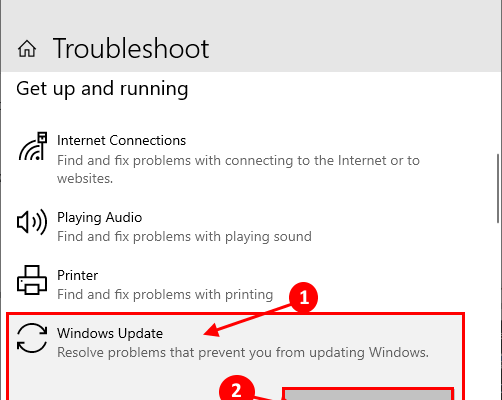
Another way to fix this error is to use the Windows Update Troubleshooter. This tool is available in the control panel and can help identify and resolve issues that cause Windows update to malfunction. Here is how to use the Windows Update Troubleshooter:

1. Press the Windows key + R on your keyboard to open the Run dialog box.

2. Type control and click OK to open the Control Panel.

3. Click on Troubleshooting.

4. Click on Fix problems with Windows Update under the System and Security section.

5. Follow the prompts to complete the troubleshooting process.

Method 3: Restart Windows Update Services

If the above methods fail to resolve the error, you can try restarting the Windows Update services. Here is how to do it:

1. Press the Windows key + R on your keyboard to open the Run dialog box.

2. Type services.msc and click OK to open the Services window.

3. Find Windows Update in the list and right-click it.

4. Click on Properties and set the Startup Type to Automatic.

5. Click on Start and then OK.

6. Next, find Background Intelligent Transfer Service (BITS) in the list and repeat the above steps.

Method 4: Disable Third-Party Firewall or Antivirus Programs

Sometimes, third-party firewall or antivirus programs can block Windows Update from connecting to the servers. If you have one of these programs installed, consider disabling them temporarily to let Windows Update complete its updates. If this solves the error, it might be useful to contact the support team of your security software to help you find a more permanent solution.

Conclusion

The Windows update error 0x80190001 can be annoying, but it is not something that you cannot fix. By following the methods outlined above, you can fix this error and be assured that your computer is secure and up-to-date. It is always advisable to keep your operating system up-to-date to ensure that you have the latest security features and patches.

Previous Article

How to Use Widgets on iOS 15

Next Article

What Are the Amazon Echo Frames and ...

Matthew Lynch

Related articles More from author

  • Digital & Mobile Technology

    What Does “Wi-Fi” Mean and How Does It Work?

    June 8, 2023
    By Matthew Lynch
  • Digital & Mobile Technology

    How to Put a YouTube Song Onto a Flash Drive

    May 2, 2023
    By Matthew Lynch
  • Digital & Mobile Technology

    How to Enable Bluetooth on a Google Stadia Controller

    June 6, 2023
    By Matthew Lynch
  • Digital & Mobile Technology

    What Do CC and BCC Mean in an Email?

    August 5, 2023
    By Matthew Lynch
  • Digital & Mobile Technology

    What Is a Worm and How Does It Get on Your Computer?

    June 11, 2023
    By Matthew Lynch
  • Digital & Mobile Technology

    How Fast Is a Wi-Fi Network?

    June 6, 2023
    By Matthew Lynch

Search

Login & Registration

  • Log in
  • Entries feed
  • Comments feed
  • WordPress.org

Newsletter

Signup for The Tech Edvocate Newsletter and have the latest in EdTech news and opinion delivered to your email address!

About Us

Since technology is not going anywhere and does more good than harm, adapting is the best course of action. That is where The Tech Edvocate comes in. We plan to cover the PreK-12 and Higher Education EdTech sectors and provide our readers with the latest news and opinion on the subject. From time to time, I will invite other voices to weigh in on important issues in EdTech. We hope to provide a well-rounded, multi-faceted look at the past, present, the future of EdTech in the US and internationally.

We started this journey back in June 2016, and we plan to continue it for many more years to come. I hope that you will join us in this discussion of the past, present and future of EdTech and lend your own insight to the issues that are discussed.

Newsletter

Signup for The Tech Edvocate Newsletter and have the latest in EdTech news and opinion delivered to your email address!

Contact Us

The Tech Edvocate
910 Goddin Street
Richmond, VA 23231
(601) 630-5238
[email protected]

Copyright © 2026 Matthew Lynch. All rights reserved.