The Tech Edvocate

Top Menu

  • Advertisement
  • Apps
  • Home Page
  • Home Page Five (No Sidebar)
  • Home Page Four
  • Home Page Three
  • Home Page Two
  • Home Tech2
  • Icons [No Sidebar]
  • Left Sidbear Page
  • Lynch Educational Consulting
  • My Account
  • My Speaking Page
  • Newsletter Sign Up Confirmation
  • Newsletter Unsubscription
  • Our Brands
  • Page Example
  • Privacy Policy
  • Protected Content
  • Register
  • Request a Product Review
  • Shop
  • Shortcodes Examples
  • Signup
  • Start Here
    • Governance
    • Careers
    • Contact Us
  • Terms and Conditions
  • The Edvocate
  • The Tech Edvocate Product Guide
  • Topics
  • Write For Us
  • Advertise

Main Menu

  • Start Here
    • Our Brands
    • Governance
      • Lynch Educational Consulting, LLC.
      • Dr. Lynch’s Personal Website
      • Careers
    • Write For Us
    • The Tech Edvocate Product Guide
    • Contact Us
    • Books
    • Edupedia
    • Post a Job
    • The Edvocate Podcast
    • Terms and Conditions
    • Privacy Policy
  • Topics
    • Assistive Technology
    • Child Development Tech
    • Early Childhood & K-12 EdTech
    • EdTech Futures
    • EdTech News
    • EdTech Policy & Reform
    • EdTech Startups & Businesses
    • Higher Education EdTech
    • Online Learning & eLearning
    • Parent & Family Tech
    • Personalized Learning
    • Product Reviews
  • Advertise
  • Tech Edvocate Awards
  • The Edvocate
  • Pedagogue
  • School Ratings

logo

The Tech Edvocate

  • Start Here
    • Our Brands
    • Governance
      • Lynch Educational Consulting, LLC.
      • Dr. Lynch’s Personal Website
        • My Speaking Page
      • Careers
    • Write For Us
    • The Tech Edvocate Product Guide
    • Contact Us
    • Books
    • Edupedia
    • Post a Job
    • The Edvocate Podcast
    • Terms and Conditions
    • Privacy Policy
  • Topics
    • Assistive Technology
    • Child Development Tech
    • Early Childhood & K-12 EdTech
    • EdTech Futures
    • EdTech News
    • EdTech Policy & Reform
    • EdTech Startups & Businesses
    • Higher Education EdTech
    • Online Learning & eLearning
    • Parent & Family Tech
    • Personalized Learning
    • Product Reviews
  • Advertise
  • Tech Edvocate Awards
  • The Edvocate
  • Pedagogue
  • School Ratings
  • The Game-Changing September Beauty Products You Need to Try

  • Revelado: El Secreto Detrás de los Productos Más Vendidos de Septiembre que Querrás Tener

  • This Crucial FDA Hearing Could Transform Mental Healthcare Forever

  • WoW’s New Paid Race Sparked Outrage: Here’s Why Gamers Are Furious

  • You Won’t Believe How AI Chatbots Are Quietly Wrecking Mental Health

  • This Is Why Gen Z’s AI Career Concerns Are About to Explode

  • You Won’t Believe This Game-Changing Student Loan Interest Rate Reduction Loophole

  • This Critical Citrix Zero-Day Flaw Could Collapse Your Business

  • Gold Star Mortgage Ransomware: The Shocking Truth About Your ‘Secure’ Data

  • The Brutal Truth About Car Loan Rates: Why Your ‘Cheap’ Deal Won’t Last

Digital & Mobile Technology
Home›Digital & Mobile Technology›How to Change Your Cursor in Google Chrome

How to Change Your Cursor in Google Chrome
By Matthew Lynch
June 15, 2023
0
Spread the love

Google Chrome is one of the most popular web browsers in the world, thanks to its speed, simplicity, and compatibility. However, sometimes you may get bored with the default cursor in Google Chrome and want to customize it according to your preferences. Fortunately, Chrome offers a simple way to change your cursor, whether you want to make it larger, smaller, or just a different colour. In this article, we’ll show you how to change your cursor in Google Chrome.

Step 1: Open the Chrome Browser

The first step in changing your cursor in Google Chrome is to open the browser. If you don’t already have it installed, you can download it from the official Google Chrome website.

Step 2: Go to the Chrome Web Store

The next step is to go to the Chrome Web Store. This is where you can find extensions, themes, and other add-ons to customize your browsing experience. To access the Chrome Web Store, click on the three-dot menu icon located in the top-right corner of the browser window and select “More tools” and then “Extensions.”

Step 3: Search for Cursor Extensions

Once you’re on the Extensions page, type “cursor” into the search bar and press enter. This will bring up a list of available cursor extensions that you can download and install.

Step 4: Select the Extension You Want

Choose an extension that you like the best and click on it. This will open up the extension page, where you can read more about the extension and see screenshots of how it looks in action.

Step 5: Install the Extension

If you decide that you want to use the extension, click on the “Add to Chrome” button located on the top right corner of the page. A pop-up will appear asking you to confirm the installation. Click “Add extension” to proceed.

Step 6: Customize Your Cursor

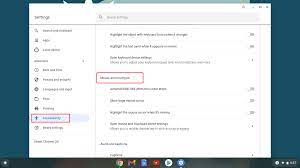
Now that you’ve installed the extension, you can start customizing your cursor. To do this, go to your Chrome settings by clicking on the three-dot menu icon located in the top-right corner of the browser window and selecting “Settings.” Then, scroll down and click on “Appearance.”

Step 7: Choose the Cursor Size and Color

Under the “Appearance” section, you’ll see an option labelled “Custom cursor.” Click on it to open up the cursor settings. From here, you can choose the size and color of your cursor.

Step 8: Save Your Settings

Once you’ve made your desired changes, click on the “Save” button located at the bottom of the page.

In conclusion, changing your cursor in Google Chrome is a simple process that can be done in just a few steps. By using an extension from the Chrome Web Store, you can customize your browsing experience and make your cursor look exactly how you want it to. So if you’re tired of the default cursor in Google Chrome, give these steps a try and see how easy it is to change things up!

Previous Article

How to Fix the “The Exception Breakpoint ...

Next Article

Linux Tablets and Projects You Can Try ...

Matthew Lynch

Related articles More from author

  • Digital & Mobile Technology

    How to Print Multiple Slides on One Page in PowerPoint

    June 9, 2023
    By Matthew Lynch
  • Digital & Mobile Technology

    What Is a 1.5 DIN Car Stereo?

    June 10, 2023
    By Matthew Lynch
  • Digital & Mobile Technology

    Best Laptop Mounts of 2023

    July 5, 2023
    By Matthew Lynch
  • Digital & Mobile Technology

    Best Stardew Valley Mods

    June 7, 2023
    By Matthew Lynch
  • Digital & Mobile Technology

    How to Upload Photos to Google Drive From iPhone

    June 11, 2023
    By Matthew Lynch
  • Digital & Mobile Technology

    The Best Educational YouTube Videos for Toddlers

    June 4, 2023
    By Matthew Lynch

Search

Login & Registration

  • Log in
  • Entries feed
  • Comments feed
  • WordPress.org

Newsletter

Signup for The Tech Edvocate Newsletter and have the latest in EdTech news and opinion delivered to your email address!

About Us

Since technology is not going anywhere and does more good than harm, adapting is the best course of action. That is where The Tech Edvocate comes in. We plan to cover the PreK-12 and Higher Education EdTech sectors and provide our readers with the latest news and opinion on the subject. From time to time, I will invite other voices to weigh in on important issues in EdTech. We hope to provide a well-rounded, multi-faceted look at the past, present, the future of EdTech in the US and internationally.

We started this journey back in June 2016, and we plan to continue it for many more years to come. I hope that you will join us in this discussion of the past, present and future of EdTech and lend your own insight to the issues that are discussed.

Newsletter

Signup for The Tech Edvocate Newsletter and have the latest in EdTech news and opinion delivered to your email address!

Contact Us

The Tech Edvocate
910 Goddin Street
Richmond, VA 23231
(601) 630-5238
[email protected]

Copyright © 2026 Matthew Lynch. All rights reserved.