The Tech Edvocate

Top Menu

  • Advertisement
  • Apps
  • Home Page
  • Home Page Five (No Sidebar)
  • Home Page Four
  • Home Page Three
  • Home Page Two
  • Home Tech2
  • Icons [No Sidebar]
  • Left Sidbear Page
  • Lynch Educational Consulting
  • My Account
  • My Speaking Page
  • Newsletter Sign Up Confirmation
  • Newsletter Unsubscription
  • Our Brands
  • Page Example
  • Privacy Policy
  • Protected Content
  • Register
  • Request a Product Review
  • Shop
  • Shortcodes Examples
  • Signup
  • Start Here
    • Governance
    • Careers
    • Contact Us
  • Terms and Conditions
  • The Edvocate
  • The Tech Edvocate Product Guide
  • Topics
  • Write For Us
  • Advertise

Main Menu

  • Start Here
    • Our Brands
    • Governance
      • Lynch Educational Consulting, LLC.
      • Dr. Lynch’s Personal Website
      • Careers
    • Write For Us
    • The Tech Edvocate Product Guide
    • Contact Us
    • Books
    • Edupedia
    • Post a Job
    • The Edvocate Podcast
    • Terms and Conditions
    • Privacy Policy
  • Topics
    • Assistive Technology
    • Child Development Tech
    • Early Childhood & K-12 EdTech
    • EdTech Futures
    • EdTech News
    • EdTech Policy & Reform
    • EdTech Startups & Businesses
    • Higher Education EdTech
    • Online Learning & eLearning
    • Parent & Family Tech
    • Personalized Learning
    • Product Reviews
  • Advertise
  • Tech Edvocate Awards
  • The Edvocate
  • Pedagogue
  • School Ratings

logo

The Tech Edvocate

  • Start Here
    • Our Brands
    • Governance
      • Lynch Educational Consulting, LLC.
      • Dr. Lynch’s Personal Website
        • My Speaking Page
      • Careers
    • Write For Us
    • The Tech Edvocate Product Guide
    • Contact Us
    • Books
    • Edupedia
    • Post a Job
    • The Edvocate Podcast
    • Terms and Conditions
    • Privacy Policy
  • Topics
    • Assistive Technology
    • Child Development Tech
    • Early Childhood & K-12 EdTech
    • EdTech Futures
    • EdTech News
    • EdTech Policy & Reform
    • EdTech Startups & Businesses
    • Higher Education EdTech
    • Online Learning & eLearning
    • Parent & Family Tech
    • Personalized Learning
    • Product Reviews
  • Advertise
  • Tech Edvocate Awards
  • The Edvocate
  • Pedagogue
  • School Ratings
  • RayNeo iO Smart Glasses: A Comprehensive Review

  • Glo Skin Beauty: The Aesthetician-Backed Brand Taking 25% Off for October Prime Day

  • The Shocking Truth: ESG Training Programs Are Quietly Reshaping Your Career Path

  • Why Millions of People Are Switching to These Green Energy Certifications Right Now

  • The green skills gap in 2026: How to address this growing problem

  • The Shocking Truth: Your Degree Won’t Land You the Best IT Jobs in 2026

  • The Brutal Truth About Degrees: Why Micro-Credentials Are Quietly Dominating Careers by 2026

  • Why 96% of Employers Now Prefer Skills Over Degrees: The Micro-Credential Revolution

  • This Crucial Mistake With AI Is Stunting Student Minds: Here’s How to Fix It

  • The AI ‘Cognitive Surrender’ Crisis: 7 Tools Every Educator Needs NOW

Assistive Technology
Home›Assistive Technology›Windows Startup Settings Menu

Windows Startup Settings Menu
By Matthew Lynch
June 10, 2023
0
Spread the love

The Windows Startup Settings menu is a crucial tool for troubleshooting and repairing issues with your PC. This menu enables users to access advanced startup options that are not available during normal operation.

The Startup Settings menu is particularly useful when your Windows PC is experiencing problems like system crashes, blue screen of death, driver issues, or malware infections. By accessing the Startup Settings menu, you can start your device in safe mode, disable driver signature enforcement, and even reset your PC to its default settings.

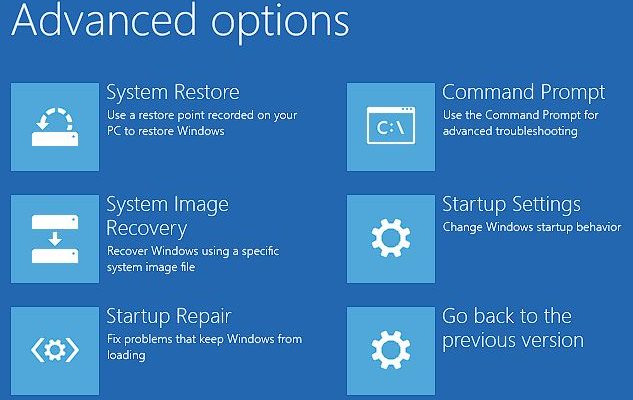
Here are some of the essential advanced options available in Windows Startup Settings menu:

1. Safe Mode
This is one of the most popular startup options in the menu that enables users to boot the Windows operating system with minimum required drivers and services. Safe mode is particularly useful when troubleshooting driver issues, malware removal, or resolving software conflicts. To access safe mode, select “Safe Mode” in the Startup Settings menu.

2. Safe Mode with Networking
This option is similar to Safe Mode but with networking enabled. It is particularly useful when you need to troubleshoot internet connectivity issues.

3. Command Prompt
This option is ideal for advanced users and IT technicians who want to troubleshoot Windows using the command-line interface. The command prompt allows users to perform a wide range of actions like file management, network diagnostics, system repair, and even malware removal.

4. Disable Driver Signature Enforcement
This option can help you install drivers that have not been digitally signed by Microsoft. It is particularly useful when installing legacy hardware or outdated drivers that the latest version of Windows may not recognize.

5. Startup Repair
This option is ideal for restoring Windows boot files and resolving issues that prevent your PC from starting correctly. Startup Repair analyzes the startup process and attempts to fix any errors it finds.

6. System Restore
This option enables users to restore their PC to a previous state in time when everything was working correctly. System Restore creates restore points that capture crucial system settings, files, and registry information, which can be used to undo changes that may have occurred after the restore point was created.

7. System Image Recovery
This option allows users to restore their entire PC using a previous system image backup in case of a severe system failure or hard drive crash.

In conclusion, the Windows Startup Settings menu is an essential tool for troubleshooting and repairing issues with your PC. Whether you’re an advanced user, IT technician, or a regular Windows user faced with boot issues, the Startup Settings menu provides multiple options that can help you restore your system to working order.


Previous Article

What Makes a Smart Device Smart?

Next Article

How to Change an AirTag Battery

Matthew Lynch

Related articles More from author

  • Assistive Technology

    How to Tell How Old Your Computer Is

    June 8, 2023
    By Matthew Lynch
  • Assistive Technology

    How to Undo in Word

    June 10, 2023
    By Matthew Lynch
  • Assistive Technology

    How to Fix It When Your iPhone Is Dropping Calls

    June 22, 2023
    By Matthew Lynch
  • Assistive Technology

    How to Copy Text From Videos on a Mac

    August 5, 2023
    By Matthew Lynch
  • Assistive Technology

    How to Refriend Someone You Blocked on Facebook

    June 23, 2023
    By Matthew Lynch
  • Assistive Technology

    How to Alphabetize in Google Docs

    June 10, 2023
    By Matthew Lynch

Search

Login & Registration

  • Log in
  • Entries feed
  • Comments feed
  • WordPress.org

Newsletter

Signup for The Tech Edvocate Newsletter and have the latest in EdTech news and opinion delivered to your email address!

About Us

Since technology is not going anywhere and does more good than harm, adapting is the best course of action. That is where The Tech Edvocate comes in. We plan to cover the PreK-12 and Higher Education EdTech sectors and provide our readers with the latest news and opinion on the subject. From time to time, I will invite other voices to weigh in on important issues in EdTech. We hope to provide a well-rounded, multi-faceted look at the past, present, the future of EdTech in the US and internationally.

We started this journey back in June 2016, and we plan to continue it for many more years to come. I hope that you will join us in this discussion of the past, present and future of EdTech and lend your own insight to the issues that are discussed.

Newsletter

Signup for The Tech Edvocate Newsletter and have the latest in EdTech news and opinion delivered to your email address!

Contact Us

The Tech Edvocate
910 Goddin Street
Richmond, VA 23231
(601) 630-5238
[email protected]

Copyright © 2026 Matthew Lynch. All rights reserved.