How to add comments to PDF in Adobe Acrobat Reader
“`html
In an age dominated by digital communication, PDFs have emerged as one of the most common formats for sharing documents. Whether it’s for business proposals, academic papers, or personal notes, knowing how to add comments to PDF Adobe Acrobat Reader can significantly enhance collaboration and information exchange. This guide will walk you through the ins and outs of commenting on PDFs using Adobe Acrobat Reader, providing step-by-step instructions, tips, and best practices to elevate your document interactions.
1. Understanding the Importance of PDF Comments
Before we dive into the nitty-gritty of Adobe Acrobat Reader, it’s essential to grasp why adding comments to PDFs is crucial. PDF documents have become a staple for sharing finalized versions of reports, contracts, and other critical documents. However, sometimes you need to provide feedback, ask questions, or highlight important sections without altering the original content.
Adding comments allows for a clear exchange of ideas while maintaining the document’s integrity. It enables readers to engage with the content meaningfully, fostering better communication among collaborators. In professional settings, this can lead to improved project outcomes and streamlined workflows.
Furthermore, the ability to comment on PDFs enhances the review process, making it easier to track changes and suggestions. When multiple users can provide feedback on the same document, everyone stays informed and aligned, reducing the chances of misunderstandings or overlooked details.
2. Getting Started with Adobe Acrobat Reader
Adobe Acrobat Reader is one of the most widely used PDF readers, and it’s available for free across various platforms, including Windows, macOS, iOS, and Android. To get started:
- Download and install Adobe Acrobat Reader from the official Adobe website.
- Open the application and familiarize yourself with the layout. The main interface includes a navigation pane on the left and a toolbar on the top.
Once you’ve launched the application, you can open a PDF file by clicking on “File” and selecting “Open.” This initiates your journey into the world of commenting on PDFs.
It’s worth noting that Adobe Acrobat Reader also offers mobile versions, making it convenient for users to comment on PDFs while on the go. This flexibility ensures that you’re not tethered to your desk, allowing for real-time feedback even in transit.
3. Adding Comments: The Basic Tools
Now that you have your PDF open, it’s time to explore how to add comments. Adobe Acrobat Reader provides several annotation tools that you can use:
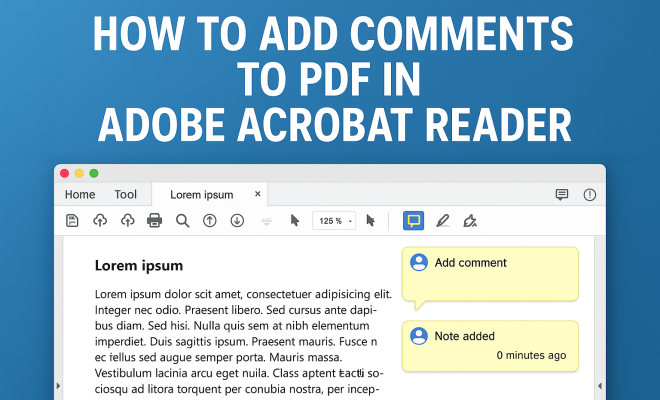
- Sticky Notes: These are ideal for leaving textual comments anywhere on the document. To add a sticky note, simply select the sticky note tool from the comment toolbar, click where you want it to appear, and type your message.
- Text Comments: This allows you to highlight or underline specific text. You can also use the text box tool to insert comments directly into the document.
- Drawing Tools: If you need to illustrate a point, the drawing tools let you sketch or draw shapes directly onto the PDF.
- Highlighting: Highlighting text is a straightforward way to direct attention to critical sections of the document.
These tools work together to ensure you can provide comprehensive feedback without losing the original context of your document. Understanding these tools can greatly enhance your workflow, especially when multiple parties are involved in reviewing the same document.
4. How to Use Sticky Notes Effectively
Sticky notes are perhaps the most versatile commenting option available in Adobe Acrobat Reader. To make the most of this feature, consider the following tips: (See: importance of commenting on PDFs.)
- Be Clear and Concise: When adding sticky notes, strive for brevity while being clear. This ensures that your comment is easily understood at a glance.
- Use Color Coding: Utilize different colors for sticky notes to signify various types of comments—like questions, suggestions, or corrections. This visual element makes it easier for the recipient to navigate your feedback.
- Place Strategically: Position your sticky notes near the relevant text or image to avoid confusion. Adobe Acrobat Reader will allow you to drag and reposition them as needed.
Using sticky notes effectively can enhance communication and minimize the back-and-forth often associated with document revisions. For instance, when reviewing a lengthy report, you can color-code feedback to differentiate between editorial comments and factual inquiries, thus clarifying your intentions.
5. Highlighting and Underlining Text
Highlighting and underlining are simple yet powerful tools for emphasizing critical statements or areas in your PDF. To utilize these features:
- Select the highlight tool from the comment toolbar and drag it over the text you want to emphasize. This instantly draws the reader’s eye.
- The underline tool functions similarly; just select the text and apply the underline effect.
These methods are particularly useful for academic reviews or professional documents where showing importance is key. They help in organizing thoughts and guiding discussions in a more focused manner. Research indicates that visual cues, such as highlights, can improve information retention by up to 65%, which makes these tools invaluable in educational contexts.
6. Using the Text Box Tool
The text box tool is another advantageous feature that allows you to add comments directly into the PDF content itself. Here’s how to use it effectively:
- Choose the text box tool from the comment toolbar. Click where you want the box to appear and begin typing your comment.
- Adjust the size and color of the text box for better visibility or to match the document’s aesthetic.
The text box tool is particularly helpful for lengthy comments or when you need to provide specific instructions or detailed feedback. It’s a great way to engage with the document on a deeper level. Think of it as a way to open a conversation directly within the text, making it easier for others to see your thoughts in context.
7. Reviewing Comments and Managing Feedback
After you’ve added your comments, the next step is reviewing them for clarity and coherence. Adobe Acrobat Reader provides a comment summary feature that allows you to:
- Access all comments in one place for easy review.
- Filter comments by type—like sticky notes, highlights, and text boxes.
This feature is invaluable during the review process, especially in collaborative environments. It ensures that you don’t overlook any feedback, keeping the editing process smooth and efficient. Additionally, organizing comments by type allows you to prioritize responses based on their nature, whether they are urgent corrections or general suggestions.
Statistics show that effective feedback can reduce revision cycles by as much as 30%. This means that by mastering the comment management features in Adobe Acrobat Reader, you can significantly cut down the time spent on revisions and improve overall project efficiency.
8. Collaborating with Others Using Shared Comments
When working in a team, sharing comments becomes essential. Adobe Acrobat Reader allows users to share a document with all comments included. To facilitate collaboration:
- Save the PDF with all your comments and share it via email or cloud storage solutions like Adobe Document Cloud.
- Encourage your team members to add their comments or feedback utilizing the same tools.
This collaborative approach not only enriches the document with diverse perspectives but also accelerates the review process, leading to quicker decision-making. With every team member able to see and respond to comments in real-time, the likelihood of miscommunication decreases significantly.
Integration with tools like Microsoft Teams or Slack can further enhance collaboration. By sharing your PDF with comments directly in these platforms, you can discuss changes as a team, making the feedback process both interactive and efficient. (See: PDF annotation techniques and benefits.)
9. Advanced Commenting Features in Adobe Acrobat Reader
While the basic commenting tools are incredibly useful, Adobe Acrobat Reader also offers advanced features that can further enhance your commenting experience. These include:
- Replying to Comments: You can reply to existing comments, creating a threaded conversation. This is particularly useful when discussing nuanced feedback or when multiple reviewers are involved.
- Filtering and Sorting Comments: Beyond just viewing a summary, you can sort comments by author, date, or type. This can help identify feedback trends and prioritize responses.
- Exporting Comments: For comprehensive reviews, you can export comments to an external file. This can be useful for creating a report of all feedback provided, which can be shared with stakeholders who may not have access to the PDF.
Utilizing these advanced features can streamline the review process even further, making it easy to consolidate feedback and communicate efficiently with your team.
10. Best Practices for Commenting on PDFs
To maximize the effectiveness of your comments, consider these best practices:
- Be Specific: Instead of vague comments, specify exactly what needs to be addressed. For example, rather than saying “this section needs work,” indicate which aspects are unclear or need improvement.
- Maintain Professionalism: Always use a professional tone, especially in business documents. Constructive feedback fosters a positive environment.
- Follow Up: After providing comments, follow up with the document owner to ensure they understand your feedback and are clear on the next steps.
These practices help create a culture of constructive criticism and continuous improvement, which can enhance the quality of your documents over time.
11. Effective Communication While Commenting
Effective communication is key when commenting on PDFs. It helps to ensure your comments are understood the way you intend. Here are some strategies for improving the clarity of your comments:
- Use Simple Language: Avoid jargon or overly complex phrases. Opt for straightforward language that everyone on the team can understand.
- Provide Context: Be sure to give context where necessary. For instance, if you’re suggesting a change, briefly explain why it might be beneficial.
- Encourage Dialogue: Invite colleagues to ask questions or provide their input on your comments. This creates an open environment that fosters collaboration.
For instance, if you comment on a sales proposal suggesting a change in the pricing strategy, instead of just stating “This is too high,” you might say, “Based on recent market analysis, lowering the price by 10% could make it more competitive.” This not only clarifies your intent but also opens a discussion on market dynamics.
12. FAQ: Adding Comments to PDFs in Adobe Acrobat Reader
Q1: Can I add comments to a PDF if I don’t have the original file?
A1: Yes, you can add comments to any PDF document using Adobe Acrobat Reader, even if you don’t have the original file. The comments will be saved within the PDF, allowing others to see your feedback.
Q2: Is there a limit to how many comments I can add?
A2: There is no specific limit to the number of comments you can add in Adobe Acrobat Reader. However, too many comments can clutter the document, making it difficult to read. It’s best to be judicious with your feedback.
Q3: Can I remove comments after adding them?
A3: Yes, you can easily remove comments in Adobe Acrobat Reader. Simply select the comment you wish to delete and press the delete key, or right-click and choose the delete option.
Q4: Can I see who made comments in a shared PDF?
A4: Yes, Adobe Acrobat Reader allows you to see the name of the user who made a comment, provided they are using a version that supports this feature. This can help in identifying feedback sources.
Q5: How do I ensure my comments are visible to others?
A5: To ensure your comments are visible, save the PDF after adding comments and share the document with others. Make sure you inform them that the version you shared contains comments.
Q6: Can I edit comments once they have been added?
A6: Absolutely! You can edit your comments in Adobe Acrobat Reader. Just click on the comment, make your necessary adjustments, and save the document again.
Q7: Are there keyboard shortcuts for commenting tools in Adobe Acrobat Reader?
A7: Yes, Adobe Acrobat Reader offers various keyboard shortcuts to enhance your efficiency. For example, you can press “Ctrl+6” to activate the commenting tools quickly. Familiarizing yourself with these shortcuts can save time during the commenting process.
Q8: How does commenting differ in Adobe Acrobat Reader versus Adobe Acrobat Pro?
A8: While both programs allow you to add comments, Adobe Acrobat Pro offers more advanced features such as editing PDF content, creating forms, and enhanced document merging capabilities. If your needs extend beyond commenting, considering an upgrade might be beneficial.
Q9: What file formats can I export comments to?
A9: In Adobe Acrobat Reader, you can export comments to formats like Word or Excel, making it easier to create reports or documents that summarize the feedback provided. This functionality is particularly useful for larger teams or projects that require extensive documentation of feedback.
13. Final Thoughts on Commenting in PDFs
Knowing how to add comments to PDF Adobe Acrobat Reader is a vital skill in today’s digital landscape. Whether for personal projects, academic work, or business communications, mastering these commenting features enhances the ability to collaborate and convey insights effectively.
As you become more familiar with Adobe Acrobat Reader’s commenting tools, you’ll find that your document interactions become smoother and more productive. So, go ahead—open a PDF, add some comments, and experience the difference it makes!
“`
Trending Now
Frequently Asked Questions
How do I add comments to a PDF in Adobe Acrobat Reader?
To add comments in Adobe Acrobat Reader, open your PDF and select the 'Comment' tool from the toolbar. You can then use options like 'Sticky Note', 'Highlight', or 'Text Box' to provide feedback or notes directly on the document.
Can I use Adobe Acrobat Reader to annotate PDFs?
Yes, Adobe Acrobat Reader allows you to annotate PDFs using various tools such as highlighting, underlining, and adding sticky notes. These features help in providing clear feedback and enhancing collaboration on documents.
Is Adobe Acrobat Reader free to use for commenting?
Yes, Adobe Acrobat Reader is free to download and use. You can add comments and annotations to PDFs without any costs, making it a great tool for collaboration and document review.
What types of comments can I add to a PDF?
In Adobe Acrobat Reader, you can add various types of comments including sticky notes, text highlights, strikethroughs, and drawings. These tools help convey your thoughts and suggestions effectively.
How do comments improve collaboration on PDFs?
Comments on PDFs enhance collaboration by allowing multiple users to provide feedback and suggestions without altering the original document. This clear exchange of ideas ensures everyone stays informed and aligned during the review process.
Have you experienced this yourself? We'd love to hear your story in the comments.