How to use Google Sheets formulas
“`html
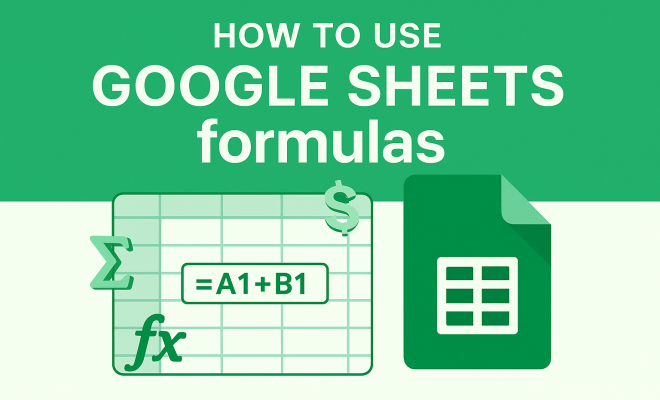
Google Sheets is more than just a digital spreadsheet; it’s a powerful tool that can transform how you manage, analyze, and visualize data. At the heart of this functionality are Google Sheets formulas, which allow users to perform calculations, manipulate text, and automate tasks efficiently. Whether you’re a business professional, a student, or simply someone managing personal finance, knowing how to effectively use these formulas can elevate your spreadsheet game. In this article, we’ll explore eight key insights into using Google Sheets formulas, providing you with the tools you need to become a Sheets master.
1. Understanding the Basics of Google Sheets Formulas
Formulas in Google Sheets allow users to perform calculations and data manipulations based on input values. Every formula begins with an equal sign (=), followed by the function name and its arguments. For example, =SUM(A1:A10) adds up all values from cells A1 to A10. Understanding this structure is crucial, as it will guide you as you delve deeper into more complex functions.
Google Sheets supports a variety of functions, including mathematical, statistical, logical, and text functions. It’s important to familiarize yourself with the most common functions, including SUM, AVERAGE, COUNT, IF, and VLOOKUP, as they form the foundation for more advanced operations. This knowledge will serve as your starting point, allowing you to build more sophisticated formulas over time.
2. Mastering Basic Functions
Let’s break down some of the basic functions that you’ll likely use frequently:
- SUM: This function adds a range of numbers. For instance, =SUM(B2:B10) totals all values from B2 to B10.
- AVERAGE: This calculates the mean of a range, e.g., =AVERAGE(C1:C10) gives you the average of values in C1 through C10.
- COUNT: Use this to count the number of cells that contain numbers, such as =COUNT(D1:D10).
- IF: This logical function allows you to make decisions in your formulas. For example, =IF(E1>10, “High”, “Low”) returns “High” if E1 is greater than 10.
- VLOOKUP: This is used for searching a value in the first column of a range and returning a value in the same row from a specified column. For example, =VLOOKUP(F1, A1:D10, 3, FALSE) searches for the value in F1 within the first column of A1:D10 and returns the corresponding value from the third column.
Mastering these basic functions can significantly enhance your efficiency and accuracy when dealing with data.
3. Using Relative and Absolute References
One of the most important concepts in Google Sheets formulas is understanding the difference between relative and absolute references. A relative reference (like A1) changes when you copy the formula to another cell, while an absolute reference (like $A$1) remains constant, regardless of where you copy it.
This distinction is vital for creating dynamic spreadsheets. For example, if you’re calculating a percentage of total revenue across multiple rows, you might want to keep the reference to the total revenue cell absolute while allowing the row to change. This way, you can easily copy the formula down a column without having to manually adjust the total revenue reference each time.
4. Combining Functions for Advanced Calculations
Once you feel comfortable with basic functions, you can start combining them for more powerful calculations. Nesting functions is a common practice; for example, the formula =IF(A1>100, SUM(B1:B10), AVERAGE(C1:C10)) combines multiple functions to provide a different result based on the condition. This capability allows for sophisticated data analysis directly within your spreadsheet.
Another useful combination is using IF with AND or OR functions. For instance, =IF(AND(A1>10, B1<5), “Yes”, “No”) returns “Yes” only if both conditions are met, providing a clear way to assess multiple criteria at once. This can help you filter data more effectively when analyzing trends or making decisions.
5. Utilizing Array Formulas
Array formulas are a powerful feature that allows you to perform multiple calculations on one or more items in an array. This means you can work with entire ranges of data rather than individual cells. For instance, instead of using =SUM(A1:A10) individually, an array formula can handle multiple sums simultaneously, streamlining your calculations. (See: Understanding spreadsheets and their functions.)
You can create an array formula by using the ARRAYFORMULA function. For example, =ARRAYFORMULA(A1:A10 * B1:B10) will multiply each element in A1:A10 by its corresponding element in B1:B10. This not only saves time but also reduces the clutter of multiple formulas.
6. Data Validation and Conditional Formatting
Formulas can also enhance the usability of your Sheets through data validation and conditional formatting. Data validation allows you to control the type of data entered into a cell. For example, you can set a condition that only allows numerical input, making your data cleaner and more accurate.
Conditional formatting takes data visualization to the next level. By applying a formula in conditional formatting, you can highlight cells that meet certain criteria. For instance, you might want to highlight any cells in a sales column that exceed a certain amount. This visual aid can help you quickly identify trends and outliers in your data.
7. Exploring Google Sheets Add-ons
If you’re looking to extend the functionality of Google Sheets beyond standard formulas, consider exploring Google Sheets add-ons. These are third-party integrations that provide enhanced features and capabilities. For example, add-ons like Supermetrics can pull data from various sources, while Lucidchart Diagrams allows for seamless integration of diagrams into your Sheets.
Add-ons can streamline various tasks, automate data retrieval, and improve overall productivity. You can access these tools through the “Add-ons” menu in Google Sheets, allowing you to customize your experience based on your specific needs.
8. Staying Updated: New Features and Functions
Google is continuously updating Google Sheets, introducing new features and functions that can enhance your spreadsheet experience. For instance, functions like FILTER, UNIQUE, and TEXTJOIN have become increasingly popular for advanced data manipulation. These functions enable users to filter data based on specific criteria, extract unique entries from a list, or join text strings from multiple cells into one.
To stay informed about the latest updates, keep an eye on the Google Workspace Updates blog or explore the function list directly within Google Sheets. Mastering these new features as they become available can keep you ahead in your data management tasks.
9. Common Mistakes When Using Google Sheets Formulas
Even seasoned users can fall victim to common pitfalls when working with formulas. Here are a few mistakes to avoid:
- Forgetting to Use Absolute References: As previously mentioned, not utilizing absolute references when needed can lead to incorrect calculations once a formula is copied. Always double-check your references before copying across rows or columns.
- Complex Nested Formulas: While nesting functions can be powerful, overly complex formulas can be difficult to debug. Break down complicated calculations into smaller steps, using intermediary cells if necessary to simplify the logic.
- Not Checking for Errors: Google Sheets provides error messages for formulas that don’t compute correctly. Pay attention to these alerts, as they can give you insights into what went wrong, whether it’s a #DIV/0! due to division by zero or #REF! from referencing a deleted cell.
By being aware of these mistakes, you can streamline your workflow and reduce frustration while working in Google Sheets.
10. Collaborative Features and Sharing Formulas
One of the standout features of Google Sheets is its collaborative capabilities. You can share your spreadsheets with colleagues, allowing multiple users to view and edit at the same time. This is especially useful for team projects or when gathering data from various sources.
When sharing spreadsheets, consider protecting certain cells or ranges that contain formulas. This prevents accidental deletions or modifications. To do this, select the range, right-click, and choose “Protect range.” This way, you can maintain the integrity of your calculations while still allowing others to contribute data. (See: Using data analysis for better decision making.)
Additionally, you can use the commenting feature to leave notes for collaborators on specific formulas or data points. This can facilitate communication and help clarify complex calculations that others might not understand at first glance.
11. Real-Life Use Cases for Google Sheets Formulas
Understanding the practical applications of Google Sheets formulas can help solidify your knowledge and inspire you to utilize them effectively. Here are some real-life scenarios where formulas play a crucial role:
- Budget Tracking: Use formulas to keep track of income and expenses, calculating totals and variances automatically. By setting up a simple budget sheet with SUM and AVERAGE functions, you can monitor your financial health effortlessly.
- Project Management: Formulas can help manage deadlines and project progress. Using IF and conditional formatting, you can create status indicators that show whether tasks are on track, behind schedule, or completed.
- Sales Reporting: Businesses often rely on Google Sheets for tracking sales data. By utilizing VLOOKUP or FILTER functions, you can generate reports that pull specific data sets, enabling you to analyze sales trends over time.
These examples highlight how versatile Google Sheets formulas can be across different domains, enhancing productivity and decision-making.
12. Frequently Asked Questions (FAQ)
What are Google Sheets formulas?
Google Sheets formulas are expressions used to perform calculations or operations on data within a spreadsheet. They can manipulate numbers, text, and dates and can automate various tasks.
How do I create a formula in Google Sheets?
To create a formula, start by clicking on a cell where you want the result to appear. Type an equal sign (=), followed by the function name and its arguments (like =SUM(A1:A10)). Press Enter to calculate the result.
Can I use Google Sheets formulas on mobile devices?
Yes, Google Sheets is available as a mobile app for both Android and iOS. Most basic formulas can be used on mobile devices, but some advanced features may have limitations compared to the desktop version.
What’s the difference between Google Sheets and Excel formulas?
While many formulas and functions are similar, there are some differences in their syntax and availability. Google Sheets offers unique functions like GOOGLEFINANCE and some collaborative features that Excel does not. Conversely, Excel has more advanced data analysis tools, such as pivot tables and macros.
How can I troubleshoot formula errors in Google Sheets?
Start by checking for common error messages like #NAME?, #DIV/0!, or #REF!. Review your formula for typos, incorrect references, or improper use of functions. Google Sheets also provides suggestions and input help when you click on the cell with the error.
13. Advanced Functions to Elevate Your Sheets Skills
Once you’ve mastered the basics of Google Sheets formulas, it’s time to explore some advanced functions that can help you get even more out of your spreadsheets. These functions can assist in data analysis and automate complex tasks. (See: Insights on Google Sheets functionalities.)
- QUERY: The QUERY function is a powerful tool that allows you to use SQL-like syntax to interact with your data. For example, you can extract specific rows or columns based on certain criteria. A QUERY could look like this:
=QUERY(A2:C10, "SELECT B WHERE C > 100", 1), which selects values from column B where values in column C exceed 100. This function is especially useful for users familiar with SQL and can simplify data extraction. - IMPORTRANGE: If you work with data across multiple spreadsheets or need to pull in data from different sources, the IMPORTRANGE function is your go-to solution. For example,
=IMPORTRANGE("spreadsheet_url", "Sheet1!A1:C10")allows you to import a range from another spreadsheet, facilitating collaboration and data sharing across projects. - SPLIT: The SPLIT function can help you manage data that’s been combined into a single cell. For instance, if you have a list of names in a single cell separated by commas, you can use
=SPLIT(A1, ",")to divide those names into separate cells. This is particularly useful for data cleaning tasks.
14. Using Google Sheets for Data Visualization
Data visualization is key to interpreting data effectively. Google Sheets offers various chart options that can help you visualize your data dynamically. After setting up your data and using formulas to analyze it, you can create charts to illustrate trends and patterns effectively.
For instance, if you’ve used formulas to analyze monthly sales data, creating a line chart can help you visualize sales trends over time. To create a chart, highlight the data you want to include, then click on “Insert” and select “Chart.” Google Sheets will suggest a chart type, or you can choose one that best fits your data.
Utilizing conditional formatting alongside charts can enhance your visual data representation. For example, you can color-code data points based on thresholds or performance metrics, making it easier to spot significant changes quickly.
15. Integrating Google Sheets with Other Google Services
Google Sheets plays well with a variety of other Google services, further enhancing its capabilities. For instance, you can integrate Google Forms with Sheets to automate data collection. When responses are submitted through a Google Form, they automatically populate a connected Google Sheet, making it easy to analyze survey results or event registrations.
Similarly, you can use Google Apps Script to automate tasks within Google Sheets. This scripting language allows for the automation of repetitive tasks, enabling you to create custom functions or even build complex workflows. For example, you can write a script to send email notifications when specific data conditions are met in your Sheets, making your processes more efficient.
16. Practical Tips for Mastering Google Sheets Formulas
Here are some practical tips to help you master Google Sheets formulas more effectively:
- Practice Regularly: The best way to become proficient with Google Sheets formulas is through practice. Create sample spreadsheets and experiment with different functions and combinations. This hands-on experience will help reinforce your knowledge and increase your confidence.
- Utilize Online Resources: There are numerous tutorials, forums, and resources available online that can provide valuable insights and tips for using Google Sheets effectively. Websites like YouTube, Google’s support resources, and educational platforms offer a wealth of knowledge.
- Join Online Communities: Engaging with online communities dedicated to Google Sheets can provide support and inspiration. Consider joining forums or social media groups where you can ask questions, share your experiences, and learn from others.
17. Conclusion: Transforming Your Data Management with Google Sheets Formulas
Mastering Google Sheets formulas can significantly enhance your ability to manage and analyze data effectively. By understanding basic functions, utilizing advanced techniques, and exploring additional features and add-ons, you can transform not just how you work with spreadsheets but how you derive insights from data. So, dive into Sheets, experiment with these formulas, and watch how they can simplify your tasks and improve your efficiency!
“`
Trending Now
Frequently Asked Questions
What are the basic formulas in Google Sheets?
Basic formulas in Google Sheets include SUM, AVERAGE, COUNT, IF, and VLOOKUP. These functions help perform calculations, analyze data, and automate tasks. For example, =SUM(A1:A10) adds up values in a specified range, while =AVERAGE(B1:B10) calculates the mean.
How do I create a formula in Google Sheets?
To create a formula in Google Sheets, start with an equal sign (=), followed by the function name and its arguments. For instance, to sum values in cells A1 to A10, you would enter =SUM(A1:A10) in a cell.
What is the purpose of using formulas in Google Sheets?
Formulas in Google Sheets allow users to perform calculations, manipulate text, and automate tasks efficiently. They enhance data management and analysis, making it easier to derive insights from your data.
Can I use logical functions in Google Sheets?
Yes, Google Sheets supports logical functions such as IF, which allows you to make decisions based on conditions. For example, =IF(A1>10, 'Yes', 'No') checks if the value in A1 is greater than 10, returning 'Yes' or 'No' accordingly.
What is the VLOOKUP function used for in Google Sheets?
The VLOOKUP function in Google Sheets is used to search for a value in the first column of a range and return a value in the same row from a specified column. It's useful for retrieving information from large datasets.
Agree or disagree? Drop a comment and tell us what you think.