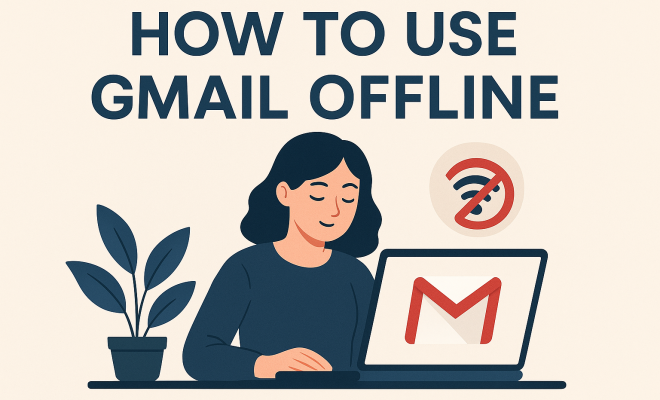
Master Gmail Offline: Your Guide to Email Without Internet
“`html
In today’s fast-paced digital world, having constant access to your email is crucial. However, there are times when you might find yourself without an internet connection, whether you’re traveling, in a remote area, or facing network issues. Fortunately, Google’s Gmail offers an offline feature that allows you to stay productive even when you’re not connected to the internet. In this article, we’ll explore the best ways to use Gmail offline effectively, ensuring that you never miss an important message or lose momentum while working. Let’s dive into the essentials of using Gmail offline!
1. Understanding Gmail Offline
Before we jump into how to use Gmail offline, let’s clarify what this feature entails. Gmail Offline is a web app that allows you to read, respond to, and organize your emails even when you’re not connected to the internet. When you enable this feature, Gmail will sync your most recent emails, typically the last 30 days, so you can access them anytime.
This capability is particularly beneficial for users who travel frequently or work in areas with unreliable internet access. By utilizing Gmail offline, you can maintain your productivity without being tethered to a Wi-Fi connection. It’s an uncomplicated solution for those who rely heavily on email for both personal and professional communication.
2. How to Enable Gmail Offline
To get started with using Gmail offline, you first need to enable the feature in your Gmail settings. Here’s how you can do that:
- Log into your Gmail account on a computer.
- Click on the gear icon in the upper right corner to access Settings.
- Select the “See all settings” option.
- Navigate to the “Offline” tab within the settings menu.
- Check the box that says “Enable offline mail.”
- Choose your preferences for how many days of emails you would like to sync (1, 7, or 30 days).
- Click “Save Changes.”
Once you’ve completed these steps, Gmail will begin to sync your inbox, making it ready for offline access. Be sure to perform this setup while you’re still online so that all necessary emails are downloaded. Related reading: Cc or Bcc Yourself Tips.
3. Managing Your Emails Offline
When you use Gmail offline, you can perform various tasks just as you would when you’re connected to the internet. Here’s what you can do:
- Read Emails: Access the emails that were synced to your device. You can view them in their entirety, allowing you to catch up on conversations and important information.
- Composing Emails: Draft new emails or reply to messages. Your composed emails will be stored in the Outbox and sent once you reconnect to the internet.
- Organizing Emails: Move emails to different folders, star them, or archive them. This feature helps you keep your inbox organized, even without connectivity.
However, there are certain limitations. For instance, you won’t be able to access attachments or any emails that arrived after your last sync. Therefore, it’s wise to ensure that you sync important emails ahead of time so that you can reference them offline.
4. Limitations of Using Gmail Offline
While Gmail Offline provides a convenient way to manage your emails without an internet connection, it comes with its own set of limitations. Recognizing these can help you better prepare for your offline experience:
- No Access to Attachments: You can’t view or download attachments while offline. If you need to reference a document or file, make sure you have it saved locally or have accessed it before going offline.
- Limited Email Functionality: Some features, such as adding labels or applying filters, are unavailable while offline. You can only perform basic actions like reading, replying, and composing emails.
- Syncing Issues: If you have a large inbox or receive a high volume of emails, it might take longer to sync all your messages. It’s vital to manage your storage settings to ensure that important emails are accessible when you need them.
Being aware of these limitations will help you maximize your offline experience and find workarounds when necessary. (See: Gmail overview on Wikipedia.)
5. Accessing Gmail Offline on Mobile Devices
Although the offline feature is primarily designed for desktop use, users can also access Gmail offline on mobile devices, specifically through the Gmail app. Here’s how to set it up:
- Open the Gmail app on your mobile device.
- Go to Settings and select your account.
- Find the “Sync Gmail” option and ensure it’s turned on.
Once you have this feature enabled on your mobile device, you’ll have offline access to the same emails that have been synced from your desktop. However, be sure to note that data limits may apply depending on your mobile plan, so it’s best to initially sync when connected to Wi-Fi. (Gmail Tips and Tricks)
6. Best Practices for Using Gmail Offline
To ensure a seamless experience while using Gmail offline, consider these best practices:
- Pre-sync Important Emails: Before you head offline, take a few moments to identify and sync critical emails that you anticipate needing access to. This preparation can save you from potential frustration later.
- Use Labels Wisely: Organizing your emails with labels can help you find what you need quickly, even when you’re offline. Create specific labels for projects or tasks to streamline your workflow.
- Draft Emails Efficiently: Be concise in your email drafts. When writing without the internet, it’s easy to forget the context if you wait too long to send your message. Keep your communication clear and to the point.
These practices can elevate your offline email management, making it more effective and less cumbersome.
7. Staying Updated with Offline Gmail
Even when using Gmail offline, staying updated with any changes to the platform is crucial. Google frequently rolls out new features, and being aware of these can enhance your overall experience. Here’s how to stay informed:
- Regularly Check for Updates: Make it a habit to check for updates in the Gmail app or browser version, especially before you intend to go offline. This ensures you have the latest features and security patches.
- Follow Email Productivity Blogs: Many bloggers and tech websites consistently provide updates and tips on using Gmail more effectively. Following these can keep you in the loop about new functionalities.
- Engage with Gmail Support: If you encounter any issues while using Gmail offline, don’t hesitate to reach out to Gmail’s support or community forums. They can provide solutions or insights that may improve your offline experience.
By staying updated, you can make the most of Gmail’s offline capabilities, ensuring that you don’t miss out on key features.
8. Enhancing Your Offline Experience with Add-Ons
To make your offline Gmail experience even better, consider integrating some useful add-ons that can work without internet access. Here are a few noteworthy ones:
- Todoist: This productivity app can help you manage tasks directly from your Gmail. You can create tasks while offline, and they will sync once you’re back online. This is perfect for those who like to keep their to-do lists handy and integrated with their email communication.
- Evernote: While Evernote doesn’t integrate directly with Gmail, you can use it to save important emails or notes while offline. You can easily jot down ideas and link them to your emails for when you can respond later.
- Google Keep: Similar to Evernote, Google Keep allows you to create notes that can be attached to your emails once you’re back online. You can write down thoughts or reminders to follow up on specific emails.
Using these add-ons can enhance your productivity and ensure that you don’t miss a beat, even when disconnected from the internet.
9. Real-World Scenarios When Gmail Offline Comes in Handy
Let’s consider some practical situations where using Gmail offline can save the day: (See: CDC's resource on internet access.)
- Traveling by Air: If you’re on a flight, internet access is often non-existent. While airborne, you can catch up on important emails that need your attention and draft responses, ready to send once you land.
- Remote Work: For those working in rural areas or locations with poor connectivity, being able to manage emails offline ensures that you remain productive without interruptions. You can work seamlessly during long commutes or outdoor settings.
- Meetings in Low-Signal Areas: If you’re attending a meeting in a building with poor signal reception, you can utilize offline capabilities to review and respond to emails that may have come in during the session.
Each of these scenarios highlights how essential the offline feature can be, demonstrating its usefulness in various contexts.
10. FAQs About Using Gmail Offline
1. Can I access all my emails offline?
No, you can only access emails that have been synced up to the last 30 days. You need to ensure critical emails are synced before going offline.
2. Do I need to install anything to use Gmail offline?
Not really. Gmail Offline is a web app that you can enable within your Gmail settings. Just make sure you use Google Chrome as it is the recommended browser.
3. Will I still receive emails while offline?
No, you can’t receive emails while you’re offline. However, any emails you send will be placed in your Outbox and sent automatically once you reconnect to the internet.
4. Can I access my Gmail offline on mobile devices?
Yes, if you enable the Sync Gmail option in the Gmail app, you can access your synced emails offline on your mobile device, though the setup is primarily designed for desktop use. There’s a fuller look at Top Productivity Apps for Parents.
5. How do I ensure I am syncing the right emails?
Identify emails that are critical for your tasks and make sure they are included in the sync settings. Prioritize important conversations or documents before going offline.
6. Is there a way to increase the number of emails I can access offline?
The maximum sync period is 30 days. If you require access to important emails beyond this timeframe, you should manually save those emails or relevant information locally.
7. Can I use Gmail offline without a backup internet connection?
Yes, once your emails have been synced prior to going offline, you can use Gmail without any internet connection until your sync period expires. (See: New York Times article on Gmail offline.)
11. Advanced Tips for Optimal Gmail Offline Usage
If you want to take your offline Gmail experience to the next level, consider these advanced tips:
- Keyboard Shortcuts: Familiarize yourself with Gmail’s keyboard shortcuts to speed up your email management. For instance, you can use ‘C’ to compose a new email and ‘R’ to reply to an email. This can be particularly handy when you are offline and want to be efficient.
- Offline File Management: Save critical documents and files you might need offline in a dedicated folder on your device. This way, you can quickly access them alongside your emails without having to search through various directories.
- Plan for Long Offline Periods: If you anticipate being offline for an extended period, like during a vacation or a business trip in a remote area, consider downloading the Google Docs Offline extension. This will allow you to edit documents in Google Drive while offline, making it easier to manage your work.
12. Comparing Gmail Offline to Other Email Services
When considering email management options, it’s helpful to compare Gmail Offline with similar features in other email services. Here’s a quick overview:
| Email Service | Offline Access | Maximum Sync Period | Attachments Access |
|---|---|---|---|
| Gmail | Yes, through web app | 30 days | No |
| Outlook | Yes, with desktop app | Indefinite (if configured) | Yes |
| Yahoo Mail | Limited, requires third-party app | Varies | No |
As shown, Gmail provides a solid offline email experience, but it’s essential to be aware of its limitations compared to competitors. For instance, Outlook offers better attachment support in offline mode, which may be a deciding factor for users who frequently work with files. We covered Teacher Productivity Strategies in more detail.
13. Common Troubleshooting Tips for Gmail Offline
If you encounter issues while using Gmail offline, here are some troubleshooting tips you can follow:
- Sync Issues: If your emails aren’t syncing correctly, try disabling and then re-enabling the offline feature in settings. This can reset the sync process.
- Storage Space: Ensure that you have enough storage on your device. Gmail Offline needs adequate space to store synced emails. If you’re running low, consider deleting unused files or apps.
- Browser Cache: Clear your browser cache to improve performance. Sometimes, a bloated cache can cause sync issues or slow down loading times.
Troubleshooting is essential for ensuring a smooth offline experience, so keep these tips in mind when setting up or using Gmail Offline.
Ultimately, learning how to use Gmail offline can greatly enhance your productivity and efficiency, regardless of your internet access. Whether you’re working from a remote location or simply prefer to tackle your emails without distractions, Gmail provides the necessary tools. By following the steps and tips outlined above, you can ensure that you’re always prepared, no matter where you find yourself.
“`
Trending Now
Frequently Asked Questions
How do I enable Gmail offline?
To enable Gmail offline, log into your account on a computer, click the gear icon for Settings, select 'See all settings,' navigate to the 'Offline' tab, check 'Enable offline mail,' choose your email sync preferences, and click 'Save Changes.'
What can I do with Gmail offline?
With Gmail offline, you can read, respond to, and organize your emails without an internet connection. The feature allows access to your most recent emails, typically from the last 30 days, ensuring productivity even when connectivity is limited.
How many days of emails can I sync with Gmail offline?
When enabling Gmail offline, you can choose to sync emails for 1, 7, or 30 days. This allows you to access your recent messages while you're disconnected from the internet.
Is it possible to use Gmail without internet?
Yes, Gmail offers an offline feature that allows you to use the email platform without an internet connection. You can read and reply to emails, as well as organize your inbox, using the emails that have been previously synced.
Why should I use Gmail offline?
Using Gmail offline is beneficial for maintaining productivity during travel or in areas with unreliable internet. It ensures you can access, respond to, and manage your emails anytime, preventing disruptions in communication.
What did we miss? Let us know in the comments and join the conversation.