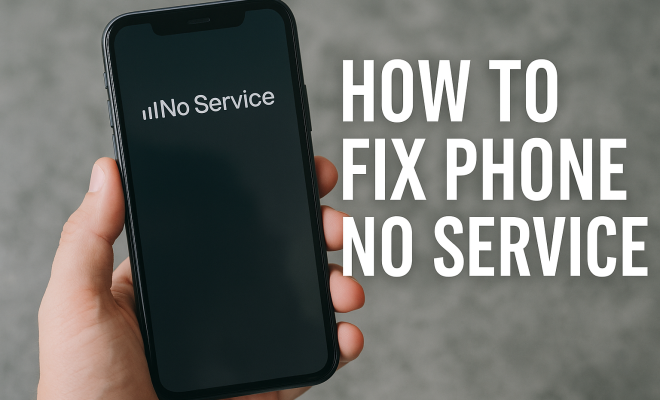
Fix Phone No Service: 9 Easy Troubleshooting Steps
“`html
Encountering a “no service” message on your phone can be incredibly frustrating. Whether you’re trying to make an important call or check a vital message, a lack of service can leave you feeling cut off. Fortunately, there are several steps you can take to troubleshoot this issue and restore connectivity. Below, we explore nine effective methods that can help address and fix phone no service problems.
1. Restart Your Phone
Sometimes, the simplest solution is the most effective. Restarting your phone can refresh its connection to the network. When you turn it off and back on, the device clears temporary glitches and re-establishes the communication link with your carrier’s towers. This is a quick and easy first step in troubleshooting.
To restart your device, press and hold the power button until the restart option appears. Select it, and wait for your phone to fully reboot. Once it powers back on, check if the “no service” message persists. It’s surprising how often this basic fix resolves connectivity issues.
2. Check Airplane Mode
Another common culprit for cell service issues is having Airplane Mode activated. When Airplane Mode is on, all wireless communications are disabled, which means you won’t be able to make calls, send texts, or use data. To fix phone no service problems, ensure that Airplane Mode is turned off.
You can usually find this setting in your quick settings menu or under the ‘Network’ settings in your phone’s settings app. If it’s on, simply toggle it off and wait a few moments to see if your network connection returns. You might even want to toggle it on briefly before turning it off again to reset the radio connection.
3. Toggle Network Settings
If restarting and checking Airplane Mode didn’t work, the next step is to toggle your network settings. This involves switching between 4G, 3G, and 2G networks. Sometimes, your phone may have trouble connecting to a specific network mode.
To do this, go to your phone’s settings and find the Mobile Networks section. From there, you can usually select Network Mode. Switch to a different mode and then switch back after a few moments. This can re-establish a proper connection to your cellular provider and might resolve the “no service” issue.
4. Update Carrier Settings
Carrier settings updates are essential for your device to communicate effectively with your mobile network. These updates can include important enhancements and bug fixes. If your phone is not updated with the latest carrier settings, it may result in connection problems.
To check for carrier settings updates, navigate to Settings > About Phone > Carrier Settings (or similar, depending on your device). If an update is available, you’ll be prompted to install it. Once completed, restart your phone and check if the service has been restored. Staying updated ensures compatibility with your carrier’s network. (See: importance of communication technology.)
5. Remove and Reinsert SIM Card
Your SIM card is crucial for establishing a connection with your service provider. A poorly seated or damaged SIM card can lead to “no service” problems. To fix phone no service, try removing the SIM card and reinserting it. Be sure to power off your phone before doing this.
Once you’ve removed the SIM card, check for any signs of damage, such as scratches or dirt. Clean it gently with a soft cloth if necessary. Then, carefully reinsert it back into the slot, ensuring it’s seated correctly. After that, power on your device and see if the service returns. This simple act can often do wonders.
6. Check for Network Outages
Sometimes, the problem isn’t your device at all but rather an issue on your carrier’s end. Network outages can happen due to maintenance, natural disasters, or technical issues. Checking with your carrier’s website or social media channels can provide insight into any ongoing outages that might affect service in your area.
Additionally, you can use third-party websites or apps that track service outages for various carriers. If you discover that there’s a known outage, your best course of action is to wait it out and check back periodically for updates on when service will be restored.
7. Reset Network Settings
If none of the previous steps worked, consider resetting your network settings. This option resets all network-related settings to their factory defaults, which can help fix lingering issues. However, keep in mind that it will erase saved Wi-Fi passwords and Bluetooth connections.
To reset network settings, go to Settings > System > Reset Options (the path may vary). Look for the option to reset network settings and confirm your choice. After the reset, your device will reboot, and you can then reconnect to your Wi-Fi networks and Bluetooth devices. This often resolves connectivity issues related to the cellular network.
8. Factory Reset as a Last Resort
If you’re still struggling with the “no service” issue after trying all the above methods, a factory reset may be necessary. This process restores your device to its original factory settings, meaning all personal data, apps, and settings will be erased. Therefore, it’s crucial to back up your important data before proceeding.
To perform a factory reset, head to Settings > System > Reset Options > Erase All Data (Factory Reset). Follow the prompts to confirm your choice. Once your phone resets, set it up as new and check if the service has returned. This step should only be taken as a final measure, as it requires significant time and effort to restore your settings and data afterward.
9. Contact Your Carrier
As a final step, if all else fails, reach out to your cellular provider. They have the tools and resources to diagnose network issues from their end. Your provider can check if there are any service disruptions in your area or if your account has issues such as unpaid bills or suspension.
When contacting customer support, be ready to provide key information, such as your account number, device model, and details about the issue you’re facing. With their help, you might identify a specific issue and find the best solution moving forward.
Understanding “No Service” Issues
The “no service” problem can stem from various sources, and understanding the underlying causes can help you resolve it more effectively. Often, the issue can be attributed to hardware faults, software glitches, or even environmental factors. For instance, if you’ve recently dropped your phone or exposed it to moisture, these physical damages could impact its ability to connect to a network. (See: understanding cellular service issues.)
It’s also important to consider the type of network you are trying to connect to. Some areas may have limited coverage for certain types of networks (like 5G), and your device may struggle to maintain a stable connection. Familiarizing yourself with your carrier’s coverage map can provide insight into whether you are in a serviceable area.
Common Causes of “No Service” Problems
- SIM Card Issues: As mentioned earlier, a damaged or improperly placed SIM card can lead to service interruptions.
- Carrier Settings: Outdated settings or configurations can cause compatibility issues, resulting in “no service” alerts.
- Account Problems: Service disruptions due to billing issues or account restrictions can prevent your device from connecting to the network.
- Software Updates: Sometimes, failing to install necessary software updates can lead to connectivity issues as the device struggles to communicate with the network.
Tips to Avoid Future “No Service” Issues
While having tools to troubleshoot “no service” issues is essential, taking some preventative measures can help you avoid these frustrating situations in the future:
- Regularly Update Your Device: Keeping your phone’s software and carrier settings up to date can prevent many connectivity issues.
- Protect Your Device: Use a good case and screen protector to prevent physical damage. Be cautious about exposing your phone to moisture.
- Monitor Account Status: Regularly check your billing and account status with your carrier to ensure there are no unexpected restrictions.
- Stay Informed: Follow your carrier’s updates on network status and outages, especially in your area.
Expert Perspectives on “No Service” Issues
Experts in mobile technology emphasize the importance of understanding both software and hardware components of devices when dealing with “no service” messages. Dr. Jane Foster, a telecommunications engineer, notes that “the complexity of mobile networks means that many factors can influence connectivity. Regular maintenance of your device and awareness of your surroundings can significantly reduce frustration.”
Additionally, customer service representatives at major carriers frequently remind users to perform routine checks on their devices, as many complaints arise from simple oversights like toggling Airplane Mode or not having the latest updates installed.
FAQs About “No Service” on Phones
1. Why does my phone say “no service” even with a full battery?
A full battery doesn’t guarantee a connection to the network. Issues can stem from a faulty SIM card, network outages, or software malfunctions that can interfere with your phone’s ability to connect to the network.
2. Can I fix “no service” issues without a SIM card?
Generally, you need a functioning SIM card to connect to a cellular network. If you’re experiencing “no service” without a SIM card, it likely indicates a problem with your device’s hardware or software settings.
3. How can I check if my account is active?
You can usually check your account status by logging into your carrier’s website or app. Alternatively, you can contact customer service for assistance.
4. What should I do if none of these solutions work?
If all troubleshooting methods fail, you might want to consider visiting a service center where professionals can inspect your device and provide further assistance.
5. Is it possible for environmental factors to cause “no service”?
Yes, environmental factors such as being in a basement, dense urban areas, or remote locations can impair your phone’s ability to pick up a signal. If you frequently encounter issues in certain locations, it might be due to poor reception in that area.
Understanding Different Network Types
Mobile phones connect to networks that can vary significantly in terms of technology, speed, and coverage. Understanding the distinctions between these networks can help you troubleshoot “no service” issues more effectively. Here’s a brief overview:
- 2G Networks: These are the oldest mobile networks primarily used for voice calls and text messaging. While they provide basic connectivity, their speed is relatively slow compared to newer technologies.
- 3G Networks: Introduced faster data transfer rates, allowing for better internet access and more robust data services, but they are gradually being phased out in favor of 4G and 5G.
- 4G Networks: This technology supports high-speed internet access, video streaming, and other data-heavy applications. Most modern smartphones rely on 4G, and connectivity issues on this network can lead to the “no service” message.
- 5G Networks: The latest generation of mobile networks, 5G offers significantly higher speeds and lower latency. However, coverage can be limited, and connection issues can arise when transitioning between 5G and 4G networks.
When to Seek Professional Help
If you’ve gone through all troubleshooting options and still can’t resolve the “no service” issue, it may be time to seek professional help. Here are some indicators that you should consider taking your device to a technician:
- Physical Damage: If your phone has been dropped or exposed to water, internal components may be damaged. In such cases, a technician can assess and repair any hardware issues.
- Persistent Software Issues: If your device continues to exhibit problems after a factory reset, the software might be corrupted. A technician can help restore the device to working order.
- Unusual Behavior: If your phone behaves erratically, such as crashing frequently or having trouble with other features, it might indicate a more serious problem that requires professional diagnostics.
Keeping Your Device in Optimal Condition
Maintaining your phone in good condition can help you avoid connectivity issues in the first place. Here are a few tips to keep your device running smoothly:
- Regularly Clean the SIM Card Slot: Dust and debris can accumulate, causing poor connections. Use a soft, dry brush to clean the SIM card slot carefully.
- Limit Resources Usage: Close apps that you aren’t using, as too many running processes can slow down your phone and impact network performance.
- Use Wi-Fi When Possible: Whenever you have access to Wi-Fi, use it to lessen the load on your cellular network, especially if you are in an area with weak coverage.
- Install Antivirus Software: Sometimes malware can interfere with your phone’s performance. Using reliable antivirus software can help mitigate this risk.
Technological Advances in Mobile Connectivity
As mobile technology continues to evolve, it’s essential to stay informed about new advancements that can enhance your connectivity experience. For instance, the growth of 5G technology is set to revolutionize how we use mobile devices. With its promise of ultra-fast data speeds and improved latency, 5G will enhance everything from streaming to gaming to virtual reality experiences.
However, this shift also means that older devices may not be able to access the latest networks, potentially leading to “no service” issues if they can’t connect to the current infrastructure. If you find yourself frequently encountering connectivity issues, it might be worth considering an upgrade to a newer model that supports the latest technologies and network standards.
Experiencing “no service” on your phone can be a hassle, but with these nine methods and additional insights, you can effectively troubleshoot and fix the issue. Whether it’s as simple as restarting your device or as complex as contacting your carrier, there’s a good chance you’ll be back to making calls and texting in no time.
“`
Trending Now
Frequently Asked Questions
Why does my phone say no service?
A 'no service' message on your phone can occur due to various reasons such as network issues, Airplane Mode being activated, or software glitches. Restarting your phone or checking your network settings can often resolve the problem.
How can I fix my phone with no service?
To fix a phone with no service, try restarting the device, checking if Airplane Mode is on, toggling network settings between 4G, 3G, and 2G, or resetting network settings. These steps can help restore connectivity.
What does it mean when your phone is in airplane mode?
When your phone is in Airplane Mode, all wireless communications are disabled, preventing you from making calls, sending texts, or using mobile data. Turning off Airplane Mode can restore your phone's connectivity.
How do I reset my network settings?
To reset your network settings, go to your phone's settings menu, find the 'Network' or 'General Management' section, and look for 'Reset Network Settings.' This will clear saved networks and might help resolve service issues.
What should I do if my phone still has no service after trying these steps?
If your phone still shows no service after troubleshooting, consider checking with your carrier for outages, ensuring your SIM card is properly inserted, or visiting a service center for further assistance.
Agree or disagree? Drop a comment and tell us what you think.