How to use burst mode on iPhone
“`html
Introduction: If you’ve ever missed a perfect moment because you weren’t quick enough to snap the photo, you’re not alone. Thankfully, iPhones come equipped with a feature that can help you capture those fleeting instances: Burst Mode. In this article, we’ll explore how to use burst mode on iPhone, uncover its benefits, and provide tips on maximizing this powerful tool for your photography.
1. What is Burst Mode?
Burst Mode is a photography feature that allows you to take multiple photos in rapid succession with a single tap of the shutter button. On iPhones, this means you can capture a series of images, usually at a speed of around 10 frames per second, ensuring that you don’t miss action shots or fleeting expressions. This feature is especially useful for capturing fast-moving subjects, such as kids playing sports, pets in action, or those spontaneous moments that often go unnoticed.
The brilliance of Burst Mode lies in its ability to provide you with a selection of photos to choose from after the moment has passed. You might capture a series of slightly different expressions or movements, which can be crucial for getting that perfect shot. It’s a favorite among photographers who want to ensure they have the best image possible without relying solely on their timing.
2. How to Activate Burst Mode on Your iPhone
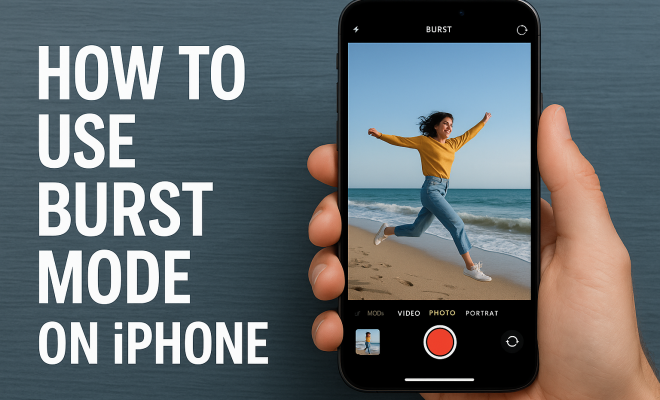
Activating Burst Mode on your iPhone is a straightforward process. To get started, simply open the Camera app. You can do this from your home screen or by swiping left from the lock screen. Once the camera is open, follow these steps:
- Hold down the shutter button: When in Photo mode, press and hold the shutter button. This will trigger Burst Mode, and you’ll see the camera icon animate as it captures multiple images.
- Use Live Photos (optional): If you have Live Photos enabled, you can still access Burst Mode. Just hold down the shutter button like you normally would; the camera will record a brief video clip along with the series of photos.
Once you release the shutter button, the camera will stop taking photos, and you’ll have a burst of images stored in your camera roll. It’s that easy!
3. Finding Your Burst Photos
After your burst of photos is taken, you’ll want to find them easily. Burst photos are stored in the Photos app as a single album. To locate them, follow these steps:
- Open the Photos app on your iPhone.
- Go to the Albums tab at the bottom of the screen.
- Scroll down to find the Burst album.
Your burst photos will be grouped together in this album, allowing you to scroll through them quickly and effortlessly. This organization makes it easier to manage your photos, especially after a day of shooting.
4. Choosing the Best Photos from Your Burst
One of the most significant advantages of Burst Mode is the ability to choose the best shots after capturing a series of images. Here’s how to select your favorite photos from a burst:
- Open the Burst album in the Photos app.
- Select the burst you want to review; tap on it to see all the individual photos.
- Tap Choose Favorites at the bottom of the screen.
You can swipe through the burst images and tap on the thumbnail of any images you want to keep as favorites. Once you’ve made your selections, tap Done. This will retain your chosen images while allowing you to delete the rest, saving space on your device. (See: Camera phone technology overview.)
5. Tips for Using Burst Mode Effectively
While Burst Mode is a fantastic feature, there are some tips to ensure you make the most of it:
- Stabilize Your iPhone: When shooting in Burst Mode, try to keep your iPhone steady. Use both hands for better stability or, if possible, rest your phone against a solid surface.
- Focus on the Subject: Make sure to tap on your subject to focus before you start the burst. This will help ensure that your images are sharp and clear.
- Pay Attention to Light: Burst Mode can sometimes lead to motion blur if there’s not enough light. Ensure you’re in a well-lit environment or increase your ISO settings if necessary.
- Be Mindful of Storage Space: Burst photos can take up significant storage space. Periodically review your burst albums and delete unwanted photos to free up space.
By following these tips, you can enhance your photography skills and make the most of your iPhone’s Burst Mode.
6. When to Use Burst Mode
Burst Mode is particularly beneficial in various scenarios. Some situations where using Burst Mode is ideal include:
- Sports Events: Capture the action during a game or match, ensuring you don’t miss critical moments like a goal or a slam dunk.
- Wildlife Photography: Animals are unpredictable; Burst Mode allows you to capture the perfect moment without having to anticipate their movements.
- Children and Pets: Kids and pets can be notoriously difficult to photograph because they’re always on the move. Use Burst Mode to capture that spontaneous smile or playful leap.
- Events and Celebrations: Whether it’s a wedding, birthday, or family gathering, Burst Mode can help ensure you don’t miss the perfect candid shots.
In each of these situations, having a series of images can be a lifesaver, allowing you to select the best one later on.
7. Using Burst Mode for Action Shots
Action shots can be tricky, but Burst Mode simplifies the process. Here’s how to effectively capture fast-moving subjects:
- Positioning: Ensure you’re positioned correctly to capture the subject’s movement. Anticipate where they’ll be and get ready to shoot.
- Use Continuous Focus: If your iPhone supports it, enable Continuous Focus to keep moving subjects sharp. This is especially helpful if you’re photographing sports or wildlife.
- Experiment with Angles: Don’t be afraid to try different angles. Sometimes the best action shots come from an unexpected perspective.
By employing Burst Mode in action photography, you increase your chances of capturing that perfect moment, allowing for creativity in how you frame your shots.
8. Editing Burst Photos
After capturing your burst images, you might want to edit them to enhance their quality further. The Photos app provides various editing tools:
- Crop and Rotate: Adjust the framing of your photo to eliminate distractions and improve composition.
- Filters: Experiment with different filters to change the mood of your photos. You might find that a black-and-white filter or a warm tone adds the right touch.
- Adjust Brightness and Contrast: Use the editing tools to improve lighting and contrast, making your photos pop.
By editing your burst photos, you can elevate them from simple snapshots to stunning pieces of art.
9. Common Mistakes to Avoid with Burst Mode
With great power comes great responsibility — and mistakes. Here are some common pitfalls to avoid when using Burst Mode: (See: Tips for using the iPhone camera.)
- Not Reviewing Photos: After using Burst Mode, always review your photos. It’s easy to forget to delete bad shots, which can clutter your albums.
- Overusing the Feature: While Burst Mode is fantastic, using it excessively can lead to storage issues. Be mindful of how often you use it and delete unnecessary images.
- Ignoring Composition: Just because you’re taking multiple shots doesn’t mean you should ignore composition. Always think about the framing and balance of your images.
Avoiding these mistakes can help you maintain an organized photo library and improve your photography skills.
10. Advanced Techniques for Using Burst Mode
If you’re looking to take your photography to the next level, consider these advanced techniques when using Burst Mode:
- Timing Your Shots: If you’re capturing a sequence, like a skateboard trick or a pet jumping, try to anticipate the peak moment. Start your burst just before the action peaks for the best results.
- Using External Lenses: For those who want to experiment with different perspectives, consider using attachable lenses. Wide-angle or telephoto lenses can give your burst shots a unique twist.
- Using Gridlines: Turn on gridlines in your camera settings to help with composition. This will assist you in aligning your shots better, especially when using Burst Mode.
- Post-processing Software: After selecting your best burst photos, consider using software like Adobe Lightroom or Snapseed for more advanced editing options. These tools provide greater control over exposure, color correction, and retouching.
11. Using Burst Mode with Different iPhone Models
While Burst Mode is a standard feature across many iPhone models, the execution and quality can vary. Here’s how Burst Mode performs across different iPhone generations:
- iPhone 11 and 12: These models introduced Night Mode, which enhances low-light photography significantly. Burst Mode works seamlessly in dim conditions, allowing for clearer action shots.
- iPhone 13 and 14: With improved sensors and photographic styles, these models can capture more detail and color during bursts. The computational photography features help reduce noise and improve sharpness in photos taken in Burst Mode.
- Older Models (iPhone 8 and below): While still effective, older models may have slower processing times and lower photo quality in low light compared to newer generations. However, they still do a commendable job for everyday bursts.
12. Frequently Asked Questions (FAQ)
Here are some common questions people have about using Burst Mode on iPhones:
Q1: Can I use Burst Mode while recording video?
A1: No, Burst Mode is specifically for still photos. However, you can use it in conjunction with Live Photos for a short video effect along with your bursts.
Q2: Does Burst Mode affect battery life?
A2: Using Burst Mode can consume more battery since the camera is working harder to process multiple images rapidly. It’s advisable to monitor your battery life during extensive shooting sessions.
Q3: Is there a limit to how many burst photos I can take at once?
A3: Technically, there isn’t a set limit; however, the total number of photos you can take will be restricted by your device’s available storage space.
Q4: Can I use Burst Mode with other camera settings like filters?
A4: Yes, you can apply certain filters when using Burst Mode, but keep in mind that the effects may not be visible until you review and edit the photos afterward. (See: Research on mobile photography techniques.)
Q5: What happens to the burst photos if I delete the original burst?
A5: Deleting the burst will remove all photos within that burst. Make sure to save any favorites before deleting the entire burst.
13. Creative Ways to Use Burst Mode
While Burst Mode is great for action shots, you can also use it creatively to produce some stunning effects. Here are a few ideas:
- Creating a Photo Sequence: Use Burst Mode to document a sequence of actions, like a child jumping off a diving board. This can be compiled together to create a fun slideshow or a dynamic photo collage.
- Slow Motion Effects: Capture a burst of action, then select the best shots to import into video editing software. You can create a slow-motion video by slowing down the sequence using the best frames captured by Burst Mode.
- Time-Lapse Creation: Combine multiple bursts taken at different intervals to create a time-lapse effect. This brings a unique storytelling angle to your photos, especially for events or changes in scenery.
14. Burst Mode vs. Traditional Photography
While traditional photography relies on timing and precision, Burst Mode offers a different approach that caters to spontaneity. Here’s a breakdown of the differences:
| Aspect | Burst Mode | Traditional Photography |
|---|---|---|
| Speed | Captures multiple images in seconds | Single shot per moment |
| Selection | Allows for easy selection of the best shot | Requires perfect timing for one good shot |
| Motion Capture | Excellent for fast-moving subjects | Better for still subjects or posed shots |
| Storage | Requires more storage space for multiple images | Less storage used per photo |
15. Embracing Burst Mode in Everyday Life
Incorporating Burst Mode into your everyday photography can elevate your skills and capture memorable moments. Here are some ideas:
- Family Gatherings: Use Burst Mode to capture candid moments during holidays or get-togethers, ensuring you don’t miss the laughter and joy.
- Travel Adventures: When exploring new locations, take advantage of Burst Mode to capture various angles of iconic landmarks, ensuring you get the shot that truly represents the moment.
- Food Photography: If you’re a foodie, use Burst Mode to capture your culinary creations or the presentation of dishes at restaurants. You can select the best angle or lighting afterward.
16. Conclusion: Embrace Burst Mode for Better Photos
In the digital age, every moment is fleeting, and Burst Mode on your iPhone is an invaluable tool for capturing those moments with ease and precision. By understanding how to use burst mode on iPhone, you can transform your photography, ensuring you don’t miss out on the perfect shot.
Remember to practice, experiment, and most importantly, have fun! With Burst Mode, you can let your creativity flow and capture the world around you in ways you never thought possible. So the next time you’re out and about with your iPhone, don’t hesitate to put Burst Mode to the test—you might just capture something extraordinary.
“`
Trending Now
Frequently Asked Questions
What is Burst Mode on iPhone?
Burst Mode on iPhone is a photography feature that allows users to take multiple photos in rapid succession by holding down the shutter button. This mode is particularly useful for capturing fast-moving subjects or fleeting moments, as it can take around 10 frames per second, giving you a selection of images to choose from.
How do I activate Burst Mode on my iPhone?
To activate Burst Mode on your iPhone, open the Camera app and switch to Photo mode. Then, press and hold the shutter button to capture a series of images in quick succession. If Live Photos is enabled, Burst Mode will still function, allowing you to capture a brief video clip along with the photos.
When should I use Burst Mode on my iPhone?
You should use Burst Mode on your iPhone when capturing fast-moving subjects, such as children playing sports, pets in action, or spontaneous moments. This feature helps ensure you don’t miss the perfect shot by providing multiple images to choose from after the event.
Can I use Burst Mode with Live Photos on iPhone?
Yes, you can use Burst Mode with Live Photos on your iPhone. While holding down the shutter button in Photo mode, the camera will capture both a series of images and a brief video clip, allowing you to enjoy the benefits of both features.
What are the benefits of using Burst Mode on iPhone?
The benefits of using Burst Mode on iPhone include the ability to capture multiple images quickly, ensuring you don't miss important moments. It allows photographers to select the best shot from a series of photos, making it easier to capture the perfect expression or action shot.
What’s your take on this? Share your thoughts in the comments below — we read every one.