How to show FPS counter in games
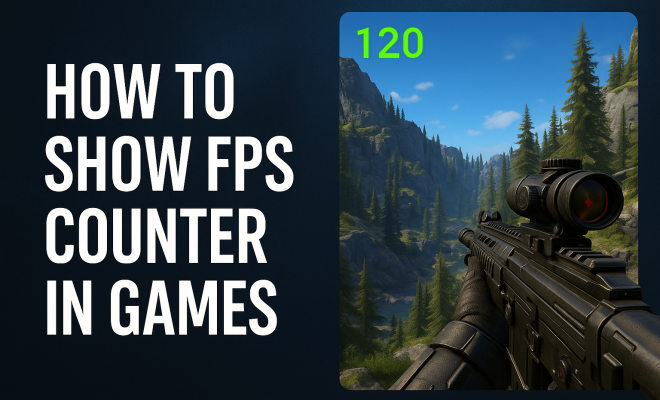
“`html
In the realm of gaming, performance is crucial. As gamers, we strive for fluidity, speed, and an overall immersive experience. One way to gauge and enhance your gameplay is by monitoring your frames per second (FPS). Knowing how to show FPS counter in games is essential for diagnosing performance issues and optimizing settings for the best experience possible. This article will guide you through the ins and outs of displaying an FPS counter, covering various platforms, tools, and techniques.
1. Understanding FPS and Its Importance
FPS, or frames per second, is a measurement of how many frames your graphics card produces every second. In gaming, a higher FPS typically translates to smoother gameplay. For instance, 60 FPS is often considered the standard for console and PC gaming, while competitive gamers may aim for 144 FPS or even 240 FPS to gain an edge in fast-paced titles.
But why is FPS important? A low FPS can result in stuttering, lag, or even input delay, making it difficult to control your character effectively. This is particularly frustrating in competitive settings where every millisecond counts. By learning how to show an FPS counter, you can get real-time feedback on your system’s performance and make necessary adjustments to your graphics settings.
2. How to Show FPS Counter in Steam Games
Steam, the popular gaming platform, offers a straightforward way to display an FPS counter for games. Here’s how to do it:
- Open the Steam client.
- Click on “Steam” in the top left corner and select “Settings.”
- Navigate to the “In-Game” tab.
- Find the section labeled “In-game FPS counter” and select your preferred position (top left, top right, etc.).
- Click “OK” to save your settings.
Once you’ve set this up, the FPS counter will appear in your chosen location while playing any game launched through Steam. This can help you monitor performance directly and make adjustments to in-game settings accordingly.
3. Using GeForce Experience for NVIDIA Users
If you own an NVIDIA graphics card, GeForce Experience is a powerful tool that not only optimizes game settings but also allows you to show FPS counters. Here’s how to use it:
- Open GeForce Experience and log in to your account.
- Click on the gear icon to access settings.
- In the “General” section, find “In-Game Overlay” and ensure it’s enabled.
- Click on the settings icon within the overlay (while in-game) and select “HUD Layout.”
- Under “FPS Counter,” choose your desired location for the display.
This method is particularly useful for optimizing performance while gaming, as you can also capture gameplay and adjust settings on the fly.
4. Using AMD’s Radeon Software for AMD Users
AMD users also have their own set of tools to display an FPS counter thanks to the Radeon Software. To enable it, follow these steps:
- Right-click on your desktop and select “AMD Radeon Software.”
- Go to the “Gaming” tab.
- Select “Global Graphics” and scroll to the bottom to find the “Framerate Target Control” option.
- Enable the “Radeon Overlay” and access the settings to turn on the FPS counter.
This overlay not only shows your FPS but also provides detailed information about GPU usage, temperatures, and more. It’s an excellent way to monitor performance in real-time. (See: importance of video game performance.)
5. Using Third-Party Software to Show FPS
If you prefer not to rely on built-in tools from Steam, NVIDIA, or AMD, there are several third-party applications available. Programs like FRAPS, MSI Afterburner, and RivaTuner Statistics Server can provide robust FPS monitoring capabilities. Here’s a brief overview:
- FRAPS: This classic software is widely used for FPS monitoring and screen capturing. It’s easy to set up and displays an FPS counter on-screen while you play.
- MSI Afterburner: Primarily a GPU overclocking tool, Afterburner allows you to display FPS alongside other essential metrics like temperature and usage. It features customizable on-screen displays.
- RivaTuner Statistics Server: Often used in conjunction with Afterburner, RivaTuner offers advanced options for FPS display and can be a bit technical, but it provides more control over how the information is presented.
These tools can enhance your gaming experience by providing insights beyond just FPS, such as GPU usage and temperature, helping you fine-tune your system for the best performance.
6. Using Built-in Game Features
Many modern games come with built-in features that allow players to show FPS counters. Titles like Call of Duty, Fortnite, and Battlefield all have options within their settings menus. To enable FPS counters in these games:
- Navigate to the game’s options or settings menu.
- Look for the “Display” or “Graphics” section.
- Find an option like “Show FPS” or “Performance Metrics” and enable it.
This method is incredibly convenient as it doesn’t require any external tools or software. Plus, it allows for real-time monitoring without leaving the game.
7. Understanding FPS Variability and Optimization
Simply knowing how to show FPS counter isn’t enough—understanding FPS variability is crucial. FPS can fluctuate based on multiple factors including system load, graphics settings, and background processes. High FPS is desirable, but it’s equally important to maintain consistency. A stable FPS means smoother gameplay and fewer disruptions.
To optimize your FPS, consider these tips:
- Lower graphical settings: Reducing settings like shadows and texture quality can significantly increase FPS.
- Close background applications: Shut down unnecessary tasks that could be using CPU and memory resources.
- Update drivers: Ensure your graphics drivers are up to date to take advantage of performance improvements.
Monitoring your FPS can help you identify changes in performance, allowing you to make adjustments before they impact your gaming experience.
8. Why FPS Matters for Different Types of Gamers
The importance of showing an FPS counter varies depending on the type of gamer you are. Casual gamers may find a constant 30 to 60 FPS sufficient, while competitive gamers in fast-paced shooters might require 144 FPS or higher to maintain an edge. Understanding your gaming style can help you determine the ideal FPS for your needs.
For example, competitive players might also invest in high-refresh-rate monitors that can display 120Hz or even 240Hz, enhancing their gameplay experience. Being aware of how to show FPS counter can help you evaluate whether your hardware is capable of meeting your gaming demands. Additionally, it allows you to make informed decisions on upgrades when necessary.
9. Advanced FPS Monitoring Techniques
For those looking to take their FPS monitoring to the next level, there are various advanced techniques and tools available. These methods can help you diagnose performance bottlenecks and overall system health.
- Overlay Software: Tools like Overwolf and Gamecaster provide overlays that can show not just FPS but also FPS trends, ping, and other performance metrics. These overlays can be customized extensively to fit your preferences.
- Benchmarking: Consider using dedicated benchmarking tools such as 3DMark or Unigine Heaven. These programs stress-test your system and provide detailed reports on your hardware performance, including average and minimum FPS.
- Performance Logs: Some software allows you to log your FPS over time. This is helpful for understanding how performance changes throughout gameplay sessions, especially during intensive sections of a game.
10. Common FPS Counter Troubleshooting
Sometimes, you might encounter issues when trying to show FPS counter in games. Here are some common problems and their solutions: (See: impact of FPS on gaming experience.)
- Counter not displaying: Ensure that the feature is enabled in the settings of the software or game you are using. Restarting the game or software can also resolve display issues.
- Inaccurate FPS readings: If you suspect you’re seeing inaccurate FPS numbers, check to see if there are any conflicting applications running that may affect performance metrics.
- Performance drops when counter is enabled: Some overlays can be resource-intensive. If you notice a decrease in performance, consider minimizing the amount of data being displayed or switching to a less demanding tool.
11. Technological Trends Impacting FPS
As technology evolves, so do the ways in which FPS can be maintained and improved. Here are some trends that are influencing FPS in gaming:
- Adaptive Sync Technologies: Technologies like NVIDIA’s G-SYNC and AMD’s FreeSync help synchronize the refresh rate of your monitor with the FPS output of your GPU, reducing screen tearing and providing a smoother experience.
- Ray Tracing: While demanding on hardware, ray tracing enhances graphical fidelity significantly. Understanding how to show FPS counter while using ray tracing can help you manage performance versus visual quality.
- Cloud Gaming: With the rise of services like NVIDIA GeForce NOW and Google Stadia, streaming games can impact FPS. Latency, bandwidth, and server load can all influence performance, making FPS monitoring even more critical.
12. Frequently Asked Questions (FAQ)
What is a good FPS for gaming?
A good FPS for gaming typically starts at 60 FPS for a smooth experience. Competitive gamers often prefer 144 FPS or higher for an edge in responsiveness.
Can I show an FPS counter on a laptop?
Yes, you can show an FPS counter on a laptop using built-in software from platforms like Steam or NVIDIA, as well as third-party applications. Just ensure that your laptop meets the game’s requirements.
Does showing an FPS counter affect performance?
Generally, showing an FPS counter has a minimal impact on performance, but some overlay tools can be resource-intensive. If you notice performance drops, consider using a lightweight program.
How do I know if my FPS is stable?
Monitoring your FPS over time can help you see if it’s stable. Look for fluctuations in the FPS count during gameplay; a stable FPS is typically less prone to significant ups and downs.
What hardware upgrades can improve FPS?
Upgrading your GPU, increasing system RAM, or switching to a faster SSD can significantly improve FPS. Additionally, ensuring proper cooling and system maintenance can help maintain performance.
How can I reduce FPS drops?
To reduce FPS drops, consider lowering graphics settings, closing background applications, and ensuring your drivers are up to date. Regular system maintenance can also help keep your performance consistent.
13. Comparative FPS Analysis Across Platforms
When considering the FPS across different gaming platforms, it’s important to understand that performance can vary significantly based on hardware and software optimizations. Here’s how FPS generally stacks up across major platforms:
- PC Gaming: Generally offers the highest FPS potential. With powerful hardware and customizable settings, gamers can achieve anywhere from 60 FPS on lower-end systems to over 300 FPS on high-end setups.
- Consoles: Current-generation consoles like the PS5 and Xbox Series X aim for 60 FPS in most games, with some titles offering 120 FPS under certain conditions. However, options for adjusting settings are limited compared to PC.
- Mobile Gaming: While high-end smartphones can achieve impressive FPS (up to 120 FPS in some cases), most mobile games are optimized for lower settings due to battery constraints and thermal limitations.
Understanding these differences is crucial for gamers to set realistic FPS expectations based on their platform of choice. (See: gaming technology and performance.)
14. FPS Optimization Tips for Different Hardware
Achieving optimal FPS isn’t about just knowing how to show FPS counter; it also involves tailoring your settings and upgrades based on your specific hardware. Here are some targeted tips:
- For High-End PCs: If you have a powerful GPU, consider using higher graphical settings to enhance visual quality while monitoring FPS to ensure smooth performance. You may also benefit from overclocking your GPU for increased FPS.
- For Mid-Range PCs: Balancing settings is key. Try running games at medium settings while keeping an eye on FPS to find the sweet spot between performance and visual fidelity. Regularly clean your system to prevent overheating, which can throttle performance.
- For Low-End PCs: Opt for low settings and resolutions to achieve the best FPS. Consider upgrading RAM and swapping to an SSD for quicker load times, which can significantly improve perceived performance.
Each setup has its nuances, and tailoring your approach can make a significant difference in your gaming experience.
15. Future of FPS Monitoring and Gaming
The future of gaming continues to evolve with advancements in technology, and so does FPS monitoring. Emerging technologies like artificial intelligence and machine learning may play a role in optimizing gameplay experience by automatically adjusting graphical settings based on real-time performance metrics.
Additionally, as virtual reality (VR) and augmented reality (AR) become more mainstream, the impact of FPS on immersion will become even more crucial. Maintaining high FPS in VR is vital for preventing motion sickness and enhancing the overall experience. Hence, tools for FPS monitoring will likely become more advanced, providing detailed analytics to help gamers make informed choices.
16. Conclusion: The Value of Monitoring FPS
Learning how to show FPS counter in games is more than just a technical skill; it’s a valuable tool for improving your gaming experience. By keeping an eye on performance, you can make informed decisions about settings, hardware upgrades, and troubleshooting potential issues.
With the right software, whether built-in features or third-party applications, you can monitor your FPS effortlessly. This not only enhances your gameplay but also gives you a competitive edge in online multiplayer scenarios. So, take charge of your gaming experience and start tracking your FPS today—your future self will thank you.
“`
Trending Now
Frequently Asked Questions
How do I display an FPS counter in games?
To display an FPS counter in games, you can use built-in features in gaming platforms like Steam. Simply go to Steam settings, select 'In-Game', and choose your preferred position for the FPS counter. This will allow you to monitor your game's performance in real-time.
Why is it important to monitor FPS in games?
Monitoring FPS is crucial as it helps diagnose performance issues and optimize settings. A higher FPS typically leads to smoother gameplay, while a low FPS can cause stuttering and lag, affecting your overall gaming experience.
What is a good FPS for gaming?
A good FPS for gaming is generally considered to be 60 FPS, which provides a smooth experience. Competitive gamers often aim for higher FPS, such as 144 FPS or 240 FPS, to gain an advantage in fast-paced games.
Can I show FPS in games on platforms other than Steam?
Yes, you can show FPS in games on other platforms using various tools and software. For example, GeForce Experience allows NVIDIA users to display an FPS counter in games. Check the specific settings for your gaming platform or use third-party applications.
What tools can I use to track FPS while gaming?
Besides built-in options in gaming platforms like Steam, you can use tools like GeForce Experience, MSI Afterburner, or Fraps to track FPS. These tools provide additional features for monitoring performance and optimizing your gaming experience.
What did we miss? Let us know in the comments and join the conversation.