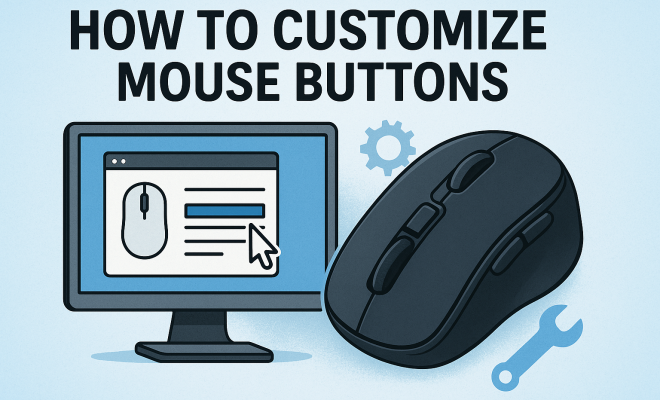
How to customize mouse buttons
“`html
In the digital age, productivity hinges on efficiency, and one of the simplest yet most effective ways to boost your workflow is by learning how to customize mouse buttons. Whether you’re a gamer, a designer, or someone who spends long hours in front of a computer, optimizing your mouse setup can drastically improve your interaction with your device. This article explores ten essential tips to help you make the most of your mouse buttons, diving into the tools and techniques that can elevate your computing experience.
1. Understanding Your Mouse: Types and Features
Before diving into customization, it’s crucial to understand the type of mouse you’re using. There are several varieties—wired, wireless, gaming, and ergonomic—each with unique features. For instance, gaming mice often come equipped with multiple programmable buttons that can be customized for specific tasks or games. On the other hand, ergonomic mice prioritize comfort, which can also be tailored to fit your hand size and grip preference.
Many modern mice include software designed to facilitate customization. These applications allow you to change button functions, adjust sensitivity, and even configure lighting effects. Knowing your mouse’s capabilities is the first step toward an effective customization strategy. Make sure to check the manufacturer’s website for specific features and compatible software.
2. Using Manufacturer Software: A Step-by-Step Guide
Most mouse manufacturers provide dedicated software to help users customize their devices. Logitech, Razer, and Corsair are a few brands that offer robust applications. To get started, you’ll need to download the appropriate software for your mouse model. Once installed, launch the application and follow these basic steps:
- Select your mouse model from the list.
- Explore the interface to find options for customizing buttons, DPI settings, and RGB lighting.
- Choose a button you want to customize and select a new function from the available options.
- Save your settings and test the new configuration.
Tweaking these settings can enhance your performance, especially in applications like video editing or gaming, where specific commands can save valuable time.
3. Assigning Macros: Boosting Efficiency
Macros are sequences of commands that can be triggered with a single button press. This is particularly useful for repetitive tasks—think about using a macro to automate complex functions in software such as Photoshop or Excel. Many mouse customization applications, like Logitech’s G HUB or Razer Synapse, allow you to create macros easily.
To assign a macro, navigate to the macro section in your mouse’s software, choose a button to assign it to, and record the sequence of actions. This function can significantly reduce time spent on mundane tasks, allowing you to focus on what truly matters.
4. Adjusting DPI Settings: Precision Control
DPI, or dots per inch, measures the mouse’s sensitivity. Higher DPI settings result in faster cursor movements, while lower settings allow for more precise control. Customizing these settings can be particularly beneficial for tasks requiring accuracy, like graphic design or gaming.
Most software will allow you to set multiple DPI levels and switch between them with a dedicated button. For instance, you might set a low DPI for detailed work and a high DPI for general navigation. Experimenting with these settings can enhance your overall user experience and make your mouse smarter.
5. Customizing for Gaming: Enhancing Your Competitive Edge
For gamers, customizing mouse buttons can mean the difference between victory and defeat. Many gaming mice come with additional buttons that can be programmed for specific in-game actions—like crouching, aiming, or casting spells. This can help you execute commands faster than using keyboard shortcuts, offering a competitive advantage.
Many popular games support direct integration with mouse software, allowing for easy setup of in-game macros. You can also create profiles for different games, ensuring that your mouse configuration is optimized for each gaming experience. Remember, the goal is to make your movements intuitive and reduce the reflex time between your decisions and in-game actions. (See: Overview of computer mice types.)
6. Creating Profiles: Tailoring Settings for Different Tasks
Many customization tools allow you to create different profiles for your mouse settings. This feature is especially useful if you use your computer for various tasks—like gaming, design, and general office work. You can switch between profiles based on the task at hand, ensuring that your mouse buttons perform the functions that best suit your needs at any given time.
To create a profile, navigate to the profiles section of your mouse software, and set up the necessary configurations for each task. For example, you might want a profile with shortcuts for graphic design software that utilizes the side buttons for frequently used tools. Switching profiles can usually be done with a button or a keyboard shortcut, making it seamless and efficient.
7. Utilizing Third-Party Software: Expanding Functionality
If your mouse doesn’t come with robust software, or if you’re looking for enhanced capabilities, consider third-party applications like X-Mouse Button Control or AutoHotkey. These tools provide users with more extensive customization options, allowing you to assign complex commands and create advanced macros.
Using these applications typically involves downloading and installing the software, then configuring settings to match your preferences. For instance, X-Mouse lets you customize buttons for different applications, meaning you can have unique settings for your web browser versus your video editing software. AutoHotkey goes a step further, enabling you to write scripts for your mouse buttons, making it incredibly versatile for power users.
8. Testing and Fine-Tuning: Finding What Works Best
Once you’ve set up your mouse buttons, take the time to test and fine-tune your configurations. This iterative process is essential to ensure that your customizations actually enhance your workflow rather than complicate it. Spend some time using your mouse across different applications to see if the configurations feel natural and intuitive.
Don’t hesitate to make adjustments based on your experiences. If a button feels awkward or you find yourself missing it during crucial tasks, reprogram it. Remember, the aim is to enhance your efficiency, so feel free to tweak settings until they fit your style perfectly.
9. Staying Updated: Keeping Software and Drivers Current
To ensure optimal performance, it’s essential to keep your mouse software and drivers up to date. Manufacturers often release updates that fix bugs, improve performance, or add new features. Regularly checking for updates can prevent compatibility issues and ensure that you have the latest customization options available.
Setting up automatic updates or regularly visiting the manufacturer’s website for news can save you from missing important enhancements. It’s a small but necessary step to maintain the efficiency you’ve worked hard to create.
10. Exploring Community Insights: Learning from Others
Finally, don’t underestimate the value of community resources when it comes to mouse customization. Many users share their setups and tips on forums, Reddit, and YouTube. Engaging with these communities can provide you with new ideas, shortcuts, and insights that might not be covered in official documentation.
Participating in discussions or simply browsing through shared setups can inspire you to try new configurations that could work better for your unique needs. Remember, customization is a personal journey, and learning from the experiences of others can be incredibly beneficial.
11. Benefits of Customizing Mouse Buttons: Why It Matters
Customizing mouse buttons isn’t just a luxury; it’s a necessity for many users. The benefits go beyond mere convenience. Enhanced mouse customization leads to improved productivity, comfort, and overall user satisfaction. According to a survey conducted by TechRadar, 76% of users reported that customizing their mouse settings has significantly improved their work efficiency.
One prominent example is in the gaming community, where professional players often use customized configurations to gain an edge over their competitors. These custom setups can streamline gameplay, allowing for faster response times and more strategic control. In the workplace, graphic designers and developers report that having specific macros for tasks like resizing images or compiling code saves them an average of 20% of their time compared to using conventional methods.
12. Common Mistakes to Avoid: Ensuring Effective Customization
While customizing your mouse can enhance productivity, there are common pitfalls that you should avoid. One mistake is overcomplicating your setup. While it might be tempting to assign multiple functions to a single button, this can lead to confusion and frustration. Keep your configurations intuitive, sticking to a few well-chosen commands that you can easily remember. (See: Ergonomics and computer use.)
Another misstep is neglecting to test your new settings regularly. After making changes, spend sufficient time using your mouse to ensure that the configurations feel right. If a button is frequently misclicked or not utilized, reconsider its assigned function. Flexibility is key; don’t hesitate to revert changes or try new settings based on your evolving needs.
13. Comparing Popular Mice for Customization: Which One Is Right for You?
With so many mouse options on the market, it can be challenging to choose the right one for customization. Let’s compare a few popular models:
- Logitech G502 HERO: Known for its customizable RGB lighting and up to 11 programmable buttons, this mouse offers excellent ergonomics and precision. Ideal for gamers, it also features adjustable weights for perfect balance.
- Razer DeathAdder V2: Renowned for its comfort and performance, the DeathAdder V2 has a high DPI range and customizable buttons. Its software is user-friendly and supports extensive macro assignments.
- Corsair Scimitar PRO: Specially designed for MMO players, this mouse features 12 side buttons that can be programmed for different game commands. Its unique Key Slider allows for adjustable button placement, making it highly customizable.
When selecting a mouse, consider your primary use case—gaming, design, or general use—and choose one that aligns with your specific customization needs.
14. FAQ: Frequently Asked Questions About Customizing Mouse Buttons
1. Can I customize mouse buttons on any mouse?
Not all mice come with customizable features. Check your mouse model for supported software. Gaming mice and higher-end models typically allow for extensive customization.
2. How do I find the right DPI setting for me?
The ideal DPI setting varies by user. Start with a moderate DPI and adjust based on comfort and precision needs. Many users find a DPI range between 800 and 1600 suitable for most tasks.
3. What software is best for customizing mouse buttons?
It depends on your mouse brand. Logitech G HUB, Razer Synapse, and Corsair iCUE are popular choices among their respective hardware users. X-Mouse Button Control and AutoHotkey are excellent for more advanced needs.
4. Can I use macros across different applications?
Yes, with the right software, you can assign macros that work in various applications. Tools like AutoHotkey allow for flexible scripting that can adapt to different software environments.
5. Is it necessary to keep mouse software updated?
Yes, keeping your mouse software updated ensures you have the latest features, performance improvements, and security patches. Regular updates can also prevent compatibility issues with your operating system.
15. Advanced Customization Techniques: Going Beyond Basics
Once you’re comfortable with basic customization, you may want to explore advanced techniques to further enhance your experience. One approach is to delve deeper into scripting with tools like AutoHotkey, which allows you to create complex workflows. For instance, you can write scripts that not only execute a series of actions at once but also incorporate conditional logic to make your mouse functions adaptive to different scenarios.
Another technique is to implement multi-layered profiles. For example, you can set up a profile for gaming that switches automatically when you launch a specific game. This helps in seamlessly integrating different configurations without needing to manually switch settings each time. (See: Research on mouse ergonomics.)
Additionally, consider using visual feedback options. Many customization tools allow you to enable on-screen notifications for macro activations or profile changes. This can help you stay aware of your configurations, especially when you’re trying something new.
16. Professional Insights: What the Experts Say
Experts in the field of ergonomic design and productivity emphasize the importance of customizing mouse buttons. Dr. Karen Schenk, an ergonomics consultant, notes that a well-configured mouse can reduce the risk of strain injuries, especially for users who spend long hours working. “Customizing buttons to reduce repetitive motions can greatly enhance comfort and productivity,” she suggests.
In the gaming community, professional players often share their setups online, revealing that their success can be attributed in part to their mouse configurations. A famous esports player once stated, “The right mouse settings allow me to react faster and control my character with precision, making a significant difference in competitive play.” This highlights how professional insight can guide casual users to optimize their own setups.
17. Customization for Accessibility: Making Technology Inclusive
Customization is not just about improving efficiency; it’s also about making technology more accessible. For users with disabilities, adjusting mouse buttons can provide a means to perform tasks that may otherwise be challenging. Many operating systems come equipped with accessibility features that allow for enhanced mouse customizations, such as adjusting the speed of pointer movements or modifying button functions to accommodate specific needs.
For example, users who have limited mobility can benefit from assigning common commands to more accessible buttons, thus reducing the need for complicated hand movements. Additionally, software like Windows’ Mouse Keys feature allows users to control the mouse pointer with the keyboard, providing an alternative way to interact with their devices.
18. Future Trends in Mouse Customization: What’s Next?
As technology continues to evolve, so too does the concept of mouse customization. Emerging trends suggest that we may soon see mice equipped with artificial intelligence that learns user preferences over time. This could lead to smart mice that automatically adjust settings based on the applications you use frequently or the type of tasks you perform.
Another exciting trend is the integration of haptic feedback, allowing users to feel vibrations or responses through the mouse when certain commands are executed. This could make the experience of using a mouse more intuitive and immersive, especially in gaming and design applications.
As the landscape of work and gaming continues to change, staying informed about these trends can help you stay ahead of the curve and ensure your mouse setup remains optimized.
“`
Trending Now
Frequently Asked Questions
How do I customize mouse buttons on Windows?
To customize mouse buttons on Windows, install the manufacturer’s software for your mouse model, such as Logitech or Razer. Open the software, select your mouse, and navigate to the button customization section. From there, you can assign new functions or macros to specific buttons, adjust DPI settings, and configure other features.
What software do I need to customize my mouse?
Most mouse manufacturers provide dedicated software for customization. Popular brands like Logitech, Razer, and Corsair offer applications that allow you to change button functions, adjust sensitivity, and configure RGB lighting. Check the manufacturer's website for the appropriate software for your mouse model.
Can I customize mouse buttons for gaming?
Yes, many gaming mice come with programmable buttons that can be customized for specific games or tasks. Using the manufacturer's software, you can assign macros, change button functions, and adjust sensitivity to enhance your gaming experience and improve efficiency.
What types of mice can I customize?
You can customize various types of mice, including wired, wireless, gaming, and ergonomic models. Each type may have different features and software compatibility, so it’s essential to understand your mouse's capabilities before starting the customization process.
Is it worth customizing mouse buttons?
Yes, customizing mouse buttons can significantly enhance your productivity and gaming experience. By tailoring button functions to your specific needs, you can streamline your workflow, reduce repetitive tasks, and improve overall comfort and efficiency during use.
Have you experienced this yourself? We’d love to hear your story in the comments.