How to convert image to PDF
“`html
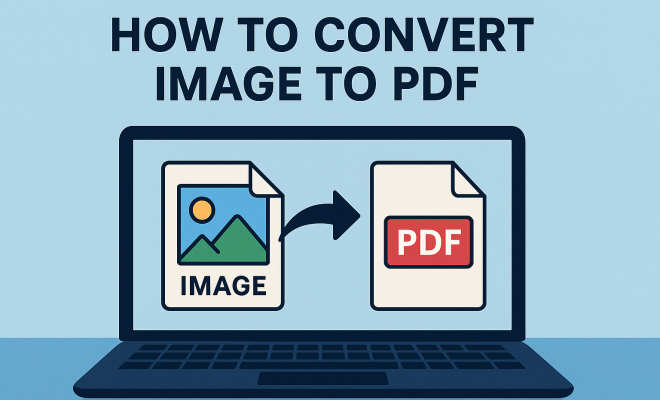
Converting images to PDF is a task many of us encounter frequently, whether for professional purposes, digital archiving, or personal projects. The PDF format is versatile and universally compatible, making it ideal for sharing documents without worrying about how they’ll appear on different devices. In this article, we’ll explore various methods to convert image to PDF, the benefits of using PDFs, and practical tips to make the process seamless.
1. The Advantages of PDF Over Image Formats
Before diving into the different methods to convert image to PDF, let’s discuss why you might prefer PDFs in the first place. PDFs offer several advantages, such as:
- Consistency: PDFs maintain their formatting across all devices and operating systems. This means that what you see on your screen is what everyone else will see, regardless of their setup.
- Security: PDFs allow for password protection and encryption, making them a secure choice for sensitive information.
- Compression: PDF files can be compressed to reduce size without sacrificing quality, which is particularly useful for archiving.
- Multimedia Support: PDFs can incorporate various media types, including images, text, links, and even videos, providing a richer viewing experience.
These characteristics make converting images to PDF not just a matter of convenience but also a strategic choice in document management.
2. Understanding Different Image Formats
To effectively convert an image to PDF, it’s crucial to understand the different image formats available. Common formats include JPEG, PNG, GIF, and TIFF. Each format serves different purposes:
- JPEG: Ideal for photographs due to its compression capabilities, but it loses some quality during the process.
- PNG: Best for images requiring transparency and better quality, especially for graphics.
- GIF: Primarily used for animated images, limited to 256 colors.
- TIFF: High-quality format often used in professional photography and printing, but files can be large.
Knowing which format you’re working with can inform your conversion process and the outcome quality of your PDF.
3. Using Online Tools for Conversion
One of the easiest ways to convert image to PDF is through online tools. These platforms are user-friendly and accessible from any device with an internet connection. Here are a few popular options:
- Smallpdf: A reliable tool that allows users to upload images and convert them to PDF in just a few clicks.
- ILovePDF: Offers a suite of PDF tools including conversion, editing, and compression, making it versatile for various needs.
- Adobe’s Online PDF Converter: A feature-rich option from the original PDF creator, providing high-quality conversion.
When using online tools, be cautious about uploading sensitive images, as privacy can be a concern. Always check the site’s privacy policy before proceeding.
4. Converting Images on Desktop Applications
If you prefer working offline, many desktop applications can convert images to PDF. Popular software includes:
- Adobe Acrobat: The gold standard for PDF management. Adobe Acrobat lets you create PDFs from images with high quality and precision.
- Microsoft Word: You can insert images into a Word document and then save it as a PDF, making it a straightforward option if you already use Word.
- Preview (Mac): Mac users can utilize Preview to easily convert images to PDF by opening the image and selecting “Export as PDF” from the file menu.
These desktop solutions can be more secure and faster than online tools, especially if you’re dealing with large files or batches of images.
5. Mobile Apps for On-the-Go Conversion
In our mobile-driven world, the ability to convert an image to PDF on the go is invaluable. Several apps cater to this need:
- Adobe Scan: This app converts scanned images and documents into PDFs with additional features like text recognition.
- CamScanner: Another popular choice for scanning documents and converting images into high-quality PDFs.
- Photo to PDF: A straightforward app that lets users select images from their gallery and convert them to PDF quickly.
These apps are designed for ease of use, allowing users to convert images to PDF with just a few taps, which is perfect for busy professionals or students. (See: Portable Document Format (PDF).)
6. Batch Conversions Made Easy
When you have multiple images to convert, batch conversion can save you time. Many tools support this feature, enabling you to select several images and convert them to PDF all at once.
For desktop users, Adobe Acrobat offers a batch processing feature that allows you to create a single PDF from multiple images. Online tools like Smallpdf and ILovePDF also provide batch conversion, which is particularly useful when dealing with large projects or collections of images.
Batch converting not only speeds up the process but also ensures uniformity across your documents, which can be critical for professional presentations.
7. Editing PDFs After Conversion
Once you’ve converted your images to PDF, you might need to edit them. Various tools allow for PDF editing, including:
- Adobe Acrobat: This program offers extensive editing features, from adding text to rearranging pages.
- PDF-XChange Editor: A great alternative that provides solid editing capabilities at a lower cost.
- Sejda: An online PDF editor that lets you manipulate your PDF files without any software installation.
Editing capabilities can be essential for refining your documents, adding annotations, or merging multiple PDFs into one cohesive document.
8. Best Practices for Converting Images to PDF
To ensure the best results when converting image to PDF, keep these best practices in mind:
- Choose the Right File Format: Starting with a high-quality image format (like PNG or TIFF) will yield better results than a compressed JPEG.
- Check Resolution: The resolution of your images should be at least 300 DPI for print quality. Lower resolutions can result in pixelation.
- Keep File Sizes in Mind: Larger image files can lead to larger PDF files. If sharing via email or online, consider compressing the PDF afterward.
By following these guidelines, you can optimize the visual quality and usability of your final PDF document.
9. Current Trends in PDF and Imaging Technology
The technology surrounding PDFs and image conversion is rapidly evolving. Recent trends include:
- AI Integration: Tools that employ AI for smart image optimization and OCR (Optical Character Recognition) are becoming more prevalent.
- Cloud-Based Solutions: Many services are moving to the cloud, offering greater accessibility and collaboration features.
- Mobile Optimization: As mobile device usage continues to surge, apps are increasingly focused on providing seamless conversion experiences on smartphones and tablets.
Staying informed about these trends can help you choose the right tools for your needs and adapt to the ever-changing technological landscape.
10. Understanding OCR: Optical Character Recognition
Optical Character Recognition, or OCR, is a technology that converts different types of documents, such as scanned paper documents, PDF files, or images taken by a digital camera, into editable and searchable data. This can be particularly useful when converting images containing text into PDF. You can turn a photo of a document into a PDF that not only shows the text but also allows you to search for specific phrases within the document.
Many modern PDF converters, including mobile apps like Adobe Scan and online platforms, come equipped with OCR capabilities. This means that if your images contain printed or handwritten text, the software can recognize and convert that text, making it easier to edit or search later. Furthermore, this can save you time compared to manual data entry, especially for extensive documents.
11. Tips for Ensuring High-Quality PDF Conversion
To ensure that your PDF maintains high quality after conversion, here are some additional tips: (See: Benefits of using PDFs.)
- Use High-Quality Images: Always start with the highest quality images possible. Blurry or pixelated images will carry over to the PDF, making it less professional.
- Adjust Settings: Some software allows you to adjust quality settings before conversion. Choose the highest quality settings if possible, especially if the documents are for professional use.
- Test Different Tools: Different tools may yield varying results. If you’re not satisfied with one, try a different application or online service.
By focusing on these factors, you can enhance the output quality of your PDFs, ensuring they look professional and are suitable for their intended use.
12. Common Issues When Converting Images to PDF
While converting images to PDF is generally straightforward, you may encounter some issues. Here are a few common problems and their solutions:
- File Size Too Large: If your PDF is too large to share easily, try compressing it using a PDF compression tool. This can help reduce the size without significant loss of quality.
- Image Distortion: Sometimes, images may appear distorted after conversion. This can occur if the original image is of low quality. Using higher resolution images can help prevent this.
- Text Not Recognized: If your PDF is not searchable, ensure that you are using a tool that supports OCR. Check the settings to activate this feature.
Being aware of these potential pitfalls can help you navigate the conversion process more smoothly.
13. FAQ: Converting Image to PDF
Q1: Can I convert multiple images to PDF at once?
Yes! Most online tools and desktop applications support batch conversions, allowing you to select multiple images and convert them into a single PDF document.
Q2: Will the quality of my images be affected when converting to PDF?
Generally, the quality remains intact if you start with high-resolution images. However, choose the appropriate settings in your conversion tool to avoid any loss of quality.
Q3: Are there any free tools available for converting image to PDF?
Absolutely! There are many free online tools like Smallpdf and ILovePDF that provide image-to-PDF conversion services at no cost.
Q4: Is it safe to use online tools for converting images to PDF?
While many online tools are safe, always check the privacy policy of the service. If you’re working with sensitive images, consider using desktop applications instead for added security.
Q5: Can I edit the PDF after conversion?
Yes, you can edit the PDF after conversion using various PDF editing tools. Adobe Acrobat and other dedicated PDF software provide extensive editing features.
Q6: What’s the difference between raster and vector images?
Raster images are made of pixels, making them resolution-dependent, while vector images are created using paths and can be scaled without losing quality. When converting to PDF, it’s essential to choose the right type based on your needs.
Q7: Can I convert images from my smartphone to PDF?
Yes, most mobile apps allow direct conversion from your smartphone’s gallery. Apps like Adobe Scan enable you to take pictures of documents and convert them into PDF format instantly. (See: CDC PDF usage guidelines.)
Q8: How do I ensure my PDF looks good on all devices?
To ensure your PDF looks good on all devices, use images that are high-resolution and properly formatted. Test the PDF on various devices to see how it renders before distribution.
Q9: Is there a limit to how many images I can upload for conversion?
Many free online tools impose limits on the number of images you can convert at one time. For unlimited access, consider subscribing to a paid service.
Q10: What if my PDF conversion tool is not working properly?
If your tool isn’t functioning correctly, try refreshing the page, checking for software updates, or using a different conversion tool. If the issue persists, consult the tool’s support resources.
14. Real-Life Scenarios for PDF Conversion
Understanding when and how to convert images to PDF can be particularly useful in various situations. Here are a few common scenarios:
- Presentations: Whether for work or school, turning your visual aids into a PDF ensures your audience sees your images as intended without compatibility issues.
- Legal Documentation: Law firms often convert images of contracts or affidavits to PDFs for secure sharing and archiving. It ensures that the document’s integrity is maintained.
- Portfolio Creation: Artists and photographers can compile their work by converting images to PDF and creating a shareable portfolio, ensuring consistent presentation across devices.
- Recipe Sharing: Home cooks often take pictures of their dish or recipe cards and convert these images to PDFs for easy sharing with friends and family.
These scenarios highlight the versatility of PDFs and the importance of knowing how to convert images effectively.
15. Future of Image Conversion
The future of converting images to PDF looks promising as technology continues to evolve. With advancements in AI and machine learning, we can expect tools that not only convert but also intelligently enhance images for better clarity and usability in PDFs. Additionally, as mobile technology improves, we may see more powerful apps that allow for seamless conversions directly from smartphones, incorporating features like multi-page PDFs and integrated cloud storage for easier sharing.
As security remains a priority, future tools are likely to offer enhanced encryption options and better privacy controls, ensuring that sensitive documents are protected during the conversion process.
In summary, knowing how to convert image to PDF can greatly enhance your document management process. Whether you prefer online tools, desktop applications, or mobile apps, various options cater to your specific needs. By understanding the benefits of PDFs and following best practices, you can ensure that your converted documents maintain their quality and integrity. With these tips and insights, you’re well on your way to mastering the art of converting images to PDFs. Happy converting!
“`
Trending Now
Frequently Asked Questions
What are the benefits of converting images to PDF?
Converting images to PDF offers several benefits, including consistent formatting across devices, enhanced security through password protection, reduced file size without quality loss, and the ability to include multimedia elements. PDFs ensure that your documents look the same for everyone, making them ideal for sharing.
What image formats can be converted to PDF?
Common image formats that can be converted to PDF include JPEG, PNG, GIF, and TIFF. Each format has its strengths: JPEG is great for photographs, PNG is best for images needing transparency, GIF is used for animations, and TIFF offers high-quality images suitable for detailed graphics.
How do I convert an image to a PDF file?
You can convert an image to a PDF file using various methods such as online converters, desktop software, or even built-in features in applications like Microsoft Word or Preview on Mac. Simply upload your image, select the PDF option, and save your file.
Why should I use PDF instead of other image formats?
PDFs are preferred over other image formats because they maintain formatting consistency, provide security features like encryption, allow for size compression without quality loss, and support various media types. This versatility makes PDFs an ideal choice for document management.
Is it easy to convert images to PDF?
Yes, converting images to PDF is generally straightforward. There are numerous tools available, including online services and software applications, which simplify the process. You can typically convert images with just a few clicks, making it accessible for anyone.
What’s your take on this? Share your thoughts in the comments below — we read every one.